1
PUB. DIE-0406-001
HD Camcorder
C
Y
P
O
The warranty information for Australia and New Zealand is at the end of this Instruction Manual.
Important Usage Instructions
2
WARNING
TO REDUCE THE RISK OF FIRE OR ELECTRIC SHOCK, DO NOT EXPOSE THIS PRODUCT TO RAIN OR
MOISTURE.
WARNING
TO REDUCE THE RISK OF ELECTRIC SHOCK, DO NOT EXPOSE THIS PRODUCT TO DRIPPING OR
SPLASHING.
WARNING
TO REDUCE THE RISK OF ELECTRIC SHOCK AND TO REDUCE ANNOYING INTERFERENCE, USE THE
RECOMMENDED ACCESSORIES ONLY.
COPYRIGHT WARNING:
Unauthorized recording of copyrighted materials may infringe on the rights of copyright owners and be
contrary to copyright laws.
FCC NOTICE
HD Camcorder, EOS C300 / EOS C300 PL
Systems.
This device complies with Part 15 of the FCC
Rules. Operation is subject to the following two
conditions: (1) This device may not cause
harmful interference, and (2) this device must
accept any interference received, including
interference that may cause undesired
operation.
C
Note: This equipment has been tested and
found to comply with the limits for class B digital
device, pursuant to Part 15 of the FCC Rules.
These limits are designed to provide reasonable
protection against harmful interference in a
residential installation. This equipment
generates, uses and can radiate radio frequency
energy and, if not installed and use in
accordance with the instructions, may cause
harmful interference to radio communications.
However, there is no guarantee that interference
will not occur in a particular installation. If this
equipment does cause harmful interference to
radio or television reception, which can be
determined by turning
the equipment off and on, the user is
encouraged to try to correct the interference by
one or more of the following measures:
Y
P
O
• Reorient or relocate the receiving antenna.
• Increase the separation between the
equipment and receiver.
• Connect the equipment into an outlet on a
circuit different from that to which the receiver
is connected.
• Consult the dealer or an experienced radio/TV
technician for help.
Use of shielded cable is required to comply with
class B limits in Subpart B of Part 15 of FCC
Rules.
Do not make any changes or modifications to
the equipment unless otherwise specified in the
manual.
If such changes or modifications should be
made, you could be required to stop operation
of the equipment.
Canon U.S.A., Inc.
One Canon Plaza, Lake Success,
NY 11042, U.S.A.
Tel No. (516)328-5600
The Mains plug is used as the disconnect device. The Mains plug shall remain readily operable to
disconnect the plug in case of an accident.
CAUTION:
• Danger of explosion if the wrong type of batteries are attached. Use only the same type of batteries.
• Do not expose batteries or product to excessive heat such as the inside of a car under direct sunlight, fire, etc.
EOS C300 / EOS C300 PL / CA-940 / CG-940 identification plate is located on the bottom.
CAUTION
RISK OF ELECTRIC SHOCK
DO NOT OPEN
CAUTION:
TO REDUCE THE RISK OF ELECTRIC
SHOCK, DO NOT REMOVE COVER (OR
BACK). NO USER-SERVICEABLE
PARTS INSIDE. REFER SERVICING TO
QUALIFIED SERVICE PERSONNEL.
The lightning flash with arrowhead symbol, within an
equilateral triangle, is intended to alert the user to
the presence of uninsulated “dangerous voltage”
within the product’s enclosure, that may be of
sufficient magnitude to constitute a risk of electric
shock to persons.
The exclamation point, within an equilateral triangle, is
intended to alert the user to the presence of important
operating and maintenance (servicing) instructions in
the literature accompanying the product.
European Union (and EEA) only.
These symbols indicate that this product is not to be disposed of with your household
waste, according to the WEEE Directive (2002/96/EC), the Battery Directive (2006/66/EC)
and/or your national laws implementing those Directives.
This product should be handed over to a designated collection point, e.g., on an authorized
one-for-one basis when you buy a new similar product or to an authorized collection site for recycling waste
electrical and electronic equipment (EEE) and batteries and accumulators. Improper handling of this type of
waste could have a possible impact on the environment and human health due to potentially hazardous
substances that are generally associated with EEE. Your cooperation in the correct disposal of this product
will contribute to the effective usage of natural resources.
For more information about the recycling of this product, please contact your local city office, waste
authority, approved scheme or your household waste disposal service or visit www.canon-europe.com/
environment.
(EEA: Norway, Iceland and Liechtenstein)
C
Y
P
O
3
Important Safety Instructions
4
In these safety instructions the word “apparatus”
refers to the Canon HD Camcorder EOS C300 / EOS
C300 PL and all its accessories.
1.
2.
3.
4.
5.
6.
7.
Read these instructions.
Keep these instructions.
Heed all warnings.
Follow all instructions.
Do not use this apparatus near water.
Clean only with dry cloth.
Do not block any ventilation openings. Install in
accordance with the manufacturer’s instructions.
8. Do not install near any heat sources such as
radiators, heat registers, stoves, or other
apparatus (including amplifiers) that produce
heat.
9. Do not defeat the safety purpose of the polarized
or grounding-type plug. A polarized plug has two
blades with one wider than the other.
A grounding type plug has two blades and a third
grounding prong. The wide blade or the third
prong are provided for your safety. If the provided
plug does not fit into your outlet, consult an
electrician for replacement of the obsolete outlet.
10. Protect the power cord from being walked on or
pinched particularly at plugs, convenience
receptacles, and the point where they exit from
the apparatus.
11. Only use attachments/accessories specified by
the manufacturer.
12. Unplug this apparatus during lightning storms or
when unused for long periods of time.
13. Refer all servicing to qualified service personnel.
Servicing is required when the apparatus has
been damaged in any way, such as power-supply
cord or plug is damaged, liquid has been spilled
or objects have fallen into the apparatus, the
apparatus has been exposed to rain or moisture,
does not operate normally, or has been dropped.
Y
P
O
This Class B digital apparatus complies with Canadian ICES-003.
C
Trademark Acknowledgements
• SD and SDHC Logos are trademarks of SD-3C, LLC.
• CompactFlash is a trademark of SanDisk Corporation.
• The Logo is a trademark of CompactFlash Association.
• Microsoft and Windows are trademarks or registered trademarks of Microsoft Corporation in the United
States and/or other countries.
• Apple, Macintosh, Mac OS, Final Cut Pro are trademarks of Apple Inc., registered in the U.S. and other
countries.
• Avid, Media Composer and NewsCutter are trademarks or registered trademarks of Avid Technology, Inc. or
its subsidiaries in the United States and/or other countries.
• HDMI, the HDMI logo and High-Definition Multimedia Interface are trademarks or registered trademarks of
HDMI Licensing LLC in the United States and other countries.
• Other names and products not mentioned above may be trademarks or registered trademarks of their
respective companies.
• This device incorporates exFAT technology licensed from Microsoft.
• ANY USE OF THIS PRODUCT OTHER THAN CONSUMER PERSONAL USE IN ANY MANNER THAT
COMPLIES WITH THE MPEG-2 STANDARD FOR ENCODING VIDEO INFORMATION FOR PACKAGED
MEDIA IS EXPRESSLY PROHIBITED WITHOUT A LICENSE UNDER APPLICABLE PATENTS IN THE MPEG-2
PATENT PORTFOLIO, WHICH LICENSE IS AVAILABLE FROM MPEG LA, L.L.C., 250 STEELE STREET,
SUITE 300, DENVER, COLORADO 80206.
Highlights of the EOS C300/C300 PL
The Canon HD Camcorder EOS C300/C300 PL has been designed to meet the demanding needs and highest
expectations of industry professionals. The following are just some of the many features that will help turn your
creative vision into reality.
5
HD Recording
Large Super 35mm CMOS sensor and DIGIC DV
III image processor
The camcorder is equipped with a large Super
35mm CMOS sensor that captures video at an
effective pixel count of 8.29 megapixels
(3840x2160). Combined with the DIGIC DV III image
processor, the camcorder offers a center resolution
of 1,000 TV lines*. Furthermore, thanks to its fast
scanning speed, the camcorder produces
spectacular video with true-to-life color reproduction
while reducing noise and “rolling shutter” artifacts.
* Varies depending on the lens used.
Recording media
The camcorder records video and audio to
CompactFlash (CF) cards. You can even make
lengthy recordings without worry because the
camcorder features two CF card slots. When one
CF card becomes full, the recording will
automatically continue on the other one without
interruption when you use relay recording (A 44). In
addition, using double slot recording (A 44) lets
you record the same clip simultaneously to both CF
cards.
Y
P
O
Interchangeable Lenses
Enjoy the freedom and creative versatility of using
interchangeable lenses to achieve exactly the look
you want. The EOS C300 features an EF lens mount
allowing you to use a huge variety of high-quality
Canon EF lenses, including the new high-end Cine
Lens series, as well as other lenses. The EOS C300
PL features a PL lens mount, allowing you to use a
vast array of Super 35mm cinematography lenses
commonly used in motion picture production.
C
Improved displays
The articulated monitor unit can be rotated 270º,
allowing for easy monitoring and operation from the
side of the camcorder. When using the viewfinder, its
improved ergonomic design will ensure a tight and
comfortable fit. Both the 10.1 cm (4 in.) LCD screen
and the viewfinder have 100% coverage so you can
always perfectly frame your shots. Additionally, the
rear panel will provide a quick and convenient
overview of the main shooting functions currently in
use.
Superb HD video
The camcorder uses the MPEG-2 Long GOP codec.
Your recordings are saved as Material eXchange
Format (MXF) files, which are compatible with major
non-linear editing (NLE) software.
Moreover, the camcorder offers you a whole array of
options when it comes to the video configuration of
your recordings. By controlling the type of recording
(NTSC-compatible, PAL-compatible or true 24.00P),
bit rate, resolution and frame rate of your recordings
you can select a video configuration to suit your
needs from a total of 27 different combinations.
Operability and Adaptability
Freely customizable compact design
At its most compact configuration, the camcorder
offers convenient and hassle-free hand-held
operation. Modular components, including the
supplied handle unit, monitor unit and grip unit will
let you expand and adapt the configuration to match
your shooting conditions (A 32).
Supplied Canon XF Utility software
Managing your recordings is as simple as using the
supplied Canon XF Utility software. You can
transfer your recordings to your computer, where
you can view and manage them. Using the supplied
plugins, you can then use the recordings with major
NLE software*.
* Refer to Saving Clips to a Computer (A 132) for details
on compatible software.
Versatile Artistic Expression
Special recording modes
The special recording modes (A 93) give you more
creative control over your recordings. You can create
a slow motion or fast motion effect in your
recordings, record a certain number of frames at a
set interval (ideal for nature shots and other subjects
with little movement) or record a certain number of
frames every time you press a button (ideal for stop
motion animation).
6
Custom picture settings
With custom picture settings (A 101), you can enjoy
unparalleled image control to deliver the “look” you
want by adjusting parameters, such as gamma and
sharpness. The custom picture settings can be
recorded onto an SD card, which allows multiple
C300 / C300 PL camcorders to use the same
settings, or embedded in the recording itself.
Canon Log gamma for spectacular dynamic range
Using the Canon Log gamma (A 109) you can get
recordings with amazing dynamic range, allowing you
to realize in post-production the artistic vision you
desire.
Advanced Professional Features
Pro-level connectivity
An industry-standard HD/SD SDI terminal (A 129)
for uncompressed HD signal output, embedded
audio and SMPTE time code (LTC) give the
camcorder the functionality of professional broadcast
cameras. Genlock synchronization (A 77), the TIME
CODE terminal (A 78, 79) and SYNC OUT terminal
allow the camcorder to be part of any multi-camera
shooting setup.
Customization
The camcorder features several customization
options. You can assign often-used functions to
assignable buttons (A 99) so that you can call up
those functions with the press of a single button. You
can also register frequently-used menu settings in an
easy-to-access personal menu (My Menu, A 30).
Custom functions (A 110) and custom onscreen
displays (A 110) give you even more freedom to
control many aspects of the camcorder’s operation.
Save custom picture and menu settings to an SD
card so that you can transfer your setting preferences
to other C300 / C300 PL camcorders in order to use
them in the same way.
C
Other Functions
Remote operation via Wi-Fi
You can attach the optional WFT-E6 Wireless File
Transmitter to the camcorder and operate it remotely
via Wi-Fi using the Wi-Fi Remote application (A 47).
The Wi-Fi Remote application lets you monitor the
image through live view and remotely control the
focus, shutter speed, ISO speed/gain and other
settings.
Audio
Sound is recorded as 2-channel linear PCM audio
(16-bit/48 kHz). You can use the built-in microphone
or the two XLR audio input terminals (with phantom
power supply) when recording.
Video scopes
Check the brightness of the image using the
waveform monitor (A 88), the color of the image
using the vectorscope (A 89), or the focus using the
edge monitor (A 89).
Added and improved functionality
Other functions include the option to add metadata
to recordings (A 85), and the Intelligent Systemcompatible battery pack (A 173).
Y
P
O
Table of Contents
7
1. Introduction 11
Adjusting the Black Balance 46
Remote Operation Via the Wi-Fi Remote
Application 47
Preparing the System for Wi-Fi Remote 47
About this Manual 11
Conventions Used in this Manual 11
Supplied Accessories 13
Names of Parts 14
Grip Unit 19
Monitor Unit 20
Handle Unit 22
3. Recording 49
2. Preparations 23
Preparing the Power Supply 23
Using a Battery Pack 23
Using a Household Power Outlet 25
Turning the Camcorder On and Off 26
Date, Time and Language Settings 27
Setting the Date and Time 27
Changing the Time Zone 27
Displaying the Date and Time while Recording 28
Changing the Language 28
Using the Menus 29
Selecting an Option from the Menu 29
Using the Customized Submenu (My Menu) 30
Preparing the Camcorder 32
Preparing the Lens 32
Attaching and Removing the Monitor Unit 34
Using the Viewfinder 35
Using the LCD Panel 36
Adjusting the Viewfinder/LCD Screen 37
Using a Tripod 37
Removing and Attaching the Grip Unit 38
Attaching the Handle Unit 39
Attaching a Shoulder Strap 39
Removing and Attaching the Terminal Covers 39
Preparing Recording Media 41
Inserting a CF Card 41
Checking the Status of the CF Card Slots 41
Removing a CF card 42
Inserting and Removing an SD Card 42
Initializing the Recording Media 43
Switching Between the CF Card Slots 43
Selecting the CF Card Recording Method 44
Checking the Available Recording Time 45
Recovering Data on the CF Card 45
C
Recording Video 49
Preparing to Record 49
Recording 49
Remote Operation Using Wi-Fi Remote 50
Onscreen Displays 52
Rear Panel Displays 53
CINEMA Preset 54
Video Configuration: Type of Recording, Bit Rate,
Resolution and Frame Rate 55
Changing Main Camera Functions with the FUNC.
Button 57
Using the Direct Setting Mode 57
Shutter Speed 58
Changing the Shutter Speed Mode and Value 59
Remote Operation Using Wi-Fi Remote 59
ISO Speed/Gain 61
Changing the ISO Speed or Gain Value 61
Using the Control Dial 62
Remote Operation Using Wi-Fi Remote 62
ND Filter 63
Using the ND Filter 63
Remote Operation Using Wi-Fi Remote 63
# Adjusting the Aperture 64
Using the Control Dial 64
Remote Operation Using Wi-Fi Remote 64
White Balance 66
Setting the White Balance 66
Remote Operation Using Wi-Fi Remote 67
Adjusting the Focus 69
Adjusting the Focus Manually 69
# Remote Operation Using Wi-Fi Remote 69
Using the Focus Assistance Functions 70
Onscreen Markers and Zebra Patterns 71
Displaying Onscreen Markers 71
Displaying Zebra Patterns 72
Y
P
O
8
Setting the Time Code 73
Selecting the Running Mode 73
Selecting Drop or Non-Drop Frame 74
Putting the Time Code Display on Hold 74
Setting the User Bit 76
Synchronizing with an External Device 77
Connecting an External Device 77
Reference Video Signal Input (Genlock
Synchronization) 77
Time Code Signal Input 78
Reference Video Signal Output 79
Time Code Signal Output 79
Recording Audio 80
Connecting an External Microphone or External
Audio Input Source to the Camcorder 80
Selecting the Audio Input from the XLR
Terminals 81
Adjusting the Audio Level from the XLR
Terminals 82
Adjusting the Audio Level from the MIC
Terminal 83
Monitoring the Audio with Headphones 84
Using Metadata 85
Setting a User Memo Created with Canon XF
Utility 85
Setting a User Memo Using Wi-Fi Remote 86
Colors Bars/Audio Reference Signal 87
Recording Color Bars 87
Recording an Audio Reference Signal 87
Video Scopes 88
Displaying a Video Scope 88
Configuring the Waveform Monitor 88
Configuring the Vectorscope 89
Configuring the Edge Monitor 89
Adding Marks while Recording 90
Adding Shot Marks while Recording 90
Remote Operation Using Wi-Fi Remote 90
Adding an $ Mark or % Mark to the Last Clip
Recorded 91
Remote Operation Using Wi-Fi Remote 91
Reviewing a Recording 92
C
Special Recording Modes 93
Interval Recording Mode 93
Frame Recording Mode 94
Slow & Fast Motion Mode 95
Pre-recording Mode 96
4. Customization 99
Assignable Buttons 99
Changing the Assigned Function 99
Using an Assignable Button 100
Custom Picture Settings 101
Selecting Custom Picture Files 101
Editing a Custom Picture File’s Settings 101
Renaming Custom Picture Files 102
Protecting Custom Picture Files 102
Transferring Custom Picture Files 102
Embedding Custom Picture Settings in a
Recording 104
Available Custom Picture Settings 104
Canon Log Gamma 109
Customizing Functions and Onscreen
Displays 110
Customizing Functions 110
Customizing Onscreen Displays 110
Saving and Loading Camera Settings 111
Saving Camera Settings to an SD Card 111
Loading Camera Settings from an SD Card 111
Y
P
O
5. Playback 113
Playback 113
Clip Index Screen 113
Playing Back Clips 114
Onscreen Displays 115
Playback Controls 116
Adjusting the Volume 117
9
Clip Operations 118
Using the Clip Menu 118
Displaying Clip Information 119
Adding $ Marks or % Marks 120
Deleting $ Marks or % Marks 120
Copying Clips 121
Deleting Clips 122
Deleting the User Memo and GPS
Information 122
Copying a Custom Picture File Embedded in a
Clip 122
Displaying an Index Screen of Shot Marks 123
Displaying a Frame Index Screen of a Single
Clip 124
Adding Shot Marks 124
Deleting Shot Marks 125
Changing a Clip’s Thumbnail 125
6. External Connections 127
C
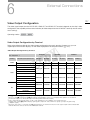
Video Output Configuration 127
Video Output Configuration by Terminal 127
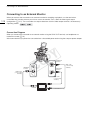
Connecting to an External Monitor 128
Connection Diagram 128
Using the HD/SD SDI Terminal 129
Using the HDMI OUT Terminal 129
Using the SYNC OUT Terminal 129
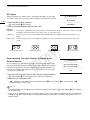
SD Output 130
Superimposing Onscreen Displays to Appear on
an External Monitor 130
Audio Output 131
Embedded Audio 131
Selecting the Audio Channel 131
Saving Clips to a Computer 132
System Requirements 132
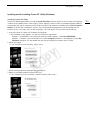
Installing and Uninstalling Canon XF Utility
(Windows) 133
Installing and Uninstalling Canon XF Utility
(Mac OS) 135
Viewing the Software Instruction Manuals 138
7. Photos 139
Taking Photos 139
Taking Photos in CAMERA Mode 139
Capturing Photos in MEDIA Mode 139
Photo Playback 141
Displaying the [Photos] Index Screen 141
Viewing Photos 141
Photo Operations 142
Using the Photo Menu 142
Deleting Photos 142
Protecting Photos 143
Copying Custom Picture Files 144
Photo Numbering 145
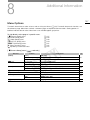
8. Additional Information 147
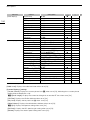
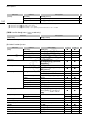
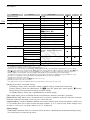
Menu Options 147
Displaying the Status Screens 156
Troubleshooting 162
List of Messages 165
Handling Precautions 168
Maintenance/Others 171
Optional Accessories 173
Specifications 177
Index 181
Y
P
O
10
C
Y
P
O
1
Introduction
11
About this Manual
Thank you for purchasing the Canon EOS C300/C300 PL. Please read this manual carefully before you use the
camcorder and retain it for future reference. Should the camcorder fail to operate correctly, refer to
Troubleshooting (A 162).
Conventions Used in this Manual
•
IMPORTANT: Precautions related to the camcorder’s operation.
•
NOTES: Additional topics that complement the basic operating procedures.
• A: Reference page number.
• #: Text that applies only to the model shown in the icon.
• The following terms are used in this manual.
“Screen” refers to the LCD screen and the viewfinder screen.
“CF card” refers to a CompactFlash (CF) card.
“SD card” refers to an SD or SDHC memory card.
“Recording media” refers to CF cards and SD cards.
• Photographs in the manual are simulated pictures taken with a still camera. Some screenshots have been
altered to make them easier to read.
• Illustrations in the manual show the Canon EOS C300 camcorder with a Canon EF 50mm f/1.4 USM lens
attached.
C
Y
P
O
About this Manual
12
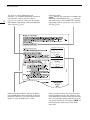
The arrow is used to abbreviate menu
selections. For a detailed explanation on how to
use the menus, refer to Using the Menus
(A 29). For a concise summary of all available
menu options and settings, refer to the appendix
Menu Options (A 147).
C
When a procedure requires selecting an option,
the available options are listed within or after the
procedure. Brackets [ ] are used to refer to menu
options as they are displayed on screen.
Operating modes
indicates that a function is available in the
operating mode indicated and
indicates
that the function is not available. For a detailed
explanation, refer to Turning the Camcorder On
and Off (A 26).
Y
P
O
When a function requires the use of the menu,
the quick reference shows the submenus and,
when applicable, the default setting for the menu
item. The example illustration indicates that you
can find the function by selecting the [¤ TC/
UB Setup] menu and then the [Time Code]
menu item.
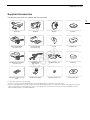
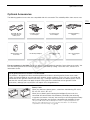
Supplied Accessories
Supplied Accessories
The following accessories are supplied with the camcorder.
13
1
2
3
Monitor Unit
Handle Unit
Grip Unit1
Body Cap1
Battery Charger CG-940
(incl. power cord)
BP-955 Battery Pack
(incl. terminal cover)
Eye Cup
Viewfinder Cap
C
CA-940 Compact Power Adapter
(incl. power cord)
DC-940 DC Cable
(incl. cable tie)
Adapter Base for 0.64 cm (1/4 in.)
Tripods
WFT Attachment Bracket2
Y
P
O
SS-1200 Shoulder Strap
Thumb Rest
Tape Measure Hooks1 (x 2)
Canon XF Utilities Disc3
Comes pre-attached to the camcorder.
Used to secure the optional WFT-E6 Wireless File Transmitter, when it is attached to the camcorder.
The Canon XF Utilities Disc includes software for saving and managing clips on a computer. For details on installing the software,
refer to Saving Clips to a Computer (A 132). For more information on the functions, refer to the ‘Canon XF Utility Instruction
Manual’ (PDF file) after you install the software.
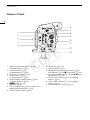
Names of Parts
Names of Parts
14
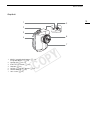
6
7
1
8
2
9
3
10
11
4
5
12
Y
P
O
13
14 15 16
1
2
3
4
5
6
7
8
9
C
MAGN. (magnification) button (A 70)/
Assignable button 1 (A 99)
PEAKING button (A 70) /
Assignable button 2 (A 99)
ND FILTER +/- buttons (A 63)
ZEBRA button (A 72)/
Assignable button 3 (A 99)
WFM (waveform monitor) button (A 88)/
Assignable button 4 (A 99)
Q switch (A 26)
Tally lamp (A 49)
DISP. (display) button (A 52,115)/BATT. INFO
(battery information) button (A 24)
SELECT dial/SET button (A 29)
10 Control dial (A 62, 64)
11 STATUS button (A 156)
12 Å (white balance adjustment) button (A 66)/
INDEX button (A 114)/Ñ (stop) button (A 114)
13 u (review recording) button (A 92)/Ò (play/
pause) button (A 114)
14 HEADPHONE + button (A 117)/Assignable
button 5 (A 99)
15 HEADPHONE - button (A 117)/Assignable
button 6 (A 99)
16 CUSTOM PICTURE button (A 101)
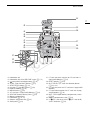
Names of Parts
17
15
29
18
19
20
21
22
23
30
24
25
26
31
27
28
Y
P
O
17 WFT terminal (A 47)
18 EXT (external signal) terminals 1 and 2 (A 34)
19 REMOTE terminal
For connecting commercially available remote
controllers.
20 SYNC OUT (synchronizing signal output) terminal
(A 79,129)
21 HDMI OUT terminal (A 129)
22 GENLOCK terminal (A 77)
23 TIME CODE terminal (A 78, 79)
C
24
25
26
27
28
29
30
31
HD/SD SDI terminal (A 129)
SD card access indicator (A 42)
× (headphone) terminal (A 84)
DC IN terminal (A 25)
SD card slot (A 42)
MIC (microphone) terminal (A 80)
Grip Unit connection terminal (A 38)
Grip Unit attachment thread (A 38)
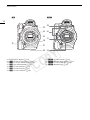
Names of Parts
#
$
16
33
39
34 40
35
36
32
41
37
38 42
32
33
34
35
36
37
38
START/STOP button (A 49)
# EF Lens mount index (A 32)
# EF-S Lens mount index (A 32)
# Lens release button (A 32)
# EF Lens lock pin (A 32)
# EF Lens mount (A 32)
# EF Lens contacts (A 32)
C
Y
P
O
39
40
41
42
$ PL Lens mount (A 34)
$ Bayonet ring handles (A 34)
$ PL Lens index pin (A 34)
$ Bayonet ring (A 34)
Names of Parts
54
17
43
55
56
44
45
46
47
48
49
50
57
58
59
51
52
53
60
43
44
45
46
47
48
49
50
51
52
53
54
55
56
C
61
Y
P
O
62 63
Viewfinder unit
Viewfinder unit LOCK/RELEASE screw (A 171)
(rear panel’s backlight) button (A 53)
FUNC. (main functions) button (A 57)
START/STOP button (A 49)
Joystick (A 29)/SET button (A 29)
CANCEL button (A 29)
MENU button (A 29)
CF card slots A (top) and B (bottom) (A 41)
RELEASE (battery release) latch (A 24)
Battery compartment
Viewfinder (A 35, 37)
Dioptric adjustment dial (A 36)
Rear panel (A 53)
64
57 CF card slot cover switches for CF card slots A
(top) and B (bottom) (A 41)
58 RESET button (A 163)
59 SLOT SELECT (CF card slot selection) button
(A 43, 114)
60 CF card slot covers for CF card slots A (top) and B
(bottom)
61 CF card release buttons for CF card slots A (top)
and B (bottom) (A 42)
62 BATT. OPEN (open battery compartment) switch
(A 24)
63 Battery compartment cover (A 24)
64 CF2 (CF card slot A) and CF3 (CF card slot B)
access indicators (A 41)
Names of Parts
66
67
18
68
65
69
65 Tape measure hooks
Use the hooks to accurately measure the distance
from the focal plane.
66
Focal plane marks
67 Socket for the WFT Attachment Bracket (A 47)
68 Strap mounts (A 39)
C
69 Accessory shoe with mounting hole for
0.64 cm (1/4 in.) screws
For attaching accessories such as the optional
VL-10Li II Battery Video Light.
Y
P
O
72
73
70
71
70 TB-1 Tripod Base for tripods with 0.95 cm (3/8 in.)
screws (A 37)
71 Tripod socket (A 37)
72 Attachment sockets for the optional TA-100 Tripod
Adapter (A 37)
73 Tripod base screws (A 37)
Names of Parts
Grip Unit
1
5
2
3
6
4
7
1
2
3
4
5
6
7
MAGN. (magnification) button (A 70)/
Assignable button 7 (A 99)
Control dial (A 62, 64)
START/STOP button (A 49)
Grip belt (A 39)
Joystick (A 29)/SET button (A 29)
Connection plug (A 38)
Lock screw (A 38)
C
Y
P
O
19
Names of Parts
Monitor Unit
20
1
2
Operation panel
(A 21)
3
4
1
2
3
4
5
6
C
LCD panel
MIRROR button (A 36)
Microphone lock screw (A 80)
Microphone holder (A 80)
Microphone cable clamp (A 80)
XLR terminals CH1 (right) and CH2 (left) (A 80)
Y
P
O
5
6
Names of Parts
Operation panel
21
13 14 15 16 17
18
7
8
9
10
11
12
19
20
Y
P
O
21 22 23 24
7
8
9
10
11
12
13
14
15
C
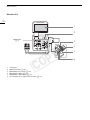
DISP. (display) button (A 52, 115)
Ñ (stop) button (A 114)/
Assignable button 14 (A 99)
WFM (waveform monitor) button (A 88)/
Assignable button 8 (A 99)
Ú (skip backward) button (A 116)/
Assignable button 13 (A 99)
EDGE MON. (edge monitor) button (A 88)/
Assignable button 9 (A 99)
INDEX button (A 114)
Ø (fast reverse playback) button (A 116)/
Assignable button 10 (A 99)
Ò (play/pause) button (A 114)/
Assignable button 11 (A 99)
× (fast playback) button (A 116)/
Assignable button 12 (A 99)
16 Ù (skip forward) button (A 116)/
Assignable button 15 (A 99)
17 XLR terminal switches for CH1 (top) and CH2
(bottom) (A 81)
18 Protective cover for XLR audio controls (A 82)
19 ã switches for CH1 (top) and CH2
(bottom) (A 82)
20 ã dials for CH1 (top) and CH2 (bottom)
(A 82)
21 START/STOP button (A 49)
22 MENU button (A 29)
23 Joystick (A 29)/SET button (A 29)
24 CANCEL button (A 29)
Names of Parts
Handle Unit
22
1
3
2
4
1
2
3
4
Mounting hole for 0.64 cm (1/4 in.) screws
Front accessory shoe
Top accessory shoe
Lock screw (A 39)
C
Y
P
O
2
Preparations
23
Preparing the Power Supply
You can power the camcorder using a battery pack or directly using the compact power adapter. If you connect
the compact power adapter to the camcorder while a battery pack is attached, the camcorder will draw power
from the power outlet.
Charge battery packs before use. For approximate charging times and recording/playback times with a fully
charged battery pack, refer to Charging Times (A 174) and Recording and Playback Times (A 174).
Using a Battery Pack
You can power the camcorder using the supplied BP-955 or an optional BP-950G, BP-970G or BP-975 Battery
Pack*. All four are compatible with Intelligent System, meaning that you can check the remaining battery time.
* The optional BP-970G / BP-975 Battery Pack was not originally designed for use with this camcorder. Because of its size, you
will not be able to close the battery compartment cover when using one (A 169).
Charging the Battery Pack
Y
P
O
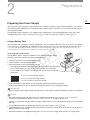
Charge battery packs using the supplied CG-940 Battery Charger. Before
charging, remove the terminal cover of the battery pack.
1 Connect the power cord to the battery charger.
C
2 Plug the power cord into a power outlet.
3 Attach the battery pack to the battery charger.
• Press lightly and slide the battery pack in the direction of the arrow until it clicks.
• The CHARGE indicator starts flashing and also indicates the battery
pack’s approximate charge. The indicator will stay on when charging has
completed.
햴
햲
CHARGE indicator
햳
0-34%: Flashes once per second
35-69%: Flashes twice per second
70-99%: Flashes 3 times per second
4 When charging has completed, remove the battery pack from the battery charger.
5 Unplug the power cord from the power outlet and disconnect it from the battery charger.
IMPORTANT
• Do not connect to the battery charger any product that is not expressly recommended for use with this camcorder.
•
•
•
•
•
NOTES
We recommend charging the battery pack in temperatures between 10 ºC and 30 ºC (50 ºF and 86 ºF).
Outside the temperature range of 0 ºC to 40 ºC (32 ºF to 104 ºF), charging will not start.
If there is a malfunction with the battery charger or battery pack, the charge indicator will go out and charging
will stop.
For handling precautions regarding the battery pack, refer to Battery Pack (A 168).
Charged battery packs continue to discharge naturally. Therefore, charge them on the day of use, or the day
before, to ensure a full charge.
We recommend that you prepare battery packs to last 2 to 3 times longer than you think you might need.
Preparing the Power Supply
Attaching the Battery Pack
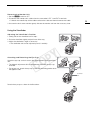
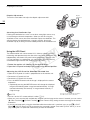
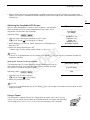
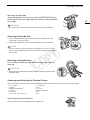
1 Set the Q switch to OFF.
24
2 Slide the BATT. OPEN switch in the direction of the arrow and open
the battery compartment cover.
3 Insert the battery pack all the way into the compartment as shown
in the illustration and press it gently toward the left until it clicks.
4 Close the battery compartment cover.
Removing the Battery Pack
1 Set the Q switch to OFF.
Y
P
O
2 Slide the BATT. OPEN switch in the direction of the arrow and open
the battery compartment cover.
3 Holding down the RELEASE latch, slide the battery pack toward the
right and then pull it out.
4 Close the battery compartment cover.
C
Checking the Remaining Battery Charge
When the camcorder is turned on, you can check the remaining battery charge by looking at any recording/
playback screen or the [Battery/Hour Meter] status screen (A 160). When the camcorder is turned off, use one
of the following methods to check the approximate remaining battery charge.
Press the CHECK button on the battery pack. An indicator will light for
approximately 3 seconds and show the approximate remaining battery
charge.
0-25%
26-50%
51-75%
76-100%
CHECK button
0
100%
Battery charge indicator
Preparing the Power Supply
Press the BATT. INFO button to display the remaining battery time and
available recording time (displays for 5 seconds). Depending on the battery
life, the battery information may not be displayed.
NOTES
• The first time you use a battery pack, fully charge it and then use the
camcorder until the battery pack is completely exhausted. Doing so will ensure that the remaining recording
time will be displayed accurately.
• Repeatedly charging and discharging the battery pack will eventually shorten its battery life. You can check the
battery life on the [Battery/Hour Meter] status screen (A 160) or the battery information screen (press the
BATT. INFO button while the camcorder is turned off). Fully charging the battery pack and then discharging it
will give you a more accurate reading.
• USA and Canada only: The Lithium ion/polymer battery that powers the product is recyclable.
Please call 1-800-8-BATTERY for information on how to recycle this battery.
Using a Household Power Outlet
You can also power the camcorder directly
from a power outlet using the supplied CA-940
Compact Power Adapter and DC-940 DC
Cable.
1 Set the Q switch to OFF.
2 Connect the DC cable to the DC IN terminal
on the camcorder.
C
3 Connect the power cord to the compact
power adapter and plug it into a power
outlet.
4 Connect the DC cable to the compact power
adapter.
• You can use the supplied cable tie to
secure the cable and prevent the plug from
being accidentally disconnected.
Y
P
O
DC IN
terminal
IMPORTANT
• Turn off the camcorder before connecting or disconnecting the compact power adapter.
NOTES
• When using the camcorder with a household power outlet, you can change the battery pack while the power
is on.
25
Preparing the Power Supply
Turning the Camcorder On and Off
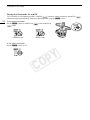
The camcorder has two operating modes: CAMERA (
) mode for making recordings and MEDIA (
mode for playing back recordings. Select the operating mode using the Q switch.
26
To turn on the camcorder
Set the Q switch to CAMERA for
mode.
CAMERA mode
mode or MEDIA for
MEDIA mode
To turn off the camcorder
Set the Q switch to OFF.
C
Y
P
O
)
Date, Time and Language Settings
Date, Time and Language Settings
Setting the Date and Time
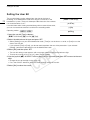
You will need to set the date and time of the camcorder before you can start using it. When the camcorder’s
clock is not set, the [Date/Time] screen will appear automatically with the first field selected (month or day,
depending on the country/region of purchase).
Operating modes:
1 Push the joystick up/down or turn the SELECT dial to change the month/day then move (Ð) to the
next field.
Y
P
O
• To move to the next field you can also press SET (press the joystick itself or press the SET button).
2 Change the rest of the fields in the same way.
3 Select (Ð) [Set] and then press SET to start the clock and close the screen.
NOTES
• You can change the date format and the clock format (12/24 hours) with the [w Other Functions] > [Clock
Set] > [Date Format] setting.
• You can also change the date and time later on (not during the initial setup) with the [w Other Functions] >
[Clock Set] > [Date/Time] setting.
• When the built-in rechargeable lithium battery is exhausted, the date and time setting may be lost. In such
case, recharge the built-in lithium battery (A 170) and set the time zone, date and time again.
C
Changing the Time Zone
Change the time zone to match the time zone of your location. The default
setting is [UTC-05:00 New York] or [UTC+01:00 Central Europe],
depending on the country/region of purchase. The time zones are based
on Coordinated Universal Time (UTC).
Operating modes:
1 Press the MENU button.
2 Push the joystick up/down or turn the SELECT dial to select
[w Other Functions].
[w Other Functions]
[Time Zone]
[UTC-05:00 New York]
or
[UTC+01:00 Central Europe]*
* Depending on the country/region
of purchase.
3 Select [Time Zone] in a similar fashion.
4 Push the joystick up/down or turn the SELECT dial to change the time zone.
5 Press SET to set the time zone and then press the MENU button to close the menu.
27
Date, Time and Language Settings
Displaying the Date and Time while Recording
[£ LCD/VF Setup]
You can display the date and time on the screen.
28
[Custom Display 2]
Operating modes:
[Date/Time]
1 Press the MENU button.
2 Push the joystick up/down or turn the SELECT dial to select
[£ LCD/VF Setup].
[Off]
3 Select [Custom Display 2] and then [Date/Time] in a similar fashion.
4 Push the joystick up/down or turn the SELECT dial to select the information to display.
• Select [Off] to record without displaying the date and time.
5 Press SET and then press the MENU button to close the menu.
• The selected date/time display will appear at the bottom of the screen.
Changing the Language
The default language of the camcorder is English. You can change it to
German, Spanish, French, Italian, Polish, Russian, Simplified Chinese or
Japanese. Please note that some settings and screens will be displayed in
English, regardless of the language setting.
Operating modes:
1 Press the MENU button.
C
Y
P
O
[w Other Functions]
[Language !]
[English]
2 Push the joystick up/down or turn the SELECT dial to select [w Other Functions].
3 Select [Language !] in a similar fashion.
4 Push the joystick up/down or turn the SELECT dial to select a language.
5 Press SET to change the language and then press the MENU button to close the menu.
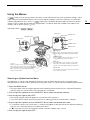
Using the Menus
Using the Menus
In
mode, many of the camcorder’s functions can be adjusted from the menu for general settings, which
opens after pressing the MENU button. You can also register frequently used menu settings in a customized
submenu (My Menu) for easy access. In
mode, press the MENU button to open the menu for general
settings or SET to open the clip menu for clip operations. For details about the available menu options and
settings, refer to Menu Options (A 147).
Operating modes:
SET button
SELECT dial
CANCEL button
MENU button
Joystick
CANCEL button
MENU button
Y
P
O
MENU button
Press to open the menu and then press again to
close the menu after adjusting desired settings.
Joystick
CANCEL button
Press to return to the previous menu or to stop
some operations that are in progress.
C
Joystick
Push the joystick to move the orange selection
frame in the menu. Then, press the joystick itself
or the SET button at the center of the SELECT
dial to select the menu item indicated by the
orange selection frame.
SET button
Note that while only the joystick on the monitor
unit is labeled as “SET”, all three joysticks will
function as the SET button when pressed down.
SELECT dial
Turn the dial to move the orange selection frame
up or down in the menu.
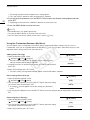
Selecting an Option from the Menu
The following is a step-by-step explanation of how to select an option from the menu. In the procedures
throughout the rest of this manual, opening and closing the menu is assumed and not included in the procedure.
1 Press the MENU button.
• The menu opens with the orange selection frame indicating the menu item that was selected the previous
time the menu was closed (unless the camcorder was turned off).
2 Push the joystick up/down or turn the SELECT dial to select the desired submenu.
3 Push the joystick right or press SET.
• The orange selection frame will appear on a menu item in the submenu.
• Press the CANCEL button, push the joystick left, or select [L] to return to the previous submenu.
4 Push the joystick up/down or turn the SELECT dial to select the desired menu item.
• If a submenu contains many menu items, a scroll bar will appear on the right side of the submenu indicating
that you must scroll up or down to see other menu items.
• A Ð mark next to a menu item indicates another submenu. Repeat steps 3 and 4.
5 Push the joystick right or press SET.
29
Using the Menus
• The orange selection frame will appear on a setting option.
• Press the CANCEL button to return to the previous submenu.
30
6 Push the joystick up/down or turn the SELECT dial to select the desired setting option and then
press SET.
• Depending on the menu item, additional selections may be necessary.
7 Press the MENU button to close the menu.
NOTES
• Unavailable items may appear grayed out.
• Pressing the MENU button at any time closes the menu.
• You can check the current settings on the status screens (A 156).
Using the Customized Submenu (My Menu)
You can register up to 14 frequently used menu settings under the My Menu submenu for easy access.
Furthermore, if you set an assignable button to [My Menu] (A 99), you can press the button to access your
registered menu settings even faster and more easily.
Adding Menu Settings
Y
P
O
[
1 Open the My Menu [Add] screen.
[
My Menu] > [Edit] > [Register]
• The menu will change to blue to indicate you are selecting menu
settings to add to the My Menu submenu.
C
My Menu]
[Edit]
[Register]
2 Navigate the menus to find the menu setting you want to add and then
press SET.
3 Select [OK] and then press SET twice.
• The menu setting you registered will now appear under the My Menu submenu.
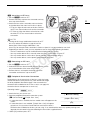
Rearranging Menu Settings
[
1 Open the My Menu [Move] screen.
[
My Menu] > [Edit] > [Move]
My Menu]
[Edit]
2 Push the joystick up/down or turn the SELECT dial to select the setting
you want to move and then press SET.
• An orange icon will appear next to the setting you selected to
move.
[Move]
3 Push the joystick up/down or turn the SELECT dial to move the setting to the desired position and then press
SET.
Removing Menu Settings
1 Open the My Menu [Delete] screen.
[
My Menu] > [Edit] > [Delete]
2 Push the joystick up/down or turn the SELECT dial to select the setting
you want to remove and then press SET.
3 Select [OK] and then press SET twice.
[
My Menu]
[Edit]
[Delete]
Using the Menus
Resetting the My Menu Submenu
[
1 Reset all the menu settings registered to the My Menu submenu.
[ My Menu] > [Edit] > [Reset All]
My Menu]
[Edit]
2 Select [OK] and then press SET twice.
[Reset All]
C
Y
P
O
31
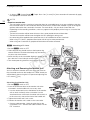
Preparing the Camcorder
Preparing the Camcorder
32
This section outlines the basic preparations for the camcorder such as attaching a lens and attaching the
modular units to the camcorder: monitor unit, grip unit, handle unit, thumb rest, eye cup, etc. Your camcorder is
nothing if not versatile and you can choose the configuration that best fits your needs and shooting conditions.
Configuration with monitor
Configuration with monitor
and handle for easy carrying
Light configuration with grip
for hand-held shooting
Y
P
O
Minimal configuration with
thumb rest
NOTES
• When changing the camcorder’s configuration, be careful not
to cover with tape or otherwise obstruct the cooling fan’s air
intake vents (marked as AIR INTAKE).
Preparing the Lens
C
Intake vents
Intake vents
As much as possible, attach and remove the lens quickly and in a clean environment free of dust. Refer also to
the instruction manual of the lens used.
IMPORTANT
• When attaching/removing a lens, avoid direct sunlight or strong light sources. Also, be careful not to drop the
camcorder or lens.
NOTES
• Be careful not touch the lens mount or any components inside the lens mount area.
• Replace the body cap to the lens mount immediately after removing the lens from the camcorder.
• Keep the body cap clean and free from dust or dirt particles.
Preparing the Camcorder
# Attaching an EF Lens
1 Set the Q switch to OFF.
2 Remove the body cap from the camcorder and any
dust caps from the lens.
3 Attach the lens to the camcorder and turn the lens
in the direction of the arrow until it clicks in place.
• EF lenses: Align the red mark on the lens with the
red EF Lens mount index mark on the camcorder.
• EF-S lenses: Align the white mark on the lens with
the white EF-S Lens mount index mark on the
camcorder.
NOTES
• Turning on the image stabilization function of an EF
lens may reduce the effective usage time of the
battery pack. When image stabilization is not
necessary, for example if the camcorder is fixed to a tripod, it is recommended to turn it off.
• Depending on the lens used, you may experience one or more of the following limitations.
- The lens model name may be shortened when displayed on the screen.
- You may not be able to focus manually when the focus mode switch is set to AF.
- You may not be able to use the focus preset function (super telephoto lenses).
- You may not be able to use the power zoom function of the lens.
# Removing an EF Lens
1 Set the Q switch to OFF.
C
Y
P
O
2 Hold down the lens release button and turn the lens all the
way in the direction of the arrow until it stops.
3 Remove the lens and replace the body cap to the
camcorder and the dust cap to the lens.
# Peripheral Illumination Correction
Depending on the characteristics of the lens used, the image
around the corners of the picture may seem darker due to light
fall-off or peripheral illumination drop. If the camcorder has
correction data available for the EF lens used, it can apply this
correction data to compensate as necessary.
Operating modes:
1 Attach the lens you want to use.
[~ Camera Setup]
2 Open the peripheral illumination correction screen.
[~ Camera Setup] > [Periph. Illum. Corr.]
[Periph. Illum. Corr.]
• If correction data is available, the lens model name will appear on the
screen.
[Off]
• If correction data is not available, [Periph. Illum. Corr.] will appear
grayed out. Visit your local Canon Web site and check if there is
correction data available for the lens you are using. If so, download the necessary update package and
upgrade the camcorder’s firmware following the instructions supplied therein.
3 Select [On] and then press SET.
33
Preparing the Camcorder
• As long as [~ Camera Setup] > [Periph. Illum. Corr.] is set to [On], the camcorder will automatically apply
the appropriate correction data.
34
NOTES
• About lens correction data:
- The camcorder contains a register of correction data for compatible lenses that were available at the time
the camcorder went on sale. Correction data for future lenses will be made available as part of the regular
updates released for the camcorder’s firmware. For more details, visit your local Canon Web site.
- Depending on the recording conditions, noise may appear in the periphery of the image as a result of the
correction.
- The level of correction will be lower for lenses that cannot provide distance information.
- The level of correction will be lower the higher the ISO speed/gain setting used.
- No correction will be applied when correction data is not available for the lens attached.
- When using EF-S lenses, peripheral illumination fall-off may be more pronounced.
- When using non-Canon lenses, peripheral illumination will not be corrected.
$ Attaching a PL Lens
1 Set the Q switch to OFF.
Y
P
O
2 Hold a bayonet ring handle and turn the bayonet ring
counter-clockwise to remove the body cap and remove
any dust caps from the lens.
3 Attach the lens to the camcorder aligning a groove on the
lens with the PL lens index pin on the mount.
4 Turn the bayonet ring clockwise to fix the lens in place.
C
Attaching and Removing the Monitor Unit
You can attach the monitor unit to the accessory shoe on
the camcorder or that on the handle unit. Further ahead you
will find details about using the LCD panel and adjusting the
LCD screen (A 36).
Attaching the Monitor Unit
1 Set the Q switch to OFF.
2 Insert the attachment base of the monitor unit to the
camcorder’s or the handle unit’s accessory shoe.
• Use the attachment base at the bottom of the monitor
unit to attach it directly to the camcorder. Use the
attachment base at the back of monitor unit to attach it
to the accessory shoe on the front of the handle unit.
3 Tighten the monitor unit’s lock screw.
4 Connect the monitor unit’s cables to the camcorder.
• Connect cable number 1 (with the white line) to the
camcorder’s EXT 1 terminal and cable number 2 to the
EXT 2 terminal.
Preparing the Camcorder
Removing the Monitor Unit
1 Set the Q switch to OFF.
2 Disconnect the monitor unit’s cables from the camcorder’s EXT 1 and EXT 2 terminals.
• Pull back the metallic tips of the cable to release the cable and then disconnect the cable.
35
3 Unscrew the lock screw and then gently slide out the monitor unit from the accessory shoe.
Using the Viewfinder
Adjusting the Viewfinder’s Position
1 Gently pull out the viewfinder until it stops.
2 Raise the viewfinder slightly and pull it out all the way.
3 Adjust the viewfinder’s angle as necessary.
• The viewfinder unit can be adjusted up to 60º vertically.
Attaching and Detaching the Eye Cup
Y
P
O
Attach the eye cup so that it covers the rubber portion of the viewfinder
unit.
• The dioptric adjustment dial can be operated even with the eye cup
attached.
• For left eye use, attach the eye cup so that the protruding portion faces
the opposite side.
C
Eye cup
Viewfinder
unit
Detach the eye cup as shown in the illustration.
Preparing the Camcorder
Dioptric Adjustment
Turn on the camcorder and adjust the dioptric adjustment dial.
Dioptric
adjustment
dial
36
Attaching the Viewfinder Cap
Pointing the viewfinder lens at the sun or other strong light sources may
cause damage to internal components. When you are not using the
viewfinder, make sure to attach the viewfinder cap to the viewfinder. This
will also protect the viewfinder from scratches and dirt. Attach the
viewfinder cap by inserting it into the rubber portion of the viewfinder unit.
Using the LCD Panel
Y
P
O
The whole monitor unit can be rotated 270º sideways allowing for easy
monitoring and operation from the side of the camcorder. Additionally, the
independently articulated LCD panel can be rotated 180º sideways and
270º up and down. In combination, you can position the LCD panel at a
comfortable angle whatever the shooting style you need.
C
1 Rotate the monitor unit sideways to the desired angle.
2 Open the LCD panel and adjust the screen to the desired position.
Adjusting the LCD Panel for Shoulder Mounted Use
1 Open the LCD panel 90º until it is perpendicular to the monitor unit.
2 Rotate the LCD panel 180º left.
3 Rotate the LCD panel 180º forward.
4 Press the MIRROR button until the image is displayed in the correct
orientation.
• Repeatedly pressing the MIRROR button will change the displayed
image in the following order: Image inverted horizontally ´ Image
inverted horizontally and vertically ´ Image inverted vertically ´
Original image.
You can use the viewfinder and watch
NOTES
the LCD screen at the same time
• You can set the LCD screen to black & white (A 37).
• When you use a commercially available lens adapter and the image on the screen is inverted, you can use the
[w Other Functions] > [Custom Function] > [Scan Reverse Rec] setting to return the image to the correct
orientation.
• If you are not interested in using the viewfinder while the monitor unit is attached, you can set [£ LCD/VF
Setup] > [LCD/VF Simul.] to [Off] to conserve the camcorder’s power. Even when [LCD/VF Simul.] is set to
[Off], closing the LCD panel will automatically activate the viewfinder.
Preparing the Camcorder
• While recording with the LCD panel rotated in a different direction or angle (for example, facing toward the
subject), you can press the MIRROR button repeatedly to invert the image on the screen horizontally, vertically
or both ways.
37
Adjusting the Viewfinder/LCD Screen
You can adjust the brightness, contrast, color, sharpness, and backlight
of the viewfinder and LCD screen independently of each other. These
adjustments will not affect your recordings.
[£ LCD/VF Setup]
[LCD Setup]
[VF Setup]
Operating modes:
1 Open the setup menu for the viewfinder or LCD screen.
[£ LCD/VF Setup] > [LCD Setup] or [VF Setup]
2 Select [Brightness], [Contrast], [Color], [Sharpness] or [Backlight] and
then press SET.
[Brightness: ±0]
[Contrast: ±0]
[Color: ±0]
[Sharpness: 2]
[Backlight: Normal]
3 Adjust the setting and then press SET.
• Repeat steps 2 and 3 to adjust other settings as necessary.
Y
P
O
NOTES
• If you set an assignable button to [LCD Setup] or [VF Setup] (A 99), you can press the button to open the
respective submenu.
C
Setting the Screen to Black & White
The viewfinder and LCD screen display in color by default but you can set
them to black & white. Even when the screen is black & white, onscreen
text and icons will still be displayed in color.
Operating modes:
[£ LCD/VF Setup]
[LCD/VF B&W]
[Off]
1 Open the [LCD/VF B&W] submenu.
[£ LCD/VF Setup] > [LCD/VF B&W]
2 Select [On] and then press SET.
NOTES
• If you set an assignable button to [LCD/VF B&W] (A 99), you can press the button to turn the black & white
display on and off.
Using a Tripod
The camcorder is shipped with the TB-1 Tripod Base for tripods with 0.95 cm (3/8 in.)
screws. You can mount the camcorder on a tripod but do not use tripods with mounting
screws longer than 5.5 mm (0.2 in.) as this may cause damage to the camcorder.
5.5 mm
Preparing the Camcorder
Using a Tripod with 0.64 cm (1/4 in.) Mounting
Screws
38
To use a tripod with 0.64 cm (1/4 in.) mounting screws, first
attach the supplied tripod adapter base to the camcorder and
then attach the tripod to the adapter base.
1 Remove the original TB-1 tripod base from the camcorder.
• Remove the 4 screws and then remove the base.
2 Attach the supplied tripod adapter base for 0.64 cm (1/4 in.)
tripods.
• Firmly screw in the 4 screws.
3 Attach the tripod.
• Firmly screw in the tripod screw.
Removing and Attaching the Grip Unit
The grip unit comes originally attached to the camcorder. You can remove it and replace it with the thumb rest
should the minimal configuration be necessary.
Removing the Grip Unit
1 Set the Q switch to OFF.
Y
P
O
2 Unscrew the grip unit’s lock screw and gently detach
the grip unit.
• The grip unit contains an internal connection cable
so be sure not to pull it too forcefully.
C
3 Disconnect the grip unit’s connection plug.
4 Screw the thumb rest onto the camcorder.
Attaching the Grip Unit
The grip unit can be attached in any of 24 positions (at
15º intervals) to give you a convenient grip angle for
high- and low-angle shooting.
1 Set the Q switch to OFF.
2 Unscrew the thumb rest and remove it from the
camcorder.
3 Firmly insert the grip unit’s plug all the way into the
grip unit connection terminal on the camcorder.
• If the plug is not correctly connected, all the
controls on the camcorder may be disabled.
4 Attach the grip unit to the camcorder aligning it at the desired angle and tighten the grip unit’s lock screw.
Preparing the Camcorder
Adjusting the Grip Belt
Adjust the grip belt so that you can reach the START/STOP button
on the grip unit with your index finger but still have a comfortable but
secure grip.
39
IMPORTANT
• Be careful not to drop the camcorder when adjusting the grip belt.
Attaching the Handle Unit
1 Insert the attachment base at the bottom of the handle unit to the
camcorder’s accessory shoe.
햲
햳
2 Tighten the handle unit’s lock screw while gently pressing it down.
NOTES
• You can use the accessory shoe or the socket for 0.64 cm (1/4 in.)
screws on the handle unit to attach a variety of commercially available
accessories.
Attaching a Shoulder Strap
C
Y
P
O
Pass the ends through the strap mount and adjust the length of
the strap.
IMPORTANT
• Be careful not to drop the camcorder when attaching or adjusting the
shoulder strap.
Removing and Attaching the Terminal Covers
You can remove the plastic covers of the following terminals and SD card slot to access them more readily.
•
•
•
•
•
EXT 1 and EXT 2
SYNC OUT
GENLOCK and TIME CODE
HD/SD SDI
CH1 and CH2
(XLR terminals on the monitor unit)
•
•
•
•
•
•
× (headphones)
DC IN
SD card slot
REMOTE and HDMI OUT
MIC
WFT
Removing the Terminal Covers
Open the terminal cover and gently pull it straight out.
Preparing the Camcorder
Attaching the Terminal Covers
Insert the connecting strip into the opening to attach the terminal cover.
40
NOTES
• If the connecting strip is difficult to grasp, use a pair of tweezers or similar
tool.
C
Y
P
O
Preparing Recording Media
Preparing Recording Media
The camcorder records clips to 1 CompactFlash (CF) cards and photos* to . SD and / SDHC memory
cards. The camcorder is equipped with two CF card slots. Initialize recording media (A 43) when you use them
with this camcorder for the first time.
* The camcorder can record custom picture files and a camera settings file onto the SD card as well. The SD card serves also to
store user memo files created with the supplied software Canon XF Utility that you can then read and embed in the clips’
metadata.
Compatible CF cards
You can use UDMA-compatible* Type I CF cards with a capacity of at least 512 MB with the camcorder. For
more details on cards that can be used, visit your local Canon Web site.
* The Ultra Direct Memory Access (UDMA) specification allows data to be transferred between the CF card and device at high
transfer speeds (measured in MB/s). Depending on the CF card, you may not be able to record even when using a UDMAcomptaible CF card.
NOTES
• Proper operation cannot be guaranteed for all CF cards.
Inserting a CF Card
Y
P
O
You can insert a CF card into CF card slot A or slot B. If you have two CF
cards, you can use both slots.
1 Slide the CF card slot cover switch in the direction of the arrow.
• The CF card slot cover will open upward (slot A) or downward
(slot B).
C
2 Insert the CF card straight, with the label facing up, all the way into
the slot.
3 Close the CF card slot cover.
• Do not force the cover closed if the CF card is not correctly inserted.
Checking the Status of the CF Card Slots
You can check the status of the CF card slots immediately by looking at the
CF2/CF3 access indicator. Refer to the following table.
Access indicator color
CF card slot status
Red
Accessing CF card.
Green
Recording/playback is possible and the CF card slot is selected
for recording/playback.
Indicator off
A CF card is not inserted, the CF card slot is not currently
selected, or the CF card is not being accessed.
41
Preparing Recording Media
Removing a CF card
1 Wait until the access indicator for the card slot with the CF card
to be removed is off.
42
,
2 Slide the CF card slot cover switch in the direction of the arrow.
• The CF card slot cover will open upward (slot A) or downward (slot B).
3 Push the CF card release button.
• The release button partially pops out.
4 Push in the CF card release button to release the CF card.
5 Pull the CF card all the way out and close the CF card slot cover.
,
IMPORTANT
• Observe the following precautions while the CF2 or CF3 access
indicator is illuminated in red. Failure to do so may result in permanent
data loss.
- Do not disconnect the power source or turn off the camcorder.
- Do not open the cover of the CF card slot being accessed.
Y
P
O
NOTES
• If you set the [w Other Functions] > [Media Access LED] function to [Off], the access indicators will not
illuminate.
Inserting and Removing an SD Card
1 Turn off the camcorder.
2 Open the SD card slot cover.
C
3 Insert the SD card all the way into the SD card slot until it clicks.
SD card access
indicator
• The SD card slot is positioned at angle. Align the SD card straight in
relation to the SD card slot, with the label facing the lens.
4 Close the SD card slot cover.
• Do not force the cover closed if the SD card is not correctly inserted.
IMPORTANT
• Observe the following precautions while the SD card access indicator is flashing. Failure to do so may result in
permanent data loss.
- Do not disconnect the power source or turn off the camcorder.
- Do not remove the SD card.
• Turn off the camcorder before inserting or removing an SD card. Inserting or removing the SD card with the
camcorder on may result in permanent data loss.
• SD cards have front and back sides that are not interchangeable. Inserting an SD card facing the wrong
direction can cause a malfunction of the camcorder. Be sure to insert the SD card as described in step 3.
NOTES
• To remove the SD card: Push the SD card once to release it. When the SD card springs out, pull it all the way
out.
• If you set the [w Other Functions] > [Media Access LED] function to [Off], the access indicators will not
illuminate.
Preparing Recording Media
Initializing the Recording Media
The first time you use any recording media with this camcorder, initialize it first. You can also initialize a recording
media to permanently delete all the data it contains.
When initializing an SD card, you can select quick initialization, which clears the file allocation table but does not
physically erase the stored data, or complete initialization, which deletes all data completely.
Operating modes:
1 Open the [Initialize Media] submenu.
[w Other Functions]
[w Other Functions] > [Initialize Media]
2 Select [CF A], [CF B] or [SD Card] and then press SET.
[Initialize Media]
To initialize a CF card
3 Select [OK] and then press SET.
4 When the confirmation message appears, press SET.
• The CF card is initialized and all the data it contains is erased.
To initialize an SD card
3 Select [Complete] (complete initialization) or [Quick] (quick initialization) and then press SET.
4 Select [OK] and then press SET.
Y
P
O
• If you are using the [Complete] initialization option, press SET twice to cancel the operation while it is in
progress. You can use the SD card but all data will be erased.
5 When the confirmation message appears, press SET.
• The SD card is initialized and all the data it contains is erased.
C
IMPORTANT
• Initializing a recording media will permanently erase all data, including clips with an $ mark, protected photos,
and custom picture files. Lost data cannot be recovered. Make sure you save important recordings in
advance.
• Depending on the SD card, the complete initialization may take up to a few minutes.
NOTES
• While recording on a CF card, you can initialize another CF card in the other CF card slot.
• If you set an assignable button to [Initialize Media] (A 99), you can press the button to open the initialization
submenu.
Switching Between the CF Card Slots
The camcorder features two CF card slots, CF2 (CF card slot A) and
CF3 (CF card slot B). If both slots contain a CF card, you can switch
between them as necessary.
Operating modes:
43
Preparing Recording Media
Press the SLOT SELECT button.
44
• The access indicator of the selected CF card slot will illuminate in green. On the screen, the CF card selected
is indicated with a Ð mark next to CF card icon and in the rear panel, with a Î mark on top of the CF card
icon.
NOTES
• If both CF card slots contain a CF card and you open the cover of the selected
slot, the camcorder will automatically switch to the other slot.
• You cannot use the SLOT SELECT button to switch between CF card slots
while recording.
• When using an optional WFT-E6 Wireless File Transmitter, you can also switch
between CF card slots remotely by pressing [SLOT SELECT] on the Wi-Fi
Remote screen.
Selecting the CF Card Recording Method
The camcorder features two useful CF card recording methods, relay recording and double slot recording.
Relay recording: This allows you to continue recording on another CF card without interruption if the CF card you
are using becomes full. Relay recording is available from CF card slot A to CF card slot B, and vice versa.
Y
P
O
Double slot recording: This records the same clip simultaneously to both CF cards, which is a convenient way to
make a backup copy of your recording while you record.
Operating modes:
To use relay recording
C
By default, this function is activated. If it has been deactivated, follow the
procedure below to activate it.
1 Open the [Relay Rec] submenu.
[w Other Functions] > [Relay Rec]
[w Other Functions]
[Relay Rec]
[On]
2 Select [On] and then press SET.
To use double slot recording
1 Open the [Double Slot Rec] submenu.
[w Other Functions] > [Double Slot Rec]
[w Other Functions]
[Double Slot Rec]
2 Select [On] and then press SET.
[Off]
NOTES
• When the bit rate is set to 50 Mbps (A 55), relay recording is not
available during slow motion recording.
• If a CF card becomes full during double slot recording, recording on both cards will stop. On the other hand, if
an error occurs with one of the cards, recording will continue on the other card.
• Double slot recording cannot be used with relay recording or slow & fast motion recording.
Preparing Recording Media
Checking the Available Recording Time
When the camcorder is in
mode, the display on the upper left of the screen indicates which CF card slot
is in use and the available recording time (in minutes*) that remains on each CF card. The same information is
displayed in the rear panel. When the camcorder is in
mode, the available recording time is displayed only
in the rear panel.
On the [Media] status screen (A 158), you can check the available recording time, total space and used space
of each recording media, and the available number of photos.
* The approximate available recording time is based on the current bit rate (A 55).
Recovering Data on the CF Card
Some actions, such as suddenly turning off the camcorder or removing the CF card while data is being
recorded, can cause data errors on the CF card. In such case, you may be able to recover the data on the CF
card.
Operating modes:
1 Insert the CF card with the data to be recovered into the camcorder.
Y
P
O
2 When the screen prompts you to recover the data, select [Yes] and then press SET.
3 When the confirmation message appears, press SET.
NOTES
• This procedure will delete clips shorter than 10 seconds in length. Additionally, up to 10 seconds will be
deleted from the end of clips on the CF card.
• In some cases, data may not be recovered, such as when the FAT32 file system is corrupted or the CF card is
physically damaged.
• While recording on a CF card, you can recover data from another CF card by inserting it into the other CF card
slot.
C
45
Adjusting the Black Balance
Adjusting the Black Balance
You can have the camcorder adjust the black balance automatically when ambient temperature changes
considerably or if there is a noticeable change in a true black video signal.
46
Operating modes:
1 Open the [ABB] screen.
[~ Camera Setup]
[~ Camera Setup] > [ABB]
[ABB]
2 Attach the body cap to the lens mount.
• If a lens was attached, remove the lens and replace the body cap.
3 Select [OK] and then press SET.
• The automatic black balance procedure will start.
4 When the confirmation message appears, press SET.
• If the body cap is not correctly attached, [Error] will appear on the screen. Press SET and repeat the
procedure from the beginning.
NOTES
• Adjusting the black balance may be necessary in the following cases:
- When using the camcorder for the very first time or after a long period of not using it.
- After sudden or extreme changes in ambient temperature.
- After changing the ISO speed/gain settings.
• The automatic black balance procedure will take approximately 40 seconds when the frame rate is set to
23.98P or 24.00P.
• During the adjustment of the black balance, you may notice some irregular displays appear on the screen. This
is not a malfunction.
• Resetting the camcorder’s settings using the [w Other Functions] > [Reset] > [All Settings] or [Camera
Settings] menu option will reset also the black balance adjustment. In such case, perform the procedure again.
C
Y
P
O
Remote Operation Via the Wi-Fi Remote Application
Remote Operation Via the Wi-Fi Remote Application
You can attach an optional WFT-E6 Wireless File Transmitter to the camcorder and operate
the camcorder remotely via Wi-Fi Remote, a Web browser application that can be accessed
using the Web browser on any device compatible with Wi-Fi networks*. The Wi-Fi Remote
application lets you monitor the image through live view, start and stop recording and
remotely control the shutter speed, ISO speed/gain and other settings. You can also create,
edit and transfer a metadata profile, set various shot marks and check the recording media,
remaining recording time, time code, etc.
* For details about compatible devices, operating systems, Web browsers, etc. please visit your local Canon
Web site.
Operating modes:
C
Y
P
O
Preparing the System for Wi-Fi Remote
To be able to operate the camcorder remotely via the Wi-Fi Remote application you will need to attach an
optional WFT-E6 Wireless File Transmitter to the camcorder’s WFT terminal and complete the wireless network
setup. Download ‘WFT-E6 Wireless File Transmitter - Guide for Canon Camcorders’ (PDF file) from your local
Canon Web site and follow the instructions to complete the necessary setup.
47
Remote Operation Via the Wi-Fi Remote Application
48
C
Y
P
O
3
Recording
49
Recording Video
This section explains the recording basics. Before you begin recording, make a test recording first to check if the
camcorder operates correctly. Record for approximately 6 minutes at 50 Mbps (A 55). Should the camcorder
fail to operate correctly, refer to Troubleshooting (A 162).
For details on recording audio, refer to Recording Audio (A 80).
Operating modes:
Preparing to Record
1 Attach the monitor unit, handle unit, grip unit, etc. as necessary to build the
desired configuration (A 32).
Y
P
O
2 Attach a charged battery pack to the camcorder (A 24).
3 Insert a CF card into a CF card slot (A 41).
• Insert another CF card into the other CF card slot to use relay recording (A 44) or
double slot recording (A 44).
4 Attach a lens (A 32, 34).
5 Adjust the viewfinder.
C
NOTES
• The camcorder can add a user memo (A 85) to a clip as you record. It can be used to store information such
as the clip name, camera operator and filming location. However, you must set the user memo before
recording.
Recording
1 Set the Q switch to CAMERA (A 26).
• The camcorder turns on in
mode and enters
record pause mode.
• The access indicator for the CF card slot selected for
recording illuminates in red and then changes to green.
Tally lamp
Access indicators
Recording Video
2 Press the START/STOP button to begin recording.
50
• Recording starts. The tally lamp illuminates and the recording
indicator [ÜREC] appears at the top of the screen.
• You can use the START/STOP button on the back of the
camcorder, the front of the camcorder (next to the lens
mount), the grip unit or the monitor unit.
3 Press the START/STOP button to pause the recording.
• The clip* is recorded to the CF card and the camcorder enters
record pause mode. The tally lamp will also go out.
* “Clip” refers to one movie unit from the point you press the START/STOP
button to start recording until you press again to pause the recording. You can
also include custom picture settings (A 101) and metadata (A 85) with the
clip.
Remote Operation Using Wi-Fi Remote
After completing the necessary preparations (A 47) you can start and stop recording from a Wi-Fi-enabled
device using the Wi-Fi Remote application.
Y
P
O
1 Press [LIVE VIEW ON/OFF] to show the camcorder’s live view image on the Wi-Fi Remote screen.
2 Press [START/STOP] to begin recording.
• The recording operation indicator changes from [STBY] to [ÜREC], the center of the START/STOP button
lights up in red and the time code display starts running on the Wi-Fi Remote screen.
• Press [START/STOP] again to pause the recording.
C
Recording operation
Time code
IMPORTANT
• Observe the following precautions while the CF2 or CF3 access indicator is illuminated in red. Failure to do
so may result in permanent data loss.
- Do not open the CF card slot cover of the CF card slot being accessed and remove the CF card.
- Do not disconnect the power source or turn off the camcorder.
• Be sure to save your recordings regularly (A 132), especially after making important recordings. Canon shall
not be liable for any loss or corruption of data.
NOTES
• You can use [w Other Functions] > [Rec Review] (A 92) to review part or all of the last clip recorded.
• If you set an assignable button to [Add $ Mark] or [Add % Mark] (A 99), you can press the button to add
an $ mark or % mark to the last clip recorded.
Recording Video
• You can use [w Other Functions] > [Clips] > [Delete Last Clip] (A 153) to delete the last clip recorded.
However, you cannot delete the last clip if double slot recording is on.
• When you set the [w Other Functions] > [SDI Rec Command] setting to [On] and you connect the
camcorder to another device using the HD/SD SDI terminal, if you start or stop recording with the camcorder,
the other device will also start or stop recording.
Locking the Controls in Recording Mode
Once in
mode, you can set the Q switch to C (key lock)
to lock all the physical controls (buttons and switches) on the
camcorder*, save for the START/STOP button. In such case, you can
use Wi-Fi Remote to operate the camcorder. This is useful in
preventing settings from being changed due to inadvertently pressing
one of the buttons. Return the Q switch to the CAMERA
position to reactivate the controls.
* The Wi-Fi Remote application also has a key lock function that is limited only to
the controls on the application’s screens (you will still be able to use the controls
on the camcorder). Press [ ] to lock the application’s controls; press [C] to
reactivate them.
About Clips
Y
P
O
When the camcorder records a clip, it also assigns a 6-character clip name consisting of a 2-character prefix
(letters or numerals) and 4 numerals (for example, “AA0001”). The last 4 numbers serve as a running counter
that increases every time a clip is recorded. You can set the initial clip name in advance using the [w Other
Functions] > [Clips] > [Title Prefix] and [Number Setting] settings. You cannot change the clip name after
the clip is recorded.
C
NOTES
• If you are recording with two CF cards and the CF card you are using becomes full while recording, the clip
will continue uninterrupted on the other CF card when relay recording (A 44) is activated. In such case,
the recording will be recorded as separate clips.
• If you record using the custom picture and metadata settings, those settings will be recorded with the clip.
For more details, refer to Custom Picture Settings (A 101) and Using Metadata (A 85).
• The video (stream) file in a clip will be split approximately every 2 GB for clips with a long recording time
(approximately every 1 GB during slow motion recording). Even in such case, playback will be continuous.
51
Recording Video
Onscreen Displays
Refer to this section for an explanation of the various screen displays that appear in
mode. You can use
the custom display function (A 110) to turn off individual onscreen displays if they are not required.
52
10
11
12 13
14
15
16
17
18
19
20
21
22
23
24
1
2
3
4
5
6
7
8
9
25
26 27 28 29
When displaying the date and time (A 28):
31
1
2
3
4
5
6
7
8
9
10
11
12
13
14
15
C
30
Y
P
O
Remaining battery time (A 53)
CF card status/available recording time (A 53)
Remaining recording time for double slot
recording (A 44)
# Current focal length of an attached EF lens*
ND filter (A 63)
View assistance (A 109)
Custom picture (A 101)
Key lock (A 51)
White balance (A 66)
Wi-Fi ** (A 47) white - connected to a Wi-Fi
network; yellow - connecting to or disconnecting
from a Wi-Fi network.
Recording operation (A 53)
Character recording (A 110)
Genlock (A 77)
Time code (A 73)
Interval counter (A 93)
16
17
18
19
20
21
22
23
24
25
26
27
28
29
30
31
SD card status
Bit rate/Resolution (A 55)
Frame rate (A 55)
Output displays (A 130)
SDI recording command (A 155)
User memo (A 85)
User bit (A 76)
Audio output channel (A 131)
Audio level meter (A 82, 83)
# Aperture value (A 64)
ISO speed/Gain (A 61)
Magnification (A 70)
Shutter speed (A 58)
Peaking (A 70)
Audio peak limiter (A 82)
Date/time (A 28)
* The displayed value is an estimate.
**Only when an optional WFT-E6 Wireless File Transmitter is connected to the camcorder.
NOTES
• You can press the DISP. button to turn onscreen displays on and off.
Recording Video
1 Remaining battery time
• The icon shows a rough estimate of the remaining charge as a percentage of the full charge of the battery
pack. The remaining recording/playback time of the battery pack is displayed, in minutes, next to the icon.
• è é ê ë ì (in red).
When ì is displayed, replace the battery pack with a fully charged one.
• Depending on the conditions under which the camcorder and the battery pack are used, the actual
battery charge may not be indicated accurately.
2 CF card status/available recording time
• The following indicates the CF card status.
2/3 Can record on CF card
4/5 No CF card or cannot record on CF card
The CF card selected for recording is indicated with a Ð mark.
11 Recording operation
ÜREC
STBY
ÜINT REC
INT STBY (INT flashes)
ÜFRM REC
ÜFRM STBY
FRM STBY (FRM flashes)
ÜS&F REC
S&F STBY
ÜPRE REC
PRE REC STBY
Recording
Record pause
Interval recording
Interval record pause
Frame recording
Frame record pause (after starting recording)
Frame record pause (before starting recording)
Slow & fast motion recording
Slow & fast motion record pause
Pre-recording (after pressing the START/STOP button)
Pre-recording (before pressing the START/STOP button)
C
Y
P
O
• When double slot recording (A 44) is activated, the 4 icon will appear to the left of the operation indicator.
Rear Panel Displays
You can check the following information on the rear panel. This allows you to easily adjust main camera functions
like the shutter speed, white balance and ISO speed/gain even when the monitor unit is not attached to the
camcorder without having to use the viewfinder.
56
1
2
3
4
7
8
9
10
11
12
53
Recording Video
1
2
54
3
4
5
6
7
1
2
3
4
White balance (A 66)
Time code settings: NDF Non-drop frame (A 74)
/EXT-LOCK External time code signal locked
(A 78) / HOLD Time code display on hold
(A 74)
Time code (A 73)
Audio level meter1 (A 82, 83)
White balance fine-tuning (A 66)
ISO speed/
Gain (A 61)
Shutter speed (A 58)/White balance
Shutter speed2 (mode set to [Speed], [Slow]
or [Off])
Shutter speed (mode set to [Angle])
Shutter speed (mode set to [Clear Scan])
White balance fine-tuning3 (A 66)
White balance, color temperature3 (A 67)
8
9
10
11
12
# Aperture value (A 64)
ND filter (A 63)
Approximate remaining battery time1
Wi-Fi4 (A 47)
CF card status and available recording time1
Displayed also in
mode.
In these shutter speed modes, only the denominator is displayed indicates a shutter speed of 1/100, etc.
Only displayed while adjusting the setting.
Only when an optional WFT-E6 Wireless File Transmitter is connected to the camcorder.
Adjusting the Brightness of the Rear Panel
Y
P
O
Repeatedly pressing the
(backlight) button will change the brightness of
the rear panel in the following order: Backlight on (bright) Backlight on
(dim) Backlight off.
CINEMA Preset
C
You can easily set the camcorder to use a number of preset picturerelated settings especially designed with professional cinematography
and motion picture production in mind. When you use the CINEMA preset
settings, the camcorder will use the advanced Canon Log gamma
(A 109) that makes full use of the new image sensor to achieve an
amazing dynamic range. On the other hand, other custom picture settings
will not be available.
[~ Camera Setup]
[/ CINEMA Locked]
[Off]
1 Open the [/ CINEMA Locked] submenu.
[~ Camera Setup] > [/ CINEMA Locked]
2 Select [On] and then press SET.
• All picture-related settings will be set according to the CINEMA preset values.
• [/ LOCKED] appears on the left of the screen.
NOTES
• When Canon Log gamma is used, the image displayed on the screen will appear darker than usual. You can
use the view assistance function (A 109) to display an image that approximates the one that would be
obtained using a normal gamma setting.
Video Configuration: Type of Recording, Bit Rate, Resolution and Frame Rate
Video Configuration: Type of Recording, Bit Rate, Resolution and
Frame Rate
Before you record, select the bit rate, resolution (frame size) and frame rate that best match your creative needs.
The options available will depend on the type of recordings you select: NTSC-compatible, PAL-compatible or
true 24.00P recordings. A single CF card can contain only one type of recordings.
Operating modes:
Selecting the Type of Recording
For true 24.00P recordings
[w Other Functions]
1 Open the [24.00P] submenu.
[w Other Functions] > [24.00P]
[24.00P]
2 Select [On] and then press SET.
• The camcorder will reset and restart in 24.00P mode.
Y
P
O
For recordings compatible with analog NTSC/PAL broadcast
standards
1 Open the [NTSC/PAL] submenu.
[w Other Functions] > [NTSC/PAL]
2 Select [NTSC] or [PAL] and then press SET.
• The camcorder will reset and restart in the selected mode.
C
Selecting the Bit Rate and Resolution
1 Open the [Bit Rate/Resolution] submenu to set the bit rate and
resolution.
[w Other Functions] > [Bit Rate/Resolution]
2 Select the desired option and then press SET.
• The selected bit rate and resolution will appear on the upper right of
the screen.
Selecting the Frame Rate
[Off]
[w Other Functions]
[NTSC/PAL]
[NTSC] or [PAL]*
*Depending on the country/region
of purchase.
[w Other Functions]
[Bit Rate/Resolution]
[50 Mbps 1920x1080]
[w Other Functions]
This procedure is not necessary for true 24.00P recordings.
1 Open the [Frame Rate] submenu to set the frame rate.
[w Other Functions] > [Frame Rate]
2 Select the desired option and then press SET.
• The selected frame rate will appear on the upper right of the screen.
[Frame Rate]
[59.94i] or [50.00i]*
*Depending on the country/region
of purchase.
NOTES
• A single CF card cannot be used to record different types of recordings (NTSC/PAL/24.00P).
• For details on the signal output from each terminal, refer to Video Output Configuration (A 127).
55
Video Configuration: Type of Recording, Bit Rate, Resolution and Frame Rate
Available bit rate, resolution and frame rate settings
[24.00P] set
to [On]
56
Bit rate*
Resolution
[NTSC/PAL] set to [NTSC]
Frame rate
[NTSC/PAL] set to [PAL]
[Frame Rate] setting
24.00P
59.94i
59.94P
29.97P
23.98P
50.00i
50.00P
25.00P
50 Mbps
(CBR 4:2:2)
1920 x 1080
Ü
Ü
–
Ü
Ü
Ü
–
Ü
1280 x 720
Ü
–
Ü
Ü
Ü
–
Ü
Ü
35 Mbps
(VBR 4:2:0)
1920 x 1080
–
Ü
–
Ü
Ü
Ü
–
Ü
1280 x 720
–
–
Ü
Ü
Ü
–
Ü
Ü
Ü
–
Ü
Ü
Ü
–
Ü
25 Mbps
(CBR 4:2:0)
1440 x 1080
–
–
* The first line indicates the bit rate (in Mbps); the second line indicates in parentheses whether the bit rate is constant (CBR) or
variable (VBR), and the color sampling.
C
Y
P
O
Changing Main Camera Functions with the FUNC. Button
Changing Main Camera Functions with the FUNC. Button
You can adjust three main camera functions –shutter speed, white balance and ISO speed/gain– using the
FUNC. button (direct setting mode). In direct setting mode, you can change settings using the LCD screen/
viewfinder or using only the rear panel, which is convenient when the monitor unit is not attached to the
camcorder.
This section will explain the basic operation of the direct setting mode. For specific details about the functions
please refer to the each function’s section: shutter speed (A 58), white balance (A 66), ISO speed/gain
(A 61).
Operating modes:
Using the Direct Setting Mode
1 Press the FUNC. button.
• On the screen: The onscreen display of the function to be adjusted
will be highlighted in orange.
On the rear panel: Only the icon (white balance) or value (ISO
speed, gain, shutter speed) of the function to be adjusted will be
displayed.
• Repeatedly pressing the FUNC. button will change the function to
be adjusted in the following order: White balance ISO speed/gain
Shutter speed Direct setting mode off.
Y
P
O
2 Push the joystick up/down or turn the SELECT dial to select the
desired value (ISO speed, gain, shutter speed) or desired white balance mode and then press SET.
C
• The selected value will be set and the camcorder will exit the direct setting mode.
• On the screen: The onscreen display of the selected function will return to normal.
On the rear panel: The display will return to normal (all displays will reappear).
• Depending on the function selected, additional adjustment may be possible or necessary before pressing
SET.
NOTES
• The camcorder will automatically end the direct setting mode in the following cases.
- If no operation was performed for more than 6 seconds.
- If the aperture was adjusted or the ND filter setting was changed.
- If the menu, custom picture menu or a status screen was opened.
- If the control dial’s function is set to [ISO/Gain] and you operate the control dial while adjusting the white
balance or shutter speed in direct setting mode.
• If you set an assignable button to [FUNC.] (A 99), you can press that button instead of the FUNC. button to
enter the direct setting mode.
57
Shutter Speed
Shutter Speed
Set the shutter speed based on the recording conditions. For example, you may want to set slower shutter
speeds in darker environments. The camcorder offers the following 5 modes.
58
Operating modes:
[Speed]: Allows you to set the shutter speed (in fractions of a second). You can select the increment to use when
adjusting the shutter speed between 1/3-stop and 1/4-stop increments.
[Angle]: You can set the shutter angle to determine the shutter speed.
[Clear Scan]: Set the frequency in order to record CRT computer monitors without displaying black bands or
flicker on the screen.
[Slow]: You can set slower shutter speeds to obtain brighter recordings in places with insufficient lighting. This
mode is not available during slow & fast motion recording mode.
[Off]: The camcorder uses a standard shutter speed based on the frame rate.
Available Shutter Speeds
Y
P
O
The available shutter speeds vary depending on the frame rate.
Frame rate (NTSC and 24.00P recordings)
29.97P
23.98P / 24.00P
Off1
1/60
1/30
1/24
Speed1,2
1/3-stop
1/60, 1/80, 1/100, 1/125, 1/160, 1/200, 1/30, 1/40, 1/50, 1/60, 1/80, 1/100, 1/25, 1/30, 1/40, 1/50, 1/60, 1/80,
increments 1/250, 1/320, 1/400, 1/500, 1/640,
1/125, 1/160, 1/200, 1/250, 1/320, 1/100, 1/125, 1/160, 1/200, 1/250,
1/800, 1/1000, 1/1250, 1/1600, 1/2000 1/400, 1/500, 1/640, 1/800, 1/1000, 1/320, 1/400, 1/500, 1/640, 1/800,
1/1250, 1/1600, 1/2000
1/1000, 1/1250, 1/1600, 1/2000
1/4-stop
1/60, 1/75, 1/90, 1/100, 1/120, 1/150, 1/30, 1/34, 1/40, 1/48, 1/60, 1/75, 1/90, 1/24, 1/30, 1/34, 1/40, 1/48, 1/60, 1/75,
increments 1/180, 1/210, 1/250, 1/300, 1/360,
1/100, 1/120, 1/150, 1/180, 1/210, 1/250, 1/90, 1/100, 1/120, 1/150, 1/180, 1/210,
1/420, 1/500, 1/600, 1/720, 1/840,
1/300, 1/360, 1/420, 1/500, 1/600, 1/720, 1/250, 1/300, 1/360, 1/420, 1/500, 1/600,
1/1000, 1/1200, 1/1400, 1/1700,
1/840, 1/1000, 1/1200, 1/1400, 1/1700, 1/720,1/840, 1/1000, 1/1200, 1/1400,
1/2000
1/2000
1/1700, 1/2000
Angle1
360°, 240°, 216°, 180°, 120°, 90°, 360°, 240°, 216°, 180°, 120°, 108°, 360°, 345.6°, 288°, 240°, 180°,
60°, 45°, 30°, 22.5°, 15°, 11.25°
90°, 60°, 45°, 30°, 22.5°, 15°,
172.8°, 144°, 120°, 90°, 86.4°, 72°,
11.25°
60°, 45°, 30°, 22.5°, 15°, 11.25°
Clear Scan1
59.94 Hz to 250.27 Hz
29.97Hz to 250.27 Hz
23.98 Hz or 24.00 Hz to 250.27 Hz
Slow3
1/4, 1/8, 1/15, 1/30
1/4, 1/8, 1/15
1/3, 1/6, 1/12
Shutter speed mode
59.94i / 59.94P
C
Shutter speed mode
Off1
Speed1,2
Frame rate (PAL recordings)
50.00i / 50.00P
1/50
1/3-stop
1/50, 1/60, 1/80, 1/100, 1/125, 1/160, 1/200, 1/250, 1/320,
increments 1/400, 1/500, 1/640, 1/800, 1/1000, 1/1250, 1/1600,
1/2000
1/4-stop
1/50, 1/60, 1/75, 1/90, 1/100, 1/120, 1/150, 1/180, 1/210,
increments 1/250, 1/300, 1/350, 1/400, 1/500, 1/600, 1/700, 1/800,
1/1000, 1/1200, 1/1400, 1/1600, 1/2000
Angle1
360°, 300°, 240°, 180°, 150°, 120°, 90°, 60°, 45°, 30°,
22.5°, 15°, 11.25°
Clear Scan1
50.00 Hz to 250.78 Hz
Slow3
1/3, 1/6, 1/12, 1/25
1
2
3
25.00P
1/25
1/25, 1/30, 1/40, 1/50, 1/60, 1/80, 1/100, 1/125, 1/160,
1/200, 1/250, 1/320, 1/400, 1/500, 1/640, 1/800, 1/1000,
1/1250, 1/1600, 1/2000
1/25, 1/29, 1/33, 1/40, 1/50, 1/60, 1/75, 1/90, 1/100, 1/120,
1/150, 1/180, 1/210, 1/250, 1/300, 1/350, 1/400, 1/500, 1/600,
1/700, 1/800, 1/1000, 1/1200, 1/1400, 1/1600, 1/2000
360°, 300°, 240°, 180°, 150°, 120°, 90°, 75°, 60°, 45°,
30°, 22.5°, 15°, 11.25°
25.00 Hz to 250.78 Hz
1/3, 1/6, 1/12
During slow & fast motion recording mode, available values will vary depending on the selected shooting frame rate.
In the Wi-Fi Remote application, all shutter speeds (1/3-stop and 1/4-stop increments) will be available from the same list.
Not available during slow & fast motion recording mode.
Shutter Speed
Changing the Shutter Speed Mode and Value
1 Open the shutter [Mode] submenu.
[~ Camera Setup]
[~ Camera Setup] > [Shutter] > [Mode]
2 Select the desired mode and then press SET.
• If you selected [Speed] (the default value) you can select the
increment scale to use when adjusting the shutter speed; otherwise,
skip to step 5.
3 Open the [Shutter Increment] submenu.
59
[Shutter]
[Mode]
[Speed]
[~ Camera Setup] > [Shutter] > [Shutter Increment]
4 Select [1/3 stop] or [1/4 stop] and then press SET.
5 Adjust the shutter speed, angle value or clear scan frequency
using the direct setting mode.
• Repeatedly press the FUNC. button to highlight the shutter speed
display, select the desired value and then press SET. For details refer
to Using the Direct Setting Mode (A 57).
NOTES
• If you set an assignable button to [FUNC. Shutter] (A 99), you can
press the button to enter the direct setting mode with the shutter speed
highlighted and ready to be adjusted.
C
Y
P
O
[~ Camera Setup]
[Shutter]
[Shutter Increment]
[1/4 stop]
Remote Operation Using Wi-Fi Remote
After completing the necessary preparations (A 47) you can adjust the shutter speed remotely from a Wi-Fienabled device using the Wi-Fi Remote application.
1 Press [SPEED] on the Wi-Fi Remote screen.
2 Select the desired mode.
3 Press the current shutter speed, angle value or clear scan frequency and select the desired value
from the list.
• You may need to scroll up/down to see all the available values.
• The selected value will be displayed on the Wi-Fi Remote screen and will be applied on the camcorder.
Shutter Speed
Using Slow Shutter Mode
60
When recording in dark surroundings, you can obtain a brighter picture by using slow shutter mode. You can
also use this mode when you wish to add certain effects to your recordings, such as blurring the background
during panning shots or recording a moving subject with an afterimage trail.
• Image quality may not be as good as when using faster shutter speeds in brighter surroundings.
NOTES
• When recording under artificial light sources such as fluorescent, mercury or halogen lamps, the screen may
flicker depending on the shutter speed. To avoid the flicker, set the shutter speed mode to [Speed] and set the
shutter speed to 1/50* or 1/100 (or an equivalent shutter speed in angle mode).
* May not be available depending on the frame rate.
• Closing down the aperture when recording under bright conditions may cause the picture to appear soft or out
of focus. To avoid the loss of sharpness due to diffraction, use a faster shutter speed, a denser ND filter
(A 63) or open up the aperture.
• When the shutter speed mode is set to [Slow], bright red, green or blue dots may appear on the screen. In
such case, use a faster shutter speed or select a lower ISO speed or gain value (A 61).
• Even when using the [C9: EOS Std.] preset custom picture file, if you set the camcorder to a certain shutter
speed, you may not get the exactly the same image brightness as you would on an EOS digital SLR camera
set to the same shutter speed.
C
Y
P
O
ISO Speed/Gain
ISO Speed/Gain
Depending on the shooting conditions you may want to adjust the brightness of the image. You can do so by
changing the ISO speed or gain value to adjust the sensitivity of the sensor.
61
Operating modes:
Available ISO speed and gain settings
ISO Speed
Gain
1-stop increments
320*, 400, 800, <850>**, 1600, 3200, 6400, 12800, 20000*
1/3-stop increments
320, 400, 500, 640, 800, <850>**, 1000, 1250, 1600, 2000, 2500, 3200, 4000, 5000, 6400,
8000, 10000, 12800, 16000, 20000
Normal
-6 dB, -3 dB, 0 dB, 3 dB, 6 dB, 9 dB, 12 dB, 15 dB, 18 dB, 21 dB, 24 dB, 30 dB
Fine
0 dB to 24 dB in 0.5 dB increments
* The minimum and maximum ISO speeds are available even when the 1-stop increment scale is selected.
**ISO speed required for a suitable dynamic range for Canon Log gamma. Equivalent to a gain value of 2.5 dB.
Changing the ISO Speed or Gain Value
Y
P
O
1 Open the ISO Speed/Gain [Select] submenu.
[~ Camera Setup] > [ISO/Gain] > [Select]
2 Select [ISO] or [Gain] and then press SET.
If you selected [ISO] (the default value):
C
3 Open the [ISO Increment] submenu to select the increment to
use when adjusting the ISO speed.
[~ Camera Setup]
[ISO/Gain]
[Select]
[ISO]
[~ Camera Setup] > [ISO/Gain] > [ISO Increment]
4 Select [1 stop] or [1/3 stop] and then press SET.
[~ Camera Setup]
5 Adjust the ISO speed using the direct setting mode.
• Repeatedly press the FUNC. button to highlight the ISO speed
display, select the desired value and then press SET. For details refer
to Using the Direct Setting Mode (A 57).
If you selected [Gain]:
3 Open the [Gain] submenu to select the increment to use when
adjusting the gain.
[~ Camera Setup] > [ISO/Gain] > [Gain]
4 Select [Normal] (3-dB increment) or [Fine] (0.5-dB increment) and
then press SET.
[ISO/Gain]
[ISO Increment]
[1/3 stop]
[~ Camera Setup]
[ISO/Gain]
5 Adjust the gain using the direct setting mode.
• Repeatedly press the FUNC. button to highlight the gain display,
select the desired value and then press SET. For details refer to Using
the Direct Setting Mode (A 57).
[Gain]
[Normal]
NOTES
• If you set an assignable button to [FUNC. ISO/Gain] (A 99), you can press the button to enter the direct
setting mode with the ISO speed/gain highlighted and ready to be adjusted.
ISO Speed/Gain
Using the Control Dial
62
You can adjust the value of the ISO speed or gain using the control dial on
the camcorder or that on the grip unit.
You will need to set the control dial’s function to [ISO/Gain] in advance.
Assigning ISO Speed/Gain Control to the Control Dial
1 Open the [Control Dial] submenu.
[w Other Functions] > [Custom Function] > [Control Dial]
Control dial
2 Select [ISO/Gain] and then press SET.
Changing the ISO Speed or Gain Value
To select whether to change the ISO speed or the gain, perform steps 1 to 4
in the previous procedure. Turn the control dial to set the desired ISO speed
or gain value.
NOTES
• You can use the [w Other Functions] > [Custom Function] > [Control Dial Dir.]
or [Grip Ctrl Dial Dir.] setting (A 110) to change the direction of the adjustment
when you turn the control dial on the camcorder or on the grip unit, respectively.
Remote Operation Using Wi-Fi Remote
Y
P
O
[w Other Functions]
[Custom Function]
[Control Dial]
# [Iris], $ [Off]
After completing the necessary preparations (A 47) you can adjust the ISO speed/gain remotely from a Wi-Fienabled device using the Wi-Fi Remote application.
C
1 To change the gain value, press [ISO] and then [Gain] on the Wi-Fi Remote screen.
2 Press the current ISO speed or gain value and select the desired value from the list.
• You may need to scroll up/down to see all the available values.
• The selected value will be displayed on the Wi-Fi Remote screen and will be applied on the camcorder.
NOTES
• When high ISO speeds or gain levels are set, the picture may flicker slightly. ISO 12800 / 30 dB gain and higher
values in particular, allow you to shoot video with a higher sensitivity but are more prone to the appearance of noise.
• When high ISO speeds or gain levels are set, bright red, green or blue dots may appear on the screen. In such
case, use a faster shutter speed (A 58) or select a lower ISO speed or gain value.
• When the ISO speed or gain level is changed, some noise may appear momentarily on the screen. Do not
adjust the ISO speed/gain level while recording.
ND Filter
ND Filter
Using the ND filters allows you keep the aperture within an appropriate
range when recording in bright surroundings*.
* Closing down the aperture when recording under bright conditions may cause the
picture to appear soft or out of focus. To avoid the loss of sharpness due to diffraction,
use a denser ND filter or a faster shutter speed (A 58).
Operating modes:
Using the ND Filter
Press the ND FILTER + or - button to select the desired ND filter setting.
• Repeatedly pressing ND FILTER + button will change the ND filter setting in the following order: [ND1 2 stops]
[ND2 4 stops] [ND3 6 stops] ND filter off. (The ND FILTER - button cycles through the settings in
reverse order.)
Y
P
O
Remote Operation Using Wi-Fi Remote
After completing the necessary preparations (A 47) you can adjust the ND filter
remotely from a Wi-Fi-enabled device using the Wi-Fi Remote application.
Press [ND +] or [ND -] on the Wi-Fi Remote screen.
• The function is identical to that of the ND FILTER + and - buttons on the
camcorder.
• The selected ND filter setting will be displayed on the Wi-Fi Remote screen and
will be applied on the camcorder.
C
NOTES
• Depending on the scene, the color may change when turning the ND filter on/off. Setting a custom white
balance (A 66) may be effective in such case.
63
# Adjusting the Aperture
# Adjusting the Aperture
64
You can affect the brightness of your recordings or change the depth of field by adjusting the aperture. For
example, use a small aperture value for a shallow depth of field that isolates the subject in focus and nicely blurs
the background. Available aperture values will vary depending on the EF lens attached to the camcorder.
Operating modes:
Using the Control Dial
You can adjust the aperture value of an EF lens using the control dial on the
camcorder or that on the grip unit.
By default the control dial’s function is set to aperture control. If it has been
changed, follow the procedure below to set the control dial’s function to
[Iris] in advance.
Y
P
O
Assigning Aperture Control to the Control Dial
1 Open the [Control Dial] submenu.
[w Other Functions] > [Custom Function] > [Control Dial]
2 Select [Iris] and then press SET.
C
Selecting the Increment Scale to Use When Adjusting the
Aperture
Control dial
[w Other Functions]
[Custom Function]
[Control Dial]
[Iris]
1 Open the [Iris Increment] submenu.
[~ Camera Setup] > [Iris] > [Iris Increment]
2 Select [1/2 stop], [1/3 stop] or [Fine] and then press SET.
Changing the Aperture Value
Turn the control dial to adjust the aperture.
• The selected aperture value will appear on the lower left of the screen.
• When [~ Camera Setup] > [Iris] > [Iris Increment] is set to [Fine], the
actual increments will be smaller than 1/3 stop but the onscreen display
will show the closest 1/3-stop aperture value.
[~ Camera Setup]
[Iris]
[Iris Increment]
[1/3 stop]
NOTES
• You can use the [w Other Functions] > [Custom Function] > [Control Dial Dir.] or [Grip Ctrl Dial Dir.] setting
(A 110) to change the direction of the adjustment when you turn the control dial on the camcorder or on the
grip unit, respectively.
Remote Operation Using Wi-Fi Remote
After completing the necessary preparations (A 47) you can adjust the aperture value remotely from a Wi-Fienabled device using the Wi-Fi Remote application.
# Adjusting the Aperture
1 Press the current aperture value on the Wi-Fi Remote screen.
2 Select the desired aperture value from the list.
• You may need to scroll up/down to see all the available values.
• Alternatively, you can press IRIS [+] to open the aperture or IRIS [-] to close the aperture in 1/8-stop
increments. (Onscreen displays will show the closest 1/3-stop aperture value.)
• The selected value will be displayed on the Wi-Fi Remote screen and will be applied on the lens.
Y
P
O
NOTES
• If you are using an EF lens that can correct the aperture value according to the position of the zoom, you can
use the [~ Camera Setup] > [Iris] > [Zoom-Iris Correct.] setting to activate this correction.
C
65
White Balance
White Balance
The camcorder uses an electronic white balance process to calibrate the picture and ensure accurate colors
under different lighting conditions. There are 3 methods of setting the white balance.
66
Custom white balance: You can use a white object to establish the white balance and set it to one of two custom
white balance positions, ÅA or ÅB.
Set color temperature: Allows you to set the color temperature between 2,000 K and 15,000 K.
Preset white balance: Set the white balance to ¼ (daylight, 5,400 K) or
(incandescent lamp, 3,200 K). Preset
white balance settings can be further fine-tuned within a range of -9 to 9.
When recording under fluorescent lights, we recommend setting the custom white balance.
Operating modes:
NOTES
• The [Color Matrix] and [White Balance] custom picture settings (A 107) take precedence over the white
balance settings.
• You can use the [w Other Functions] > [Custom Function] > [Shockless WB] setting (A 110) to make the
transition look smoother when you change the white balance settings.
Setting the White Balance
C
Y
P
O
1 Set the white balance mode using the direct setting mode.
• Press the FUNC. button to highlight the white balance icon and select
the desired white balance mode.
• To apply the setting as it is, press SET. To establish the custom white
balance, fine-tune the preset white balance settings or change the
color temperature, continue the procedure as described below before
pressing SET.
• For details refer to Using the Direct Setting Mode (A 57).
If you selected one of the custom white balance settings ÅA or ÅB:
If a custom white balance has not yet been stored, the custom white
balance icon ÅA or ÅB and default value (5,500 K) will flash slowly.
To establish the custom white balance:
2 Point the camcorder at a white object so that it fills the whole screen.
• Use the same lighting conditions you plan to use when recording.
3 Press the Å button.
• The Å A or Å B icon will flash quickly.
• Make sure the white object fills the screen until the procedure is completed.
• After the icon stops flashing, the procedure is completed and the camcorder will exit the direct setting
mode. The setting is retained even if you turn off the camcorder.
If you selected one of the preset white balance settings, ¼ or
You can fine-tune the preset values within a range of -9 to 9.
:
2 Press the Å button.
• On the screen: The adjustment value ±0 will appear next to the white balance icon, highlighted in orange.
On the rear panel: The adjustment value ±0 will appear.
White Balance
3 Push the joystick up/down or turn the SELECT dial to change the adjustment value and then press SET.
• The selected adjustment value will be set and the camcorder will exit the direct setting mode.
• On the screen: The selected adjustment value will appear next to the white balance icon.
On the rear panel: The adjustment value display will disappear and the display will return to normal (all displays
will reappear). The white balance fine-tuning icon
will appear to indicate that an adjustment has been made.
If you selected the color temperature setting,
:
You can set the color temperature between 2,000 K and 15,000 K in 100 K increments.
2 Press the Å button.
• On the screen: The default color temperature value (5,500 K) will be highlighted in orange.
On the rear panel: The default color temperature value will appear.
3 Push the joystick up/down or turn the SELECT dial to change the color temperature value and then
press SET.
• The selected color temperature will be set and the camcorder will exit the direct setting mode.
• On the screen: The selected color temperature will appear next to the white balance icon.
On the rear panel: The color temperature value will disappear and the display will return to normal (all
displays will reappear).
NOTES
• If you set an assignable button to [FUNC. WB] (A 99), you can press the button to enter the direct setting
mode with the white balance icon highlighted and ready to be adjusted.
C
Y
P
O
Remote Operation Using Wi-Fi Remote
After completing the necessary preparations (A 47) you can adjust the white balance remotely from a Wi-Fienabled device using the Wi-Fi Remote application.
1 Press [ÅA] on the Wi-Fi Remote screen.
2 Select the desired white balance mode.
If you selected ¼,
or
:
3 Press the adjustment value [
desired value from the list.
±0] (¼,
) or color temperature [5500K] (
• You may need to scroll up/down to see all the available values.
) and then select the
67
White Balance
• The selected value will be displayed on the Wi-Fi Remote screen and will be applied on the camcorder.
68
White balance fine-tuning
Color temperature
If you selected ÅA or ÅB:
3 Point the camcorder at a white object so that it fills the whole screen.
• Use the same lighting conditions you plan to use when recording.
• Make sure the white object fills the screen until the procedure is completed.
4 Press [Å].
Y
P
O
• If a custom white balance has not yet been stored, [Å] will flash slowly.
• During the procedure, [Å] will flash quickly. When it stops flashing, the procedure is completed and the
setting will be applied on the camcorder.
C
NOTES
• Using the custom white balance setting:
- Readjust the custom white balance if you turn the ND filter on/off or when the light source has changed.
- Very rarely and depending on the light source, Å may keep flashing (it will change to a slow flashing). You
can still use the setting even in such case.
Adjusting the Focus
Adjusting the Focus
The camcorder does not have automatic focus control and focusing is done manually using the focus ring on the
attached lens. Nevertheless, the camcorder offers focus assistance functions to help you adjust the focus more
accurately.
# only: You can adjust the focus of an attached EF lens remotely using the Wi-Fi Remote application.
Operating modes:
Adjusting the Focus Manually
Turn the focus ring on the attached lens to adjust the focus.
1 If the attached lens is equipped with an automatic focus function, set the lens to manual focus mode
in advance.
• Refer to the instruction manual of the lens used.
2 Turn the focus ring to adjust the focus.
Y
P
O
NOTES
• # On some EF lenses the focus ring will be disabled when the focus mode switch is set to AF. Be sure to
set the focus mode switch to MF in advance.
C
# Remote Operation Using Wi-Fi Remote
After completing the necessary preparations (A 47) you can adjust the focus remotely from a Wi-Fi-enabled
device using the Wi-Fi Remote application.
1 Set the focus mode switch on the EF lens to AF (autofocus) mode.
2 Press the one of focus controls to adjust the focus as necessary.
• Press one of the controls on the [NEAR] side to focus closer or one of the controls on the [FAR] side to focus
farther away.
• There are three levels of adjustment - [ ]/[ ] is the smallest and [ ]/[ ] the largest.
69
Adjusting the Focus
70
NOTES
• If the focus mode switch on the EF lens is set to MF, you will not be able control the focus through remote
operation. Depending on the lens used, remote operation may not work correctly.
• If you focus manually and then leave the camcorder with the power turned on, the focus on the subject may
be lost after a while. This possible slight shift in focus is a result of the internal temperature rising in the
camcorder and lens. Check the focus before resuming shooting.
Using the Focus Assistance Functions
In order to focus more accurately, you can use two focus assistance functions – peaking, which creates a clearer
contrast by emphasizing the outlines of the subject, and magnification, which enlarges the image on the screen.
You can use both functions simultaneously for greater effect.
You can also use the [w Other Functions] > [Custom Function] > [F. Assist. B&W] setting (A 110) to switch
the screen to black & white while using the focus assistance functions.
Peaking
[£ LCD/VF Setup]
The camcorder offers two peaking levels. Select the level before activating
peaking.
Y
P
O
1 Open the [Select] submenu (under [Peaking]) to select the peaking level.
[£ LCD/VF Setup] > [Select] (under [Peaking])
2 Select the desired level and then press SET.
[Select]
(under [Peaking])
[Peaking 1]
3 Press the PEAKING button.
• The peaking icon (J or K) appears at the lower center of the
screen and the outlines in the image will be emphasized.
• Press the button again to turn off peaking.
• Alternatively, you can use the [£ LCD/VF Setup] > [Peaking]
setting to turn peaking on and off.
C
Magnification
Press the MAGN. button.
• ^ appears at the lower center of the screen and the center of the
screen is magnified approximately 2 times*.
• Press the button again to cancel the magnification.
* The magnification that appears on the LCD screen and on the viewfinder screen is different. The magnification also differs based
on the video configuration.
NOTES
• Peaking/Magnification appears only on the camcorder screen. It will not appear on an external monitor
connected to the camcorder.
• Peaking/Magnification will not affect your recordings.
• You can use the [£ LCD/VF Setup] > [Peaking 1] and [Peaking 2] settings to set the color, gain and
frequency of the two peaking levels independently of each other.
• The camcorder features professional video scopes (A 88). You can display the edge monitor to help you
focus even more accurately.
• You can use peaking together with the edge monitor. In such case, The gain and frequency of the peaking
effect will be adjusted automatically according to the gain settings of the edge monitor.
Onscreen Markers and Zebra Patterns
Onscreen Markers and Zebra Patterns
Using onscreen markers allows you to make sure your subject is correctly framed and is within the appropriate
safe area. The zebra patterns help you identify areas that are overexposed. The onscreen markers and zebra
pattern will not affect your recordings.
Operating modes:
Displaying Onscreen Markers
[£ LCD/VF Setup]
The camcorder offers 5 types of onscreen markers. You can display
multiple onscreen markers simultaneously.
[Markers]
1 Open the [Markers] submenu.
[£ LCD/VF Setup] > [Markers]
[Center]
[Horizontal]
[Grid]
2 Select a marker you wish to display, select [White] or [Gray] and
then press SET.
• Select [Off] to turn off the selected marker.
• You can display multiple markers simultaneously. Repeat this step as
necessary.
• If you selected [Safety Zone] or [Aspect Marker], continue to step 3.
Otherwise, you can skip to step 4.
Y
P
O
[Safety Zone]
[Aspect Marker]
[Off]
3 Select [Safety Zone Area] or [Aspect Ratio], select the desired option and then press SET.
C
4 Select [Enable], select [On] and then press SET to enable the onscreen markers.
• All of the selected onscreen markers will be displayed.
• Select [Off] to turn off all onscreen markers.
Options
[Center]:
[Horizontal]:
[Grid]:
[Safety Zone]:
Displays a small marker that indicates the center of the screen.
Displays a horizontal line to help you compose level shots.
Displays a grid that allows you to frame your shots correctly (horizontally and vertically).
Displays indicators that show various safe areas, such as the action safe area and text safe area.
Available options for [Safety Zone Area] are [95%], [92.5%], [90%] and [80%].
[Aspect Marker]: Displays markers that indicate various aspect ratios to help you keep your shot within that area.
Available options for [Aspect Ratio] are [2.35:1], [1.85:1], [1.75:1], [1.66:1], [14:9], [13:9] and [4:3].
Safety zone 80%
Level marker
Aspect guide 4:3
71
Onscreen Markers and Zebra Patterns
Grid
72
Center marker
NOTES
• If you set an assignable button to [Markers] (A 99), you can press the button to turn the onscreen markers on
and off.
Displaying Zebra Patterns
The camcorder has a zebra pattern feature that shows black and white
diagonal stripes over areas that are overexposed. This is displayed only
on the screen and will not affect your recordings. There are two types of
zebra patterns and you can display both simultaneously. Zebra 1 lets you
identify areas within a certain range (±5% of a specified level) while zebra
2 lets you identify areas that are over a specified level. When you display
both simultaneously and they overlap, only zebra 1 will be displayed in
those areas.
C
1 Open the zebra pattern [Select] submenu.
[£ LCD/VF Setup] > [Select] (under [Zebra])
Y
P
O
[£ LCD/VF Setup]
[Select]
(under [Zebra])
[Zebra 1]
2 Select [Zebra 1], [Zebra 2] or [Zebra 1&2] and then press SET.
3 Open the zebra level submenu.
[£ LCD/VF Setup] > [Zebra 1 Level] or [Zebra 2 Level]
4 Select a zebra level and then press SET.
5 Press the ZEBRA button to activate the selected zebra pattern.
• Alternatively, before closing the menu, you can also select [Zebra],
select [On] and then press SET.
NOTES
• You can use the [£ LCD/VF Setup] > [HD Output] setting to display the zebra pattern on an external
monitor connected to the HD/SD SDI terminal (HD output only), SYNC OUT terminal (HD-Y signal output only)
or HDMI OUT terminal (HD output only).
Setting the Time Code
Setting the Time Code
The camcorder can generate a time code signal and embed it in your recordings. You can have the camcorder
output the time code signal from the HD/SD SDI terminal or TIME CODE terminal (A 79). In addition, you can
superimpose the time code on video output from the HDMI OUT terminal or SYNC OUT terminal. For NTSC
recordings, you can also select between a drop frame and non-drop frame time code.
To synchronize the camcorder’s time code to an external time code generator, refer to Synchronizing with an
External Device (A 77).
Operating modes:
Selecting the Running Mode
You can select the running mode of the camcorder’s time code.
[¤ TC/UB Setup]
[Time Code]
1 Open the time code [Mode] submenu.
[¤ TC/UB Setup] > [Time Code] > [Mode]
2 Select the desired option and then press SET.
Y
P
O
• If you selected [Regen.], you do not need to perform the rest of this
procedure. If you selected [Preset] and would like to set the time
code’s initial value, see the following section Setting the Time Code’s
Initial Value.
3 After you select [Preset], open the time code [Run] submenu.
C
[¤ TC/UB Setup] > [Time Code] > [Run]
[Mode]
[Regen.]
[¤ TC/UB Setup]
[Time Code]
4 Select the desired option and then press SET.
Options
[Preset]:
The time code starts from an initial value you can select in
advance. The default initial time code is 00:00:00.00. The time
code’s running mode depends on the [Run] setting.
[Rec Run]: The time code runs only while recording so clips
recorded consecutively on the same CF card will have
continuous time codes.
[Free Run]:The time code starts running the moment you press
SET to select this option and keeps running regardless
of the camcorder’s operation.
[Regen.]: The camcorder will read the selected CF card and the time code
will continue from the last recorded time code on the CF card. The
time code runs only while recording so clips recorded
consecutively on the same CF card will have continuous time
codes.
[Run]
[Rec Run]
Setting the Time Code’s Initial Value
If you set the time code mode to [Preset], you can set the initial value of
the time code.
1 Open the time code [Setting] submenu.
[¤ TC/UB Setup] > [Time Code] > [Setting]
2 Select [Set] and then press SET.
[¤ TC/UB Setup]
[Time Code]
[Setting]
73
Setting the Time Code
• The time code setting screen appears with an orange selection frame indicating the hours.
• To reset the time code to [00:00:00.00], select [Reset] instead. If the running mode is set to [Free Run], the
time code will be reset the moment you press SET and keep running continuously from 00:00:00.00.
74
3 Use the joystick (Ý) or SELECT dial to set the hours and press SET to move to the minutes.
4 Change the rest of the fields (minutes, seconds, frame) in the same way.
• Press the CANCEL button to close the screen without setting the time code.
5 Select [Set] to close the screen.
• If the running mode is set to [Free Run], the time code will start running from the selected time code the
moment you press SET.
Selecting Drop or Non-Drop Frame
When [w Other Functions] > [NTSC/PAL] is set to [NTSC], you can
select between a drop frame (DF) or non-drop frame (NDF) time code,
depending on how you plan to use your recordings.
In the following cases, the time code is set to non-drop frame (NDF) and
cannot be changed.
- [w Other Functions] > [NTSC/PAL] is set to [PAL]
- [w Other Functions] > [24.00P] is set to [On]
- [w Other Functions] > [NTSC/PAL] is set to [NTSC] and the frame rate
is set to 23.98P
1 Open the [DF/NDF] submenu.
Y
P
O
[¤ TC/UB Setup]
[Time Code]
[DF/NDF]
[DF]
[¤ TC/UB Setup] > [Time Code] > [DF/NDF]
C
2 Select [DF] or [NDF] and then press SET.
• The time code display will differ depending on the setting. When you select [DF], the time code will appear
as [00:00:00.00]; when you select [NDF], it will appear as [00:00:00:00].
Putting the Time Code Display on Hold
If you set an assignable button to [Time Code Hold] (A 99), you can press the button to freeze the display of
the time code*. While the time code display is put on hold, [H] will appear on the screen next to the time code
and [HOLD] will appear on the rear panel.
The time code continues to run normally while the time code display is on hold. When you resume the time code
display, the current time code will be displayed.
* The time code signal output from the HD/SD SDI terminal or TIME CODE terminal will not be put on hold. The time code
superimposed on the video signal output from the other terminals will be put on hold.
About the Time Code Display
An icon may appear next to the time code depending on the operation. Refer to the following table.
Icon
Description
R
The time code is set to [Regen.].
P
The time code is set to [Preset] and the running mode is set to [Rec Run].
F
The time code is set to [Preset] and the running mode is set to [Free Run].
E
Time code signal is coming from an external source.
H
Time code display is on hold.
No icon
Time code during clip playback.
Setting the Time Code
NOTES
• When [w Other Functions] > [24.00P] is set to [On] or [w Other Functions] > [Frame Rate] is set to
[23.98P], the frames value in the time code runs from 0 to 23. When [Frame Rate] is set to [25.00P], [50.00i] or
[50.00P], it runs from 0 to 24. For other [Frame Rate] settings, it runs from 0 to 29.
• When you are using interval recording, frame recording or slow & fast motion recording mode, you cannot
select the [Free Run] running mode. Conversely, when you are using pre-recording mode, [Free Run] is set
automatically and cannot be changed.
• When you mix drop frame and non-drop frame time codes, there might be a discontinuity in the time code at
the point where the recording starts.
• As long as the built-in rechargeable lithium battery is charged and you selected the [Free Run] running mode,
the time code continues to run even if you disconnect all other power sources. However, this is less accurate
than when the camcorder is on.
• If you set an assignable button to [Time Code] (A 99), you can press the button to open the [¤ TC/UB
Setup] > [Time Code] submenu.
C
Y
P
O
75
Setting the User Bit
Setting the User Bit
76
The user bit display can be selected from the date or the time of
recording, or an identification code consisting of 8 characters in the
hexadecimal system. There are sixteen possible characters: the numbers
0 to 9 and the letters A to F.
If user bit information is being received along with an external time code,
you can also record the external user bit on the recording media.
[¤ TC/UB Setup]
[User Bit]
[Type]
Operating modes:
[Setting]
1 Open the user bit [Type] submenu.
[¤ TC/UB Setup] > [User Bit] > [Type]
2 Select the desired user bit type and press SET.
• Select [Setting] to set your own identification code, [Time] to use the time as user bit, or [Date] to use the
date as the user bit.
• If you selected [Time] or [Date], you do not need to perform the rest of the procedure. If you selected
[Setting], continue the procedure to set the identification code.
3 Select [Set] and then press SET.
Y
P
O
• The user bit setting screen appears with an orange selection frame on the leftmost digit.
• To reset the user bit to [00 00 00 00], select [Reset] instead.
4 Use the joystick (Ý) or SELECT dial to select the first character and press SET to move to the next
digit.
• Change the rest of the digits in the same way.
• Press the CANCEL button to close the screen without setting the user bit.
5 Select [Set] to close the screen.
C
Synchronizing with an External Device
Synchronizing with an External Device
Using genlock synchronization, you can synchronize this camcorder’s video signal to that of an external video
device. Similarly, using an external time code signal, you can synchronize this camcorder’s time code to the
external signal. Using the external time code signal with multiple cameras allows you to set up a multi-camera
recording. You can also output the time code signal from this camcorder to achieve the same result. If you
output the time code from the HD/SD SDI terminal to an editing device, the editor can create video with the
same time code.
Connecting an External Device
When synchronizing the camcorder to an external signal, input a reference video signal* through the GENLOCK
terminal or output the camcorder’s signal as a reference signal for an external device through the SYNC OUT
terminal.
When synchronizing a time code signal, use the TIME CODE terminal. Be sure to set the TIME CODE terminal to
input or output in advance.
Connect the external device to the camcorder as shown in the following diagram.
* For the reference video signal, you can use an analog blackburst or tri-level signal.
Connection Diagram
GENLOCK terminal
SYNC OUT terminal
C
GENLOCK
synchronization
Y
P
O
TIME CODE terminal
Time code
synchronization
Reference Video Signal Input (Genlock Synchronization)
When a reference sync signal (analog blackburst or tri-level signal) is input through the GENLOCK terminal, the
phases of the camcorder’s V and H sync will automatically be synchronized to it. The phase difference between
the external Genlock signal and the camcorder is initially set to 0. The H phase can be adjusted within the range
of approximately ±0.4 H (HD equivalent).
Operating modes:
1 Open the [Genlock Adjust.] submenu.
[w Other Functions] > [Genlock Adjust.]
2 Adjust the phase to the desired level, select [Set] and then press
SET.
• Use the joystick (Ý) or SELECT dial to select the value for each field
and press SET to move to the next field.
[w Other Functions]
[Genlock Adjust.]
77
Synchronizing with an External Device
Time Code Signal Input
78
An external SMPTE-standard LTC timing signal received from the TIME
CODE terminal will be recorded as the time code. The user bit of the
external timing signal can also be recorded. Before connecting the device,
set the TIME CODE terminal to input. Also, you must set the running
mode of the time code to [Free Run] (A 73).
Operating modes:
[¤ TC/UB Setup]
[Time Code]
[TC In/Out]
[In]
1 Open the [TC In/Out] submenu.
[¤ TC/UB Setup] > [Time Code] > [TC In/Out]
2 Select [In] and then press SET.
Recording the User Bit of an External Signal
The user bit of an external time code signal can also be recorded with the
time code itself.
1 Open the user bit [Rec Mode] submenu.
[¤ TC/UB Setup] > [User Bit] > [Rec Mode]
2 Select [External] and then press SET.
Y
P
O
[¤ TC/UB Setup]
[User Bit]
[Rec Mode]
[Internal]
NOTES
• The Genlock signal synchronization stabilizes after approximately 10 seconds. When the camcorder locks on
an external Genlock signal, U will appear on the upper right of the screen.
• If the external Genlock signal is incorrect or there is no input signal, the external time code that is recorded
may be incorrect.
• While a time code signal is being received, the external time code’s drop-frame bit will be used (if the external
time code is non-drop frame, [NDF] will appear on the rear panel).
• When an external time code signal is received, the camcorder’s own time code will be synchronized to it and
the synchronization will be maintained even if you disconnect the cable from the TIME CODE terminal.
However, performing any of the following actions while the cable is not connected will cause the
synchronization to be disrupted; the correct time code will be restored once you reconnect the cable.
- Turning the camcorder off/on
- Changing the operating mode to
mode
- Changing the video configuration
- Changing the frame rate
• If the external time code signal is incorrect or there is no input signal, the internal time code set in the
[¤ TC/UB Setup] > [Time Code] submenu will be recorded instead.
• When the camcorder locks on an external time code signal, [EXT-LOCK] appears on the rear panel.
C
Synchronizing with an External Device
Reference Video Signal Output
You can output the camcorder’s video signal as a reference sync signal (analog blackburst or tri-level signal)
through the SYNC OUT terminal to synchronize an external device to this camcorder.
79
Operating modes:
1 Open the [SYNC Output] submenu.
[¢ Video Setup]
[¢ Video Setup] > [SYNC Output]
2 Select [HD Sync] (tri-level signal) or [Blk Burst]* (black burst) and
then press SET.
* Not available for 24.00P recordings.
[SYNC Output]
[Composite]
Time Code Signal Output
The time code will be output from the TIME CODE terminal as an SMPTE-standard LTC timing signal. The user
bit will also be output. Before connecting the device, set [¤ TC/UB Setup] > [Time Code] > [TC In/Out] to
[Out] to change the TIME CODE terminal to output (A 78). If you set the [¢ Video Setup] > [SDI Output]
setting to [HD] or [SD], the embedded time code will be output from the HD/SD SDI terminal.
Operating modes:
Y
P
O
NOTES
• The user bit of the time code signal is output while the camcorder is recording in
mode or during
playback of a clip in
mode. When [w Other Functions] > [24.00P] is set to [On] or [w Other
Functions] > [Frame Rate] is set to [23.98P] and the [¤ TC/UB Setup] > [User Bit] > [Output Mode]
setting is set to [Pulldown], the user bit will be 2:3 pulldown data. In other words, when a 23.98P or 24.00P
recording is output from the HD/SD SDI terminal, the signal is converted to 59.94i / 59.94P or 60.00i / 60.00P
using the 2:3 pulldown method. An external device can receive the data used in this conversion (2:3 pulldown
data) to convert the signal to the original 1080/23.98P or 1080/24.00P specifications.
C
Recording Audio
Recording Audio
80
The camcorder features two-channel linear PCM audio recording and playback with a sampling frequency of
48 kHz. You can record audio using commercially available microphones (XLR terminal, MIC terminal) or line
input (XLR terminal). You can select the audio input independently for channel 1 and channel 2.
Operating modes:
Connecting an External Microphone or External Audio Input Source to the Camcorder
In order to use the XLR terminals, the monitor unit must be attached to the camcorder. The monitor unit features
two XLR terminals (CH1/CH2) that can be used to record audio independently to the two audio channels.
In addition to XLR microphones, you can also attach to connect to the camcorder’s MIC terminal commercially
available condenser microphones with their own power supply and a ∅ 3.5 mm mini-stereo plug*. If the monitor
unit is attached to the camcorder, you can use the microphone holder on the monitor unit.
* For PAL recordings, use commercially available microphones with a cable no longer than 3 m.
Follow the procedure below to attach a microphone (refer also to the following illustration). To connect an
external device to the camcorder, plug the device’s cable into the camcorder’s XLR terminal (햵).
Y
P
O
1 Loosen the microphone lock screw (햲), open the microphone holder and insert the microphone (햳).
2 Tighten the lock screw and put the microphone cable through the microphone cable clamp under
the microphone holder (햴).
3 Plug the microphone cable into the desired XLR terminal (햵) or the MIC terminal (햶).
C
XLR terminals
Cable clamp
Microphone
lock screw
MIC terminal
Recording Audio
Selecting the Audio Input from the XLR Terminals
Using the XLR terminals CH1 and CH2, you can record audio independently to the two audio channels from a
microphone or analog audio input source. Note that the camcorder’s MIC terminal is given priority over the XLR
terminals. To record audio from the XLR terminals, be sure not to connect any microphones to the MIC terminal.
Switching Between Microphone and Line Input
Set the XLR terminal switch of the desired channel to LINE or MIC.
• To supply a microphone with phantom power, set the switch to
MIC+48V instead. Make sure to connect the microphone first, before
turning the phantom power on. Keep the microphone connected
when turning off the phantom power.
• When using the XLR terminal to record to only one channel, use the
CH1 terminal.
CH1/CH2
ã
switches
XLR
terminal
switches
CH1/CH2
ã
dials
Selecting the Recording Channel
Y
P
O
You can select to which channel the camcorder will record audio.
C
1 Open the [XLR Rec Channel] submenu.
[¡ Audio Setup] > [Audio Input] > [XLR Rec Channel]
2 Select the desired option and then press SET.
Options
[CH1]:
[CH1/CH2]:
Records audio to each channel separately. Audio input
into CH1 is recorded to channel 1, while audio input into
CH2 is recorded to channel 2.
Audio input into CH1 is recorded to both channels. Audio
input into CH2 will not be recorded.
[¡ Audio Setup]
[Audio Input]
[XLR Rec Channel]
[CH1]
IMPORTANT
• When connecting a microphone or device that does not support phantom power, make sure to set the XLR
terminal switch to MIC or LINE, respectively. If you set the switch to MIC+48V, the microphone or device may
be damaged.
81
Recording Audio
Adjusting the Audio Level from the XLR Terminals
You can set the audio recording level for audio input from the XLR Terminals to auto or manual for each channel.
82
Automatic Audio Level Adjustment
Set the ã switch of the desired channel to A (automatic) to let
the camcorder automatically adjust that channel’s audio level.
NOTES
• When both CH1 and CH2 are set to the same audio input (external
microphone or external line input), if the audio level is set to automatic,
you can use the [¡ Audio Setup] > [Audio Input] > [XLR ALC Link]
setting to link the audio level adjustment of both channels.
Manual Audio Level Adjustment
You can set the audio level for each channel manually from -G to 18 dB.
CH1/CH2
ã
switches
CH1/CH2
ã
switches
1 Set the ã switch of the desired channel to M.
Y
P
O
2 Turn the corresponding ã dial to adjust the audio level.
• For reference, the 0 corresponds to -G, 5 corresponds to 0 dB,
and 10 corresponds to +18 dB.
• As a guideline, adjust the audio recording level so that the audio level
meter on the screen or rear panel will go to the right of the 18 dB
mark only occasionally.
• Closing the protective cover for XLR audio controls will prevent the
audio controls from being changed inadvertently.
C
CH1/CH2
ã
dials
NOTES
• If at least one of the channels is set to manual audio level adjustment, you can also activate the audio peak
limiter to prevent audio distortions. When activated, the audio peak limiter will limit the amplitude of audio input
signals when they exceed -4 dBFS. Use the [¡ Audio Setup] > [Audio Input] > [Limiter] setting.
• We recommend using headphones when adjusting the audio level. If the input level is too high, audio may
become distorted even if the audio level indicator shows an appropriate level.
• If you set an assignable button to [Audio Level] (A 99), you can press the button to turn the onscreen audio
level indicator on and off.
Adjusting the Microphone’s Sensitivity
You can adjust the microphone’s sensitivity if the XLR terminal switch is set to MIC or MIC+48V.
1 Open the desired XLR terminal’s sensitivity submenu.
[¡ Audio Setup] > [Audio Input] > [XLR1 Mic Trimming] or [XLR2 Mic Trimming]
2 Select the desired level and then press SET.
Recording Audio
Available Sensitivity Levels
+12 dB
+6 dB
0 dB
-6 dB
[¡ Audio Setup]
-12 dB
[Audio Input]
[XLR1 Mic Trimming]
[XLR2 Mic Trimming]
[0 dB]
Activating the Microphone’s Attenuator
You can activate the microphone’s attenuator (20 dB) if the XLR terminal
switch is set to MIC or MIC+48V.
1 Open the desired XLR terminal’s microphone attenuator submenu.
[¡ Audio Setup] > [Audio Input] > [XLR1 Mic Att.] or [XLR2 Mic
Att.]
2 Select [On] and then press SET.
Y
P
O
[¡ Audio Setup]
[Audio Input]
[XLR1 Mic Att.]
[XLR2 Mic Att.]
[Off]
Adjusting the Audio Level from the MIC Terminal
You can adjust the audio recording level of a microphone attached to the
MIC terminal to auto or manual. You can set the audio level manually
within a range of 0 to 99.
1 Open the [MIC Mode] submenu.
C
[¡ Audio Setup]
[Audio Input]
[¡ Audio Setup] > [Audio Input] > [MIC Mode]
2 Select [Automatic] or [Manual] and then press SET.
• If you selected [Automatic], you do not need to perform the rest of the
procedure. If you selected [Manual], continue the procedure to set the
microphone’s audio recording level.
3 Open the [MIC Level] submenu.
[¡ Audio Setup] > [Audio Input] > [MIC Level]
4 Use the joystick (Ý) or SELECT dial to set the audio recording
level and then press SET.
• As a guideline, adjust the audio recording level so that the audio level
meter on the screen or rear panel will go to the right of the 18 dB
mark only occasionally.
[MIC Mode]
[Automatic]
[¡ Audio Setup]
[Audio Input]
[MIC Level]
[50]
NOTES
• When adjusting the audio level manually, you can activate the audio peak limiter with the [¡ Audio Setup] >
[Audio Input] > [Limiter] setting. When activated, the audio peak limiter will limit the amplitude of audio input
signals when they exceed -4 dBFS.
• We recommend using headphones when adjusting the audio level. If the input level is too high, audio may
become distorted even if the audio level indicator shows an appropriate level.
• If you set an assignable button to [Audio Level] (A 99), you can press the button to turn the onscreen audio
level indicator on and off.
83
Recording Audio
Activating the Microphone’s Attenuator
If the audio level is too high and the sound sounds distorted, activate the
microphone attenuator (20 dB).
84
[¡ Audio Setup]
[Audio Input]
1 Open the [MIC Att.] submenu.
[¡ Audio Setup] > [Audio Input] > [MIC Att.]
[MIC Att.]
2 Select [On] and then press SET.
[Off]
Monitoring the Audio with Headphones
Connect headphones* to the × (headphone) terminal to monitor the
recorded audio. Press the HEADPHONE +/- buttons to adjust the volume.
* For PAL recordings, use commercially available headphones with a cable no longer
than 3 m.
NOTES
• You can also adjust the headphone volume with the [¡ Audio Setup]
> [Audio Output] > [Headphone Volume] setting.
C
Y
P
O
× (headphone)
terminal
HEADPHONE +/buttons
Using Metadata
Using Metadata
The camcorder automatically adds metadata to clips while they are being recorded. You can use the supplied
Canon XF Utility software to check and search for specific metadata. You can also create and transfer a user
memo remotely using the Wi-Fi Remote application (A 47).
Metadata Components
Entering content
Metadata
Checking content
Camcorder
Canon XF Utility
Wi-Fi Remote
Canon XF Utility
User Memo: clip title, creator, location and description.
–
Ü1
Ü
Ü
GPS information: altitude, latitude and longitude.
–
Ü2
Ü
Ü
Recording data: Shutter speed, ISO speed/gain value, etc.
–3
–
–
Ü
Ü
(A 155)
–
–
–
Unique Material Identifiers (UMID): country, organization
and user codes based on the SMPTE standard.
1
2
3
User memo files need to be created using the software and saved on the SD card in advance.
GPS information can only be added to clips already recorded.
Recording data is logged automatically by the camcorder.
Operating modes:
Y
P
O
Setting a User Memo Created with Canon XF Utility
Before you can add a user memo, you must first install the supplied Canon XF Utility software (A 132). Next,
create the user memo and then save it to an SD card. Once you insert the SD card in the camcorder and select
the user memo, it will be added to clips you record.
For details on using the supplied software, refer to the instruction manual that is installed with the Canon XF
Utility software (A 138).
C
1 Use Canon XF Utility to save a user memo to an SD card.
• For details, refer to Managing User Memo Profiles in the Canon XF Utility Instruction Manual.
2 Insert the SD card into the SD card slot of the camcorder.
3 Open the metadata [Setting] submenu.
[w Other Functions] > [Set Metadata] > [Setting]
4 Select [SD Card] and then press SET.
[w Other Functions]
[Set Metadata]
5 Open the [User Memo] submenu.
[w Other Functions] > [Set Metadata] > [User Memo]
[Setting]
6 Select the file name of the desired user memo and then press SET.
• The Q icon appears on the right of the screen.
• Select [Off] to record clips without a user memo.
NOTES
• After you set a user memo, do not remove the SD card while you are
recording. If the SD card is removed, the user memo will not be added
to the clip.
• You must set the user memo before you start recording for it to be
added to the clip. You cannot change the user memo already added to a
clip using the camcorder but you can do so with the Canon XF Utility
software.
[SD Card]
[w Other Functions]
[Set Metadata]
[User Memo]
85
Using Metadata
Setting a User Memo Using Wi-Fi Remote
86
After completing the necessary preparations (A 47) you create a user memo profile and transfer it to the
camcorder from a Wi-Fi-enabled device using the Wi-Fi Remote application. Using the Wi-Fi Remote application
you have two additional advantages over user memos created with Canon XF Utility: you can change the user
memo of the last clip recorded, even if you did not specify a user memo in advance; and you can enter manually
the GPS information of your shooting location.
1 Press the [Metadata Input] tab on the Wi-Fi Remote screen.
2 Press [
Activate].
• Alternatively, on the camcorder, you can set [w Other Functions] > [Set Metadata] > [Setting] to [Remote].
3 Fill the necessary user memo and GPS information fields.
• You can press [Clear] to clear the information entered into each field.
4 Press one of the transfer options to transfer the metadata to the camcorder.
• [Metadata correctly transferred] will be displayed on the Wi-Fi Remote screen and the metadata will be
transferred and applied to the clips on the camcorder.
5 Press
to close the message.
Options
[Apply from Next]: Adds the metadata you set in Wi-Fi Remote to all clips recorded after the transfer.
[Overwrite Prev.]: Only available after recording a clip. Adds the metadata you set in Wi-Fi Remote to all clips recorded
after the transfer and also to the last clip recorded (overwriting any user memo that may have been
recorded previously with the clip).
[Overwrite]:
Only available while recording a clip. Adds the metadata you set in Wi-Fi Remote to the clip that is
being recorded (overwriting any previous user memo). It will also add this metadata to all clips
recorded after the transfer.
C
Y
P
O
NOTES
• The metadata sent to the camcorder from Wi-Fi Remote will be lost in the following cases.
- If the camcorder was turned off.
- If the [w Other Functions] > [Set Metadata] > [Setting] setting was changed.
• Metadata sent to the camcorder from Wi-Fi Remote will not be added to relay clips recorded before the switch
to the current CF card.
Colors Bars/Audio Reference Signal
Colors Bars/Audio Reference Signal
You can have the camcorder generate and record color bars and a 1 kHz audio reference signal and output
them from the HD/SD SDI terminal, HDMI OUT terminal, SYNC OUT terminal1 and × (headphone) terminal2.
1
2
87
Outputs color bars only.
Outputs audio reference signal only.
Operating modes:
Recording Color Bars
You can choose between SMPTE standard-definition color bars, EBU
color bars and ARIB multi-format HDTV color bars.
1 Open the color bars [Type] submenu.
[~ Camera Setup] > [Color Bars] > [Type]
[~ Camera Setup]
[Color Bars]
[Type]
2 Select the type of color bars and then press SET.
3 Open the [Enable] submenu to activate the color bars.
[~ Camera Setup] > [Color Bars] > [Enable]
4 Select [On] and then press SET.
Y
P
O
• The selected color bars appear on the screen and will be recorded
when you press the START/STOP button.
• Turning the camcorder off or changing the operating mode to
mode will deactivate the color bars.
• Alternatively, if you set an assignable button to [Color Bars] (A 99),
you can press the button to activate the color bars.
C
Recording an Audio Reference Signal
The camcorder can output a 1 kHz audio reference signal with the color
bars.
[SMPTE]
[~ Camera Setup]
[Color Bars]
[Enable]
[Off]
[¡ Audio Setup]
[Audio Input]
1 Open the [1 kHz Tone] submenu.
[¡ Audio Setup] > [Audio Input] > [1 kHz Tone]
2 Select the desired level and then press SET.
[1 kHz Tone]
[Off]
• Available levels are -12 dB, -18 dB and -20 dB.
• Select [Off] to turn off the signal.
• The signal is output at the selected level and will be recorded when you press the START/STOP button.
Video Scopes
Video Scopes
88
The camcorder can display a simplified waveform monitor or vectorscope. It can also display an edge monitor*
to help you focus. The video scopes appear only on the LCD screen. They do not appear in the viewfinder or on
an external monitor. In order to use the video scopes, the monitor unit must be attached to the camcorder.
* The edge monitor looks at the focus of the entire picture and displays the results as a waveform. The edge monitor is available
only in
mode.
Operating modes:
Displaying a Video Scope
Press the WFM button (waveform monitor or vectorscope) or EDGE
MON. button (edge monitor).
• The waveform monitor will appear in a window on the lower right of the
screen.
• You can repeatedly press the WFM button to activate the video scopes
in the following sequence.
Waveform monitor Vectorscope Off
• Alternatively, you can display the video scopes using [w Other
Functions] > [WFM (LCD)] > [Setting]. Select [WFM] for the waveform
monitor, [VS] for the vectorscope or [Edge Mon.] for the edge monitor.
C
Configuring the Waveform Monitor
Y
P
O
The camcorder’s waveform monitor function offers 5 modes. You can also
change the gain.
[w Other Functions]
[WFM (LCD)]
1 Open the [Waveform Monitor] submenu.
[w Other Functions] > [WFM (LCD)] > [Waveform Monitor]
2 Select the desired option and then press SET.
• If you do not need to change the gain, you do not need to perform
steps 3 and 4.
[Waveform Monitor]
[Line]
3 Open the waveform monitor [Gain] submenu.
[w Other Functions] > [WFM (LCD)] > [Gain] (under [Waveform Monitor])
4 Select [1x] or [2x] and then press SET.
Options
[Line]:
[Line+Spot]:
[Field]:
[RGB]:
[YPbPr]:
Sets the waveform monitor to line display mode.
The waveform of the area in the red frame is displayed in red on top of the [Line] mode waveform.
Sets the waveform monitor to field display mode.
Functions like an RGB parade scope.
Functions like a YPbPr parade scope.
Video Scopes
Configuring the Vectorscope
The camcorder’s vectorscope function offers 2 modes. You can also
change the gain.
[w Other Functions]
[WFM (LCD)]
1 Open the [Vectorscope] submenu.
[w Other Functions] > [WFM (LCD)] > [Vectorscope]
2 Select the desired option and then press SET.
• If you do not need to change the gain, you do not need to perform
steps 3 and 4.
[Vectorscope]
[Normal]
3 Open the vectorscope [Gain] submenu.
[w Other Functions] > [WFM (LCD)] > [Gain] (under [Vectorscope])
4 Select [1x] or [5x] and then press SET.
Options
[Spot]:
The color signal of the area in the red frame is displayed in red on top of the [Normal] mode waveform.
[Normal]: Displays the vectorscope.
Configuring the Edge Monitor
Y
P
O
Using this video scope allows you to focus with more precision. You can
use the edge monitor along with the other focus assistance functions
(A 70). The edge monitor features 2 modes.
C
1 Open the [Edge Monitor] submenu.
[w Other Functions] > [WFM (LCD)] > [Edge Monitor]
2 Select the desired option and then press SET.
[w Other Functions]
[WFM (LCD)]
[Edge Monitor]
[Type 1]
• If you do not need to change the gain, you do not need to perform
steps 3 and 4.
3 Open the edge monitor [Gain] submenu.
[w Other Functions] > [WFM (LCD)] > [Gain] (under [Edge Monitor])
4 Select the desired gain value and then press SET.
Options
[Type 1]:
[Type 2]:
The waveform that represents the focus of the entire picture is displayed in green. In addition, the waveform
of the area in the three red frames is displayed in red on top of the previous waveform.
This mode displays the edge monitor with the waveform monitor in [Line+Spot] mode. The waveform
monitor appears on the left in green while the edge monitor appears on the right in blue. The waveform of
the area in the red frame is displayed in red on top of the edge monitor waveform.
89
Adding Marks while Recording
Adding Marks while Recording
90
When recording, you can flag an important shot in a clip by adding a “shot mark” (!). There are two types of
shot marks, shot mark 1 (") and shot mark 2 (#), and you can add either or both types to a single clip. You can
also add an OK mark ($) or check mark (%) to the entire clip to flag clips you want to set apart. You can add all
four types of marks remotely using the Wi-Fi Remote application.
When the camcorder is in
mode, you can add or delete shot marks (A 124). You can also display an
index screen of all the shot marks (A 123), allowing you to find a particular scene in a clip more quickly.
Operating modes:
Adding Shot Marks while Recording
To add a shot mark to a clip while recording, you must first set in advance an assignable button to [Add Shot
Mark 1] or [Add Shot Mark 2].
1 Set an assignable button to [Add Shot Mark 1] or [Add Shot Mark 2] (A 99).
• To add both shot marks, set one assignable button to [Add Shot Mark 1] and another assignable button to
[Add Shot Mark 2].
Y
P
O
2 While you are recording, press the assignable button at the beginning of the shot you wish to mark.
• A message indicating the short mark will appear and the selected shot mark will be added to the current
frame of the clip.
• You can press the button again to add another shot mark. Up to 100 shot marks (" and # marks
combined) can be added to a single clip.
C
Remote Operation Using Wi-Fi Remote
After completing the necessary preparations (A 47) you can set a shot mark (" or #) remotely from a Wi-Fienabled device using the Wi-Fi Remote application.
1 While recording a clip, press [SHOT MARK1] on the Wi-Fi Remote screen to set a shot mark 1 or
[SHOT MARK2] to set a shot mark 2.
• [Shot Mark1] or [Shot Mark2] will be displayed on the Wi-Fi Remote screen and the shot mark will be applied
to the clip.
2 Press
to close the message.
Adding Marks while Recording
NOTES
• There may be up to a 0.5 second delay from when you press the button to when the camcorder adds the shot
mark. When using the Wi-Fi Remote application, the delay may be longer depending on the conditions of the
wireless signal.
• When you are using interval recording or frame recording mode, you cannot add shot marks to a clip.
• When a clip contains either shot mark, ! will appear next to the clip’s thumbnail in the playback index screen.
Adding an $ Mark or % Mark to the Last Clip Recorded
After recording an important clip, you can add an OK mark ($) or check mark (%) to the clip to flag it and set it
apart. When the camcorder is in
mode, you can display an index screen that contains only clips with an
$ mark or only clips with a % mark (A 114). Furthermore, you can use the $ mark to protect important clips,
as clips with an $ mark cannot be deleted.
To add an $ mark or % mark to the last clip recorded in
mode, you must first set in advance an
assignable button to [Add $ Mark] or [Add % Mark].
1 Set an assignable button to [Add $ Mark] or [Add % Mark] (A 99).
• To add both types of clip marks (to different clips), set one assignable button to [Add $ Mark] and another
assignable button to [Add % Mark].
Y
P
O
2 After recording a clip, press the assignable button.
• A message indicating the clip mark will appear and the selected clip mark will be added to the clip.
C
Remote Operation Using Wi-Fi Remote
After completing the necessary preparations (A 47) you can set an $ mark or a % mark remotely from a WiFi-enabled device using the Wi-Fi Remote application.
1 After recording a clip, press [$ MARK] on the Wi-Fi Remote screen to set a an $ mark or
[% MARK] to set a % mark.
• [OK Mark] or [Check Mark] will be displayed on the Wi-Fi Remote screen and the mark will be applied to the
clip.
2 Press
to close the message.
NOTES
• A clip cannot have both an $ mark and a % mark at the same time.
91
Reviewing a Recording
Reviewing a Recording
92
When the camcorder is in
was recorded.
mode, you can review the last clip that
[w Other Functions]
Operating modes:
[Rec Review]
1 Open the [Rec Review] submenu to set the review length.
[Entire Clip]
[w Other Functions] > [Rec Review]
2 Select the desired option and then press SET.
3 After you finish recording, press the u button.
• The last clip that was recorded is played back without audio for the
selected duration. [Ð REVIEW] appears at the top of the screen.
• Press the CANCEL button to stop reviewing the clip and change the
camcorder back to record pause mode.
• After the clip finishes playing back, the camcorder returns to record
pause mode.
Options
[Entire Clip]:
[Last 4 sec]:
Y
P
O
Allows you to review the entire clip.
Allows you to review just the last 4 seconds of the clip.
NOTES
• When you are using a special recording mode (A 93), you cannot review a clip.
• If the camcorder switched CF cards during a recording, the camcorder will play back the clip on the CF card
most recently recorded on.
C
Special Recording Modes
Special Recording Modes
The camcorder features 4 special recording modes.
Interval recording ([Interval Rec]): The camcorder will automatically record a pre-defined number of frames at a predefined interval. This mode is suitable for recording subjects with little movement, such as natural surroundings or plants.
Frame recording ([Frame Rec]): The camcorder will record a pre-defined number of frames every time you press
the START/STOP button. This mode is suitable for recording stop motion animation.
Slow & fast motion recording ([Slow & Fast Motion]): This mode allows you to change the shooting frame rate to
achieve a slow motion or fast motion effect during playback.
Pre-recording ([Pre Rec]): The camcorder will start recording approximately 3 seconds before you press the
START/STOP button. This is especially useful when it is difficult to predict when to start recording.
Operating modes:
Interval Recording Mode
Set the interval and number of frames in advance. Sound is not recorded
in this mode.
Configuring Interval Recording Mode
Y
P
O
1 Open the [Interval] submenu.
[w Other Functions] > [Interval Rec] > [Interval]
C
2 Select the desired interval and then press SET.
• See the following table for the available intervals.
3 Select [Rec Frames], select the desired number of frames and then
press SET.
• Available options depend on the frame rate used: 1, 3, 6 and 9
frames (when [w Other Functions] > [24.00P] is set to [On] or
[Frame Rate] is set to [23.98P], [29.97P] or [59.94i]) or 2, 6 and 12
frames (when [w Other Functions] > [Frame Rate] is set to [25.00P],
[50.00i], [50.00P] or [59.94P]).
[w Other Functions]
[Interval Rec]
[Interval]
[1 sec]
[w Other Functions]
[Interval Rec]
[Rec Frames]
[1]
Available Intervals
1 sec
2 sec
3 sec
4 sec
5 sec
6 sec
7 sec
8 sec
9 sec
10 sec
15 sec
20 sec
30 sec
40 sec
50 sec
1 min
2 min
3 min
4 min
5 min
6 min
7 min
8 min
9 min
10 min
Activating Interval Recording Mode and Recording
1 Open the [Special Rec] submenu.
[w Other Functions] > [Special Rec]
2 Select [Interval Rec] and then press SET.
• [INT STBY] appears at the top of the screen (with [INT] flashing).
[w Other Functions]
[Special Rec]
[Off]
3 Press the START/STOP button to begin recording.
• The camcorder automatically records the set number of frames at the set interval.
• The tally lamp illuminates.
• [INT STBY] changes to [Ü INT REC] while recording frames and [Ü INT STBY] while between intervals.
93
Special Recording Modes
4 Press the START/STOP button again to stop recording.
• All of the recorded frames are joined together into one clip.
• The tally lamps go out and [INT STBY] appears at the top of the screen (with [INT] flashing).
94
NOTES
You can use only one special recording mode at a time.
While recording, you cannot change the interval or number of frames.
Some frames at the point the recording was stopped may be recorded and added to the end of the clip.
Interval recording mode will be deactivated if the special recording mode is changed or turned off. It will be
deactivated also if you change the [w Other Functions] > [24.00P], [NTSC/PAL], [Bit Rate/Resolution] or
[Frame Rate] setting.
• The time code advances by the number of frames recorded. If the running mode of the time code (A 73) is
set to [Free Run] or the time code is input from an external source, the running mode will switch to [Rec Run]
during special recording mode. When special recording mode is deactivated, the running mode will return to
its previous setting.
• During special recording mode, the time code signal will not be output from the TIME CODE terminal or
HD/SD SDI terminal.
•
•
•
•
Frame Recording Mode
Y
P
O
Set the number of frames in advance. We recommend operating the camcorder remotely or stabilizing the
camcorder, for example, on a tripod. Sound is not recorded in this mode.
C
Configuring Frame Recording Mode
1 Open the [Rec Frames] submenu.
[w Other Functions] > [Frame Rec] > [Rec Frames]
2 Select the desired number of frames and then press SET.
• Available options depend on the frame rate used: 1, 3, 6 and 9
frames (when [w Other Functions] > [24.00P] is set to [On] or
[Frame Rate] is set to [23.98P], [29.97P] or [59.94i]) or 2, 6 and 12
frames (when [w Other Functions] > [Frame Rate] is set to [25.00P],
[50.00i], [50.00P] or [59.94P]).
[w Other Functions]
[Frame Rec]
[Rec Frames]
[1]
Activating Frame Recording Mode and Recording
1 Open the [Special Rec] submenu.
[w Other Functions] > [Special Rec]
2 Select [Frame Rec] and then press SET.
• [FRM STBY] appears at the top of the screen (with [FRM] flashing).
[w Other Functions]
[Special Rec]
[Off]
3 Press the START/STOP button to begin recording.
• The camcorder automatically records the set number of frames.
• The tally lamp illuminates.
• [FRM STBY] changes to [Ü FRM REC] while recording frames and [Ü FRM STBY] when frames are not
being recorded.
• Repeat until you finish recording.
4 Open the [Special Rec] submenu.
[w Other Functions] > [Special Rec]
Special Recording Modes
5 Select [Off] and then press SET.
• Frame recording mode ends and all of the recorded frames are joined together into one clip.
• The tally lamp goes out and [STBY] appears at the top of the screen.
•
•
•
•
•
•
NOTES
You can use only one special recording mode at a time.
While recording, you cannot change the number of frames.
Some frames at the point the recording was stopped may be recorded and added to the end of the clip.
Frame recording mode will be deactivated if the special recording mode is changed or turned off. It will be
deactivated also if you change the [w Other Functions] > [24.00P], [NTSC/PAL], [Bit Rate/Resolution] or
[Frame Rate] setting.
The time code advances by the number of frames recorded. If the running mode of the time code (A 73) is
set to [Free Run] or the time code is input from an external source, the running mode will switch to [Rec Run]
during special recording mode. When special recording mode is deactivated, the running mode will return to
its previous setting.
During special recording mode, the time code signal will not be output from the TIME CODE terminal or
HD/SD SDI terminal.
Slow & Fast Motion Mode
Y
P
O
When you set [w Other Functions] > [Frame Rate] to a progressive frame rate (A 55), the camcorder can
record with a frame rate (shooting frame rate) that is different from the playback frame rate. Recording a clip at a
higher frame rate than the [Frame Rate] setting will result in a slow motion effect during playback (up to 1/2.5 of
the original speed). Conversely, a lower frame rate will result in a fast motion effect (up to 60x the original speed).
Sound is not recorded in this mode.
C
Configuring Slow & Fast Motion Mode
[w Other Functions]
1 Open the [S&F Frame Rate] submenu.
[w Other Functions] > [Slow & Fast Motion] > [S&F Frame Rate]
[Slow & Fast Motion]
2 Select the desired shooting frame rate and then press SET.
• Available shooting frame rates depend on other video configuration
settings in use.
Available Shooting Frame Rates
Video Configuration
Type of Recording
NTSC / 24.00P
PAL
Resolution
Shooting Frame Rates
(fps, in 1 fps increments)
1920 x 1080
1 to 30
1280 x 720
1 to 60
1920 x 1080
1 to 25
1280 x 720
1 to 50
[S&F Frame Rate]
95
Special Recording Modes
Activating Slow & Fast Motion Mode and Recording
[w Other Functions]
1 Open the [Special Rec] submenu.
[w Other Functions] > [Special Rec]
96
[Special Rec]
2 Select [Slow & Fast Motion] and then press SET.
• [S&F STBY] appears at the top of the screen.
• The selected shooting frame rate appears on the right of the screen
next to the [w Other Functions] > [Frame Rate] setting (the
playback frame rate).
[Off]
Shooting frame rate
Playback frame rate
3 Press the START/STOP button to begin recording.
• The camcorder automatically records at the set frame rate.
• The tally lamp illuminates.
• [S&F STBY] changes to [Ü S&F REC] while recording.
Y
P
O
4 Press the START/STOP button again to stop recording.
• The camcorder records the clip.
• The tally lamp goes out and [S&F STBY] appears at the top of the screen.
C
NOTES
• You can use only one special recording mode at a time. In addition, slow & fast motion mode cannot be used
with double slot recording.
• While recording, you cannot change the shooting frame rate.
• For lower shooting frame rates, it may take approximately 1 second to stop recording.
• Slow & fast motion mode will be deactivated if the special recording mode is changed or turned off. It will be
deactivated also if you change the [w Other Functions] > [24.00P], [NTSC/PAL] or [Bit Rate/Resolution]
setting.
• When the bit rate is set to 50 Mbps (A 55), relay recording is not available during slow motion recording.
• The time code advances while video is recorded. If the running mode of the time code (A 73) is set to [Free
Run] or the time code is input from an external source, the running mode will switch to [Rec Run] during
special recording mode. When special recording mode is deactivated, the running mode will return to its
previous setting.
• During special recording mode, the time code signal will not be output from the TIME CODE terminal or
HD/SD SDI terminal.
Pre-recording Mode
When pre-recording mode is activated, the camcorder starts recording
continuously into a temporary memory of approximately 3 seconds so
when you press the START/STOP button, the clip will contain also
approximately 3 seconds of video and audio recorded before you pressed
the button.
[w Other Functions]
[Special Rec]
[Off]
Special Recording Modes
1 Open the [Special Rec] submenu.
[w Other Functions] > [Special Rec]
2 Select [Pre Rec] and then press SET.
• [PRE REC STBY] appears at the top of the screen.
3 Press the START/STOP button to begin recording.
• The tally lamp illuminates.
• [PRE REC STBY] changes to [Ü PRE REC] while recording.
4 Press the START/STOP button again to stop recording.
• The camcorder records the clip, including approximately 3 seconds of video and audio recorded before the
START/STOP button was pressed.
• The tally lamp goes out and [PRE REC STBY] appears at the top of the screen.
NOTES
• You can use only one special recording mode at a time.
• Pre-recording mode will be deactivated if the special recording mode is changed or turned off. It will be
deactivated also if you change the [w Other Functions] > [24.00P], [NTSC/PAL], [Bit Rate/Resolution] or
[Frame Rate] setting.
• During pre-recording mode, the time code will be recorded with the running mode (A 73) set to [Free Run],
regardless of the previous setting. Alternatively, you can use an external time code signal. When the time code
is recorded, it will include the 3 seconds before the START/STOP button was pressed. When special recording
mode is deactivated, the running mode will return to its previous setting.
C
Y
P
O
97
Special Recording Modes
98
C
Y
P
O
4
Customization
99
Assignable Buttons
The camcorder conveniently features 15* buttons to which you can assign various functions. By assigning oftenused functions, you can quickly access them with a single press of a button. Some assignable buttons are
located on the monitor unit or grip unit, so their availability depends on the camcorder configuration used.
* In
mode, only assignable buttons 1 to 9 are available.
Operating modes:
On the grip unit:
On the monitor unit:
C
Changing the Assigned Function
1 Open the [Assign Button] submenu.
Y
P
O
[w Other Functions] > [Assign Button]
[w Other Functions]
[Assign Button]
2 Select the button to change and then press SET.
• A list of available functions appears.
• The quick reference shows the default settings for each assignable
button. By default, buttons 10 to 15 have no assignable function set.
3 Select the desired function and then press SET.
• If you selected [User Setting (NONE)], the menu will change from
orange to blue to indicate you are selecting a menu setting to register.
Continue the procedure to register a menu setting. Otherwise, you do
not need to perform the rest of the procedure.
[1 Magnification]
[2 Peaking]
[3 Zebra]
[4 WFM (LCD)]
[5 Headphone +]
[6 Headphone -]
[7 Magnification]
[8 WFM (LCD)]
[9 Edge Monitor]
[10-15 (NONE)]
4 Navigate the menus to find the menu setting you want to register
and then press SET.
• The selected menu setting will be registered to the customizable slot and to the assignable button.
• The name of the selected menu setting will be listed instead of [User Setting (NONE)] and the customizable
slot will be marked by a
.
NOTES
• You can check the two [Assign Button] status screens (A 157) to see what functions are set for the
assignable buttons.
• You can reset only the functions assigned to the assignable buttons, without affecting other camera settings,
with the [w Other Functions] >[Reset] > [Assignable Buttons] function. All the assignable buttons will return
to their default function.
Assignable Buttons
Using an Assignable Button
After you assign a function to one of the buttons, press the button to activate the function. For some functions,
an options menu may appear. In such case, select the desired option and then press SET.
100
Assignable Functions
Functions can be set separately in
functions and available modes.
mode and
Function name
mode. Refer to the following table for assignable
A
Description
[Peaking]
Turns peaking on/off.
Ü
–
70
[Zebra]
Turns zebra patterns on/off.
Ü
–
72
[WFM (LCD)]
Activates video scopes in the following sequence:
Waveform monitor J Vectorscope J Off
Ü
Ü
88
[Edge Monitor]
Turns the edge monitor on/off.
Ü
–
88
[Magnification]
Turns magnification on/off.
Ü
–
70
[Color Bars]
Turns color bars on/off.
Ü
–
87
[Markers]
Turns onscreen markers on/off.
Ü
–
71
[LCD Setup]
Opens the [LCD Setup] submenu.
Ü
Ü
37
[VF Setup]
Opens the [VF Setup] submenu.
Ü
Ü
37
[LCD/VF B&W]
Turns the B&W mode of the LCD and viewfinder on/off.
Ü
Ü
37
[Onscreen Display]
Turns on/off the inclusion of onscreen displays on video output from the camcorder’s
terminals (both HD and SD video output).
Ü
Ü
130
[Add Shot Mark 1]
Adds an " mark to the clip.
Ü
Ü
90
[Add Shot Mark 2]*
Adds an # mark to the clip.
Ü
Ü
90
[Add $ Mark]
Adds an $ mark to the clip.
Ü
Ü
120
[Add % Mark]
Adds a % mark to the clip.
Ü
Ü
120
[Time Code]
Displays the [Time Code] submenu.
Ü
–
73
[Time Code Hold]*
Puts the time code display on hold or resumes it.
Ü
Ü
74
[Headphone +]
Increases the headphone volume.
Ü
Ü
117
[Headphone -]
Reduces the headphone volume.
Ü
Ü
117
[Audio Output CH]
Switches the audio output channel.
Ü
Ü
131
[Audio Level]
Turns the audio level meter on/off.
Ü
Ü
82, 83
[Photo]*
Records a photo.
Ü
Ü
139
[FUNC.]
Enters the direct setting mode, replicating the function of the camcorder’s FUNC.
button.
Ü
–
57
[FUNC. Shutter]
Enters the direct setting mode with the shutter speed highlighted and ready to be
adjusted.
Ü
–
59
[FUNC. ISO/Gain]
Enters the direct setting mode with the ISO speed or gain value highlighted and ready
to be adjusted.
Ü
–
61
[FUNC. WB]
Enters the direct setting mode with the white balance highlighted and ready to be
adjusted.
Ü
–
66
[My Menu]
Opens the [My Menu] customized submenu.
Ü
–
30
[Initialize Media]
Opens the [Initialize Media] submenu.
Ü
Ü
43
[User Setting
(NONE)]*
Customizable slot. Assign to the button any menu setting you would like to register.
Ü
Ü
–
C
* Function can be used only by assigning it to a button.
Y
P
O
Custom Picture Settings
Custom Picture Settings
You can preset a number of picture-related settings (A 104). After changing individual settings to your
preference, you can save the whole set in the camcorder or SD card as a custom picture file. You can then load
the file at a later date to change the current settings to the preset levels you selected. You can even embed the
custom picture settings in clips recorded to a CF card or photos recorded to an SD card. Conversely, you can
have the camcorder record clips and photos without embedding custom picture settings.
You can save up to 9 different custom picture files on the camcorder and up to 20 custom picture files on an SD
card. Custom picture files can be copied between the camcorder and recording media.
Custom preset files created with previous Canon camcorders are not compatible with this camcorder. Custom
picture files created with this camcorder are compatible only with other C300 and C300 PL camcorders.
Operating modes:
Selecting Custom Picture Files
Select a custom picture file to apply its settings to your recordings or to
edit, rename, protect, or transfer it. When [~ Camera Setup] >
[/ CINEMA Locked] is set to [On], the custom picture menu cannot be
accessed and custom picture files cannot be used.
1 Press the CUSTOM PICTURE button.
Y
P
O
• The custom picture menu appears. The currently selected file
appears next to the - icon or [Off] if no file is selected.
C
2 Select [- / Select File] and then press SET.
• You can select from a list of custom picture files in the camcorder
and SD card. Files in the camcorder begin with [C1] to [C9]; those
on the SD card begin with [SD1] to [SD20].
3 Select the desired file and then press SET.
• Select [Off] to record without applying any custom picture settings.
• To apply the file’s settings, press the CUSTOM PICTURE button to exit the custom picture menu. An icon
representing the selected custom picture file will appear on the left of the screen.
• To perform other operations on the file, continue with the following procedures.
Preset Custom Picture Files
By default, the custom picture files in the camcorder in file slots [C8] and [C9] are protected. Remove the
protection (A 102) to edit the file. The following describes when to use the preset files.
[C8: CINEMA]: Uses the Canon Log gamma and color matrix for an outstanding dynamic range and an
image suitable for processing in post-production.
[C9: EOS Std.]: Reproduces the image quality and look (high contrast, vibrant colors) of an EOS digital SLR
camera with its picture style set to [Standard].
Editing a Custom Picture File’s Settings
1 After selecting a file, select [, / Edit File] and then press SET.
2 Select a setting and then press SET.
101
Custom Picture Settings
3 Change the setting to the desired level and then press SET.
• Refer to the table Available Custom Picture Settings (A 104) for details on the various settings.
• Repeat steps 2 and 3 for other settings, as necessary.
102
4 Press the CUSTOM PICTURE button to exit the custom picture menu and apply the new custom
picture settings.
Resetting the current file’s settings to default values
1 Select [Reset] and then press SET.
2 Select the default values and then press SET.
• Select [NEUTRAL] to reset to neutral default values (equivalent to not using custom picture settings at all) or
[CINEMA] or [EOS Std.] if you want to replicate these preset settings, for example as a starting point to edit
them further.
3 Select [OK] and then press SET.
Renaming Custom Picture Files
1 After selecting a file, open the [Rename] submenu.
[, / Edit File] > [Rename]
Y
P
O
[, / Edit File]
[Rename]
• A screen appears that displays the current file name with an orange
selection frame on the first character.
2 Select an alphanumeric character or symbol then move (Ð) to the next field.
• Change the rest of the name in the same way.
3 Select [Set] and then press SET.
C
4 Press the CUSTOM PICTURE button to exit the custom picture menu and apply the selected custom
picture settings.
Protecting Custom Picture Files
Protecting a custom picture file prevents its settings from being
accidentally changed.
[, / Edit File]
[Protect]
1 After selecting a file, open the [Protect] submenu.
[, / Edit File] > [Protect]
2 Select [Protect] and then press SET.
• In the custom picture menu, i will appear next to the file name.
• To remove protection settings, select [Unprotect] instead.
3 Press the CUSTOM PICTURE button to exit the custom picture menu and apply the selected custom
picture settings.
Transferring Custom Picture Files
You can transfer custom picture files between the camcorder and SD card. When the custom picture file is in the
camcorder, use [Copy To *] or [Load From *] depending on the operation you wish to perform. Similarly,
when the custom picture file is on an SD card, use [Copy To Cam.] or [Load From Cam].
Custom Picture Settings
Copying a File from the Camcorder to an SD Card
1 After selecting a file in the camcorder, open the [Copy To *] submenu.
[+ / Transfer File] > [Copy To *]
[+ / Transfer File]
[Copy To *]
2 Select the file slot on the SD card under which to save the file and then
press SET.
• If there are available slots, you can select [New File] to save the file in the first available slot.
3 Select [OK] and then press SET.
• The currently selected file will be copied to the selected slot on the SD card, overwriting the file in that slot.
When the confirmation screen appears, press SET.
4 Press the CUSTOM PICTURE button to exit the custom picture menu and apply the selected custom picture
settings.
Replacing a File in the Camcorder with a File on an SD Card
1 After selecting a file in the camcorder to replace, open the [Load
From *] submenu.
[+ / Transfer File] > [Load From *]
[+ / Transfer File]
[Load From *]
2 Select the file to transfer to the camcorder and then press SET.
Y
P
O
3 Select [OK] and then press SET.
• The file in the camcorder will be overwritten by the one on the SD card. When the confirmation screen
appears, press SET.
4 Press the CUSTOM PICTURE button to exit the custom picture menu and apply the selected custom picture
settings.
C
Copying a File from an SD Card to the Camcorder
1 After selecting a file on the SD card, open the [Copy To Cam.]
submenu.
[+ / Transfer File] > [Copy To Cam.]
[+ / Transfer File]
[Copy To Cam.]
2 Select the file slot under which to save the file and then press SET.
3 Select [OK] and then press SET.
• The currently selected file will be copied to the selected slot on the camcorder, overwriting the file in that
slot. When the confirmation screen appears, press SET.
4 Press the CUSTOM PICTURE button to exit the custom picture menu and apply the selected custom picture
settings.
Replacing a File on an SD Card with a File in the Camcorder
1 After selecting a file on the SD card to replace, open the [Load From
Cam.] submenu.
[+ / Transfer File] > [Load From Cam.]
[+ / Transfer File]
[Load From Cam.]
2 Select the file to transfer to the SD card and then press SET.
3 Select [OK] and then press SET.
• The file on the SD card will be overwritten by the one on the camcorder. When the confirmation screen
appears, press SET.
4 Press the CUSTOM PICTURE button to exit the custom picture menu and apply the selected custom picture
settings.
103
Custom Picture Settings
NOTES
• You can also copy a custom picture file embedded in a clip to the camcorder (A 122).
104
Embedding Custom Picture Settings in a Recording
By default, when you record video or take a photo with custom picture
settings applied to it, the custom picture file used to record it is
embedded in the image file. Later, those embedded settings in the video
or photo can be copied to the camcorder (A 144) and be applied to
future recordings. You may find that embedding custom picture settings in
a recording helps you keep track of them, such as verifying what settings
were used for a particular recording.
[w Other Functions]
[Add / File]
[To Clip] … [On]
[To Photo] … [On]
1 Open the [Add / File] submenu.
[w Other Functions] > [Add / File]
2 Select [To Clip] or [To Photo] and then press SET.
• Selecting [To Clip] will embed the custom picture file in a clip while selecting [To Photo] will embed the file in
a photo.
3 Select [On] or [Off] and then press SET.
Available Custom Picture Settings
C
Y
P
O
The following are the available settings. Even if no custom picture file is selected, the default settings are still
applied to the picture.
[Gamma]
The gamma curve changes the overall look of the image. (Default: [Normal 1]).
[Normal 1] to [Normal 4]: These settings are suitable for viewing the image on a TV monitor. Highlights in [Normal
2] are brighter than those of [Normal 1]. Dark tones in the lower part of the gamma
curve for [Normal 3] (ITU-R BT.709 standard) and [Normal 4] are more pronounced than
those of [Normal 2].
[Cine 1] or [Cine 2]:
Use [Cine 1] for a gamma curve that results in a picture with a cinema-like feel and
cinema-like tones. [Cine 2] has softer contrasts than does [Cine 1] but is also suitable
for creating a cinema-like picture.
[Canon Log]:
Applies a logarithmic gamma curve for outstanding dynamic range. Requires image
processing in post-production.
[EOS Std.]:
This gamma curve approximates the look of an EOS digital SLR camera when the
picture style is set to [Standard] (high contrast, vibrant colors).
Custom Picture Settings
Gamma
Canon log
Cine 1
Cine 2
105
Output
Output
Normal 2/3/4
Normal 1
Canon Log
Normal 4
Normal 3
Normal 1/2
Input
Input
[Black]
Controls the black level and color cast of blacks.
[Master Pedestal]
The master pedestal increases or decreases the black level. Higher settings will make dark areas brighter but
decrease contrast. This setting can be adjusted from -50 to 50. (Default: ±0)
[Master Black]
Corrects color cast in blacks.
[Red]: -50 to 50 (Default: ±0)
[Green]: -50 to 50 (Default: ±0)
[Blue]: -50 to 50 (Default: ±0)
C
[Black Gamma]
Y
P
O
Controls the lower part of the gamma curve (dark areas of the image). This setting is not available when [Gamma]
is set to [Canon Log].
[Level]: Raises or lowers the lower part of the gamma curve. This setting can be adjusted from -50 to 50.
(Default: ±0)
[Range]: Selects the range in which dark areas are affected. This setting can be adjusted from -5 to 50.
(Default: ±0)
[Point]: Determines the shape of the lower part of the gamma curve. This setting can be adjusted from -1 to 50.
(Default: ±0)
Output
Black Gamma
Point
Input
[Low Key Satur.]
Adjusts color saturation in dark areas.
Custom Picture Settings
[Enable]: Activates/deactivates the setting. (Default: [Off])
[Level]: Specifies how saturated colors are in dark areas. This setting can be adjusted from -50 to 50. (Default:
±0)
[Knee]
Controls the upper part of the gamma curve (highlights of the image). By compressing the highlights, you can
prevent parts of the image from being overexposed. This is not available when [Gamma] is set to [Cine 1], [Cine
2], [Canon Log] or [EOS Std.].
[Enable]:
Activates/deactivates the setting. (Default: [On])
[Slope]:
Determines the slope of the gamma curve above the knee point. This setting can be adjusted from 35 to 50. (Default: ±0)
[Point]:
Sets the knee point of the gamma curve. This setting can be adjusted from 50 to 109. (Default: 95)
[Saturation]: Adjusts color saturation in highlights. This setting can be adjusted from -10 to 10. (Default: ±0)
Knee Point
Output
Knee Slope
Output
106
Input
[Sharpness]
C
Y
P
O
Input
Sets the sharpness of the output and recording signal.
[Level]:
Sets the sharpness level. This setting can be adjusted from -10 to 50. (Default: ±0)
[H Detail Freq.]: Sets the center frequency of horizontal sharpness. Setting higher values increases the
frequency, which, in turn, increases the sharpness. This setting can be adjusted from -8 to 8.
(Default: ±0)
[Coring]:
Reduces noise artifacts caused by high sharpness levels.
[Level]: Sets the coring level. Higher values prevent sharpness from being applied to minute details, resulting in
less noise. This setting can be adjusted from -30 to 50. (Default: ±0)
[D-Ofst]: You can use [D-Ofst], [D-Curve] and [D-Depth] to adjust the coring level based on brightness. [D-Ofst]
sets the coring level of the minimum brightness level. This setting can be adjusted from 0 to 50. (Default: 0)
[D-Curve]: Sets the curve of the coring adjustment. This curve is the change from [Level] to [D-Ofst]. This setting
can be adjusted from 0 to 8. (Default: 0)
[D-Depth]: Sets a multiplier to [D-Ofst] that determines the coring level adjustment based on brightness.
Positive values raise the coring level in dark areas and negative values lower the level. This setting can be
adjusted from -4 to 4. (Default: ±0)
[HV Detail Bal.]: Adjusts the ratio between horizontal and vertical detail. Higher values emphasize vertical detail
while lower values emphasize horizontal detail. This setting can be adjusted from -8 to 8.
(Default: ±0)
[Limit]:
Restricts how much sharpness is applied. This setting can be adjusted from -50 to 50.
(Default: ±0)
Custom Picture Settings
[Select]:
In addition to the sharpness set by [Level], [Select] sets the sharpness for areas with higher
frequencies. Higher values apply more sharpness to areas with higher frequencies. Use this for
subjects in which normal sharpening is not effective. This setting is not available when the video
configuration is 720P. This setting can be adjusted from 0 to 15. (Default: 0)
[Knee Aperture]: Allows you to set the sharpness of only the areas above the knee point by adjusting the gain and
slope. This is not available when [Gamma] is set to [Cine 1], [Cine 2], [Canon Log] or [EOS Std.].
[Gain]: Sets the amount of sharpness. This setting can be adjusted from 0 to 9. (Default: 0)
[Slope]: Sets the slope of the sharpness. This setting can be adjusted from 0 to 3, with 0 having no slope, 1
having a steep slope and 3 having a gradual slope. (Default: 1)
[Level Depend]: Lowers the amount of sharpness applied to dark areas of the image.
[Level]: Sets the brightness of the dark areas of the image that will be affected. This setting can be adjusted
from 0 to 50. (Default: 0)
[Slope]: Determines the slope of the area between the upper and lower parts of the gamma curve. This setting
can be adjusted from 0 to 3, with 0 having no slope, 1 having a steep slope and 3 having a gradual slope.
(Default: 0)
[Offset]: Adjusts the sharpness level of dark areas in the image. Setting higher values will lower the sharpness
level. This setting can be adjusted from 0 to 50. (Default: 0)
[Noise Reduction]
Y
P
O
Reduces the amount of noise that appears in the image. Select a level from 1 (lowest level) to 12 (highest level),
or select [Off] to turn the noise reduction off. (Default: [Off])
[Skin Detail]
The camcorder applies a softening filter to areas in the picture with skin tones to give a more pleasant
appearance. By changing these settings, you can determine what areas will be detected as skin tones. A zebra
pattern will appear over areas on the screen that are detected as having skin tones.
[Effect Level]: Adjusts the level of the filter. The available options are [Off], [Low], [Middle] and [High]. (Default:
[Off])
[Hue]:
Adjusts the hue for detection of skin tones. This setting can be adjusted from -16 to 16.
(Default: ±0)
[Chroma]:
Adjusts the color saturation for detection of skin tones. This setting can be adjusted from 0 to 31.
(Default: 16)
[Area]:
Adjusts the color range for detection of skin tones. This setting can be adjusted from 0 to 31.
(Default: 16)
[Y Level]:
Adjusts the brightness for detection of skin tones. This setting can be adjusted from 0 to 31.
(Default: 16)
C
[Selective NR]
The camcorder detects the characteristics of a certain color or tone and applies a noise reduction filter to the
targeted areas. A zebra pattern will appear over targeted areas on the screen.
[Effect Level]: Adjusts the level of the noise reduction filter. The available options are [Off], [Low], [Middle] and
[High]. (Default: [Off])
[Hue]:
Adjusts the hue for the color to be detected. This setting can be adjusted from 0 to 31. (Default: 0)
[Chroma]:
Adjusts the color saturation for the color to be detected. This setting can be adjusted from 0 to 31.
(Default: 16)
[Area]:
Adjusts the color range for the color to be detected. This setting can be adjusted from 0 to 31.
(Default: 16)
[Y Level]:
Adjusts the brightness for the color to be detected. This setting can be adjusted from 0 to 31.
(Default: 16)
[Color Matrix]
Color matrix affects the color tones throughout the whole image.
107
Custom Picture Settings
108
[Select]: Available options are [Normal 1] to [Normal 4], [Cine 1] and [Cine 2], [Canon Log] and [EOS Std.].
Generally, this is the same setting as [Gamma]. After selecting an option, you can make more precise
adjustments. (Default: [Normal 1])
[Gain]: Adjusts the color intensity. This setting can be adjusted from -50 to 50. (Default: ±0)
[Phase]: Adjusts the color phase. This setting can be adjusted from -18 to 18. (Default: ±0)
[R-G]: The R-G matrix changes the tint of the picture along the cyan/green and red/magenta gradations. This
setting can be adjusted from -50 to 50. (Default: ±0)
[R-B]: The R-B matrix changes the tint of the picture along the cyan/blue and red/yellow gradations. This
setting can be adjusted from -50 to 50. (Default: ±0)
[G-R]: The G-R matrix changes the tint of the picture along the magenta/red and green/cyan gradations. This
setting can be adjusted from -50 to 50. (Default: ±0)
[G-B]: The G-B matrix changes the tint of the picture along the magenta/blue and green/yellow gradations.
This setting can be adjusted from -50 to 50. (Default: ±0)
[B-R]: The B-R matrix changes the tint of the picture along the yellow/red and blue/cyan gradations. This
setting can be adjusted from -50 to 50. (Default: ±0)
[B-G]: The B-G matrix changes the tint of the picture along the yellow/green and blue/magenta gradations.
This setting can be adjusted from -50 to 50. (Default: ±0)
[White Balance]
Y
P
O
Adjusts the amount of white balance throughout the whole image.
[R Gain]: Adjust the intensity of red tones. This setting can be adjusted from -50 to 50. (Default: ±0)
[G Gain]: Adjust the intensity of green tones. This setting can be adjusted from -50 to 50. (Default: ±0)
[B Gain]: Adjust the intensity of blue tones. This setting can be adjusted from -50 to 50. (Default: ±0)
[Color Correction]
C
The camcorder detects the characteristics of a certain color (color phase, chroma, area and Y level) and corrects
them when recording. You can set the color correction for up to two different areas (A and B).
[Select Area]: Selects the area or areas to correct. Available options are [Area A], [Area B] and [Area A&B].
Select [Off] to turn this setting off. (Default: [Off])
[Area A Setting]: Determines the area in which colors will be corrected.
[Phase]: Adjusts the color phase for area A. This setting can be adjusted from 0 to 31. (Default: 0)
[Chroma]: Adjusts the color saturation for area A. This setting can be adjusted from 0 to 31. (Default: 16)
[Area]: Adjusts the color range for area A. This setting can be adjusted from 0 to 31. (Default: 16)
[Y Level]: Adjusts the brightness for area A. This setting can be adjusted from 0 to 31. (Default: 16)
[Area A Revision]: Sets the amount of correction for area A.
[Level]: Adjusts the amount of correction to the color saturation. This setting can be adjusted from -50 to 50.
(Default: ±0)
[Phase]: Adjusts the amount of correction to the color phase. This setting can be adjusted from -18 to 18.
(Default: ±0)
[Area B Setting]: Determines the area in which colors will be corrected.
[Phase]: Adjusts the color phase for area B. This setting can be adjusted from 0 to 31. (Default: 0)
[Chroma]: Adjusts the color saturation for area B. This setting can be adjusted from 0 to 31. (Default: 16)
[Area]: Adjusts the color range for area B. This setting can be adjusted from 0 to 31. (Default: 16)
[Y Level]: Adjusts the brightness for area B. This setting can be adjusted from 0 to 31. (Default: 16)
[Area B Revision]: Sets the amount of correction for area B.
[Level]: Adjusts the amount of correction to the color saturation. This setting can be adjusted from -50 to 50.
(Default: ±0)
[Phase]: Adjusts the amount of correction to the color phase. This setting can be adjusted from -18 to 18.
(Default: ±0)
Custom Picture Settings
[Other Functions]
[Setup Level]: Adjusts the black level set by the [Black] and [Master Pedestal] settings.
[Level]: Determines the amount of adjustment to be made. This setting can be adjusted from -50 to 50.
(Default: ±0)
[Press]: Compresses the dynamic range of the video signal so that it does not exceed 100%. Available options
are [On] and [Off]. (Default: [Off])
[Clip At 100%]: When the video signal exceeds 100%, this function clips the white level at 100%. Available
options are [On] and [Off]. (Default: [Off])
Canon Log Gamma
The Canon Log gamma setting makes full use of the newly developed sensor to offer spectacular dynamic
range. Clips recorded using Canon Log gamma need to be processed in post-production by applying a LUT
(look-up table). By fine-tuning the LUT you use in post-production you can perfectly realize the artistic vision you
desire. For more details about available LUTs, visit you local Canon Web site.
Checking clips recorded with Canon Log gamma
When Canon Log gamma is used, the image displayed on the screen will appear darker than usual. You can use
the view assistance function to display an image that approximates the one that would be obtained using a
normal gamma setting. View assistance is only applied on the camcorder screen; it will not affect your recordings
or the video signal output from the various terminals.
1 Open the [View Assist.] submenu.
[£ LCD/VF Setup] > [View Assist.]
C
Y
P
O
2 Select [On] and then press SET.
•
will appear on the lower left of the screen.
109
Customizing Functions and Onscreen Displays
Customizing Functions and Onscreen Displays
110
Customize the camcorder to match your shooting style and needs. Use the [w Other Functions] > [Custom
Function] setting to adjust how some of the camcorder’s controls and functions operate in
mode.
Similarly, use the [£ LCD/VF Setup] > [Custom Display 1] or [Custom Display 2] setting to customize the
onscreen displays that appear during recording. You can save these preferences along with other menu settings
to an SD card and use them again later (A 111).
Customizing Functions
The following table describes which functions can be customized using
[Custom Function]. For more details, refer to [Custom Function] (A 154).
[w Other Functions]
[Custom Function]
Operating modes:
1 Open the [Custom Function] submenu.
[w Other Functions] > [Custom Function]
2 Select the desired function.
Y
P
O
3 Change the setting option and then press SET.
Customizable Functions with [Custom Function]
Menu item
Description
[Shockless WB]
Creates a softer transition when the white balance is changed.
[Control Dial]
Select the function of the control dial on the camcorder or grip unit.
[Control Dial Dir.]
Changes the direction of the adjustment when operating the control dial on the camcorder.
[Grip Ctrl Dial Dir.]
Changes the direction of the adjustment when operating the control dial on the grip unit.
[SELECT Dial Dir.]
Changes the direction of the adjustment when operating the SELECT dial.
[F. Assist. B&W]
Automatically switches the screen to B&W while the focus assist functions (peaking and magnification) are activated. You
can have the screen switch to B&W when only the peaking is activated, when only the magnification is activated or when
both are activated.
[Scan Reverse Rec]
Inverts the recorded image horizontally and/or vertically.
[Character Rec]
When this function is set to [On], all of the onscreen displays will be recorded to the clip exactly as they appear on the screen.
C
Customizing Onscreen Displays
For details on which onscreen displays can be customized, refer to
Onscreen Displays (A 52). For details on the setting options, refer to
[Custom Display 1] and [Custom Display 2] (A 150).
Operating modes:
1 Open the [Custom Display 1] or [Custom Display 2] submenu.
[£ LCD/VF Setup] > [Custom Display 1] or [Custom Display 2]
2 Select the desired onscreen display.
3 Change the setting option and then press SET.
[£ LCD/VF Setup]
[Custom Display 1]
[Custom Display 2]
Saving and Loading Camera Settings
Saving and Loading Camera Settings
After you adjust custom picture settings and settings in the various menus, you can save those settings on an
SD card. You can load those settings at a later date or on another C300 or C300 PL camcorder so that you can
use that camcorder in that same exact way.
Operating modes:
Saving Camera Settings to an SD Card
1 Open the [Save To *] submenu.
[w Other Functions] > [Transfer Menu//] > [Save To *]
[w Other Functions]
[Transfer Menu//]
2 Select [Menu] or [Menu+/] and then press SET.
• Selecting [Menu] will save menu settings and [Menu+/] will save
menu and custom picture settings.
[Save To *]
3 Select [OK] and press SET.
• The current settings are saved to the SD card. If the SD card already has camera settings on it, they will be
overwritten.
Y
P
O
4 When the confirmation screen appears, press SET.
Loading Camera Settings from an SD Card
C
1 Open the [Load From *] submenu.
[w Other Functions] > [Transfer Menu//] > [Load From *]
[w Other Functions]
[Transfer Menu//]
2 Select [Menu] or [Menu+/] and then press SET.
• Selecting [Menu] will load menu settings and [Menu+/] will load
menu and custom picture settings.
[Load From *]
3 Select [OK] and press SET.
• After the camcorder’s current settings are replaced with the settings saved on the SD card, the screen will
turn black momentarily and the camcorder will restart.
NOTES
• The SD card includes a text file that lists the camera settings. You can check the settings by using a USB card
reader to access the SD card on a computer. In the “PRIVATE\CAMSET” folder, open the file “CAMSET3.TXT”.
• When loading camera settings from an SD card, even protected custom picture files in the camcorder will be
replaced.
• For your protection, when the camcorder’s settings are saved on an SD card, the following settings under
[w Other Functions] > [Wi-Fi] are not saved: the encryption key/WEP index key in the wireless LAN setup of
each of the configuration files [No. 1] to [No. 5] and the password in the camcorder settings.
• Camera settings from Canon XF100 / XF105 / XF300 and XF305 camcorders cannot be used with this
camcorder.
111
Saving and Loading Camera Settings
112
C
Y
P
O
5
Playback
113
Playback
This section explains how to play back clips recorded on a CF card. For details on playing back clips using an
external monitor, refer to Connecting to an External Monitor (A 128). For details on viewing photos on the SD
card, refer to Viewing Photos (A 141).
Operating modes:
Clip Index Screen
Playback functions are accessed from the clip index screen. To open the
clip index screen, set the camcorder to
mode.
C
Set the Q switch to MEDIA.
• The camcorder switches to
Y
P
O
mode and the clip index screen appears.
7
8
9
1
10
2
3
4
5
6
11
12
13
14
15
16
Playback
1
2
3
114
4
5
6
7
8
$ mark/% mark (A 91, 120)
Orange selection frame
Relay recording: Appears when a clip begins on
one CF card and continues on the other. (A 44)
Shot mark (A 90, 124)
Recording date and time
Clip name (A 51)
Clip thumbnail (A 125)
Currently selected CF card slot (A 43)
9
10
11
12
13
14
15
16
Clip number / Total number of clips
Recording date (month and day only) and time
Special recording mode (A 93)
Time code of thumbnail
Total recording time
Embedded custom picture file (A 101)
Bit rate and resolution (A 55)
Frame rate
v
Switching Between the CF Card Slots
If both CF card slots contain a CF card, you can switch between them as
necessary.
Operating modes:
Press the SLOT SELECT button.
Y
P
O
• The access indicator of the selected CF card slot will illuminate in green.
Switching to Other Index Screens
C
All of the clips on a CF card can be accessed from the clip index screen.
However, you can switch to other index screens that show only clips with
an $ mark ([$ Mark] index screen), clips with a % mark ([% Mark]
index screen), or photos* ([Photos] index screen).
* Photos are saved on the SD card.
1 Press the INDEX button.
• The index screen selection menu appears.
2 Select the desired index screen and then press SET.
• The selected index screen appears.
• Select [Cancel] instead to cancel the operation.
• Press the INDEX button again to return to the clip index screen.
Playing Back Clips
You can play back clips from the clip index screen, [$ Mark] index screen
and [% Mark] index screen. Use the playback control buttons on the
monitor unit. When the monitor unit is not attached, you have limited
playback control options (play/pause/stop only) with the buttons on the
camcorder and full playback control options using the joystick and
joystick guide.
1 Move the orange selection frame to the clip you want to play
back.
2 Press the Ò button to start playback.
Playback
• Playback will start from the clip selected and continue until the end of the last clip in the index screen. When
the last frame of the last clip is reached, playback will be paused.
• Press the Ò button again or press SET to pause/resume the playback.
• Press the Ñ button to stop the playback and return to the index screen.
IMPORTANT
• Observe the following precautions while the CF2 or CF3 access indicator is illuminated in red. Failure to do
so may result in permanent data loss.
- Do not disconnect the power source or turn off the camcorder.
- Do not open the cover of the CF card slot being accessed.
NOTES
• You may notice brief stops in video or audio playback between clips.
Onscreen Displays
7
1
2
3
4
5
6
1
2
3
4
5
6
7
8
9
10
1
2
Remaining battery time (A 53)
Joystick guide (A 116)
Shutter speed1 (A 58)
# Aperture value1 (A 64)
ISO Speed/Gain1 (A 61)
Recording date and time2
Playback operation
Selected CF card
Relay recording
$ mark/% mark (A 91, 120)
C
8 9 10
Y
P
O
11
12
13
14
15
16
17
18
19
11
12
13
14
15
16
17
18
19
Time code (A 73)
Clip number / Total number of clips
Bit rate and resolution (A 55)
Frame rate (A 55)
Embedded custom picture file (A 101)
Output displays (A 130)
User bit (A 76)
Audio output channel (A 131)
Audio level meter
Appears when [£ LCD/VF Setup] > [Metadata Display] > [Camera Data] is set to [On].
Appears when [£ LCD/VF Setup] > [Metadata Display] > [Date/Time] is set to [On].
115
Playback
7 Playback operation
Ð PLAY
Ý PAUSE
Ô/Ó
F FWD ×
Ø F REV
116
Playback
Playback pause
Frame reverse/Frame advance
Fast playback*
Fast reverse playback*
* The playback speed (x5, x15 or x60) will also appear in the indicator.
9 Relay recording
Appears when a clip begins on one CF card and continues uninterrupted on the other. 5 indicates the first
part of the recording, 6 indicates the middle part(s) and 7 indicates the last part.
Playback Controls
When you play back a clip, operate the buttons on camcorder’s body or on
the monitor unit or use the joystick and joystick guide to use fast playback,
play back frame-by-frame or skip clips. Refer to the following table.
Available Playback Types
Playback type
Operation
Y
P
O
Fast playback
Buttons: Press the Ø or × button.
Joystick: During playback, push the joystick up or down.
Repeat to increase the playback speed to approximately 5x J
15x J 60x the normal speed.
Frame advance/reverse
Joystick: During playback pause, push the joystick up or down.
Skip to the beginning of
the next clip
Buttons: Press the Ù button.
Joystick: Push the joystick right.
Skip to the beginning of
the current clip
Buttons: Press the Ú button.
Joystick: Push the joystick left.
Skip to the previous clip
Buttons: Press the Ú button twice.
Joystick: Push the joystick left twice.
Return to playback mode
Buttons: Press the Ò button.
Joystick: Press the joystick itself (SET button).
•
•
•
•
•
C
NOTES
There is no audio during any of the playback types listed in the previous table.
During some special playback modes, you may notice some anomalies (blocky video artifacts, banding, etc.)
in the playback picture.
The speed indicated on the screen is approximate.
During frame advance, the time advanced between frames depends on the video configuration used:
0.2 seconds (for 1280x720/24.00P, 1280x720/23.98P or 1280x720/59.94P), 0.25 seconds (for 1280x720/
50.00P) and 0.5 seconds for other video configurations.
You can press the DISP. button to turn the joystick guide display on and off.
Playback
Adjusting the Volume
During playback, audio will be available through the × (headphone)
terminal; the audio signal will also be output through the HD/SD SDI
terminal and the HDMI OUT terminal.
117
× (headphone)
terminal
Adjusting the Headphone Volume
Press the HEADPHONE +/- buttons to adjust the volume.
NOTES
• For details on changing the audio channel, refer to Selecting the Audio
Channel (A 131).
• You can also adjust the headphone volume with the [¡ Audio Setup]
> [Audio Output] > [Headphone Volume] setting.
C
Y
P
O
HEADPHONE +/- buttons
Clip Operations
Clip Operations
118
Besides playing back a clip, you can perform other operations such as deleting a clip or displaying clip
information. This is done through the clip menu, which contains different functions depending on the index
screen. You can use the functions in the [w Other Functions] menu to perform some of the operations on all the
clips. Refer to the following table for available functions and refer to the following pages for more details of the
functions.
Operating modes:
Clip Menu Functions
Index screen
Menu item
Description
Clip
[$ Mark]/
[% Mark]
[Shot Mark]1/
[Expand Clip]
A
[Display Clip Info]
Displays various information about a clip.
Ü
Ü
–
119
[Add $ Mark]/
[Delete $ Mark]
Adds or deletes an $ mark.
Ü
Ü2
–
120
[Add % Mark]/
[Delete % Mark]
Adds or deletes a % mark.
Ü
Ü3
–
120
[Copy Clip]
Copies a clip from one CF card to the other.
Ü
Ü2
–
121
–
122
Y
P
O
[Delete Clip]
Deletes a clip.
Ü
Ü3
[Shot Mark]
Displays an index screen of all the frames of a clip that
have either shot mark.
Ü
Ü
–
123
[Shot Mark 1]
Displays an index screen of all the frames of a clip that
have the " mark.
Ü
Ü
–
123
[Shot Mark 2]
Displays an index screen of all the frames of a clip that
have the # mark.
Ü
Ü
–
123
[Expand Clip]
Displays an index screen that shows frames of a clip at
a fixed interval.
Ü
Ü
–
124
[Delete User Memo]
Deletes the user memo and GPS information of a clip.
Ü
Ü
–
122
[Copy / File]
Copies the custom picture file from a clip to the
camcorder.
Ü
Ü
–
122
[Add Shot Mark 1]/
[Del. Shot Mark 1]
Adds or deletes a " mark.
–
–
Ü
124
[Add Shot Mark 2]/
[Del. Shot Mark 2]
Adds or deletes a # mark.
–
–
Ü
C
124
4
124
[Fewer Index Pics]
Decreases the number of thumbnails that are displayed.
–
–
Ü
[More Index Pics]
Increases the number of thumbnails that are displayed.
–
–
Ü4
124
[Pause]
Switches to playback of a clip with playback paused on
the selected frame.
–
–
Ü
–
[Set Index Picture]
Sets the thumbnail used in the clip index screen.
–
–
Ü
125
1 Includes also the [Shot Mark 1] and [Shot Mark 2] index screens.
2
[$ Mark] index screen only.
3
[% Mark] index screen only.
4
[Expand Clip] index screen only.
Using the Clip Menu
1 Select a clip and then press SET.
• The clip menu appears. Available functions depend on the index screen and which functions are enabled.
Clip Operations
2 Select the desired function and then press SET.
• The function is enabled. For some functions, further action may be required. Follow the onscreen directions.
• Press the CANCEL button instead to return to the clip index screen.
IMPORTANT
• Observe the following precautions while the CF2 or CF3 access indicator is illuminated in red. Failure to do
so may result in permanent data loss.
- Do not disconnect the power source or turn off the camcorder.
- Do not open the cover of the either CF card slot.
Displaying Clip Information
Select [Display Clip Info] in the clip menu to display the selected clip’s information screen ([Clip Info] screen).
Push the joystick left/right to switch to the previous/next clip. When you are finished, press the CANCEL button
to return to the clip index screen.
4
1
2
3
1
2
3
4
5
6
7
8
9
10
C
Thumbnail of the selected clip
Thumbnail of the previous clip
Thumbnail of the next clip
Shot mark (A 90, 124)
Special recording mode (A 93)
Currently selected CF card slot (A 43)
Clip number / Total number of clips
Recording date and time
Clip name (A 51)
Bit rate and resolution (A 55)
5 6
Y
P
O
7
8
9
10
11
12
13
14
15
16
17
11 Frame rate (A 55)
For slow & fast motion recording mode, the
shooting and playback frame rates will be
displayed.
12 $ mark / % mark (A 91, 120)
13 Embedded custom picture file (A 91)
14 Time code of the clip thumbnail
15 Time code of the first frame in clip
16 Time code of the last frame in clip
17 Clip duration
Displaying the Lens Information and User Memo
From the [Clip Info] screen, push the joystick up or turn the SELECT dial up to display the [Lens & Q] screen.
In this screen you can check details about the lens used to record the clip. If the clip has an embedded user
memo, you will see the user memo content in this screen as well. Push the joystick down or turn the SELECT
dial down to return to the [Clip Info] screen.
119
Clip Operations
Displaying Custom Picture Settings
120
When displaying the [Clip Info] screen of a clip that has a custom picture file recorded with it, push the joystick
down or turn the SELECT dial down to display the first of three screens with the clip’s custom picture settings
([/ Data 1/3] screen). Push the joystick down or turn the SELECT dial down to switch the [/ Data 2/3] screen
J [/ Data 3/3] screen J [Lens & Q] screen J [Clip Info] screen.
Adding $ Marks or % Marks
If you add an OK mark ($) or check mark (%) to a clip, you can later display an index screen that shows only
the clips with an $ mark or only the clips with a % mark. Furthermore, you cannot delete clips with an $ mark
so you can use it to protect important clips.
Adding an $ Mark or % Mark during Playback
To add an OK mark ($) or check mark (%) to a clip during playback or playback pause, you must first set an
assignable button to [Add $ Mark] or [Add % Mark] in advance.
1 Set an assignable button to [Add $ Mark] or [Add % Mark] (A 99).
• To add both types of clip marks (to different clips), set one assignable button to [Add $ Mark] and another
assignable button to [Add % Mark].
Y
P
O
2 During playback or playback pause, press the assignable button to add the clip mark.
• A message indicating the clip mark will appear and the selected clip mark will be added to the clip.
• Adding a clip mark to a clip during playback will pause the playback.
C
Adding an $ Mark or % Mark from the Index Screen
1 Select the desired clip and then press SET to open the clip menu.
2 Select [Add $ Mark] or [Add % Mark] and then press SET.
• The clip information screen appears and it prompts you to confirm the operation.
3 Select [OK] and then press SET.
• The screen changes back to the clip index screen and an $ mark or % appears next to the selected clip’s
thumbnail.
• Select [Cancel] instead to cancel the operation.
NOTES
• A clip cannot have both an $ mark and % mark at the same time. When you add a % mark to a clip with an
$ mark, the $ mark will be deleted. Similarly, when you add an $ mark to a clip with a % mark, the %
mark will be deleted.
Deleting $ Marks or % Marks
Deleting an $ Mark or % Mark from a Clip
1 Select the desired clip and then press SET to open the clip menu.
2 Select [Delete $ Mark] or [Delete % Mark] and then press SET.
• The clip information screen appears and it prompts you to confirm the operation.
3 Select [OK] and then press SET.
• The screen changes back to the clip index screen the selected mark is deleted.
• Select [Cancel] instead to cancel the operation.
Clip Operations
Deleting $ Marks from All Clips
[w Other Functions]
1 Open the [Delete All $ Marks] submenu.
[w Other Functions] > [Delete All $ Marks]
2 Select [OK] and then press SET.
• All $ marks from clips on the selected CF card will be deleted.
• Select [Cancel] instead to cancel the operation.
• While the $ marks are being deleted, you can press SET to cancel.
[Delete All $ Marks]
3 When the confirmation message appears, press SET.
Copying Clips
You can copy clips from one CF card to the other. The copied clips will retain their original name.
Copying a Single Clip
1 Select the desired clip and then press SET to open the clip menu.
2 Select [Copy Clip] and then press SET.
• The clip information screen appears and it prompts you to confirm the operation. You can also check the
available space on both CF cards.
Y
P
O
3 Select [OK] and then press SET.
• Select [Cancel] instead to cancel the operation.
• While the clip is being copied, you can press SET to cancel.
4 When the confirmation message appears, press SET.
• The selected clip is copied to the other CF card and the screen changes back to the clip index screen.
Copying All Clips
C
1 Open the [Copy All Clips] submenu.
[w Other Functions] > [Clips] > [Copy All Clips]
2 Select [OK] and then press SET.
• All of the clips on the selected CF card will be copied to the other CF
card.
• Select [Cancel] instead to cancel the operation.
• While the clips are being copied, you can press SET to cancel.
[w Other Functions]
[Clips]
[Copy All Clips]
3 When the confirmation message appears, press SET.
Copying All Clips with an $ Mark
1 Open the [Copy $ Clips] submenu.
[w Other Functions] > [Clips] > [Copy $ Clips]
2 Select [OK] and then press SET.
• All of the clips with an $ mark on the selected CF card will be copied
to the other CF card.
• Select [Cancel] instead to cancel the operation.
• While the clips are being copied, you can press SET to cancel.
3 When the confirmation message appears, press SET.
[w Other Functions]
[Clips]
[Copy $ Clips]
121
Clip Operations
122
NOTES
• You cannot copy a clip if either CF card slot cover is open.
• If a clip is being copied to a card that already has a clip with the same number (the last 4 digits in the clip
name), then the copied clip will be renamed with the following number.
Deleting Clips
You can delete any clip except those with an $ mark. To delete such clips, delete the $ mark beforehand.
Deleting a Single Clip
1 Select the desired clip and then press SET to open the clip menu.
2 Select [Delete Clip] and then press SET.
• The clip information screen appears and it prompts you to confirm the operation.
3 Select [OK] and then press SET.
• Select [Cancel] instead to cancel the operation.
• While the clip is being deleted, the operation cannot be canceled.
4 When the confirmation message appears, press SET.
Deleting All Clips
Y
P
O
1 Open the [Delete All Clips] submenu.
[w Other Functions] > [Clips] > [Delete All Clips]
C
2 Select [OK] and then press SET.
• All of the clips (except for clips with an $ mark) on the selected CF
card will be deleted.
• Select [Cancel] instead to cancel the operation.
• While the clips are being deleted, you can press SET to cancel.
[w Other Functions]
[Clips]
[Delete All Clips]
3 When the confirmation message appears, press SET.
Deleting the User Memo and GPS Information
1 Select the desired clip and then press SET to open the clip menu.
2 Select [Delete User Memo] and then press SET.
• The [Delete User Memo] screen appears and it prompts you to confirm the operation.
3 Select [OK] and then press SET.
• The user memo and GPS information is deleted and the screen changes back to the clip index screen.
• Select [Cancel] instead to cancel the operation.
Copying a Custom Picture File Embedded in a Clip
You can copy the custom picture file embedded in a clip to the camcorder.
1 Select the desired clip (a clip with the / icon) and then press SET to open the clip menu.
2 Select [Copy / File] and then press SET.
Clip Operations
• The [/ Data 1/3] screen appears with the orange selection frame indicating a custom picture file slot in the
camcorder.
• Alternatively, you can press the CUSTOM PICTURE button.
• You can push the joystick up/down or turn the SELECT dial to display the [/ Data 2/3] and [/ Data 3/3]
screens.
3 Push the joystick left/right to select the desired file slot and then press SET.
4 Select [OK] and then press SET.
• The custom picture file already in the selected file slot will be overwritten.
• Select [Cancel] instead to cancel the operation.
5 When the confirmation message appears, press SET.
NOTES
• You cannot copy the custom picture file to a file slot with a protected file.
• By default, file slots [C8] and [C9] are protected.
Displaying an Index Screen of Shot Marks
Y
P
O
After you add shot marks to a clip, you can display an index screen that contains all the frames in a clip with
either shot mark, only the " mark or only the # mark. When you play back a clip from this index screen,
playback will start from the frame indicated by the shot mark. You can also perform other operations from this
index screen, such as adding and deleting shot marks.
1 Select the desired clip and then press SET to open the clip menu.
C
2 Select [Shot Mark] and then press SET.
• The [Shot Mark] index screen appears, which contains all the frames with shot marks in the clip. Select
instead [Shot Mark 1] to display an index screen only of the frames with the " mark or [Shot Mark 2] to
display an index screen only of the frames with the # mark.
• The time code under the thumbnail indicates the time code of the frame with the shot mark.
• Press the INDEX button or CANCEL button to return to the clip index screen.
Time code of the
frame with the
shot mark
NOTES
• After you finish playing back a clip from this index screen, the index screen that was open before the [Shot
Mark] index screen will appear.
123
Clip Operations
Displaying a Frame Index Screen of a Single Clip
124
You can display an index screen of a single clip broken down as frames at fixed intervals. This is useful when you
have a long clip or wish to play back a clip from a certain point. You can change how many thumbnails are
displayed. You can also perform other operations from this index screen, such as adding and deleting shot
marks.
1 Select the desired clip and then press SET to open the clip menu.
2 Select [Expand Clip] and then press SET.
• The [Expand Clip] index screen appears, which shows thumbnails of frames taken from the clip at fixed
intervals. The time code under the thumbnail indicates the time code of the frame.
• You can change the fixed interval between frames by showing more or fewer thumbnails. To show more
thumbnails, open the clip menu and select [More Index Pics] and then press SET. To show fewer
thumbnails, select [Fewer Index Pics] and then press SET.
• Press the INDEX button or CANCEL button to return to the clip index screen.
Thumbnail icon:
Indicates the frame
used as the clip
thumbnail in the clip
index screen.
Time code of the
displayed frame
C
Y
P
O
NOTES
• After you finish playing back a clip from this index screen, the index screen that was open before the [Expand
Clip] index screen will appear.
Adding Shot Marks
You can add shot marks (", # or both) to shots in a clip you want to set apart. Later, you can display an index
screen that shows only the clips with a " mark, only the clips with a # mark, or only clips with either shot mark.
Adding Shot Marks during Playback
To add an " mark or # mark to a clip during playback or playback pause, you must first set an assignable
button to [Add Shot Mark 1] or [Add Shot Mark 2] in advance.
1 Set an assignable button to [Add Shot Mark 1] or [Add Shot Mark 2] (A 99).
2 During playback or playback pause, press the assignable button at the point in the clip to add the
shot mark.
• A message indicating the shot mark appears on the screen and the shot mark is added to the clip.
• Adding a shot mark to a clip during playback will pause the playback.
Adding Shot Marks from the Index Screen
1 Open the [Shot Mark] index screen or [Expand Clip] index screen.
2 Select the desired frame (thumbnail) and then press SET to open the clip menu.
Clip Operations
3 Select [Add Shot Mark 1] or [Add Shot Mark 2] and then press SET.
• The clip information screen appears and it prompts you to confirm the operation.
4 Select [OK] and then press SET.
• The screen changes back to the previous index screen and the selected shot mark appears next to the
selected clip’s thumbnail.
• Select [Cancel] instead to cancel the operation.
NOTES
• Up to 100 shot marks (" and # marks combined) can be added to a single clip.
• There may be up to a 0.5 second delay from when you press the button to when the camcorder adds the shot
mark.
Deleting Shot Marks
1 Open the [Shot Mark] index screen or [Expand Clip] index screen.
2 Select the desired frame (thumbnail) and then press SET to open the clip menu.
3 Select [Del. Shot Mark 1] or [Del. Shot Mark 2] and then press SET.
• The clip information screen appears and it prompts you to confirm the operation.
Y
P
O
4 Select [OK] and then press SET.
• The selected mark is deleted and the screen changes back to the previous index screen.
• If a frame has no shot marks, it will no longer appear in the [Shot Mark] index screen.
• Select [Cancel] instead to cancel the operation.
Changing a Clip’s Thumbnail
C
You can change the thumbnail that appears in the clip index screen to a thumbnail of a frame that appears in the
[Shot Mark] index screen or [Expand Clip] index screen.
1 Open the [Shot Mark] index screen or [Expand Clip] index screen.
2 Select the desired frame (thumbnail) and then press SET to open the clip menu.
3 Select [Set Index Picture] and then press SET.
• The clip information screen appears and it prompts you to confirm the operation.
4 Select [OK] and then press SET.
• The selected frame is set as the thumbnail and the screen changes back to the previous index screen. R
appears next to the thumbnail of the selected frame.
• Select [Cancel] instead to cancel the operation.
NOTES
• When playing back a clip from the clip index screen, playback will start from the beginning of the clip,
regardless of the thumbnail.
125
Clip Operations
126
C
Y
P
O
6
External Connections
127
Video Output Configuration
The video signal output from the HD/SD SDI, HDMI OUT and SYNC OUT terminals depends on the clip’s video
configuration, the capability of the external monitor (for video output from the HDMI OUT terminal) and on various
menu settings.
Operating modes:
Video Output Configuration by Terminal
Refer to the following table for the video output configuration from each terminal. If necessary, you can
superimpose the onscreen displays on the video displayed on the external monitor (A 130).
Video Output Configuration by Terminal
Terminal J
Video configuration L
Type of
recording
24.00P
SD output
HD Output
SD Output
1080/60.00i
–
1080/60.00i
–
1080/60.00i
–
720/60.00P
–
720/60.00P
–
720/60.00P
–
1080/59.94i
480/59.94i
1080/59.94i
480/59.94P
1080/59.94i
480/59.94i
720/59.94P
480/59.94i
720/59.94P
480/59.94P
720/59.94P
480/59.94i
1080/50.00i
576/50.00i
1080/50.00i
576/50.00P
1080/50.00i
576/50.00i
720/50.00P
576/50.00i
720/50.00P
576/50.00P
720/50.00P
576/50.00i
1080/24.00P
1080/29.97P
1080/23.98P
1080/slow or fast motion
SYNC OUT4
HD output
HD output
720/24.00P
HDMI OUT2, 3
SD Output5
Resolution (vertical)/Frame rate
1080/59.94i
NTSC
Y
P
O
HD/SD SDI1, 2
C
720/59.94P
720/29.97P
720/23.98P
720/slow or fast motion
1080/50.00i
1080/25.00P
PAL
1080/slow or fast motion
720/50.00P
720/25.00P
720/slow or fast motion
1
2
Set [¢ Video Setup] > [SDI Output] to [HD], [SD] or [Off].
When you set [£ LCD/VF Setup] > [HD Output] (under [Zebra]) to [On], you can display zebra patterns on an external
monitor. (HD output only. During SD output the zebra pattern will not be output.)
3 Video output will automatically switch to HD or SD, depending on the capability of the external monitor.
4 Set [¢ Video Setup] > [SYNC Output] to [HD-Y] (HD component video, luminance signal) or [Composite] (SD analog
composite signal).
5 When the camcorder is connected via HDMI OUT terminal to an external monitor, the video signal output from the HD/SD SDI
terminal will be the same as that from the HDMI OUT terminal.
Connecting to an External Monitor
Connecting to an External Monitor
128
When you connect the camcorder to an external monitor for recording or playback, use the terminal on
camcorder that matches the one you wish to use on the monitor. Then, select the video signal output
configuration (A 127). The camcorder can output video from all of the video output terminals simultaneously.
Operating modes:
Connection Diagram
When you connect the camcorder to an external monitor using the SYNC OUT terminal, use headphones to
monitor the sound (A 84).
We recommend that you power the camcorder from a household power outlet using the compact power adapter.
HDMI OUT
terminal
HDMI cable
(commercially
available)
C
Y
P
O
SYNC OUT
terminal
HD/SD SDI
terminal
BNC cable
(commercially
available)
SDI IN
HDMI IN
VIDEO IN or COMPONENT IN (Y)
BNC cable
(commercially
available)
Connecting to an External Monitor
Using the HD/SD SDI Terminal
The digital signal output from the HD/SD SDI terminal includes the video
signal, audio signal and time code signal. If necessary, perform the
following procedure to change the output to HD or SD*. Turning the
output off will conserve the camcorder’s power.
[¢ Video Setup]
[SDI Output]
[HD]
* Not available for 24.00P recordings.
1 Open the [SDI Output] submenu.
[¢ Video Setup] > [SDI Output]
2 Select the desired option and then press SET.
• If you selected [SD], you can select the SD output method (A 130).
NOTES
• If necessary, you can superimpose the onscreen displays on the video displayed on the external monitor
(A 130).
Using the HDMI OUT Terminal
Y
P
O
The HDMITM OUT terminal also offers a digital connection and outputs both a video and audio signal. The output
signal will automatically switch to HD or SD* depending on the capability of the external monitor.
* Not available for 24.00P recordings.
•
•
•
•
NOTES
Correct operation cannot be guaranteed when connecting the camcorder to DVI monitors.
Video may not be output correctly depending on the monitor. In such case, use another terminal.
If necessary, you can superimpose the onscreen displays on the video displayed on the external monitor
(A 130).
You can select the SD output method (A 130).
C
Using the SYNC OUT Terminal
In addition to its function as a synchronization signal output terminal, you
can use the SYNC OUT terminal also as a terminal for analog video signal
output. You can output an HD component video luminance signal or a
down-converted SD composite video signal*.
* Not available for 24.00P recordings.
[¢ Video Setup]
[SYNC Output]
[Composite]
1 Open the [SYNC Output] submenu.
[¢ Video Setup] > [SYNC Output]
2 Select [HD-Y] or [Composite] and then press SET.
• If you selected [HD-Y] (HD component video, luminance signal), no more settings are necessary. If you
selected [Composite] (SD analog composite signal), you can select the SD output method with the following
procedure.
NOTES
• When you play back a clip on a monitor with a 4:3 aspect ratio, the monitor will switch automatically to
widescreen mode if it is compatible with the Video ID-1 or WSS system.
• If necessary, you can superimpose the onscreen displays on the video displayed on the external monitor
(A 130).
129
Connecting to an External Monitor
SD Output
When HD video (16:9 aspect ratio) is converted and output as SD video
(4:3 aspect ratio), you can choose how it appears on the external monitor.
130
[¢ Video Setup]
[SD Output]
1 Open the [SD Output] submenu.
[¢ Video Setup] > [SD Output]
[Letterbox]
2 Select the desired option and then press SET.
Options
[Squeeze]:
[Letterbox]:
[Side Crop]:
The image is squeezed from the left and right so that the entire image fits within the screen. The image
will appear normal if the external monitor also has a 16:9 aspect ratio.
The 16:9 aspect ratio is maintained but black letterbox bars are added to the top and bottom of the
image.
The left and right sides of the image are cropped so that the central part of the image fits within the
screen.
Original image (16:9)
[Squeeze] setting
[Letterbox] setting
Y
P
O
Superimposing Onscreen Displays to Appear on an
External Monitor
C
You can choose to superimpose onscreen displays on the video output
from the HD/SD SDI terminal, HDMI OUT terminal or SYNC OUT terminal.
Doing so will display the onscreen displays on an external monitor. You
must set this function separately for HD and SD output. This setting will
not affect your recordings.
[Side Crop] setting
[¢ Video Setup]
[HD Onscreen Disp.]
[SD Onscreen Disp.]
[Off]
1 Open the [HD Onscreen Disp.] or [SD Onscreen Disp.] submenu.
[¢ Video Setup] > [HD Onscreen Disp.] or [SD Onscreen Disp.]
2 Select [On] and then press SET.
• T appears on the upper right of the screen (when [£ LCD/VF Setup] > [Custom Display 2] >
[Output Display] is set to [On]).
NOTES
• Onscreen displays will not appear on an external monitor for SD output if [¢ Video Setup] > [SD Output] is
set to [Side Crop].
• If you set an assignable button to [Onscreen Display] (A 99), you can press the button to turns on and off the
superimposing of onscreen displays on video output from the camcorder’s terminals (simultaneously for HD
and SD video).
Audio Output
Audio Output
The camcorder can output audio from the HD/SD SDI terminal HDMI OUT terminal or × (headphone) terminal.
When audio is output from the × (headphone) terminal, you can configure settings such as the output channel.
131
Embedded Audio
Embedded audio refers to the superimposing of the audio signal along with the video signal being output from
the HD/SD SDI terminal. If you set the [¢ Video Setup] > [SDI Output] setting to [HD] or [SD] (A 129), the
camcorder will automatically embed audio.
Operating modes:
Selecting the Audio Channel
You can select the audio channel that is output from the × (headphone)
terminal.
Operating modes:
1 Open the [Channel] submenu.
Y
P
O
[¡ Audio Setup] > [Audio Output] > [Channel]
C
[¡ Audio Setup]
[Audio Output]
[Channel]
[CH1/CH2]
2 Select the desired option and then press SET.
Options
[CH1/CH2]:
[CH1/CH1]:
[CH2/CH2]:
[All/All]:
Audio from CH1 is output from the left audio channel and audio from CH2 is output from the right audio
channel.
Audio from CH1 is output from both the left and right audio channels.
Audio from CH2 is output from both the left and right audio channels.
Audio from CH1 and CH2 is mixed and output from both the left and right audio channels.
NOTES
• If you set an assignable button to [Audio Output CH] (A 99), you can press the button to change the audio
channel directly.
Saving Clips to a Computer
Saving Clips to a Computer
Use the software on the supplied Canon XF Utilities CD-ROM to transfer clips in the camcorder to a computer
to save them. The CD-ROM contains the following.
132
햲 Canon XF Utility: Browser for transferring clips to a computer, playing back and checking video,
and managing clips.
햳 Plugins for non-linear editing (NLE) software: The plugins allow you to transfer clips from a computer
or a CF card (connected via USB reader to a computer) to the NLE software. The following plugins
are included.
- Canon XF Plugin for Avid Media Access (for computers running Windows or Mac OS)
- Canon XF Plugin for Final Cut Pro (for computers running Mac OS)
The instruction manual for each module provides more details. Refer to Viewing the Software Instruction
Manuals (A 138) for details on accessing the manuals. Refer to Web sites such as your local Canon Web site
for the latest information on software.
Operating modes:
System Requirements
Canon XF Utility
C
Y
P
O
OS
Windows XP1, SP3
Windows Vista2, SP2
Windows 72, with or without SP1
Mac OS X v10.5, 10.6 or 10.7
CPU
Intel® Core (Intel® Core 2 Duo, 2.66 GHz
recommended); SSE2 compatible
Intel® CPU (Intel® Core 2 Duo, 2.66 GHz recommended)
RAM
1 GB (2 GB for Windows 7, 64-bit version)
Available hard disk space
Display
1
2
Installation: 80 MB
1024 x 768 resolution, 16-bit color (high color)
1024 x 768 resolution, 32,000 colors
32-bit version only.
32-bit and 64-bit versions.
Canon XF Plugin for Avid Media Access
Required application
Media Composer 4.05 / 5.0 / 5.5 (Windows and Mac OS)
NewsCutter 8.0.5 / 9.0 / 9.5 (Windows only)
Refer to the application’s official home page for the application’s system requirements.
Canon XF Plugin for Final Cut Pro
Required application
Final Cut Pro 6.0.6 / 7.0.0 to 7.0.3
Refer to the application’s official home page for the application’s system requirements.
NOTES
• Even if your computer meets the system requirements, proper operation of the software cannot be
guaranteed.
Saving Clips to a Computer
Installing and Uninstalling Canon XF Utility (Windows)
Installing Canon XF Utility
Perform the following procedure to install the Canon XF Utility software. Note that you can select the language
used for the installation process from English, French, Spanish, Italian or German (available languages depend
on the region you select). However, only the English version of the software is included in the supplied Canon XF
Utilities CD-ROM. After installing this version, you can download language packs that will change the user
interface (menus, messages, etc.) to other languages. For more details, visit your local Canon Web site.
1 Insert the Canon XF Utilities CD-ROM into the computer.
• The installation screen appears. If it does not, follow the steps below.
- Windows 7 and Windows Vista: When the AutoPlay window appears, select Run SETUP.EXE.
- Windows 7, Windows Vista and Windows XP: Open Computer (Windows 7 and Windows Vista) or My
Computer (Windows XP) and double-click the icon of the drive that contains the CD-ROM.
2 Select your region.
• If you selected [Asia] or [Oceania], skip to step 4.
C
Y
P
O
3 Select the language to be displayed during installation.
4 Select an installation method and then click [OK].
• If you selected the [Easy Installation] installation method, skip to step 7.
133
Saving Clips to a Computer
5 Select the software to install and the destination folder. Then, click [Next].
134
6 Click [Install].
C
Y
P
O
7 Read the license agreement and click [Yes] to begin the installation.
• If you do not select [Yes], you cannot install the software.
• When the installation has completed, [Installation has completed successfully.] appears.
• You can click [Cancel] to cancel the operation.
8 Click [Next] and then click [Finish].
9 Remove the CD-ROM from the computer.
Uninstalling Canon XF Utility
1 From the Start menu, select All Programs > Canon Utilities > Canon XF Utility > Uninstall Canon XF
Utility.
• A confirmation screen appears.
2 Click [Yes] to begin the uninstalling the software.
• When the software has been uninstalled, [The software has been successfully uninstalled] appears.
3 Click [OK].
Uninstalling Canon XF Plugin for Avid Media Access
1 In the Control Panel, open Programs and Features* (Windows 7/Windows Vista) or Add or Remove
Programs (Windows XP).
• A list of installed programs appears.
2 Select Canon XF Plugin for Avid Media Access.
3 Click Uninstall or Uninstall/Change (Windows 7/Windows Vista) or Change/Remove (Windows XP).
4 Follow the onscreen instructions.
* This may be Add or Remove Programs depending on how the Control Panel is displayed.
Saving Clips to a Computer
Uninstalling Canon XF MPEG2 Decoder
1 In the Control Panel, open Programs and Features* (Windows 7/Windows Vista) or Add or Remove
Programs (Windows XP).
• A list of installed programs appears.
2 Select Canon XF MPEG2 Decoder.
3 Click Uninstall or Uninstall/Change (Windows 7/Windows Vista) or Change/Remove (Windows XP).
4 Follow the onscreen instructions.
* This may be Add or Remove Programs depending on how the Control Panel is displayed.
Uninstalling the Canon XF Plugin for Avid Media Access Instructions
1 From the Start menu, open All Programs > Canon Utilities > Canon XF Plugin for Avid Media Access >
Uninstall Canon XF Plugin for Avid Media Access Instruction Manual.
2 When the confirmation screen appears, click [Yes] and then click [OK].
Installing and Uninstalling Canon XF Utility (Mac OS)
Installing Canon XF Utility
Y
P
O
1 Insert the Canon XF Utilities CD-ROM into the computer.
2 Open the Finder, click CanonXFxxM under DEVICES in the sidebar and double-click MasterInstaller.
• The “xx” in the CD-ROM’s name stands for the version number.
• Mac OS X v10.5 or 10.6: The CD-ROM’s icon will appear on the desktop. You can double click the icon and
then double-click MasterInstaller.
• The installation screen appears.
3 Select your region.
C
135
Saving Clips to a Computer
4 Click [Install].
136
5 Select the installation method and then click [Next].
C
Y
P
O
6 Read the license agreement and click [Agree].
• If you do not select [Agree], you cannot install the software.
• If you selected the [Easy Installation] installation method, skip to step 8.
7 Select the software to install and then click [Next].
Saving Clips to a Computer
8 Click [Next] to begin the installation.
137
• When the installation has completed, [Installation has finished.] appears.
9 Click [Finish] and then remove the CD-ROM from the computer.
Uninstalling the Software
1 From Applications, open Canon Utilities.
2 Drag and drop Canon XF Utility to Trash.
Y
P
O
Uninstalling Canon XF Plugin for Final Cut Pro
Drag and drop the following file to Trash.
/Library/Application Support/ProApps/MIO/RAD/Plugins/CanonXF.RADPlug
C
Uninstalling Canon XF Plugin for Avid Media Access
Drag and drop the following file to Trash.
/Library/Application Support/Avid/AVX2_Plug-ins/AMA/MVP_CanonXF.avx
Uninstalling Canon XF MPEG2 Decoder
Drag and drop the following file to Trash.
/Library/QuickTime/XFMpeg2Dec.component
Uninstalling the Canon XF Plugin for Final Cut Pro Instructions
1 From Applications, open Canon Utilities.
2 Drag and drop Canon XF Plugin for Final Cut Pro to Trash.
Uninstalling the Canon XF Plugin for Avid Media Access Instructions
1 From Applications, open Canon Utilities.
2 Drag and drop Canon XF Plugin for Avid Media Access to Trash.
Saving Clips to a Computer
Viewing the Software Instruction Manuals
For details on using the software, refer to the instruction manual (PDF file) of each module. The instruction
manuals are installed with the software. For computers running Windows, Adobe® Reader® is required.
138
Viewing the Canon XF Utility Instruction Manual
Windows:
1 From the Start menu, select All Programs > Canon Utilities > Canon XF Utility > Canon XF Utility
Instruction Manual.
2 Select the language of the instruction manual to view.
Mac OS:
1 From Applications, open Canon Utilities > Canon XF Utility > Manual.
2 Open the folder of the language and double-click the PDF file.
You can also view the instruction manual by starting the Canon XF Utility software and then selecting [Help] >
[View instruction manual].
Viewing the Plugin Instructions
Y
P
O
Canon XF Plugin for Avid Media Access Instructions (Windows):
1 From the Start menu, select All Programs > Canon Utilities > Canon XF Plugin for Avid Media Access >
Canon XF Plugin for Avid Media Access Instruction Manual.
2 Select the desired language.
C
Canon XF Plugin for Final Cut Pro Instructions (Mac OS):
1 From Applications, open Canon Utilities > Canon XF Plugin for Final Cut Pro > Manual.
2 Open the folder of the language and double-click the PDF file.
Canon XF Plugin for Avid Media Access Instructions (Mac OS):
1 From Applications, open Canon Utilities > Canon XF Plugin for Avid Media Access > Manual.
2 Open the folder of the language and double-click the PDF file.
7
Photos
139
Taking Photos
You can take photos when the camcorder is in
mode or you can capture a photo from a clip when the
camcorder is in
mode. Photos are saved onto the SD card. In
mode, photo size is 1920x1080*. In
mode, photo size depends on the resolution setting of the clip that the photo is captured from. If the clip
is 1920x1080 or 1440x1080, the photo size is 1920x1080. If the clip is 1280x720, the photo size is 1280x720.
* At this size, the camcorder can save approximately 670 photos on a 1 GB SD card.
Taking Photos in CAMERA Mode
You can take a photo while the camcorder is recording a clip or is in record pause mode. If a custom picture file
is selected in advance, it will be recorded with the photo (A 101). To take a photo, set an assignable button to
[Photo] in advance.
Operating modes:
1 Set an assignable button to [Photo] (A 99).
2 Press the assignable button to take a photo.
Y
P
O
• * and the number of available photos appear on the upper right of the screen.
• If a custom picture file is selected, it will be recorded with the photo.
• The SD card access indicator will flash as the photo is being recorded.
C
NOTES
• Photo recording is disabled while Wi-Fi communication is turned on ([w Other Functions] > [Wi-Fi Remote]
> [Select] is set to a setting other than [Off]).
Capturing Photos in MEDIA Mode
You can capture a photo from a clip during playback pause. To capture a photo, set an assignable button to
[Photo] in advance.
Operating modes:
1 Set an assignable button to [Photo] (A 99).
2 Select the desired clip and press the Ò button to start playback.
3 Pause the playback at the point you want to capture.
4 Press the assignable button to capture a photo.
• The screen will momentarily turn black as if a camera shutter had released.
• * and the number of available photos appear on the upper right of the screen.
• The SD card access indicator will flash as the photo is being recorded.
5 Press the Ñ button to stop playback.
Taking Photos
140
IMPORTANT
• Observe the following precautions while the SD card access indicator is flashing. Failure to do so may result in
permanent data loss.
- Do not disconnect the power source or turn off the camcorder.
- Do not remove the SD card.
NOTES
• If the LOCK switch on the SD card is set to prevent writing, you will not be able to record a photo. Change the
position of the LOCK switch in advance.
• Even if [Other Functions] > [Custom Function] > [Scan Reverse Rec] is set to a setting other than [Off],
photos will not be inverted.
C
Y
P
O
Photo Playback
Photo Playback
You can view the photos that you took with the camcorder.
141
Operating modes:
Displaying the [Photos] Index Screen
Display the [Photos] index screen to view photos.
1 Set the Q switch to MEDIA.
• The camcorder switches to
appears.
mode and the clip index screen
2 Press the INDEX button.
• The index screen selection menu appears.
3 Select [Photo Index] and then press SET.
• The [Photos] index screen appears.
• After you are finished viewing photos, press the INDEX button to
return to the clip index screen.
Viewing Photos
C
Y
P
O
1 Move the orange selection frame to the desired photo.
2 Press the Ò button to view the photo.
• The photo playback screen appears and the selected photo is
displayed.
• Use the Ú/Ù buttons or push the joystick left/right to switch to
the previous/next photo.
• Press the DISP. button to hide/show the onscreen displays.
• Press the Ñ button to return to the [Photos] index screen.
IMPORTANT
• Observe the following precautions while the SD card access indicator is flashing. Failure to do so may result in
permanent data loss.
- Do not disconnect the power source or turn off the camcorder.
- Do not remove the SD card.
NOTES
• The following photos may not be displayed correctly.
- Photos not recorded with this camcorder.
- Photos created or edited on a computer.
- Photos whose file names have been changed.
Photo Operations
Photo Operations
142
You can use the photo menu to protect or unprotect a photo, delete a photo, or copy a custom picture file
embedded in a photo. You can display the photo menu from the [Photos] index screen or photo playback
screen.
Using the Photo Menu
1 From the [Photos] index screen, select a photo and then press SET.
• If you are viewing a photo, simply press SET.
• The photo menu appears. Available functions depend on the photo’s settings.
2 Select the desired function and then press SET.
Deleting Photos
You can delete a photo you no longer need. When you do so, however, the custom picture file embedded in it
will also be deleted. Photos can be deleted one at a time from the photo playback screen or [Photos] index
screen.
Operating modes:
Y
P
O
Deleting a Photo from the Playback Screen
C
1 Display the photo to be deleted (A 141).
2 Press SET to open the photo menu.
3 Select [Delete] and then press SET.
• The screen prompts you to confirm the operation.
4 Select [OK] and then press SET.
• Select [Cancel] instead to cancel the operation.
• The selected photo is deleted and the next photo is displayed.
• If a custom picture file is embedded in the photo, it is also deleted.
5 When the confirmation message appears, press SET.
Deleting a Photo from the Index Screen
1 Open the [Photos] Index Screen (A 141).
2 Move the orange selection frame to the photo to be deleted.
3 Press SET to open the photo menu.
4 Select [Delete] and then press SET.
• The screen prompts you to confirm the operation.
5 Select [OK] and then press SET.
• Select [Cancel] instead to cancel the operation.
• The selected photo is deleted.
• If a custom picture file is embedded in the photo, it is also deleted.
6 When the confirmation message appears, press SET.
Photo Operations
Deleting All Photos
[w Other Functions]
1 Open the [Delete All Photos] submenu.
[w Other Functions] > [Delete All Photos]
2 Select [OK] and then press SET.
• All of the photos on the SD card, except for protected ones, will be
deleted.
• Select [Cancel] instead to cancel the operation.
• While the photos are being deleted, you can press SET to cancel.
[Delete All Photos]
3 When the confirmation message appears, press SET.
IMPORTANT
• Be careful when deleting photos. Deleted photos cannot be recovered.
Protecting Photos
You can protect photos to prevent accidental erasure. The custom picture file embedded in such a photo is also
protected. Photos can be protected from the photo playback screen or [Photos] index screen.
Operating modes:
Y
P
O
Protecting a Photo from the Playback Screen
1 Display the photo to be protected (A 141).
2 Press SET to open the photo menu.
C
3 Select [Protect] and then press SET.
• To remove protection settings from a protected photo, select [Unprotect] instead.
• The screen prompts you to confirm the operation.
4 Select [OK] and then press SET.
• Select [Cancel] instead to cancel the operation.
• The selected photo is protected and i appears on the lower left of the screen.
• If a custom picture file is embedded in the photo, it is also protected.
Protecting a Photo from the Index Screen
1 Open the [Photos] Index Screen (A 141).
2 Move the orange selection frame to the photo to be protected.
3 Press SET to open the photo menu.
4 Select [Protect] and then press SET.
• To remove protection settings from a protected photo, select [Unprotect] instead.
• The screen prompts you to confirm the operation.
5 Select [OK] and then press SET.
• The selected photo is protected and i appears next to the photo’s thumbnail.
• Select [Cancel] instead to cancel the operation.
• If a custom picture file is embedded in the photo, it is also protected.
143
Photo Operations
IMPORTANT
• Initializing an SD card will permanently erase all the data it contains, including protected photos and custom
picture files.
144
Copying Custom Picture Files
You can copy to the camcorder a custom picture file embedded in a photo. Custom picture files can be copied
from the photo playback screen or [Photos] index screen.
Operating modes:
Copying a File from the Playback Screen
1 Display the photo with the custom picture file to be copied (A 141).
2 Press SET to open the photo menu.
3 Select [Copy / File] and then press SET.
• The [/ Data 1/3] screen appears with the orange selection frame indicating a file slot in the camcorder.
• Alternatively, you can press the CUSTOM PICTURE button.
• You can push the joystick up/down or turn the SELECT dial to display the [/ Data 2/3] and [/ Data 3/3]
screens.
Y
P
O
4 Push the joystick left/right to select the desired file slot and then press SET.
5 Select [OK] and then press SET.
• The custom picture file embedded in the selected photo is copied, overwriting the file in that slot.
• Select [Cancel] instead to cancel the operation.
C
6 When the confirmation message appears, press SET.
Copying a File from the Index Screen
1 Open the [Photos] Index Screen (A 141).
2 Move the orange selection frame to the photo with the custom picture file to be copied.
3 Press SET to open the photo menu.
4 Select [Copy / File] and then press SET.
• The [/ Data 1/3] screen appears with the orange selection frame indicating a file slot in the camcorder.
• Alternatively, you can press the CUSTOM PICTURE button.
• You can push the joystick up/down or turn the SELECT dial to display the [/ Data 2/3] and [/ Data 3/3]
screens.
5 Push the joystick left/right to select the desired file slot and then press SET.
6 Select [OK] and then press SET.
• The custom picture file embedded in the selected photo is copied, overwriting the file in that slot.
• Select [Cancel] instead to cancel the operation.
7 When the confirmation message appears, press SET.
NOTES
• You cannot copy the custom picture file to a file slot with a protected file.
• By default, file slots [C8] and [C9] are protected.
Photo Operations
Photo Numbering
Photos are automatically assigned consecutive numbers from 0101 to
9900, and stored on the SD card in folders containing up to 100 photos.
Folders are numbered from 101 to 998. You can select the photo
numbering method to be used.
The photo number indicates the name and location of the file on the SD
card. For example, a photo numbered 101-0107 is located in the
“DCIM\101CANON” folder as the file “IMG_0107.jpg”.
[w Other Functions]
[Photo Numbering]
[Continu.]
Operating modes:
1 Open the [Photo Numbering] submenu.
[w Other Functions] > [Photo Numbering]
2 Select the desired option and the press SET.
Options
[Reset]:
[Continu.]:
Photo numbers will restart from 101-0101 every time you insert a new SD card. If an SD card already
contains photos, photo numbers will continue from the number following that of the last photo on the SD
card.
Photo numbers will continue from the number following that of the last photo recorded with the
camcorder.
Y
P
O
NOTES
• If you select [Continu.] and the SD card you insert already contains a photo with a larger number, a new photo
will be assigned a number one higher than that of the last photo on the SD card.
• We recommend using the [Continu.] setting.
C
145
Photo Operations
146
C
Y
P
O
8
Additional Information
147
Menu Options
For details about how to select an item, refer to Using the Menus (A 29). For details about each function, see
the reference page. Menu items without a reference page are explained after the tables. Setting options in
boldface indicate default values. Menu items not available appear grayed out.
To skip directly to the page of a specific menu:
[~ Camera Setup] menu
[¡ Audio Setup] menu
[¢ Video Setup] menu
[£ LCD/VF Setup] menu
[¤ TC/UB Setup] menu
[w Other Functions] menu
[ My Menu] customized menu
[~ Camera Setup] menu (
Menu item
[ISO/Gain]
# [Iris]
mode only)
Submenu
[ISO], [Gain]
[ISO Increment]
[1 stop], [1/3 stop]
[Gain]
[Normal], [Fine]
[Iris Increment]
[Mode]
[Shutter Increment]
[/ CINEMA Locked]
[ABB]
[Color Bars]
# [Periph. Illum. Corr.]
Y
P
O
Setting options
[Select]
[Zoom-Iris Correct.]
[Shutter]
A 147
A 148
A 148
A 149
A 151
A 152
A 155
C
[1/2 stop], [1/3 stop], [Fine]
[On], [Off]
[Speed], [Angle], [Clear Scan], [Slow], [Off]
[1/3 stop], [1/4 stop]
A
61
64
58
[On], [Off]
54
[Cancel], [OK]
46
[Enable]
[On], [Off]
[Type]
[SMPTE], [EBU], [ARIB]
[On], [Off]
87
33
Menu Options
[¡ Audio Setup] menu
Menu item
[Audio Input]
148
Submenu
[CH1], [CH1/CH2]
[XLR1 Mic Trimming]
[+12 dB], [+6 dB], [0 dB], [-6 dB], [-12 dB]
[XLR2 Mic Trimming]
[XLR1 Mic Att.]
[On], [Off]
[XLR2 Mic Att.]
[Audio Output]
A
Setting options
[XLR Rec Channel]
Ü
–
81
Ü
–
82
Ü
–
83
Ü
–
82
Ü
–
82,
83
87
[XLR ALC Link]
[Linked], [Separated]
[Limiter]
[On], [Off]
[1 kHz Tone]
[-12 dB], [-18 dB], [-20 dB], [Off]
Ü
–
[MIC Mode]
[Automatic], [Manual]
Ü
–
[MIC Level]
0 to 99 (50)
Ü
–
[MIC Att.]
[On], [Off]
Ü
–
84
[Channel]
[CH1/CH2], [CH1/CH1], [CH2/CH2], [All/All]
Ü
Ü*
131
[Headphone Volume]
[Off], 1 to 15 (8)
Ü
Ü*
117
83
* Not available in the [Photos] index screen.
[¢ Video Setup] menu
Menu item
Y
P
O
Setting options
[SDI Output]
[HD], [SD]*, [Off]
[SYNC Output]
[HD-Y], [HD Sync], [Blk Burst]*, [Composite]*, [Off]
[HD Onscreen Disp.]
[On], [Off]
[SD Onscreen Disp.]*
[On], [Off]
[SD Output]*
[Squeeze], [Letterbox], [Side Crop]
* Not available for 24.00P recordings.
C
A
129
79,
129
130
130
Menu Options
[£ LCD/VF Setup] menu
Menu item
[LCD Setup]
[VF Setup]
Submenu
A
Setting options
[Brightness]
-99 to 99 (±0)
Ü
Ü
[Contrast]
-99 to 99 (±0)
Ü
Ü
[Color]
-20 to 20 (±0)
Ü
Ü
[Sharpness]
1 to 4 (2)
Ü
Ü
[Backlight]
[Normal], [Bright]
Ü
Ü
[Brightness]
-99 to 99 (±0)
Ü
Ü
[Contrast]
-99 to 99 (±0)
Ü
Ü
[Color]
-20 to 20 (±0)
Ü
Ü
[Sharpness]
1 to 4 (2)
Ü
Ü
[Backlight]
149
37
37
[Normal], [Bright]
Ü
Ü
[LCD/VF B&W]
[On], [Off]
Ü
Ü
[LCD/VF Simul.]
[On], [Off]
Ü
Ü
36
[View Assist.]
[On], [Off]
Ü
–
109
[Peaking]
[On], [Off]
Ü
–
[Peaking 1], [Peaking 2]
Ü
–
[Select]
[Peaking 1]
[Peaking 2]
[White], [Red], [Yellow], [Blue]
Ü
–
[Gain]
[Off], 1 to 15 (8)
Ü
–
[Frequency]
1 to 4 (2)
Ü
–
[Color]
[White], [Red], [Yellow], [Blue]
Ü
–
[Gain]
[Off], 1 to 15 (15)
Ü
–
1 to 4 (1)
Ü
–
[On], [Off]
Ü
–
[Zebra 1], [Zebra 2], [Zebra 1&2]
Ü
–
[70 ±5%], [75 ±5%], [80 ±5%], [85 ±5%],
[90 ±5%], [95 ±5%]
Ü
–
[70%], [75%], [80%], [85%], [90%], [95%],
[100%]
Ü
–
[Frequency]
[Zebra]
[Select]
[Zebra 1 Level]
[Zebra 2 Level]
[Audio Level]
C
[On], [Off]
Ü
–
[Enable]
[On], [Off]
Ü
–
[Center]
[White], [Gray], [Off]
Ü
–
[Horizontal]
[White], [Gray], [Off]
Ü
–
[Grid]
[White], [Gray], [Off]
Ü
–
[Safety Zone]
[White], [Gray], [Off]
Ü
–
[Safety Zone Area]
[80%], [90%], [92.5%], [95%]
Ü
–
[Aspect Marker]
[White], [Gray], [Off]
Ü
–
[Aspect Ratio]
[4:3], [13:9], [14:9], [1.66:1], [1.75:1],
[1.85:1], [2.35:1]
Ü
–
[On], [Off]
–
[HD Output]
[Markers]
Y
P
O
[Color]
Ü*
37
70
72
71
–
Menu Options
Menu item
[Custom Display 1]
150
[Custom Display 2]
Submenu
[On], [Off]
Ü
–
# [Focal Length]
[On], [Off]
Ü
–
[ND Filter]
[On], [Off]
Ü
–
[Key Lock]
[On], [Off]
Ü
–
[White Balance]
[On], [Off]
Ü
–
# [Iris]
[On], [Off]
Ü
–
[ISO/Gain]
[On], [Off]
Ü
–
[Shutter]
[On], [Off]
Ü
–
[Peaking]
[On], [Off]
Ü
–
[Magnification]
[On], [Off]
Ü
–
[View Assist.]
[On], [Off]
Ü
–
[Remaining Battery]
[Warning], [Normal], [Off]
Ü
–
[Remaining Rec Time]
[Warning], [Normal], [Off]
Ü
–
[Rec Mode]
[On], [Off]
Ü
–
[Genlock]
[On], [Off]
Ü
–
[Time Code]
[On], [Off]
Ü
–
[Interval Counter]
[On], [Off]
Ü
–
[SD Card Status]
[Warning], [Normal], [Off]
Ü
–
[Bit Rate/Resolution]
[On], [Off]
Ü
–
[Frame Rate]
[On], [Off]
Ü
–
[Character Rec]
[On], [Off]
Ü
–
[On], [Off]
Ü
–
[On], [Off]
Ü
–
[On], [Off]
Ü
–
[On], [Off]
Ü
–
[On], [Off]
Ü
–
[Audio Level]
[On], [Off]
Ü
–
[Wi-Fi]
[On], [Off]
Ü
–
[Date/Time]
[Date/Time], [Time], [Date], [Off]
Ü
–
[Date/Time]
[On], [Off]
–
Ü*
[Camera Data]
[On], [Off]
–
Ü*
[Output Display]
[SDI Rec Command]
[User Memo]
[User Bit]
[Audio Output CH]
[Metadata Display]
A
Setting options
[Custom Picture]
C
Y
P
O
* Not available in the [Photos] index screen.
[Audio Level]: Displays the audio level meter when set to [On].
[Custom Display 1] settings
[Custom Picture]: Displays the custom picture icon (/) when set to [On], indicating that a custom picture
profile will be recorded with a clip.
# [Focal Length]: Displays the current focal length of an attached EF lens when set to [On].
[ND Filter]: Displays the ND filter indicator when set to [On].
[Key Lock]: Displays the key lock icon (C) when set to [On].
[White Balance]: Displays the white balance indicator when set to [On].
# [Iris]: Displays the aperture setting when set to [On].
[ISO/Gain]: Displays the ISO speed or gain setting when set to [On].
[Shutter]: Displays the shutter speed setting when set to [On].
–
–
–
Menu Options
[Peaking]: Displays the peaking icon (J or K) when set to [On].
[Magnification]: Displays the screen magnification icon (^) when set to [On], indicating that the image on
the screen is being magnified.
[View Assist.]: Displays the view assistance icon (
) when set to [On].
151
[Custom Display 2] settings
[Remaining Battery]: Controls when the remaining battery indicator appears.
[Normal]: Always appears on the screen.
[Warning]: Appears only when there is a warning.
[Remaining Rec Time]: Displays the remaining recording time.
[Normal]: Always appears on the screen.
[Warning]: Appears only when there is a warning.
[Rec Mode]: Displays the recording operation indicator ([STBY] in record pause mode, for example) when set
to [On].
[Genlock]: Displays the Genlock synchronization icon (U) when set to [On].
[Time Code]: Displays the time code when set to [On].
[Interval Counter]: Displays the countdown during interval recording mode when set to [On].
Y
P
O
[SD Card Status]: Controls when the SD card status indicator appears.
[Normal]: Always appears on the screen.
[Warning]: Appears only when there is a warning.
[Bit rate/Resolution]: Displays the bit rate and resolution when set to [On].
[Frame Rate]: Displays the frame rate when set to [On].
C
[Character Rec]: Displays the character recording warning icon (S) when set to [On], indicating that the
onscreen displays will be recorded on the clip.
[Output Display]: Displays the output display warning icon (T) when set to [On], indicating that the
onscreen displays will be output to an external monitor.
[SDI Rec Command]: Displays the status of the SDI recording command that is being output when [w Other
Functions] > [SDI Rec Command] is set to [On].
[User Memo]: Displays the user memo icon (Q) when set to [On], indicating that a user memo will be
recorded with a clip.
[User Bit]: Displays the user bit when set to [On].
[Audio Output CH]: Displays the audio output channel when set to [On].
[Audio Level]: Displays the audio level indicator and, if activated, the audio peak limiter icon (
[Wi-Fi]: Displays the Wi-Fi icon (
) when set to [On].
) when set to [On].
[Date/Time]: Displays the date and time when set to [On].
[Metadata Display]: Displays the date and time of recording and/or the camera data (shutter speed, aperture
value, gain) during playback.
[¤ TC/UB Setup] menu (
Menu item
[Time Code]
mode only)
Submenu
Setting options
A
[Mode]
[Preset], [Regen.]
73
[Run]
[Rec Run], [Free Run]
73
[DF/NDF] *
[DF], [NDF]
74
[Setting]
[Set], [Reset]
73
[TC In/Out]
[In], [Out]
78
Menu Options
Menu item
[User Bit]
152
Submenu
A
Setting options
[Rec Mode]
[Internal], [External]
78
[Output Mode]
[Fixed], [Pulldown]
79
[Type]
[Setting], [Time], [Date]
76
* In the following cases, the time code is set to [NDF] and this setting cannot be changed:
- [w Other Functions] > [24.00P] is set to [On]
- [w Other Functions] > [NTSC/PAL] is set to [PAL]
- [w Other Functions] > [NTSC/PAL] is set to [NTSC] and the frame rate is set to 23.98P
[¤ User Bit Setup] menu (
mode only*)
Menu item
A
Setting options
[Output Mode]
[Fixed], [Pulldown]
79
* Not available in the [Photos] index screen.
[w Other Functions] menu
Menu item
[Reset]
[Transfer Menu//]
Submenu
[Cancel], [OK]
Ü
–
[Assignable Buttons]
[Cancel], [OK]
Ü
Ü1
[Save To *]
[Menu], [Menu+/]
Ü
Ü
[Load From *]
[Menu], [Menu+/]
Ü
Ü
List of world time zones.
[UTC-05:00 New York] or [UTC+01:00
Central Europe]2
Ü
Ü
–
[Date/Time]
[Setting]
C
Y
P
O
Ü
Ü
[YMD], [YMD/24H], [MDY], [MDY/24H],
[DMY], [DMY/24H]2
Ü
Ü
[WFM], [VS], [Edge Mon.], [Off]
Ü
–
–
Ü1
[Line], [Line+Spot], [Field], [RGB], [YPbPr]
Ü
Ü1
[1x], [2x]
Ü
Ü1
[Spot], [Normal]
Ü
Ü1
[1x], [5x]
Ü
Ü1
[Type 1], [Type 2]
Ü
–
[Off], 1 to 15 (12)
Ü
–
[Deutsch], [English], [Español], [Français],
[Italiano], [Polski], [
], [
],
[
]
Ü
Ü
See footnote 3
Ü
–
–
Ü1
[WFM], [VS], [Off]
[Waveform Monitor]
[Gain]
[Vectorscope]
[Gain]
[Edge Monitor]
[Gain]
[Language !]
[Assign Button]
Ü
[Camera Settings]
[Date Format]
[WFM (LCD)]1
Ü
[Cancel], [OK]
[Time Zone]
[Clock Set]
A
Setting options
[All Settings]
[1] to [15]
[1] to [9]
–
111
27
27
88
88
89
89
28
99
[Tally Lamp]
[On], [Off]
Ü
–
–
[Media Access LED]
[On], [Off]
Ü
Ü
–
[Genlock Adjust.]
-1023 to +1023 (000)
Ü
–
–
[24.00P]
[On], [Off]
Ü
Ü1
55
[NTSC/PAL]
[NTSC], [PAL]2
Ü
Ü1
55
[Relay Rec]
[On], [Off]
Ü
–
44
[Double Slot Rec]
[On], [Off]
Ü
–
44
Menu Options
Menu item
Submenu
[Bit Rate/Resolution]
[Frame Rate]
[Special Rec]
[Interval Rec]
[Interval]
[Rec Frames]
[Frame Rec]
[Slow & Fast Motion]
[Clips]
A
Setting options
[50 Mbps 1920x1080], [50 Mbps 1280x720],
[35 Mbps 1920x1080], [35 Mbps 1280x720],
[25 Mbps 1440x1080]
Ü
When [NTSC/PAL] is set to [NTSC]:
[59.94i], [59.94P], [29.97P], [23.98P]
When [NTSC/PAL] is set to [PAL]:
[50.00i], [50.00P], [25.00P]
Ü
–
55
[Interval Rec], [Frame Rec], [Pre Rec],
[Slow & Fast Motion], [Off]
Ü
–
93
[1 sec] to [10 sec], [15 sec], [20 sec],
[30 sec], [40 sec], [50 sec],
[1 min] to [10 min]
Ü
–
–
55
153
When [24.00P] is set to [On] or [Frame Rate]
is set to [23.98P], [29.97P] or [59.94i]:
1, 3, 6, 9
When [Frame Rate] is set to [25.00P],
[50.00i], [50.00P] or [59.94P]:
2, 6, 12
Ü
–
When [24.00P] is set to [On] or [Frame Rate]
is set to [23.98P], [29.97P] or [59.94i]:
1, 3, 6, 9
When [Frame Rate] is set to [25.00P],
[50.00i], [50.00P] or [59.94P]:
2, 6, 12
Ü
–
94
When [24.00P] is set to [On] or [NTSC/PAL] is
set to [NTSC]:
1 to 30 (fps) (30) if [Bit Rate/Resolution] is
set to an option with 1080 vertical
resolution
1 to 60 (fps) (30) if [Bit Rate/Resolution] is
set to an option with 720 vertical resolution
When [NTSC/PAL] is set to [PAL]:
1 to 25 (fps) (25) if [Bit Rate/Resolution] is
set to an option with 1080 vertical
resolution
1 to 50 (fps) (25) if [Bit Rate/Resolution] is
set to an option with 720 vertical resolution
Ü
–
95
[Title Prefix]
Two characters, each:
[A] to [Z], [0] to [9] ([AA])
Ü
–
–
[Number setting]
[Set], [Reset]
Ü
–
–
[Delete Last Clip]
[Cancel], [OK]
Ü
–
–
[Copy All Clips]
[Cancel], [OK]
–
Ü4
121
[Copy $ Clips]
[Cancel], [OK]
–
Ü5
121
4
122
[Rec Frames]
[S&F Frame Rate]
C
Y
P
O
93
[Cancel], [OK]
–
Ü
[Delete All $ Marks]
[Cancel], [OK]
–
Ü5
121
[Rec Review]
[Entire Clip], [Last 4 sec]
Ü
–
92
[Delete All Clips]
[Set Metadata]
[Setting]
[Remote], [SD Card]
[User Memo]
[Off], list of user memo files available on the
SD card
[Country Code]
Letters A to Z, numbers 0 to 9, plus sign (+),
minus sign (-), colon (:), space
[Organization]
[User Code]
85
Ü
–
–
Menu Options
Menu item
154
Submenu
A
Setting options
[SDI Rec Command]
[On], [Off]
Ü
–
–
[Photo Numbering]
[Reset], [Continu.]
Ü
Ü1
145
[Delete All Photos]
[Cancel], [OK]
–
Ü6
143
Ü
–
104
Ü
–
110
[Cancel], [OK]
Ü
Ü
–
For details refer to “WFT-E6 Wireless File
Transmitter - Guide for Canon Camcorders”
(PDF file).
Ü
–
–
Ü
Ü
[Complete], [Quick]
Ü
Ü
–
Ü
–
[Add / File]
[Custom Function]
[To Clip]
[On], [Off]
[To Photo]
[On], [Off]
[Shockless WB]
[On], [Off]
[Control Dial]
# [Iris], [ISO/Gain], [Off]
$ [ISO/Gain], [Off]
[Control Dial Dir.]
[Reverse], [Normal]
[Grip Ctrl Dial Dir.]
[Reverse], [Normal]
[SELECT Dial Dir.]
[Reverse], [Normal]
[F. Assist. B&W]
[Both], [Magnify], [Peaking], [Off]
[Scan Reverse Rec]
[Both], [Vertical], [Horizontal], [Off]
[Character Rec]
[On], [Off]
[Reset Hour Meter]
[Wi-Fi Remote]7
[Set Up New]
[Select]
[Edit]
[Camera Settings]
[Initialize Media]
[CF A]
[CF B]
[SD Card]
[Firmware]
1
2
3
4
5
6
7
Y
P
O
[Cancel], [OK]
C
43
–
Not available in the [Photos] index screen.
The default value depends on the country/region or purchase.
Setting options for [Assign Button]: [(NONE)], [Peaking], [Zebra], [WFM (LCD)], [Edge Monitor], [Magnification], [Color Bars],
[Markers], [LCD Setup], [VF Setup], [LCD/VF B&W], [Onscreen Display], [Add Shot Mark 1], [Add Shot Mark 2], [Add $ Mark],
[Add % Mark], [Time Code], [Time Code Hold], [Headphone +], [Headphone -], [Audio Output CH], [Audio Level], [Photo],
[FUNC.], [FUNC. Shutter], [FUNC. ISO/Gain], [FUNC. WB], [My Menu], [Initialize Media], [User Setting (NONE)].
The default settings are as follows. [1]: [Magnification], [2]: [Peaking], [3]: [Zebra], [4]: [WFM (LCD)], [5]: [Headphone +], [6]:
[Headphone -], [7]: [Magnification], [8]: [WFM (LCD)], [9]: [Edge Monitor], [10] to [15]: [(NONE)].
Available in the clip index screen only.
Available in the clip index screen and [$ Mark] index screen only.
Available in the [Photos] index screen only.
Only appears when the optional WFT-E6 Wireless File Transmitter is attached to the camcorder.
[Reset]: Reset various camcorder settings.
[All Settings]: Resets all the camcorder’s settings to default settings, except for the hour meter.
[Camera Settings]: Resets the white balance, iris (# only), ISO speed, gain, shutter speed, [~ Camera
Setup] settings and custom picture settings to default settings.
[Assignable Buttons]: Resets the assignable buttons to default settings.
[Tally Lamp]: Allows you to set whether the tally lamp illuminates while the camcorder is recording.
[Media Access LED]: Allows you to set whether the CF card access indicators or the SD card access indicator
illuminates while the camcorder is accessing a CF card or SD card.
[Genlock Adjust.]: The phase difference between the external Genlock signal and the camcorder is initially set to
0. This function allows you to adjust it within the range of approx. ±0.4 H (-1023 to 1023). When setting to 1000
or more or -1000 or less, set the first field to 10 or -10, respectively.
[Clips] settings
[Title Prefix]: Determines the first 2 characters of the clip name. Combined with the [Number Setting] setting,
this constitutes the 6-character clip name.
Menu Options
[Number Setting]: Determines the last 4 digits of the clip name. Combined with the [Title Prefix] setting, this
constitutes the 6-character clip name. Select [Set] to assign a desired number to the first clip you record or
select [Reset] to reset the number to [0001].
The numerals increase every time a clip is recorded.
155
[Delete Last Clip]: Deletes the last clip you recorded. This setting option will not appear if you turned the
camcorder off since recording the last clip.
[Country Code]: This identifier is the country code defined by ISO-3166-1 and is to be entered starting from the
left.
[Organization]: This identifier represents the organization that owns or operates the camcorder and can be
obtained by registering with the SMPTE Registration Authority. If the organization is not registered, enter [0000].
[User Code]: This identifier designates the user. Leave this blank if [Organization] is set to [0000].
[SDI Rec Command]: When you connect the camcorder to another device using the HD/SD SDI terminal, if you
start or stop recording with the camcorder, the other device will also start or stop recording.
[Reset Hour Meter]: The camcorder has two “hour meters” – the first keeps track of total operation time and the
second keeps track of operation time since the last time the second hour meter was reset with this function.
[Firmware]: You can verify the current version of the camcorder’s firmware. This menu option is usually
unavailable.
[
My Menu] (
mode only)
Menu item
[Edit]
Submenu
[Register]
[Move]
[Delete]
[Reset All]
Y
P
O
Setting options
[Cancel], [OK]
[Cancel], [OK]
C
[Cancel], [OK]
[Cancel], [OK]
A
30
Displaying the Status Screens
Displaying the Status Screens
You can use the status screens to check the camcorder’s various recording- and playback-related settings. You
can also output the status screens on an external monitor.
156
Operating modes:
1 Press the STATUS button.
• The status screen most recently displayed will appear unless you
turned off the camcorder or changed the operating mode. In such
case, the [Camera] status screen appears in
mode and the
[Assign Button 1/2] status screen appears in
mode.
2 Push the joystick up/down or use the SELECT dial to scroll
through the status screens.
3 When you are finished, press the STATUS button again to exit
the status screens.
• Alternatively, you can press the MENU or CUSTOM PICTURE
button. Doing so will exit the status screen and open the respective menu.
,
Status screen
Y
P
O
A
Description
Displays settings related to recording, such as ISO speed/gain, iris1
and shutter speed increments, peripheral illumination correction1 and
attached lens model information1.
Ü
–
157
[Assign Button 1/2],
[Assign Button 2/2]
Allows you to verify the current function of each assignable button.
Ü
Ü2
157
[Audio]
Displays settings related to audio.
Ü
Ü
158
[Media]
Displays information about the recording media.
Ü
Ü
158
[Video]
Displays the settings for the video terminals and which special
recording mode is in effect.
Ü
Ü
159
[Metadata 1/2], [Metadata 2/2]
Displays the user memo and other metadata that will be recorded
with clips.
Ü
–
159
[Battery/Hour Meter]
Allows you to check the remaining battery time, battery life and how
long the camcorder has been in operation.
Ü
Ü
160
[/ Data 1/3], [/ Data 2/3],
[/ Data 3/3]3
Displays the settings for the custom picture file that will be
embedded into clips.
Ü
–
160,
161
[Wi-Fi Remote 1/4] to
[Wi-Fi Remote 4/4]4
Displays settings related to the configuration of the optional WFT-E6
Wireless File Transmitter and the Wi-Fi network setup. For more
details, download the “WFT-E6 Wireless File Transmitter - Guide for
Canon Camcorders” (PDF file) from your local Web site and follow the
instructions to complete the necessary setup.
Ü
–
–
[Camera]
1
2
3
4
C
# only.
Does not appear in the [Photos] index screen.
These screens appear only after a custom picture file has been selected.
These screens appear only when the optional WFT-E6 Wireless File Transmitter is attached to the camcorder and an active
access point has been activated with the [w Other Functions] > [Wi-Fi Remote] setting.
Displaying the Status Screens
[Camera] Status Screen (
mode only)
157
1
2
3
4
5
1
2
3
ISO speed/Gain increment (A 61)
# Iris increment (A 64)
Shutter speed increment (A 59)
4
5
# Correction for peripheral illumination
(A 33)
# Lens model name info (A 32)
[Assign Button 1/2], [Assign Button 2/2] Status Screen
1
1
C
Y
P
O
Assignable buttons 1 to 15* (A 99)
* Assignable buttons 10 to 15 do not appear in
mode.
1
Displaying the Status Screens
[Audio] Status Screen
In
mode
158
1
2
3
4
5
6
7
In
8
9
10
mode
7
1
2
3
4
5
XLR terminal recording channel (A 81)
Microphone sensitivity (XLR terminal) (A 82)
Audio peak limiter (A 82, 83)
Microphone mode (MIC terminal) (A 83)
Microphone recording level (MIC terminal) (A 83)
[Media] Status Screen
1
C
6
7
8
9
10
Y
P
O
2
3
1
2
3
4
5
6
CF card A
CF card B
SD card
Total space on CF card A
Used space on CF card A
Available recording time on CF card A
Microphone attenuator (MIC terminal) (A 84)
Headphone volume (A 117)
Linking recording levels of XLR terminals (A 82)
Microphone attenuator (XLR terminal) (A 83)
Audio reference signal (A 87)
7
8
9
10
11
4
5
6
7
8
9
10
11
Approximate used space on CF card A
Total space on SD card
Used space on SD card
Available number of shots on SD card
Approximate used space on SD card
NOTES
• Depending on the recording media, the total space displayed on the screen may differ from the nominal
capacity listed on the CF card or SD card.
Displaying the Status Screens
[Video] Status Screen
1
2
3
4
1
2
3
4
5
HDMI OUT terminal status
HD/SD SDI terminal output setting (A 129)
Superimposing onscreen displays to HD output
(A 130)
SD output setting (A 130)
SYNC OUT terminal output status (A 129)
[Metadata 1/2] Status Screen (
1
2
3
4
5
1
2
3
5
6
7
8
9
User memo file name (A 85)
Clip title
Camera operator
[Metadata 2/2] Status Screen (
6
7
8
9
Superimposing onscreen displays to SD output
(A 130)
Special recording mode (A 93)
Number of frames for interval recording mode
(A 93) or frame recording mode (A 94)
Interval length for interval recording mode (A 93)
Y
P
O
mode only)
C
4
5
Filming location
Clip description
mode only)
1
2
3
1
2
Country code (A 155)
Organization code
3
User code
159
Displaying the Status Screens
[Battery/Hour Meter] Status Screen
160
1
2
3
4
5
1
2
3
Remaining recording time
Remaining recording time indicator
Battery life indicator
[/ Data 1/3] Status Screen (
1
2
3
4
5
6
7
8
1
2
3
4
5
6
4
5
Total operation time (A 155)
Operation time since using [Reset Hour Meter]
(A 155)
mode only)
C
Custom picture file name (A 101)
Gamma (A 104)
Master pedestal (A 105)
Master black RGB levels (A 105)
Black gamma settings (level, range and point)
(A 105)
Knee settings (slope, point and saturation)
(A 106)
Y
P
O
7
8
9
9
Skin detail settings (hue, chroma, area and Y
level) (A 107)
Selective NR settings (hue, chroma, area and Y
level) (A 107)
Low key saturation (A 105)
Displaying the Status Screens
[/ Data 2/3] Status Screen (
mode only)
1
2
3
4
5
6
7
1
2
3
Sharpness settings (level, horizontal detail
frequency, horizontal/vertical detail balance, and
limit) (A 106)
Sharpness settings (select, knee aperture gain
and slope) (A 106)
Level depend settings (level, slope and offset)
(A 107)
[/ Data 3/3] Status Screen (
1
2
3
4
5
6
1
2
3
4
161
4
5
6
7
Coring settings (level, offset, curve and depth)
(A 106)
Noise reduction (A 107)
Color matrix settings (select, gain and phase)
(A 107)
Color matrix settings (A 107)
Y
P
O
mode only)
C
White balance RGB gain (A 108)
Color correction (A 108)
Area A settings (phase, chroma, area and Y level)
(A 108)
Area A revision settings (level and phase)
(A 108)
7
8
5
6
7
8
Area B settings (phase, chroma, area and Y level)
(A 108)
Area B revision settings (level and phase)
(A 108)
Setup level and press (A 109)
Clip at 100% (A 109)
Troubleshooting
Troubleshooting
If you have a problem with your camcorder, refer to this section. Consult your dealer or a Canon Service Center
if the problem persists.
162
Power source
The camcorder will not turn on or it turns off by itself.
- The battery pack is exhausted. Replace or charge the battery pack.
- Remove the battery pack and reattach it correctly.
Shortly after turning it on, the camcorder turns off on its own.
- You are using a DC coupler or a battery pack that is not compatible for use with this camcorder. Use a recommended
battery pack (A 173).
Cannot charge the battery pack.
- The temperature of the battery pack is outside the charging range. If the battery pack’s temperature is below 0 °C
(32 °F), warm it before charging it; if it is above 40 °C (104 °F), let the battery pack cool down before charging it.
- Charge the battery pack in temperatures between 0 °C and 40 °C (32 °F and 104 °F).
- The battery pack is faulty. Replace the battery pack.
The battery pack is exhausted extremely quickly even at normal temperatures.
- Check the [Battery/Hour Meter] status screen (A 160) to see whether the battery pack is at the end of its service life.
If so, buy a new battery pack.
Recording
Y
P
O
The camcorder’s controls are not responsive/disabled
- The grip unit’s plug may not be correctly connected to the camcorder. When attaching the grip unit to the camcorder,
make sure the grip unit’s plug is firmly inserted all the way into the connection terminal on the camcorder (A 38). If
you changed the angle of the grip unit, make sure you did not partially disconnect the plug by mistake.
C
Pressing the START/STOP button will not start recording.
- The CF card is full or it already contains the maximum number of clips (999 clips). Delete some clips (A 122) or save
your clips (A 132) and initialize the CF card (A 43) to free some space. Alternatively, replace the CF card.
The point where the START/STOP button was pressed does not match the beginning/end of the recording.
- There is a slight interval between pressing the START/STOP button and the actual start/end of recording. This is not a
malfunction.
The camcorder will not focus.
- The viewfinder is not adjusted. Use the dioptric adjustment dial to make the proper adjustment (A 36).
- The lens is dirty. Clean the lens with a soft lens-cleaning cloth.
When a subject flits across in front of the lens, the image appears slightly bent.
- This is a phenomenon typical of CMOS image sensors. When a subject crosses very quickly in front of the camcorder,
the image may seem slightly warped. This is not a malfunction.
Bright red, green or blue dots appear on the screen.
- The camcorder’s CMOS sensor is a delicate piece of precision engineering. Direct exposure of the sensor to ion rays or other
types of cosmic radiation may affect it and this may rarely appear as bright colored dots on the screen. This is the nature of
CMOS image sensors and does not represent a malfunction. Adjusting the black balance (A 46) may help solve the problem.
- The effects of the damage may be more noticeable when the camcorder is used in places subject to high
temperatures, when a high ISO speed or gain level is used and when slow shutter speeds are used.
Changing between recording (ÜREC) and record pause (STBY) takes longer than usual.
- When the CF card contains a large number of clips, some operations may take longer than usual. Save your clips
(A 132) and initialize the CF card (A 43). Alternatively, replace the CF card.
The camcorder cannot record to a CF card properly.
- This may occur as recordings are made and deleted over time. Save your clips (A 132) and initialize the CF card (A 43).
After using the camcorder for a long time, it becomes hot.
- The camcorder may become hot after using it continuously for long periods of time; this is not a malfunction. If the
camcorder becomes unusually hot or it becomes hot after using it only for a short while, it may indicate a problem with
the camcorder. Consult a Canon Service Center.
Troubleshooting
The built-in ND filter is stuck and does not change.
- The electronic motor that drives the ND filter may not be working correctly. As an emergency measure, you can
operate the ND filter manually (A 172). Eventually, consult a Canon Service Center.
163
Playback
Cannot delete a clip.
- You cannot delete clips with an $ mark. Remove the $ mark (A 120) to delete the clip.
Deleting clips takes longer than usual.
- When the CF card contains a large number of clips, some operations may take longer than usual. Save your clips
(A 132) and initialize the CF card (A 43).
Cannot delete a photo.
- The photo is protected. Remove the protection (A 143).
- The LOCK switch on the SD card is set to prevent accidental erasure. Change the position of the LOCK switch.
Cannot copy clips.
- There is not enough available space on the CF card being copied to or the CF card already contains the maximum
number of clips (999 clips). Delete some clips (A 122) to free some space or replace the CF card.
Indicators and Onscreen Displays
Y
P
O
ì lights up in red.
- Battery pack is exhausted. Replace or charge the battery pack.
í appears on the screen.
- The camcorder cannot communicate with the battery pack attached so the remaining battery time cannot be
displayed.
The tally lamp does not illuminate.
- Set [Other Functions] > [Tally Lamp] to [On].
C
The tally lamp flashes quickly.
(4 flashes per second)
- The battery pack is exhausted. Replace or charge the battery pack.
- There is not enough available space on the CF card. Delete some clips (A 122) to free some space or replace the CF
card.
- A system error has occurred. Turn off the camcorder and back on again. If this does not solve the problem, consult a
Canon Service Center.
The tally lamp flashes slowly.
(1 flash per second)
- The combined available space on both CF cards is low. Replace the CF card that is not being recorded onto.
* appears in red on the screen.
- An SD card error occurred. Turn off the camcorder. Remove and reinsert the SD card. Initialize the SD card if the
display does not change back to normal.
- The SD card is full. Replace the SD card or delete some photos (A 142) to free some space on the SD card.
Even after stopping recording, the CF2/CF3 access indicator stays illuminated in red.
- The clip is being recorded. This is not a malfunction.
Picture and Sound
Screen displays turn on and off repeatedly.
- The battery pack is exhausted. Replace or charge the battery pack.
- Remove the battery pack and reattach it correctly.
Abnormal characters appear on the screen and the camcorder does not operate properly.
- Disconnect the power source and reconnect it after a short time. If the problem still persists, perform one of the
following actions.
• Disconnect the power source and press the RESET button. This resets all the camcorder’s settings to default values
except for custom picture settings and the hour meter.
• Use the [Other Functions] > [Reset] > [All Settings] function. This resets all the camcorder’s settings to default
values except for the hour meter.
Troubleshooting
Video noise appears on screen.
- Keep a distance between the camcorder and devices that emit strong electromagnetic fields such as near powerful
magnets and motors, MRI machines or high-voltage power lines.
164
Horizontal bands appear on the screen.
- This is a phenomenon typical of CMOS image sensors when recording under some types of fluorescent, mercury or
sodium lamps. To reduce the symptoms, set the shutter speed to 1/100 (A 58). This is not a malfunction.
Audio cannot be recorded.
- An external microphone connected to the XLR terminal requires phantom power. Set the XLR terminal switch to
MIC+48V (A 81).
- The camcorder’s MIC terminal is given priority over the XLR terminals. To record audio from the XLR terminals, be sure
not to connect any microphones to the MIC terminal.
Audio is recorded at an extremely low level.
- When using the XLR terminals: The AUDIO LEVEL switch is set to M, and the recording level is set too low. When using
the MIC terminal: [Audio Setup] > [Audio Input] > [MIC Mode] is set to [Manual] and the [MIC Level] setting is too
low. Check the audio level meter on the screen or rear panel and adjust the audio level correctly (A 82, 83).
- The microphone attenuator is on. Turn off the microphone attenuator (A 83, 84).
Sound is distorted or is recorded at lower levels.
- When recording near loud sounds (such as fireworks, shows or concerts), sound may become distorted or it may not
be recorded at the actual levels. Activate the microphone attenuator (A 83, 84), or adjust the audio recording level
manually.
Recording Media and Accessories
Y
P
O
Cannot insert the recording media.
- The CF card or SD card you are trying to insert is not facing the correct direction. Turn it over and insert it.
Cannot record on the CF card.
- A compatible CF card must be used (A 41).
- Initialize the CF card (A 43) when you use it with the camcorder for the first time.
- The CF card is full or it already contains the maximum number of clips (999 clips). Delete some clips (A 122) to free
some space or replace the CF card.
C
Cannot record on the SD card.
- Initialize the SD card (A 43) when you use it with the camcorder for the first time.
- The LOCK switch on the SD card is set to prevent accidental erasure. Change the position of the LOCK switch.
- The SD card is full. Delete some photos (A 142) to free some space or replace the SD card.
- The folder and file numbers have reached their maximum value. Set the [Other Functions] > [Photo Numbering]
setting to [Reset] and insert a new SD card.
Recording to and playing back from a CF card is slow.
- This may occur as video is recorded/deleted over time. Save your clips (A 132) and initialize the CF card (A 43).
Recording to and playing back from an SD card is slow.
- This may occur as photos are recorded/deleted over time. Save your photos and initialize the SD card (A 43).
Connections with External Devices
Video noise appears on a nearby TV screen.
- When using the camcorder in a room where a TV is located, keep a distance between the compact power adapter and
the power or antenna cables of the TV.
Playback looks fine on the camcorder but there is no image on the external monitor.
- The camcorder is not connected correctly to the external monitor. Make sure you are using the correct connection
(A 128).
- The video input on the external monitor is not set to the video terminal to which you connected the camcorder. Select
the correct video input.
The camcorder is connected using a commercially available HDMI cable, but there is no picture or sound from the
external monitor.
- Disconnect the HDMI cable and then restore the connection or turn the camcorder off and then on again.
Troubleshooting
List of Messages
Refer to this section if a message appears on the screen. The messages in this section appear in alphabetical
order. For error messages related to the optional WFT-E6 Wireless File Transmitter refer to the Troubleshooting
section of the ‘WFT-E6 Wireless File Transmitter - Guide for Canon Camcorders’ (A 34).
Accessing CF A/CF B Do not remove
- You opened the CF card slot cover while the camcorder was accessing the CF card. Close the CF card slot cover.
Cannot acquire battery information
- Battery information can be displayed only for batteries bearing the Intelligent System mark.
Cannot communicate with the battery pack. Continue using this battery pack?
- You attached a battery pack that does not bear the Intelligent System mark.
- If you are using a battery pack that bears the Intelligent System mark, there may be a problem with the camcorder or
battery pack. Consult a Canon Service Center.
Cannot play back
- The file control information is corrupted or there was a decoder error. Turn off the camcorder and back on again. If this
does not solve the problem, consult a Canon Service Center.
• Corrupted file control information cannot be recovered. CF cards or clips with corrupt file control information cannot
be read by the supplied Canon XF Utility or plugins.
Cannot record
- The file control information is corrupted or there was an encoder error. Turn off the camcorder and back on again.
Then, remove the CF card being used and reinsert it. Alternatively, replace the CF card. If this does not solve the
problem, consult a Canon Service Center.
• Corrupted file control information cannot be recovered. CF cards or clips with corrupt file control information cannot
be read by the supplied Canon XF Utility or plugins.
Y
P
O
Cannot switch CF card slots
- The SLOT SELECT button was pressed while the camcorder is recording. Wait until recording is finished to change the
selected CF card slot.
CF A/CF B Buffer overflow. Recording was stopped.
- The data transfer rate was too high for the CF card in use and the recording was stopped. Use a recommended card
(A 41).
C
CF A/CF B Cannot restore
- Could not recover data on the CF card. Save your clips (A 132) and initialize the CF card (A 43).
CF A/CF B error
- The CF card cannot be recognized or cannot be accessed. Check that the CF card is inserted correctly and not
malfunctioning.
CF A/CF B Management data is not supported and will be deleted
- This message may appear if you insert into the camcorder a CF card that was initialized by another Canon
professional camcorder. Check the contents of the CF card.
CF A/CF B Management file error Cannot record
- Cannot record because the camcorder cannot write to the file control information. This may occur if the files on the CF
card were accessed using another device. Save your clips (A 132) and initialize the CF card (A 43).
• During double slot recording, both “CF A” and “CF B” will appear in the message.
CF A/CF B Media full
- CF card A or CF card B is full so recording will not start. Switch to the CF card in the other CF card slot to record.
CF A/CF B Media is not supported
- CF cards that are less than 512 MB or not UDMA-compatible cannot be used with the camcorder. Use a
recommended CF card (A 41).
CF A/CF B Number of clips already at maximum
- The CF card selected for recording already contains the maximum number of clips (999 clips). Replace the CF card or
use the CF card in the other CF card slot.
- Because both CF cards reached the maximum number of clips, double slot recording is not available.
• During double slot recording, both “CF A” and “CF B” will appear in the message.
CF A/CF B Reached the recording limit for one clip. Recording was stopped.
- When recording a single clip for an extended period of time, the clip will be split into smaller video files every 2 GB (or
1 GB when recording in slow motion). This message will appear when the number of smaller video files reaches 99.
165
Troubleshooting
166
CF A/CF B Recording was stopped.
- The file control information is corrupted or there was an encoder error. Turn off the camcorder and back on again.
Then, remove the CF card being used and reinsert it. Alternatively, replace the CF card. If this does not solve the
problem, consult a Canon Service Center.
• Corrupted file control information cannot be recovered. CF cards or clips with corrupt file control information cannot
be read by the supplied Canon XF Utility or plugins.
CF A/CF B Using a card that supports UDMA mode 4 or higher is recommended
- The CF card’s UDMA mode is lower than UDMA4. We recommend using a CF card that with a UDMA mode of at least
UDMA4.
CF AJCF B / CF BJCF A Switched
- This message appears when you use the SLOT SELECT button to switch the CF card slot in use or recording
continued from one CF card to the other.
CF AJCF B / CF BJCF A Will switch in a moment
- The CF card is almost full so recording will continue on the other CF card in approximately 1 minute.
Change the battery pack
- The battery pack is exhausted. Replace or charge the battery pack.
% / $ Mark Error
- Could not add a % mark or $ mark. If the message appears in
not work, add the mark in
mode. If the message appears in
on. Then, try to add the mark again.
mode, try adding the mark again. If that does
mode, turn off the camcorder and then back
Check the data on CF A/CF B Initializing the card is also recommended
- The CF card cannot be used for any of the following reasons.
• A problem has occurred with the CF card.
• The camcorder cannot read the CF card’s data.
• The CF card was initialized using a computer.
• The CF card has been partitioned.
- Save your clips (A 132) and initialize the CF card (A 43).
C
Y
P
O
Check the SD card
- The SD card cannot be accessed. Check that the SD card is inserted correctly and not malfunctioning.
- Due to an SD card error, photos cannot be taken or viewed. Remove and then reinsert the SD card or use a different
SD card.
Cover is open
- The CF card slot cover was open when the camcorder was switched to or turned on in
mode. Close the cover.
Data on CF A/CF B needs recovering Attempt to recover?
- If data on the CF card is corrupted, such as when the power suddenly turned off while recording, the data must be
recovered. When this message appears, select [Yes] and press SET.
Fan error
- The cooling fan may not be working properly. Consult a Canon Service Center.
File name error
- The folder and file numbers have reached their maximum value. Set [Other Functions] > [Photo Numbering] to
[Reset] and delete all the photos on the SD card (A 142) or initialize it (A 43).
Invalid operation
- The following operations cannot be performed.
• Adding a shot mark to a clip that already has a shot mark or to a clip in frame recording mode or interval recording
mode.
• Adding an $ mark to clip that already has an $ mark or adding a % mark to a clip that already has a % mark.
• In
mode, immediately reviewing a recording made in a special recording mode.
• Pressing the START/STOP button when there is no CF card in the camcorder.
Media full
- CF card A and CF card B are full. Delete some clips (A 122) to free some space or replace a CF card.
Media is almost full
- The amount of available space on CF card A and CF card B combined is low. Replace the CF card that is not selected.
No clips
- There are no clips on the CF card to play back. Clips must be recorded (A 49) in order to play them back.
Troubleshooting
No photos
- There are no photos on the SD card to play back. Photos must be taken (A 139) in order to view them.
No Shot Marks
- This message appears if shot marks in a clip were deleted from the [Shot Mark] index screen. Press the INDEX button
to return to the clip index screen.
Number of Shot Marks at maximum
- The shot mark could not be added because the clip already contains 100 shot marks (" and # marks combined). You
must delete shot marks (A 125) before adding any more.
Recorded in 24.00P standard Check the data on CF A/CF B Initializing the card is also recommended.
- The CF card contains 24.00P recordings. To record on this CF card, save your clips (A 132) and initialize the CF card
(A 43). To play back the recordings on the CF card, set [w Other Functions] > [24.00P] to [On].
Recorded in NTSC/PAL standard Check the data on CF A/CF B Initializing the card is also recommended
- The CF card contains clips that were recorded using a recording type other than the one currently used by the
camcorder. To record on this CF card, save your clips (A 132) and initialize the CF card (A 43). To play back the
recordings on the CF card, set [w Other Functions] > [NTSC/PAL] to [NTSC] or [PAL] as necessary, so the camcorder
matches the CF card.
SD card error
- You inserted a MultiMedia Card (MMC) into the camcorder. Use a recommended SD card (A 41).
Shot Mark Error
- Could not add a shot mark. If the message appears in
mode, try adding the mark again. If that does not work,
add the mark in
mode after you finish recording. If the message appears in
mode, turn off the
camcorder and then back on. Then, try to add the mark again.
Y
P
O
System error
- Turn off the camcorder and back on again. If this does not solve the problem, there may be a malfunction with the
camcorder. Consult a Canon Service Center.
This photo cannot be displayed
- You may not be able to display photos taken with other devices or image files created or edited on a computer.
C
167
Handling Precautions
Handling Precautions
Camcorder
168
Be sure to observe the following precautions to ensure maximum performance.
• Do not carry the camcorder by the LCD panel or monitor unit. Be careful when closing the LCD panel.
• Do not leave the camcorder in places subject to high temperatures (like the inside of a car parked under direct
sunlight), or high humidity.
• Do not use the camcorder near strong electromagnetic fields such as near powerful magnets and motors, MRI
machines or high-voltage power lines. Using the camcorder in such places may cause anomalies in the video or
audio or video noise to appear.
• Do not use or store the camcorder in dusty or sandy places. The camcorder is not waterproof – avoid also
water, mud or salt. If any of the above should get into the camcorder it may damage the camcorder and/or the
lens. Consult a Canon Service Center as soon as possible.
• Be careful to avoid dust and dirt particles accumulating on the lens or entering the camcorder. When you finish using
the camcorder, make sure to attach the body cap to the lens mount and the lens cap and dust cap to the lens.
• Do not point the lens or viewfinder lens at the sun or other strong light sources. Do not leave the camcorder
pointed at a bright subject. Internal components may become damaged due to concentration of the light by
the lens. Be careful especially when using a tripod or shoulder strap. When you are not using the camcorder or
viewfinder, make sure to attach the lens cap to the lens and the viewfinder cap to the viewfinder.
• Be careful of heat generated by lighting equipment.
• Do not disassemble the camcorder. If the camcorder does not function properly, consult qualified service
personnel.
• Do not touch the lens contacts on the lens mount. Dirty contacts may cause a poor
contact between the camcorder and the lens resulting in incorrect operation of the
camcorder. After removing the lens, make sure to attach the body cap to the lens
mount and the lens cap and dust cap to the lens.
• Handle the camcorder with care. Do not subject the camcorder to shocks or vibration
as this may cause damage. When using the shoulder strap, do not allow the
camcorder to swing and hit an object.
C
Y
P
O
Long-term storage
If you do not intend to use the camcorder for a long time, store it in a place free of dust, in low humidity, and at
temperatures not higher than 30 °C (86 °F).
Battery Pack
DANGER!
Treat the battery pack with care.
• Keep it away from fire (or it might explode).
• Do not expose the battery pack to temperature higher than 60 °C (140 °F). Do not leave it near a heater or
inside a car in hot weather.
• Do not try to disassemble or modify it.
• Do not drop it or subject it to shocks.
• Do not get it wet.
• Dirty terminals may cause a poor contact between the battery pack and the camcorder. Wipe the terminals
with a soft cloth.
Handling Precautions
Long-term storage
• Store battery packs in a dry place at temperatures no higher than 30 °C (86 °F).
• To extend the battery life of the battery pack, discharge it completely before storing it.
• Charge and discharge all your battery packs fully at least once a year.
169
Always attach the battery terminal cover.
Do not allow any metal objects to touch the terminals (figure 1), as this can
cause a short circuit and damage the battery pack. Attach the terminal cover
whenever the battery pack is not being used (figure 2).
The battery terminal cover has a [ð]-shaped hole. This is useful when you
wish to differentiate between charged and uncharged battery packs. For
example, with charged battery packs, attach the terminal cover so that the
[ð]-shaped hole shows the colored label.
Back side of the
battery pack
Figure 1
Figure 2
Terminal cover attached
Charged
Uncharged
Y
P
O
Remaining battery time
If the remaining battery time displayed is not correct, charge the battery pack fully. Still, the correct time may not
be displayed if a fully charged battery pack is used continuously in high temperatures or it is left unused for long
periods of time. Also, the correct remaining time may not be displayed, depending on the battery life. Use the
time shown on the screen as an approximation.
Using higher capacity batteries
C
You can use the optional BP-970G / BP-975 battery packs with this
camcorder. However, as the battery compartment cover cannot be
closed when using these higher capacity battery packs, you will need to
remove it beforehand. Note that removing the battery compartment
cover will render the camcorder more exposed to moisture, dust and
foreign objects.
1 Slide down the BATT.OPEN switch and open the battery
compartment cover.
2 Push the latch at the bottom of battery compartment.
3 Gently pull out the battery compartment cover.
Regarding the use of non-Canon battery packs
• We recommend using genuine Canon battery packs bearing the Intelligent System
mark.
• If you attach to the camcorder battery packs that are not genuine Canon battery packs, the remaining battery
time will not be displayed.
Handling Precautions
Recording Media
170
• We recommend backing up the recordings on the recording media onto your computer. Data may be
corrupted or lost due to defects or exposure to static electricity. Canon shall not be liable for lost or corrupted
data.
• Do not touch or expose the terminals to dust or dirt.
• Do not use recording media in places subject to strong magnetic fields.
• Do not leave recording media in places subject to high humidity and high temperature.
• Do not disassemble, bend, drop, or subject recording media to shocks and do not expose them to water.
• Check the direction before inserting the recording media. Forcing recording media into the slot if it is not
correctly oriented may damage the recording media or the camcorder.
• Do not attach any labels or stickers on the recording media.
• SD cards: SD cards have a physical switch to prevent writing on the card so as to
avoid the accidental erasure of the card’s content. To write-protect the SD card,
set the switch to the LOCK position.
LOCK switch
Built-in Rechargeable Lithium Battery
Y
P
O
The camcorder has a built-in rechargeable lithium battery to keep the date/time and other settings. The built-in
lithium battery is recharged while you use the camcorder; however, it will discharge completely if you do not use
the camcorder for about 3 months.
To recharge the built-in lithium battery: Connect the DC cable and compact power adapter to the camcorder
and use a household power outlet to power the camcorder for 24 hours while it is turned off.
Disposal
C
When you delete data on the recording media, only the file allocation table is altered and stored data is not
physically erased. Take the necessary precautions when you dispose of the recording media, for example by
physically damaging it to prevent the leakage of private data.
If giving the recording media to another person, initialize it (using the [Complete] initialization option for SD cards,
A 43). Fill it up with unimportant recordings, and then initialize it again. This makes recovering the original
recordings very difficult.
Maintenance/Others
Maintenance/Others
Cleaning
Camcorder Body
• Use a soft, dry cloth to clean the camcorder body. Never use chemically treated cloths or volatile solvents
such as paint thinner.
Lens
• Remove any dust or dirt particles using a non-aerosol type blower brush.
• Use a clean, soft lens-cleaning cloth to gently wipe the lens using commercially available cleaning fluid for
eyeglasses. Never use tissue paper.
LCD Screen
• Clean the LCD screen using a clean, soft lens-cleaning cloth.
• Condensation may form on the surface of the screen when the temperature changes suddenly. Wipe it with a
soft dry cloth.
Viewfinder
Viewfinder
C
Y
P
O
1 Slide the viewfinder unit’s LOCK/RELEASE screw to the RELEASE position and remove the
viewfinder unit by sliding it up.
2 Wipe away dirt with a cotton swab.
3 Reattach the viewfinder unit by sliding it back onto the camcorder and turn back the LOCK/
RELEASE screw to the LOCK position.
IMPORTANT
• Be careful not to scratch the glass and screen when cleaning them.
Condensation
Moving the camcorder rapidly between hot and cold temperatures may cause condensation (water droplets) to
form on its internal surfaces. Stop using the camcorder if condensation is detected. Continued use may damage
the camcorder.
171
Maintenance/Others
172
Condensation may form in the following cases:
• When the camcorder is moved quickly from cold to warm places
• When the camcorder is left in a humid room
• When a cold room is heated rapidly
To avoid condensation
• Do not expose the camcorder to sudden or extreme changes in temperature.
• Remove the recording media and battery pack. Then, place the camcorder in an airtight plastic bag and let it
adjust gradually to temperature changes before removing it from the bag.
When condensation is detected
The camcorder automatically shuts off.
The precise time required for water droplets to evaporate will vary depending on the location and weather
conditions. As a general rule, wait for 2 hours before resuming use of the camcorder.
Operating the ND Filter Manually
In the rare case that the internal electronic motor that drives the ND filter malfunctions, you can operate the ND
filter manually as an emergency measure.
1 Turn off the camcorder and remove the lens.
Y
P
O
2 Unscrew the screw in the illustration and remove the
cover.
3 Pressing lightly, use a Phillips head screwdriver to turn
the ND filter as necessary.
C
• You can check the position of the ND filter through the
lens mount.
4 Return the cover and tighten the screw.
Using the Camcorder Abroad
Power Sources
You can use the compact power adapter to operate the camcorder and to charge battery packs in any country
with power supply between 100 and 240VAC, 50/60Hz. Consult a Canon Service Center for information on plug
adapters for overseas use.
Optional Accessories
Optional Accessories
The following optional accessories are compatible with this camcorder. The availability differs from area to area.
173
BP-950G, BP-955,
BP-970G, BP-975
Battery Pack
CA-940 Compact
Power Adapter
WFT-E6 Wireless File
Transmitter
CA-930 Compact
Power Adapter*
Y
P
O
TA-100 Tripod Adapter
C
SBR-1000 Shooting
Brace
CB-920 Car Battery
Adapter*
TB-1 Tripod Adapter
Base
* This accessory cannot be used to power this camcorder directly; it can only be used to charge the battery pack.
For our customers in the USA: Call or visit your local retailer/dealer for genuine Canon video accessories. You
can also obtain genuine accessories for your Canon camcorder by calling: 1-800-828-4040, Canon U.S.A.
Information Center.
Use of genuine Canon accessories is recommended.
This product is designed to achieve excellent performance when used with genuine Canon accessories.
Canon shall not be liable for any damage to this product and/or accidents such as fire, etc., caused by the
malfunction of non-genuine Canon accessories (e.g., a leakage and/or explosion of a battery pack). Please
note that this warranty does not apply to repairs arising out of the malfunction of non-genuine Canon
accessories, although you may request such repairs on a chargeable basis.
BP-955
BP-975
Battery Packs
When you need extra battery packs, select from the following: BP-950G,
BP-955, BP-970G*, BP-975*
When you use battery packs bearing the Intelligent System mark, the
camcorder will communicate with the battery and display the remaining
usage time (accurate to 1 minute). You can only use and charge these battery
packs with camcorders and chargers compatible with Intelligent System.
*The optional BP-970G / BP-975 Battery Pack were not originally designed for use
with this camcorder. Because of its size, you will not be able to close the battery
compartment cover when using one (A 169).
Optional Accessories
Charging Times
Use the supplied CG-940 Battery Charger to charge battery packs. The charging times given in the following
table are approximate and vary according to charging conditions and initial charge of the battery pack.
174
BP-950G
BP-955
BP-970G
BP-975
245 min.
200 min.
350 min.
295 min.
Recording and Playback Times
Recording and playback times given in the following tables are approximate and vary according to recording
mode and charging, recording or playback conditions. The effective usage time of the battery pack may
decrease when recording in cold surroundings, when using the brighter screen settings, etc.
# EF lenses draw power from the camcorder to operate some functions. Effective usage times may
decrease depending on the lens used.
# Approximate times with the monitor unit attached (LCD screen + viewfinder), SDI output on
Type of recording
NTSC / 24.00P
Bit rate
50 Mbps
35 Mbps
BP-950G
BP-955
BP-970G
BP-975
Recording (maximum)
Usage time
185 min.
180 min.
255 min.
275 min.
Recording (typical*)
120 min.
115 min.
165 min.
175 min.
Playback
230 min.
230 min.
325 min.
345 min.
Recording (maximum)
185 min.
185 min.
260 min.
275 min.
120 min.
120 min.
165 min.
175 min.
230 min.
230 min.
325 min.
345 min.
185 min.
185 min.
260 min.
275 min.
120 min.
120 min.
165 min.
180 min.
235 min.
230 min.
325 min.
350 min.
190 min.
185 min.
265 min.
280 min.
120 min.
120 min.
170 min.
180 min.
240 min.
235 min.
335 min.
355 min.
Recording (maximum)
190 min.
185 min.
265 min.
280 min.
Recording (typical*)
120 min.
120 min.
170 min.
180 min.
Playback
240 min.
240 min.
335 min.
355 min.
Recording (maximum)
190 min.
190 min.
265 min.
285 min.
Recording (typical*)
120 min.
120 min.
170 min.
185 min.
Playback
240 min.
240 min.
335 min.
360 min.
Recording (typical*)
Playback
25 Mbps
Recording (maximum)
Recording (typical*)
Playback
PAL
50 Mbps
C
Recording (maximum)
Recording (typical*)
Playback
35 Mbps
25 Mbps
Y
P
O
# Approximate times using the viewfinder (monitor unit not attached)
Type of recording
NTSC / 24.00P
Bit rate
50 Mbps
35 Mbps
25 Mbps
PAL
50 Mbps
35 Mbps
25 Mbps
BP-950G
BP-955
BP-970G
BP-975
Recording (maximum)
Usage time
200 min.
200 min.
280 min.
300 min.
Recording (typical*)
130 min.
130 min.
180 min.
195 min.
Recording (maximum)
200 min.
200 min.
285 min.
300 min.
Recording (typical*)
130 min.
130 min.
185 min.
195 min.
Recording (maximum)
205 min.
200 min.
285 min.
305 min.
Recording (typical*)
130 min.
130 min.
185 min.
195 min.
Recording (maximum)
205 min.
205 min.
290 min.
310 min.
Recording (typical*)
135 min.
130 min.
185 min.
200 min.
Recording (maximum)
210 min.
205 min.
290 min.
310 min.
Recording (typical*)
135 min.
135 min.
190 min.
200 min.
Recording (maximum)
210 min.
210 min.
295 min.
310 min.
Recording (typical*)
135 min.
135 min.
190 min.
200 min.
Optional Accessories
$ Approximate times with the monitor unit attached (LCD screen + viewfinder), SDI output on
Type of recording
NTSC / 24.00P
Bit rate
50 Mbps
35 Mbps
25 Mbps
PAL
50 Mbps
35 Mbps
25 Mbps
BP-950G
BP-955
BP-970G
BP-975
Recording (maximum)
Usage time
185 min.
185 min.
260 min.
275 min.
Recording (typical*)
120 min.
120 min.
165 min.
175 min.
Playback
230 min.
230 min.
325 min.
345 min.
Recording (maximum)
185 min.
185 min.
260 min.
275 min.
Recording (typical*)
120 min.
120 min.
165 min.
180 min.
Playback
235 min.
230 min.
325 min.
350 min.
Recording (maximum)
185 min.
185 min.
260 min.
280 min.
Recording (typical*)
120 min.
120 min.
165 min.
180 min.
Playback
235 min.
230 min.
330 min.
350 min.
Recording (maximum)
190 min.
185 min.
265 min.
280 min.
Recording (typical*)
120 min.
120 min.
170 min.
180 min.
Playback
240 min.
240 min.
335 min.
355 min.
Recording (maximum)
190 min.
190 min.
265 min.
280 min.
Recording (typical*)
120 min.
120 min.
170 min.
180 min.
Playback
240 min.
240 min.
Recording (maximum)
Recording (typical*)
Playback
335 min.
360 min.
190 min.
190 min.
265 min.
285 min.
120 min.
120 min.
170 min.
185 min.
240 min.
240 min.
340 min.
360 min.
Y
P
O
$ Approximate times using the viewfinder (monitor unit not attached)
Type of recording
NTSC / 24.00P
Bit rate
50 Mbps
Usage time
BP-950G
BP-955
BP-970G
BP-975
205 min.
200 min.
285 min.
305 min.
130 min.
130 min.
185 min.
195 min.
205 min.
205 min.
285 min.
305 min.
Recording (typical*)
130 min.
130 min.
185 min.
195 min.
Recording (maximum)
205 min.
205 min.
290 min.
305 min.
Recording (typical*)
130 min.
130 min.
185 min.
195 min.
Recording (maximum)
210 min.
210 min.
295 min.
315 min.
Recording (typical*)
135 min.
135 min.
190 min.
200 min.
Recording (maximum)
210 min.
210 min.
295 min.
315 min.
Recording (typical*)
135 min.
135 min.
190 min.
200 min.
Recording (maximum)
210 min.
210 min.
295 min.
315 min.
Recording (typical*)
135 min.
135 min.
190 min.
205 min.
C
Recording (maximum)
Recording (typical*)
35 Mbps
25 Mbps
PAL
50 Mbps
35 Mbps
25 Mbps
Recording (maximum)
* Approximate times for recording with repeated operations such as start/stop, and power on/off.
175
Optional Accessories
176
CB-920 Car Battery Adapter
Use the car battery adapter to charge battery packs on the go. The car
battery adapter plugs into your car’s cigarette lighter socket and runs off a
12-24V DC negative ground battery.
TA-100 Tripod Adapter
The TA-100 allows you to quickly mount/unmount the
camcorder on/from a tripod.
SBR-1000 Shooting Brace
Using the SBR-1000 for additional support of the camcorder with the neck
strap will significantly lighten the load of the camcoder’s weight while
shooting.
Y
P
O
This mark identifies genuine Canon video accessories. When you use Canon video equipment, we
recommend Canon-brand accessories or products bearing the same mark.
C
Specifications
Specifications
C300 / C300 PL
System
177
• Recording System
Movies: Video compression: MPEG-2 Long GOP;
Audio compression: Linear PCM, 16 bits, 48 kHz, 2 channels
File type: MXF
Photos: DCF (Design rule for Camera File system), compatible with Exif Ver. 2.3, JPEG compression
• Video Configuration (recording/playback)
50 Mbps (CBR, 4:2:2, 422P@HL)
1920x1080: 59.94i, 50.00i, 29.97P, 25.00P, 24.00P, 23.98P
1280x720: 59.94P, 50.00P, 29.97P, 25.00P, 24.00P, 23.98P
35 Mbps (VBR, 4:2:0, MP@HL)
1920x1080: 59.94i, 50.00i, 29.97P, 25.00P, 23.98P
1280x720: 59.94P, 50.00P, 29.97P, 25.00P, 23.98P
25 Mbps (CBR, 4:2:0, MP@H14)
1440x1080: 59.94i, 50.00i, 29.97P, 25.00P, 23.98P
• Recording Media (not included)
Movies: CompactFlash (CF) Card Type I (two slots)
Photos: SD or SDHC (SD High Capacity) memory card*
Y
P
O
* Custom picture files, camera settings and user memo files can be saved on and read from the memory card as well.
• Maximum Recording Time**
16 GB CF Card
50 Mbps: 40 min., 35 Mbps: 55 min., 25 Mbps: 80 min.
64 GB CF Card
50 Mbps: 160 min., 35 Mbps: 225 min., 25 Mbps: 310 min.
C
**Approximate figures based on continuous recording.
• Image Sensor: Super-35mm-equivalent CMOS sensor, approx. 8,290,000 pixels (3840x2160)
• Viewfinder: 1.3 cm (0.52 in.), approx. 1,555,000 dots, 100% coverage
• Lens Mount
# Canon EF mount compatible with Canon EF lenses (including EF-S lenses)
$ PL Lens mount without data interface terminals
Lens multiplication factor: approx. 1.53 (for 35mm equivalent focal length)
• ND Filter: Built-in (Off, 2, 4 or 6 stops), motor operated
• White Balance
Custom white balance (two sets, A and B), color temperature setting (2,000K to 15,000K); two preset settings
(daylight, 5,400 K and incandescent lamp, 3,200 K) that can be further fine-tuned
• # Iris: 1/2-stop increments, 1/3-stop increments, fine-tuning
• ISO Speed
1-stop increments: ISO 320, ISO 400 to ISO 12800, ISO 20000
1/3-stop increments: ISO 320 to ISO 20000
• Gain: -6 dB to 30 dB (3-dB increments), 0 dB to 24 dB (fine-tuning in 0.5-dB increments)
• Shutter Speed
Speed (1/3-stop increments, 1/4-stop increments), angle, clear scan, slow, off
• # Lens Peripheral Illumination Correction: Available for Canon EF lenses***
***Some Canon EF lenses are not compatible with peripheral illumination correction.
Specifications
• Sensor Sensitivity (ISO 640 (0 dB), 2000 lux, 89.9% reflection)
! F9 (1920x1080 at 59.94i) " F10 (1920x1080 at 50.00i)
178
• S/N Ratio (ISO 850, using Canon Log gamma)
54 dB (typical, 1920x1080, ! at 29.97P / " at 25.00P)
• Subject Illumination (24 dB, with a f/1.2 lens)
! 0.30 lux (29.97P, shutter speed 1/30)
" 0.25 lux (25.00P, shutter speed 1/25)
• Size of Video Recordings
50 Mbps, 35 Mbps: 1920x1080 pixels, 1280x720 pixels
25 Mbps: 1440x1080 pixels
• Size of Photos
1920x1080 pixels, 1280x720 pixels (only when capturing a photo from a clip)
Terminals
• HD/SD SDI Terminal
BNC jack, output only, 0.8 Vp-p / 75 Ω, unbalanced
HD-SDI:
SMPTE 292M
Video (1080i or 720P), embedded audio, time code (VITC/LTC)
SD-SDI:
SMPTE 259M
Video (480i or 576i), embedded audio, time code (VITC/LTC)
• HDMI OUT Terminal
HDMI connector, output only
Y
P
O
• SYNC OUT Terminal
BNC jack, output only, 1 Vp-p / 75 Ω
Output signal: HD component video luminance signal (HD-Y), HD analog tri-level signal, Analog blackburst
signal, SD composite video
C
• MIC Terminal
∅ 3.5 mm stereo mini-jack, -72 dBV (manual volume center, full scale -18 dB) / 600 Ω
Microphone attenuator: 20 dB
• × (Headphone) Terminal
∅ 3.5 mm stereo mini-jack, -G to -12 dBV (16 Ω load, volume range Min to Max) / 50 Ω or less
• GENLOCK Terminal
BNC jack, input only: 1 Vp-p / 75 Ω
• TIME CODE Terminal
BNC jack, input/output
Input: 0.5 Vp-p to 18 Vp-p / 10 kΩ
Output: 1 Vp-p / 75 Ω
• REMOTE Terminal
∅ 2.5 mm stereo mini-jack
• Grip Unit Connection Terminal
Proprietary connector for the supplied Grip Unit connection plug
• WFT Terminal
Proprietary connector for the optional WFT-E6 Wireless File Transmitter
Specifications
Power/Others
• Power Supply (rated)
7.4 V DC (battery pack), 8.4 V DC (DC IN)
• Power Consumption (recording at 50 Mbps, viewfinder/LCD screen normal brightness, SDI output on)
# LCD screen and viewfinder: 11.7 W (NTSC, 24.00P recordings), 11.4 W (PAL recordings)
Viewfinder only:
10.7 W (NTSC, 24.00P recordings), 10.4 W (PAL recordings)
$ LCD screen and viewfinder: 11.7 W (NTSC, 24.00P recordings), 11.4 W (PAL recordings)
Viewfinder only:
10.6 W (NTSC, 24.00P recordings), 10.2 W (PAL recordings)
Maximum rated power consumption: 20.9 W
• Operating Temperature
0 – 40 °C (32 – 104 °F)
• Dimensions (W x H x D)*
Minimal configuration with thumb rest:
# 133 x 179 x 171 mm (5.2 x 7.0 x 6.7 in.) $ 133 x 179 x 177 mm (5.2 x 7.0 x 7.0 in.)
Configuration with grip unit and grip belt:
# 174 x 179 x 171 mm (6.9 x 7.0 x 6.7 in.) $ 174 x 179 x 177 mm (6.9 x 7.0 x 7.0 in.)
Configuration with monitor unit:
185 x 249 x 187 mm (7.3 x 9.8 x 7.4 in.)
Configuration with handle unit and monitor unit:
185 x 284 x 301 mm (7.3 x 11.2 x 11.9 in.)
* All dimensions are approximate.
Y
P
O
• Weight **
Camcorder unit only:
# 1430 g (3.2 lb.)
$ 1630 g (3.6 lb.)
Camcorder with grip unit and grip belt, monitor unit, BP-955 battery pack and two CF cards:
# 2520 g (5.6 lb.)
$ 2720 g (6.0 lb.)
Camcorder with grip unit and grip belt, monitor unit, handle unit, BP-955 battery pack and two CF cards:
# 2700 g (6.0 lb.)
$ 2900 g (6.4 lb.)
**All weights are approximate.
C
Modular Units
Monitor Unit
Modular unit can be rotated 270º on its axis; includes the LCD panel, recording and playback controls, XLR
terminals and related audio controls.
• LCD Panel: Articulated panel, 270º vertical rotation, 180º lateral rotation
• LCD Screen: 10.1 cm (4.0 in.), wide, color, approx. 1,230,000 dots, 100% coverage
• CH1, CH2 Terminals
XLR jack (pin1: shield, pin2: hot, pin3: cold), 2 sets
Sensitivity
MIC setting: -60 dBu (manual volume center, full scale -18 dB) / 600 Ω
LINE setting: 4 dBu (manual volume center, full scale -18 dB) / 10 kΩ
Microphone attenuator: 20 dB
• Weight: Approx. 620 g (1.4 lb.)
Grip Unit
Modular unit can be attached at any of 24 positions (15º intervals); includes limited recording controls.
• Weight: Approx. 230 g (8.1 oz.)
179
Specifications
Handle Unit
Modular unit includes a cold accessory shoe and socket for 0.64 cm (1/4 in.) screws for other accessories.
• Weight: Approx. 180 g (6.3 oz.)
180
CA-940 Compact Power Adapter
• Power Supply: 100 – 240 V AC, 50/60 Hz
• Rated Output / Consumption
8.4 V DC, 4.8 A / 83 VA (100 V) – 107 VA (240 V)
• Operating Temperature: 0 – 40 °C (32 – 104 °F)
• Dimensions (W x H x D): Approx. 103 x 51 x 139 mm (4.1 x 2.0 x 5.5 in.)
• Weight: 395 g (13.9 oz.)
CG-940 Battery Charger
• Power Supply: 100 – 240 V AC, 50/60 Hz
Y
P
O
• Rated Output / Consumption
8.4 V DC, 1.5/2.0 A / 40 VA (100 V) – 54 VA (240 V)
• Operating Temperature: 0 – 40 °C (32 – 104 °F)
• Dimensions (W x H x D): 85 x 51 x 110 mm (3.3 x 2.0 x 4.3 in.)
• Weight: Approx. 240 g (8.5 oz.)
BP-955 Battery Pack
C
• Battery Type
Rechargeable lithium ion battery, compatible with Intelligent System
• Rated Voltage
7.4 V DC
• Operating Temperature: 0 – 40 °C (32 – 104 °F)
• Battery Capacity
Typical: 5,200 mAh
Minimum: 37 Wh / 4,900 mAh
• Dimensions (W x H x D): 38.2 x 43.5 x 70.5 mm (1.5 x 1.7 x 2.8 in.)
• Weight: 220 g (7.8 oz)
Weight and dimensions are approximate. Errors and omissions excepted.
The information in this manual is verified as of January 2012. Subject to change without notice.
Index
181
24.00P . . . . . . . . . . . . . . . . . . . . . . . . . . . . . . . .55
D
A
Date and time . . . . . . . . . . . . . . . . . . . . . . . . . 27
Date format . . . . . . . . . . . . . . . . . . . . . . . . . . 152
DC IN terminal . . . . . . . . . . . . . . . . . . . . . . . . . 25
Direct setting mode . . . . . . . . . . . . . . . . . . . . . 57
Double slot recording . . . . . . . . . . . . . . . . . . . . 44
Drop frame (time code) . . . . . . . . . . . . . . . . . . 74
ABB (automatic black balance) . . . . . . . . . . . . .46
Accessories . . . . . . . . . . . . . . . . . . . . . . . . . . .173
Aperture* . . . . . . . . . . . . . . . . . . . . . . . . . . . . . .64
Aspect ratio . . . . . . . . . . . . . . . . . . . . . . . . . . .130
Assignable buttons . . . . . . . . . . . . . . . . . . . . . .99
Audio output . . . . . . . . . . . . . . . . . . . . . . . . . .131
Audio peak limiter . . . . . . . . . . . . . . . . . . . .82, 83
Audio recording . . . . . . . . . . . . . . . . . . . . . . . . .80
Audio recording level . . . . . . . . . . . . . . . . . .82, 83
Audio reference signal . . . . . . . . . . . . . . . . . . . .87
B
C
Edge monitor . . . . . . . . . . . . . . . . . . . . . . . . . . 89
EF lens mount* . . . . . . . . . . . . . . . . . . . . . . . . . 32
Embedded audio . . . . . . . . . . . . . . . . . . . . . . 131
EXT 1/2 terminals . . . . . . . . . . . . . . . . . . . . . . . 34
Eye cup . . . . . . . . . . . . . . . . . . . . . . . . . . . . . . 35
Y
P
O
Battery pack . . . . . . . . . . . . . . . . . . . . . . . . . . .23
Bit rate . . . . . . . . . . . . . . . . . . . . . . . . . . . . . . . .55
Black balance . . . . . . . . . . . . . . . . . . . . . . . . . .46
Built-in backup battery . . . . . . . . . . . . . . . . . . .170
C
E
Camera settings . . . . . . . . . . . . . . . . . . . . . . . .111
Canon Log gamma . . . . . . . . . . . . . . . . . . . . .109
CF card
Inserting . . . . . . . . . . . . . . . . . . . . . . . . .41
Recording method . . . . . . . . . . . . . . . . .44
Recovering data . . . . . . . . . . . . . . . . . . .45
Removing . . . . . . . . . . . . . . . . . . . . . . . .42
Switching CF card slots . . . . . . . . .43, 114
Check marks (%) . . . . . . . . . . . . . . . . . . .91, 120
CINEMA (preset custom picture) . . . . . . . . . . . .54
Clips
Adding an $ mark/% mark . . . . .91, 120
Adding/Deleting shot marks . . . . . .90, 124
Copying . . . . . . . . . . . . . . . . . . . . . . . .121
Deleting . . . . . . . . . . . . . . . . . . . . . . . .122
Displaying clip information . . . . . . . . . .119
Playback . . . . . . . . . . . . . . . . . . . . . . . .114
Color bars . . . . . . . . . . . . . . . . . . . . . . . . . . . . .87
Condensation . . . . . . . . . . . . . . . . . . . . . . . . .171
Connection to an external monitor . . . . . . . . . .128
Custom displays . . . . . . . . . . . . . . . . . . . . . . .110
Custom functions . . . . . . . . . . . . . . . . . . . . . . .110
Custom picture . . . . . . . . . . . . . . . . . . . . . . . .101
Custom picture settings . . . . . . . . . . . . . . . . . .104
F
Focus-related functions . . . . . . . . . . . . . . . . . .
Frame rate . . . . . . . . . . . . . . . . . . . . . . . . . . . .
Frame recording mode . . . . . . . . . . . . . . . . . . .
Free-run (time code) . . . . . . . . . . . . . . . . . . . . .
69
55
94
73
G
Gain . . . . . . . . . . . . . . . . . . . . . . . . . . . . . . . . .
GENLOCK terminal . . . . . . . . . . . . . . . . . . . . .
Grip belt . . . . . . . . . . . . . . . . . . . . . . . . . . . . . .
Grip unit . . . . . . . . . . . . . . . . . . . . . . . . . . . . . .
61
77
39
38
H
Handle unit . . . . . . . . . . . . . . . . . . . . . . . . . . . 39
HD/SD SDI terminal . . . . . . . . . . . . . . . . . . . . 129
HDMI OUT terminal . . . . . . . . . . . . . . . . . . . . 129
Headphone terminal . . . . . . . . . . . . . . . . . . . . . 84
Hour meter . . . . . . . . . . . . . . . . . . . . . . . . . . 155
I
Index screens
Changing clip thumbnail . . . . . . . . . . . 125
Clips . . . . . . . . . . . . . . . . . . . . . . . . . . 113
Expand clip . . . . . . . . . . . . . . . . . . . . . 124
Shot marks . . . . . . . . . . . . . . . . . . . . . 123
Initializing recording media . . . . . . . . . . . . . . . . 43
Interval recording mode . . . . . . . . . . . . . . . . . . 93
Iris* . . . . . . . . . . . . . . . . . . . . . . . . . . . . . . . . . 64
ISO speed . . . . . . . . . . . . . . . . . . . . . . . . . . . . 61
*# only
182
J
Joystick . . . . . . . . . . . . . . . . . . . . . . . . . . . . . . .29
Joystick guide . . . . . . . . . . . . . . . . . . . . . . . . .116
K
Key lock . . . . . . . . . . . . . . . . . . . . . . . . . . . . . .51
Playback
Clips . . . . . . . . . . . . . . . . . . . . . . . . . . .114
Photos . . . . . . . . . . . . . . . . . . . . . . . . .141
Power supply . . . . . . . . . . . . . . . . . . . . . . . . . . .23
POWER switch . . . . . . . . . . . . . . . . . . . . . . . . .26
Pre-recording mode . . . . . . . . . . . . . . . . . . . . . .96
R
L
Language . . . . . . . . . . . . . . . . . . . . . . . . . . . . .28
LCD screen . . . . . . . . . . . . . . . . . . . . . . . . . . . .37
LUT (lookup table) . . . . . . . . . . . . . . . . . . . . . .109
M
Magnification . . . . . . . . . . . . . . . . . . . . . . . . . . .70
Menu settings . . . . . . . . . . . . . . . . . . . . . . . . .147
Message list . . . . . . . . . . . . . . . . . . . . . . . . . .165
Metadata . . . . . . . . . . . . . . . . . . . . . . . . . . . . . .85
MIC terminal . . . . . . . . . . . . . . . . . . . . . . . . . . .80
Microphone . . . . . . . . . . . . . . . . . . . . . . . . . . . .80
Microphone attenuator . . . . . . . . . . . . . . . .83, 84
Microphone sensitivity . . . . . . . . . . . . . . . . .82, 83
Monitor unit . . . . . . . . . . . . . . . . . . . . . . . . . . . .34
MXF file type . . . . . . . . . . . . . . . . . . . . . . . . . . . .5
My Menu . . . . . . . . . . . . . . . . . . . . . . . . . . . . . .30
C
Rear panel . . . . . . . . . . . . . . . . . . . . . . . . . . . . .53
Rec run (time code) . . . . . . . . . . . . . . . . . . . . . .73
Recording
Clips . . . . . . . . . . . . . . . . . . . . . . . . . . . .49
Photos . . . . . . . . . . . . . . . . . . . . . . . . .139
Recording type . . . . . . . . . . . . . . . . . . . .55
Relay recording . . . . . . . . . . . . . . . . . . . . . . . . .44
Remaining battery . . . . . . . . . . . . . . . . . . . . . . .24
Remote operation . . . . . . . . . . . . . . . . . . . . . . .47
Resetting all camcorder settings . . . . . . . . . . .152
Resolution (frame size) . . . . . . . . . . . . . . . . . . . .55
Reviewing a recording . . . . . . . . . . . . . . . . . . . .92
Running mode (time code) . . . . . . . . . . . . . . . . .73
Y
P
O
S
OK marks ($) . . . . . . . . . . . . . . . . . . . . . .91, 120
Onscreen markers . . . . . . . . . . . . . . . . . . . . . . .71
Safety zone . . . . . . . . . . . . . . . . . . . . . . . . . . . .71
Saving clips to a computer . . . . . . . . . . . . . . .132
SD card . . . . . . . . . . . . . . . . . . . . . . . . . . . . . . .42
Shooting frame rate . . . . . . . . . . . . . . . . . . . . . .95
Shot marks . . . . . . . . . . . . . . . . . . . . . . . .90, 124
Shutter speed . . . . . . . . . . . . . . . . . . . . . . . . . .58
Slow & fast motion recording mode . . . . . . . . . .95
Specifications . . . . . . . . . . . . . . . . . . . . . . . . .177
Status screens . . . . . . . . . . . . . . . . . . . . . . . . .156
SYNC OUT terminal . . . . . . . . . . . . . . . . . .79, 129
Synchronization . . . . . . . . . . . . . . . . . . . . . . . . .77
P
T
PAL . . . . . . . . . . . . . . . . . . . . . . . . . . . . . . . . . .55
Peaking . . . . . . . . . . . . . . . . . . . . . . . . . . . . . . .70
Peripheral illumination correction* . . . . . . . . . . .33
Phantom power (microphone) . . . . . . . . . . . . . .81
Photos
Copying custom picture files . . . . . . . .144
Deleting . . . . . . . . . . . . . . . . . . . . . . . .142
Protecting . . . . . . . . . . . . . . . . . . . . . .143
Viewing . . . . . . . . . . . . . . . . . . . . . . . .141
PL lens mount** . . . . . . . . . . . . . . . . . . . . . . . . .34
Tally lamp . . . . . . . . . . . . . . . . . . . . . . . . . . . .152
Terminal covers . . . . . . . . . . . . . . . . . . . . . . . . .39
Thumb rest . . . . . . . . . . . . . . . . . . . . . . . . . . . .38
Time code . . . . . . . . . . . . . . . . . . . . . . . . . . . . .73
TIME CODE terminal . . . . . . . . . . . . . . . . . .78, 79
Tripod . . . . . . . . . . . . . . . . . . . . . . . . . . . . . . . .37
Troubleshooting . . . . . . . . . . . . . . . . . . . . . . . .162
Turning the camcorder on/off . . . . . . . . . . . . . .26
N
ND filter . . . . . . . . . . . . . . . . . . . . . . . . . . . . . . .63
Non-drop frame (time code) . . . . . . . . . . . . . . . .74
NTSC . . . . . . . . . . . . . . . . . . . . . . . . . . . . . . . .55
O
*# only **$ only
183
U
W
User bit . . . . . . . . . . . . . . . . . . . . . . . . . . . . . . .76
User memo . . . . . . . . . . . . . . . . . . . . . . . . . . . .85
Waveform monitor . . . . . . . . . . . . . . . . . . . . . .
WFT terminal . . . . . . . . . . . . . . . . . . . . . . . . . .
White balance . . . . . . . . . . . . . . . . . . . . . . . . .
Wi-Fi Remote . . . . . . . . . . . . . . . . . . . . . . . . . .
V
Vectorscope . . . . . . . . . . . . . . . . . . . . . . . . . . .89
Video configuration . . . . . . . . . . . . . . . . . . . . . .55
Video output configuration . . . . . . . . . . . . . . . .127
View assistance . . . . . . . . . . . . . . . . . . . . . . . .109
Viewfinder . . . . . . . . . . . . . . . . . . . . . . . . . . . . .37
88
47
66
47
X
XLR terminals . . . . . . . . . . . . . . . . . . . . . . . . . . 80
Z
Zebra pattern . . . . . . . . . . . . . . . . . . . . . . . . . . 72
C
Y
P
O
USA
&N
Z
CANON PROFESSIONAL DIGITAL VIDEO EQUIPMENT LIMITED WARRANTY FOR PRODUCTS
PURCHASED IN THE UNITED STATES
184
The limited warranty set forth below is given by Canon U.S.A., Inc. ('Canon USA') with respect to Canon Professional Digital Video Equipment (the
'Equipment') packaged with this limited warranty and purchased in the United States. This limited warranty is only effective upon presentation of your Bill
of Sale or other proof of purchase. The Equipment is warranted to the original end-user purchaser, when delivered in new condition in its original
container, under normal use against defective materials or workmanship as follows:
Parts: Defective parts will be exchanged for new parts or comparable rebuilt parts for a period of ONE YEAR from the date of original purchase.
Labor: For a period of ONE YEAR from the date of original purchase, labor will be provided free of charge by Canon USA's factory service centers or
designated service facilities located in the United States.
When returning Equipment under this warranty, you must pre-pay the shipping charges, and you must enclose a copy of the Bill of Sale or other proof of
purchase with a complete explanation of the problem. During the ONE-YEAR warranty period, repairs will be made and the Equipment will be returnshipped to you free of charge. For repairs after the warranty period is over, you will be given an estimate of the cost of repair and an opportunity to
approve or disapprove of the repair expense before it is incurred. If you approve, repairs will be made and the Equipment will be returned to you at your
risk and expense. If you disapprove, we will return-ship the Equipment to you at no charge to you to an address within the United States.
This limited warranty only applies if the Equipment is used in conjunction with compatible computer equipment and compatible software, as
to which items Canon USA will have no responsibility. Canon USA shall have no responsibility under this limited warranty for use of the
Equipment in conjunction with incompatible peripheral equipment and/or incompatible software. Non-Canon brand peripheral equipment and
software which may be distributed with, or factory loaded on, the Equipment, are sold 'AS IS' without warranty of any kind by Canon USA,
including any implied warranty regarding merchantability or fitness for a particular purpose. The sole warranty with respect to such nonCanon brand items is given by the manufacturer or producer thereof. If the Equipment contains a hard disk drive, Canon USA recommends
that data stored on that drive be duplicated or backed up to prevent its loss in the event of failure or other malfunction of such drive.
Y
P
O
In order to obtain warranty service, please contact the authorized Canon retail dealer from whom you purchased the Equipment or contact the CANON
INFORMATION CENTER AT 855-CINE-EOS (855-246-3367) or on the Internet at pro.usa.canon.com/support. You will be directed to the nearest
service facility for your Equipment.
This Limited Warranty covers all defects encountered in normal use of the Equipment and does not apply in the following cases:
A. Loss or damage to the Equipment due to abuse, mishandling, accident, improper maintenance, use of non-Canon accessories or failure to follow
operating, maintenance or environmental instructions prescribed in Canon USA's user's manual;
B. If the Equipment is defective as a result of leaking batteries, sand, dirt or water damage;
C. If defects or damages are caused by the use of parts or supplies (other than those sold by Canon USA) that cause damage to the Equipment or that
cause abnormally frequent service calls or service problems;
D. If defects or damages are caused by service other than Canon USA's factory service centers or authorized service facilities;
E. Any internal modification to product hardware or firmware;
F. Any applicable fee for Maintenance of the Equipment;
G. If the Equipment has had its serial number or dating altered or removed.
C
This Limited Warranty does not apply to Equipment purchased outside the United States. This Limited Warranty does not apply to accessories or
consumables for the Equipment, which are sold "AS IS", without warranty of any kind by Canon USA. Please retain this warranty card and your Bill of Sale
as a permanent record of your purchase. This card ensures that you are contacted promptly should there be a safety inspection, modification or product
recall under applicable laws or regulations.
NO IMPLIED WARRANTY, INCLUDING MERCHANTABILITY AND FITNESS FOR A PARTICULAR PURPOSE APPLIES TO THIS EQUIPMENT AFTER THE
APPLICABLE PERIOD OF EXPRESS WARRANTY OR GUARANTY (EXCEPT AS MENTIONED ABOVE) GIVEN BY ANY PERSON, FIRM OR CORPORATION
WITH RESPECT TO THIS EQUIPMENT SHALL BIND THE UNDERSIGNED (SOME STATES DO NOT ALLOW LIMITATIONS ON HOW LONG AN IMPLIED
WARRANTY LASTS, SO THE ABOVE LIMITATION OR EXCLUSION MAY NOT APPLY TO YOU). CANON USA SHALL NOT BE LIABLE FOR LOSS OF
REVENUES OR PROFITS, EXPENSE FOR SUBSTITUTE EQUIPMENT OR SERVICE, STORAGE CHARGES, LOSS OR CORRUPTION OF DATA,
INCLUDING WITHOUT LIMITATION, LOSS OR CORRUPTION OF DATA STORED ON THE EQUIPMENT'S HARD DRIVE, OR ANY OTHER SPECIAL,
INCIDENTAL OR CONSEQUENTIAL DAMAGES CAUSED BY THE USE, MISUSE OR INABILITY TO USE THE EQUIPMENT, REGARDLESS OF THE LEGAL
THEORY ON WHICH THE CLAIM IS BASED, AND EVEN IF CANON USA HAS BEEN ADVISED OF THE POSSIBILITY OF SUCH DAMAGES. NOR SHALL
RECOVERY OF ANY KIND AGAINST CANON USA BE GREATER THAN THE PURCHASE PRICE OF THE EQUIPMENT SOLD BY CANON USA AND
CAUSING THE ALLEGED DAMAGE. WITHOUT LIMITING THE FOREGOING, YOU ASSUME ALL RISK AND LIABILITY FOR LOSS, DAMAGE OR INJURY
TO YOU AND YOUR PROPERTY AND TO OTHERS AND THEIR PROPERTY ARISING OUT OF USE, MISUSE OR INABILITY TO USE THE EQUIPMENT
NOT CAUSED DIRECTLY BY THE NEGLIGENCE OF CANON USA (SOME STATES DO NOT ALLOW THE EXCLUSION OR LIMITATION OF INCIDENTAL
OR CONSEQUENTIAL DAMAGES, SO THE ABOVE LIMITATION MAY NOT APPLY TO YOU).THIS WARRANTY SHALL NOT EXTEND TO ANYONE OTHER
THAN THE ORIGINAL PURCHASER OF THIS EQUIPMENT OR THE PERSON FOR WHOM IT WAS PURCHASED AS A GIFT.
This warranty gives you specific legal rights, and you may also have other rights which vary from state to state.
CANON U.S.A., INC.
CANADA
CANON PROFESSIONAL DIGITAL VIDEO EQUIPMENT LIMITED WARRANTY FOR PRODUCTS
PURCHASED IN CANADA
The limited warranty set forth below is given by Canon Canada Inc. ('Canon Canada') with respect to Canon Professional Digital Video Equipment (the
'Equipment') packaged with this limited warranty and purchased in Canada. This limited warranty is only effective upon presentation of your Bill of Sale or
other proof of purchase. The Equipment is warranted to the original end-user purchaser, when delivered in new condition in its original container, under
normal use against defective materials or workmanship as follows:
Parts: Defective parts will be exchanged for new parts or comparable rebuilt parts for a period of ONE YEAR from the date of original purchase.
Labor: For a period of ONE YEAR from the date of original purchase, labor will be provided free of charge by Canon Canada's factory service center or
designated service facilities located in Canada.
When returning Equipment under this warranty, you must pre-pay the shipping charges, and you must enclose a copy of the Bill of Sale or other proof of
purchase with a complete explanation of the problem. During the ONE-YEAR warranty period, repairs will be made and the Equipment will be returnshipped to you free of charge. For repairs after the warranty period is over, you will be given an estimate of the cost of repair and an opportunity to
approve or disapprove of the repair expense before it is incurred. If you approve, repairs will be made and the Equipment will be returned to you at your
risk and expense. If you disapprove, we will return-ship the Equipment to you at no charge to you to an address within Canada.
This limited warranty only applies if the Equipment is used in conjunction with compatible computer equipment and compatible software, as to
which items Canon Canada will have no responsibility. Canon Canada shall have no responsibility under this limited warranty for use of the
Equipment in conjunction with incompatible peripheral equipment and/or incompatible software. Non-Canon brand peripheral equipment and
software which may be distributed with, or factory loaded on, the Equipment, are sold 'AS IS' without warranty of any kind by Canon Canada,
including any implied warranty or condition regarding merchantability or fitness for a particular purpose. The sole warranty with respect to such
non-Canon brand items is given by the manufacturer or producer thereof. If the Equipment contains a hard disk drive, Canon Canada recommends
that data stored on that drive be duplicated or backed up to prevent its loss in the event of failure or other malfunction of such drive.
Y
P
O
In order to obtain warranty service, please contact the authorized Canon retail dealer from whom you purchased the Equipment or contact the CANON PROFESSIONAL
SERVICE CENTRE 1-800-667-2666 or on the Internet at www.canon.ca/pro. You will be directed to the nearest service facility for your Equipment.
This Limited Warranty covers all defects encountered in normal use of the Equipment and does not apply in the following cases:
A. Loss or damage to the Equipment due to abuse, mishandling, accident, improper maintenance, use of non-Canon accessories or failure to follow
operating, maintenance or environmental instructions prescribed in Canon Canada's user's manual;
B. If the Equipment is defective as a result of leaking batteries, sand, dirt or water damage;
C. If defects or damages are caused by the use of parts or supplies (other than those sold by Canon Canada) that cause damage to the Equipment or
that cause abnormally frequent service calls or service problems;
D. If defects or damages are caused by service other than Canon Canada's factory service centers or authorized service facilities;
E. Any internal modification to product hardware or firmware;
F. Any applicable fee for Maintenance of the Equipment;
G. If the Equipment has had its serial number or dating altered or removed.
C
This Limited Warranty does not apply to Equipment purchased outside Canada. This Limited Warranty does not apply to accessories or consumables for
the Equipment, which are sold "AS IS", without warranty of any kind by Canon Canada. Please retain this warranty card and your Bill of Sale as a
permanent record of your purchase. This card ensures that you are contacted promptly should there be a safety inspection, modification or product recall
under applicable laws or regulations.
NO IMPLIED WARRANTY OR CONDITION, INCLUDING MERCHANTABILITY AND FITNESS FOR A PARTICULAR PURPOSE APPLIES TO THIS
EQUIPMENT AFTER THE APPLICABLE PERIOD OF EXPRESS WARRANTY OR GUARANTY (EXCEPT AS MENTIONED ABOVE) GIVEN BY ANY PERSON,
FIRM OR CORPORATION WITH RESPECT TO THIS EQUIPMENT SHALL BIND THE UNDERSIGNED (SOME PROVINCES DO NOT ALLOW LIMITATIONS
ON HOW LONG AN IMPLIED WARRANTY OR CONDITION LASTS, SO THE ABOVE LIMITATION OR EXCLUSION MAY NOT APPLY TO YOU). CANON
CANADA SHALL NOT BE LIABLE FOR LOSS OF REVENUES OR PROFITS, EXPENSE FOR SUBSTITUTE EQUIPMENT OR SERVICE, STORAGE
CHARGES, LOSS OR CORRUPTION OF DATA, INCLUDING WITHOUT LIMITATION, LOSS OR CORRUPTION OF DATA STORED ON THE EQUIPMENT'S
HARD DRIVE, OR ANY OTHER SPECIAL, INCIDENTAL OR CONSEQUENTIAL DAMAGES CAUSED BY THE USE, MISUSE OR INABILITY TO USE THE
EQUIPMENT, REGARDLESS OF THE LEGAL THEORY ON WHICH THE CLAIM IS BASED, AND EVEN IF CANON CANADA HAS BEEN ADVISED OF THE
POSSIBILITY OF SUCH DAMAGES. NOR SHALL RECOVERY OF ANY KIND AGAINST CANON CANADA BE GREATER THAN THE PURCHASE PRICE OF
THE EQUIPMENT SOLD BY CANON CANADA AND CAUSING THE ALLEGED DAMAGE. WITHOUT LIMITING THE FOREGOING, YOU ASSUME ALL RISK
AND LIABILITY FOR LOSS, DAMAGE OR INJURY TO YOU AND YOUR PROPERTY AND TO OTHERS AND THEIR PROPERTY ARISING OUT OF USE,
MISUSE OR INABILITY TO USE THE EQUIPMENT NOT CAUSED DIRECTLY BY THE NEGLIGENCE OF CANON CANADA (SOME PROVINCES DO NOT
ALLOW THE EXCLUSION OR LIMITATION OF INCIDENTAL OR CONSEQUENTIAL DAMAGES, SO THE ABOVE LIMITATION MAY NOT APPLY TO YOU).
THIS WARRANTY SHALL NOT EXTEND TO ANYONE OTHER THAN THE ORIGINAL PURCHASER OF THIS EQUIPMENT OR THE PERSON FOR WHOM
IT WAS PURCHASED AS A GIFT.
This warranty gives you specific legal rights, and you may also have other rights which vary from province to province.
CANON CANADA INC.
185
Canon Inc.
30-2, Shimomaruko 3-chome, Ohta-ku, Tokyo 146-8501, Japan
ASIA and HONG KONG, S.A.R.
Canon Hongkong Company Ltd
19/F, The Metropolis Tower, 10 Metropolis Drive,
Hunghom, Kowloon, Hong Kong
+852 3191 2333,
+852 2428 3963
SINGAPORE
Canon Singapore Pte. Ltd
1 HarbourFront Avenue, #04-01 Keppel Bay Tower,
Singapore 098632
(65) 6799 8888,
(65) 6799 8882
AUSTRALIA www.canon.com.au
Canon Australia Pty Ltd
13-13-83 (within Australia only)
(61) 02-9805-2555
CANADA
CANON CANADA INC.
http://www.canon.ca/pro
❖ Professional Product Support / Soutien des
produits professionnels
(800) 667-2666
CENTRO Y SURAMÉRICA
CANON LATIN AMERICA, INC.
http://www.cla.canon.com
NEW ZEALAND www.canon.co.nz
Canon New Zealand Ltd
0800-222-666 (within New Zealand only)
(64) 09-489-0300
C
EUROPE www.canon-europa.com
Canon Europa N.V.
Bovenkerkerweg 59-61,
1185 XB Amstelveen, The Netherlands
UNITED KINGDOM
Canon UK Ltd
CCI Service Centre, Unit 130, Centennial Park,
Borehamwood, Hertfordshire, WD6 3SE
0844-369-0100
Y
P
O
USA
CANON U.S.A., INC.
http://pro.usa.canon.com
http://pro.usa.canon.com/support
(855) CINE-EOS (855-246-3367)
(USA only)
MÉXICO
CANON MEXICANA, S DE RL DE CV
http://www.canon.com.mx
52 (55) 5249-4905
Visit your local Canon Web site to download the latest version of this Instruction Manual.
0157W376
© CANON INC. 2012
PUB. DIE-0406-001