1
s
BN68-00990N-03Eng_0824
9:18 AM
Page 25
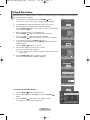
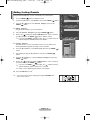
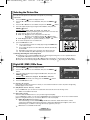
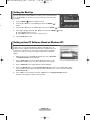
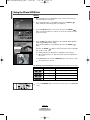
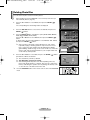
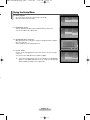
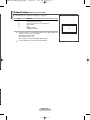
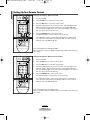
Setting the Blue Eye
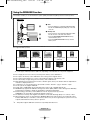
You can set the power of Blue LED to be on. If the power is off when Blue Eye
is off, the Blue LED goes off after 5 seconds. This will save power and reduce
eye fatigue.
TV
Setup
More
Energy Saving
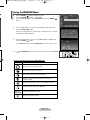
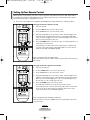
1
Press the MENU (
2
Press the … or † button to select Setup, then press the ENTER (
button.
3
Press the … or † button to select Blue Eye, then press the ENTER (
4
Select Off or On by pressing the … or † button, then press the ENTER (
: Off
Screen Burn Protection
Blue Eye
on.
s
8/24/06
: On
) button to display the menu.
)
Move
Enter
) button.
) button.
◆ Off: LED(Blue) will not come on.
◆ On: LED(Blue) will come on after you turn the TV off.
5
Press the EXIT button to exit.
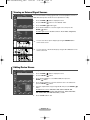
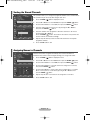
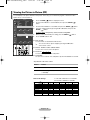
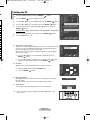
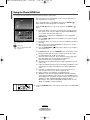
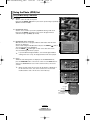
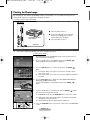
Setting up Your PC Software (Based on Windows XP)
The Windows display-settings for a typical computer are shown below. But the
actual screens on your PC will probably be different, depending upon your
particular version of Windows and your particular video card. But even if your
actual screens look different, the same, basic set-up information will apply in
almost all cases. (If not, contact your computer manufacturer or Samsung
Dealer.)
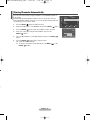
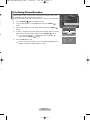
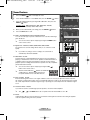
1
Right click the mouse on the Windows Desktop, then click on Properties.
The Display Properties will be displayed.
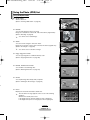
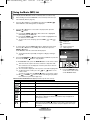
2
Click on Settings tab, then set the Display Mode with reference to the
Display Modes Table. You do not need to change the Colours settings.
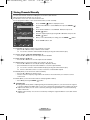
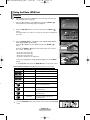
3
Click on Advanced. A new settings dialog box will be displayed.
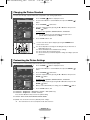
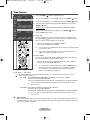
4
Click on the Monitor tab, then set the Screen refresh rate with reference to the Display Modes Table.
Set the Vertical Frequency and Horizontal Frequency individually if you can do so instead of setting the
Screen refresh rate.
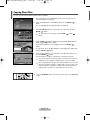
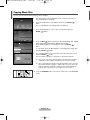
5
Click on OK to close the window, then Click on OK button to the Display Properties window.
Automatic re-booting may commence at this moment.
English - 25
Return