1
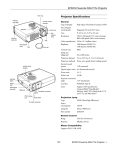
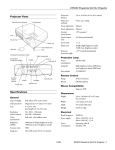
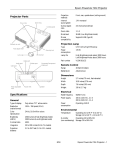
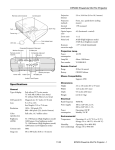
EPSON PowerLite 735c Projector
Card slot
Card reader
access light
Control panel
Security lock
Contrast ratio
400:1
Image size
30 to 300 inches
Projection distance 3.2 to 38.5 feet (0.96 to 11.7 meters)
Air filter
Projection methods Front, rear, upside-down front
(ceiling mount), and upside-down rear
Internal sound
system
1 W monaural
Optical aspect ratio 4:3 (horizontal:vertical)
Zoom ratio
1:1.16
Noise level
39 dB
Keystone correction
angle
±15° vertical (maximum)
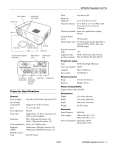
Focus ring
Projection Lamp
Foot release
lever
Type
Power consumption 150 W
Zoom ring
Lens cover
UHE (Ultra High Efficiency)
RC receiver
Adjustable foot
Lamp life
About 1500 hours
Part number
V13H010L18
Remote Control
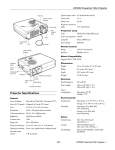
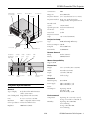
Computer/
Component
Video port
S-Video
port
Video
port
Audio-In
port
USB
port
Range
20 feet (6 meters)
Battery
CR2025 lithium
Mouse Compatibility
Supports USB
Dimensions
Power inlet
Remote control
holder
Speaker
Remote control
receiver
Height
2.8 to 3.1 inches (70 to 78.5 mm)
Width
10.9 inches (276 mm)
Depth
7.5 inches (190 mm)
Weight
4.4 lb (1.9 kg)
Electrical
Rated frequency
50 to 60 Hz
Power supply
100 to 120 VAC, 3.1 A
200 to 240 VAC, 1.5 A
Projector Specifications
Power
consumption
General
Type of display
Poly-silicon Thin Film Transistor
(TFT), active matrix
Size of LCD panels Diagonal: 0.9 inch (22.9 mm)
Environmental
Lens
Temperature
Resolution
F=1.9 to 2.1, f=31 to 36 mm
Operating: 41 to 95 °F (5 to 35 °C)
Storage: 14 to 140 °F (–10 to 60 °C)
1024 × 768 pixels (native format)
Humidity
Color reproduction 24 bit, 16.8 million colors
Brightness
Operating: 225 W
Standby: 5.5 W
Network standby: 35 W
2000 lumens (ANSI)
Operating: 20 to 80% RH,
non-condensing
Storage: 10 to 90% RH,
non-condensing
2/03
EPSON PowerLite 735c Projector - 1
EPSON PowerLite 735c Projector
Safety
United States
FCC 47CFR Part15B Class B (DoC)
UL1950 Rev. 3
Canada
ICES-003 Class B
CSA C22.2 No. 950-95 (cUL)
CE Marking
Directive 73/23/EEC, 89/336/EEC
EN 55022, EN 55024
Compatible Video Formats
To project images from a computer, the computer’s video card
must be set at a refresh rate that’s compatible with the
projector; see the following table for compatible formats. As
noted below, some images are automatically resized to display
in one of the projector’s “native” formats (such as XGA). In
addition, the frequencies of some computers may not allow
images to display correctly; see your computer’s
documentation for details.
Mode
Refresh Rate (Hz)
Resolution
VGAEGA
70
640 x 350*
VGA—60
VESA—72
VESA—75
VESA—85
60
72
75
85
640 x 480*
640 x 480*
640 x 480*
640 x 480*
SVGA—56
SVGA—60
SVGA—72
SVGA—75
SVGA—85
56
60
72
75
85
800 x 600*
800 x 600*
800 x 600*
800 x 600*
800 x 600*
*
Mode
Refresh Rate (Hz)
Resolution
NTSC
NTSC 4:3
PAL
M-PAL
N-PAL
PAL—60
SECAM
60
60
50
60
50
60
50
—
—
—
—
—
—
—
HDTV (480i)
HDTV (480p)
HDTV (720p)
HDTV (1080i)
HDTV (1080i)
60
60
60
60
50
640 x 480*
640 x 480*
1280 x 720*
1920 x 1080*
1920 x 1080*
The image is resized using EPSON’s SizeWise™ Technology.
Computer Connector Pin Assignments
The Computer1/Component Video port is a female video
RGB, 15-pin micro-D-style connector. Here are the pin
assignments:
Input pin
Computer connector signals
1
Red video
2
Green video
3
Blue video
4
GND
5
GND
6
Red GND
7
Green GND
8
Blue GND
XGA—43i
XGA—60
XGA—70
XGA—75
XGA—85
43
60
70
75
85
1024 x 768
1024 x 768
1024 x 768
1024 x 768
1024 x 768
9
Reserved
SXGA1—70
SXGA1—75
SXGA1—85
70
75
85
1152 x 864*
1152 x 864*
1152 x 864*
10
Synchronous GND
11
GND
SXGA2—60
SXGA2—75
SXGA2—85
60
75
85.94
1280 x 960*
1280 x 960*
1280 x 960*
12
SDA
13
Horizontal sync/ composite sync
14
Vertical sync
15
SCL
SXGA3—43i
SXGA3—60
SXGA3—75
SXGA3—85
43
60
75
85
1280 x 1024*
1280 x 1024*
1280 x 1024*
1280 x 1024*
UXGA—48i
UXGA—60
48
60
1600 x 1200*
1600 x 1200*
Positioning the Projector
MAC13
MAC16
MAC19—60
MAC19
MAC21
67
75
59
75
75
640 x 480*
832 x 624*
1024 x 768
1024 x 768
1152 x 870*
❏ Place the projector on a sturdy, level surface, between
3 and 38.5 feet from the screen. Place it within 10 feet of an
electrical outlet or extension cord and 5 feet of your
computer or video source.
❏ Allow space for ventilation around and under the projector.
❏ Place the projector directly in front of the center of the
screen, facing the screen squarely. Otherwise, your image
will not be square.
2 - EPSON PowerLite 735c Projector
2/03
EPSON PowerLite 735c Projector
Turning On the Projector
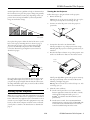
Use the figure below as a guideline to help you determine how
far from the screen to place the projector. Image size generally
increases with distance, but may vary depending on how you
position the zoom ring and whether you have adjusted the
image size with other settings.
Follow these steps to plug in and turn on the projector:
1. Remove the lens cap.
Caution: Do not use the projector with the lens cap in place.
The heat generated by the lens can damage the cap.
2. Connect one end of the power cord to the projector’s
power inlet.
33 to 38.5 ft
6.5 to 7.5 ft
3 to 4 ft
Distance
from screen
If you place the projector below the level of the screen, you’ll
have to tilt it up by extending the feet as shown on page 5.
This causes the projector to lose its square shape, but the
projector automatically compensates. You can manually
correct the distortion by pressing the Keystone button as
described on page 5.
3. Connect the other end to an electrical outlet.
The P power light on top of the projector turns orange,
indicating that the projector is receiving power but not yet
turned on.
4. Press the red P Power button on top of the projector. You
can also use the P Power button on the remote control.
Power
button
Ideal
height
The P power light flashes green as the projector warms up,
and the projection lamp comes on in about 40 seconds.
Then the power light stays green.
If you place the projector level with the bottom of the screen,
the image will be square and you won’t have to adjust it. If
you place the projector higher than the bottom of the screen,
the image will still be square, but you won’t be able to fill the
whole screen with the image.
Warning: Never look into the lens when the lamp is on. This
can damage your eyes.
5. Select the source as follows:
❏ On the control panel, the Source button switches
between equipment connected to the Video, S-Video,
and Computer/Component Video ports, or to
EasyMP™ (for wireless network and memory card
presentations).
Starting Up the Projector
Make sure your projector and other equipment are set up and
connected correctly. Then turn on your projector, as described
below, followed by any equipment you’ve connected to it. You
can turn on your computer and video equipment in any order,
but if you have both a computer and video source connected,
you may have to switch to the desired source as described on
page 4.
❏ On the remote control, the Comp/EasyMP button
switches between a computer source and EasyMP. The
S-Video/Video button switches between an S-Video
source and standard composite video source.
2/03
EPSON PowerLite 735c Projector - 3
EPSON PowerLite 735c Projector
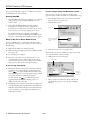
If you’re using a laptop with Macintosh® OS 9.x:
If a projected image fails to appear, see “What To Do If You
See a Blank Screen” below for help.
You may need to set up your system to display on the
projector screen as well as the LCD screen. Follow these steps:
Starting EasyMP
1. From the Apple menu, select Control Panels, then click
Monitors or Monitors and Sound.
1. Select EasyMP as the source by pressing the Source button
on the projector or the Comp/EasyMP button on the
remote control.
2. Click the Arrange icon.
2. Insert either the EPSON 802.11b card (for wireless
presentations) or a memory card (for computer-free
presentations) into the projector’s card slot. (If you do not
insert a card, you see a screen prompting you to do so.)
Click here
For detailed instructions on running your EasyMP
presentation, see “Projecting Wirelessly in Ad Hoc Mode”
on page 7 or “Presenting from a Memory Card” on page 8.
Drag one monitor
icon on top of the
other
What To Do If You See a Blank Screen
If you see a blank screen or a blue screen with the message
No Signal after turning on your computer or video source, try
the following:
❏ Make sure the cables are connected correctly.
3. Drag one monitor icon on top of the other.
❏ Make sure the power light is green and not flashing and the
lens cover is off.
If the Arrange option isn’t available, you may need to select
one of the Simulscan resolution settings:
❏ Try restarting your computer.
1. Click the Monitor icon if necessary.
❏ Press the Source button on top of the projector or the
Comp/EasyMP or Video/S-Video button on the remote
control to select the correct source. (Allow a few seconds for
the projector to sync up after pressing the button.)
Click here
If you’re using a PC laptop:
❏ Hold down the Fn key and press the function key that lets
you display on an external monitor. It may have an icon
such as
or it may be labeled CRT/LCD. Allow a few
seconds for the projector to sync up after pressing it. Check
your laptop’s manual or online help for details.
Select a
Simulscan
resolution
On most systems, the
or CRT/LCD key lets you
toggle between the LCD screen and the projector, or
display on both at the same time.
2. Select a Simulscan resolution as shown. (Allow a few
seconds for the projector to sync up after making the
selection.)
❏ Depending on your computer’s video card, you might need
to use the Display utility in the Windows® Control Panel to
make sure that both the LCD screen and external monitor
port are enabled. See your computer’s documentation or
online help for details.
4 - EPSON PowerLite 735c Projector
2/03
EPSON PowerLite 735c Projector
You can also change the image size by moving the projector
closer to or farther away from the screen. You can use the
E-Zoom + or – buttons on the remote control to zoom in or
out on a portion of the image.
If you’re using a laptop with Macintosh OS X:
You may need to set up your system to display on the
projector screen as well as the LCD screen. Follow these steps:
1. From the Apple menu, select System Preferences, then
select Displays.
Adjusting the Height of Your Image
2. Make sure the VGA Display dialog box is selected.
If the image is too low, you can raise it by extending the
projector’s feet.
3. Click the Arrange tab.
1. Stand behind the projector. Push the foot release levers
on either side and lift the front of the projector. This
unlocks the feet.
Select the
VGA Display
dialog box
Make sure
Mirror Displays
is checked
Caution: Do not hold the projector by the lens; this can
damage it.
4. Make sure the Mirror Displays checkbox is selected.
2. Once the image is positioned where you want it, release the
levers to lock the feet in position.
Adjusting the Image
3. To fine-tune the height of the image, rotate the thumb
wheels attached to the projector’s feet.
Once you see your image, you may need to make certain
adjustments:
If the image is no longer square after raising it, see the next
section.
❏ To focus or zoom the image, see below.
❏ If the image is too high or too low, see “Adjusting the
Height of Your Image” to the right.
Adjusting the Image Shape
If the projected image isn’t square or has a “keystone” shape,
do the following:
❏ If the image isn’t square, see “Adjusting the Image Shape”
to the right.
❏ If your image looks like
or
, you’ve placed the
projector off to one side of the screen, at an angle. Move it
directly in front of the center of the screen, facing the
screen squarely.
❏ If the computer image displays incorrectly, see page 6.
Focusing and Zooming Your Image
❏ If your image looks like
or
, press the left or
right side of the projector’s Keystone button to correct the
shape of the image. After correction, your image will be
slightly smaller.
Use the tab to rotate the focus ring to sharpen the image.
Focus ring
Zoom ring
Use the Keystone
button to correct
distortion
Use the tab to rotate the zoom ring and reduce or enlarge the
image.
2/03
EPSON PowerLite 735c Projector - 5
EPSON PowerLite 735c Projector
4. Turn off and disconnect any equipment plugged into the
projector.
You can also use the remote control to access the projector’s
Setting menu, where you can perform keystone correction or
enable the Auto Keystone option.
5. Replace the lens cap, retract the feet, and unplug the power
cord.
Correcting Computer Images
Caution: To avoid damaging the projector or lamp, never
unplug the power cord when the power light is green or
flashing orange.
If you’re connected to a computer and the image doesn’t
display correctly (for example, part of the screen is cut off),
press the Auto button on the remote control. This
automatically adjusts the picture quality and resolution so that
the image fits properly on the screen.
6. Store the projector in the case that came with it or in a
similar protective case.
Shutting Down the Projector
Using the Remote Control
When you’ve finished using the projector, follow the
recommended procedure to shut it down. This extends the life
of the lamp and protects the projector from possible
overheating.
The remote control lets you access most of your projector’s
features from anywhere in the room (up to 20 feet away). You
can use it to turn the projector on and off and zoom the
image, for example.
Note: When the projector has not received any input signals for 30
minutes, it automatically turns off the projector lamp and enters
standby mode. This conserves electricity, cools the projector, and
extends the life of the lamp. If you are done using the projector,
unplug the power cord. If you want to start projecting again, press
the Power button.
Page up
Page down Page up
Power
Page down
Comp/EasyMP S-Video/Video Color Mode
Comp/EasyMP
1. If you’re using a computer or laptop, shut it down first.
Otherwise you may not be able to see your computer’s
display to shut it down properly.
Menu
A/V Mute
Freeze
Menu
S-Video/
Video source
Color mode
Freeze
E-Zoom
2. To turn off the projector, press the red P Power button on
the projector or remote control. You see a confirmation
message. (If you don’t want to turn it off, press any other
button.)
Power
A/V mute
Zoom out
Zoom-in
Arrow buttons
Auto
Enter
Auto
ESC
Esc
Power
button
Enter
This table summarizes the functions on the remote control.
Button
3. Press the P Power button again. The power light flashes
orange for about 90 seconds as the projector cools down.
When the projector has cooled, the orange light stays on
and the exhaust fan shuts off.
If you want to turn the projector on again, wait until the
orange light stops flashing. Then press the P Power
button.
6 - EPSON PowerLite 735c Projector
2/03
Function
Page up
Returns to the previous image in a slideshow.
Page down
Advances to the next image in a slideshow.
Power
Turns the projector on or off.
Color Mode
Adjusts the vividness of the image color. You can
select from six settings, and save a different setting
for each computer and/or video source.
Comp/EasyMP
Switches between computer source and EasyMP.
S-Video/Video
Switches between an S-Video source and a
standard composite video source.
Freeze
Halts action. Press again to resume action.
Menu
Displays menus for changing projector settings.
EPSON PowerLite 735c Projector
Button
Function
A/V Mute
Turns off audio and video, displaying the black,
blue, or user logo background. Press again to turn
audio and video back on.
Zoom-in
Enlarges the image size.
Zoom-out
Reduces the image size.
Arrow buttons
Use to navigate menus or to use the remote as a
mouse pointer when the projector is connected to
a computer with the mouse cable.
Enter
Selects a highlighted menu option, or advances to
the next image in a slideshow.
Auto
Optimizes the computer image.
Esc
Stops the current function. Pressing Esc while
viewing a menu displays the previous menu.
Pressing while viewing a slideshow exits the
slideshow.
Projecting Wirelessly in Ad Hoc Mode
Follow these steps to project wirelessly if you’ve already
configured your computer and projector to work in ad hoc
mode.
1. Turn on the projector as described on page 3.
2. Select EasyMP as the source, using either the Comp/
EasyMP button on the remote control or the Source
button on the projector (see page 7).
3. If you haven’t already done so, insert the EPSON 802.11b
card with the blue label facing up.
Note: The projector might not respond to remote control
commands in these conditions: the battery is weak; ambient light
is too bright; a certain type of fluorescent light is present; a strong
light source (such as direct sunlight) shines into the infrared
receiver; or other equipment emitting infrared energy is present
(such as a radiant room heater). Correct these conditions to use
the remote control.
Insert card into
card slot
Using the Control Panel
Note: Only the EPSON 802.11b card is guaranteed to work.
Other brands are not compatible.
You see a message that the network screen is ready to
connect. At the bottom of the screen, you see the projector
name and ESSID identifier.
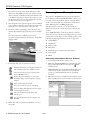
4. From the Start menu, select EMP NS Connection. You see
this screen:
The following table summarizes the functions of the buttons
on top of the projector.
Button
Function
Power
Turns the projector on or off.
Help
Displays the online help menu.
Source
Switches between Computer, Video, S-Video, and
EasyMP (for wireless network and memory card
presentations).
Enter
Selects a menu option when the Help menu is
displayed.
Keystone
Adjusts a trapezoid-shaped distorted image; corrects
up to a ±15° tilt.
Select
Scrolls through options when the Help menu is
displayed.
Select your
projector
If the connection is working properly, you see your
projector listed as shown. If you have additional projectors
on the network, they are also listed.
2/03
EPSON PowerLite 735c Projector - 7
EPSON PowerLite 735c Projector
If you don’t see any projectors listed, click Option, then
click Switch LAN. Make sure the correct wireless network
device is selected. (Sometimes another network device, such
as an Ethernet card, may be selected.) If you don’t see your
wireless device but you’re sure you configured it correctly,
you may need to restart your computer.
Presenting from a Memory Card
The projector’s EasyMP feature lets you give presentations
from a memory card. Using EMP SlideMaker software, you
can easily convert a PowerPoint® file into a format called a
scenario. You can include any combination of PowerPoint
slides, JPG image files, and BMP graphics files.
5. Once the name of your projector appears, select it and click
Connect. If more than one projector is listed, you can select
additional ones to connect to them at the same time.
Once the scenario is created, you can download it to a
memory card, insert the card in the projector, and play the
scenario.
6. If you see a window prompting you for a keyword, enter
the four-digit number displayed by the projector and click
OK.
To use EMP Slidemaker, you’ll need a memory card and a
card reader on your computer. Depending on the type of card,
you may also need an adapter to use it with the projector. The
following standard Type II memory cards are supported:
Once the connection is established, you see your
computer’s image transmitted to the projector, along with a
floating toolbar.
❏ CompactFlash™
❏ SmartMedia™
❏ Memory Stick™
❏ Microdrive™
❏ ATA flash (does not require a PC card adapter)
Click here
to minimize
❏ Secure Digital
❏ MMC
Converting a PowerPoint File to a Scenario
1. Locate the PowerPoint file you want to use.
2. Make sure the EMP SlideMaker program is closed. Then
drag your PowerPoint file icon on top of the
EMP
SlideMaker icon.
7. From the toolbar, you can access these features:
Provides information on using NS Connection.
EMP SlideMaker starts, and your PowerPoint slides open
one-by-one as they are converted. Don’t interrupt this
process, or your PowerPoint file won’t be completely
converted.
Lists which projectors are available or in use.
Lets you access the projector’s menu system
from an HTML browser.
Freezes the projected image on your screen,
even if the image on your computer or laptop
changes.
3. When the conversion is complete, left mouse-click or press
Enter as prompted. You see your scenario as shown below:
Turns off the image and sound.
Lets you zoom in on a part of your image.
Lets you change the brightness, keystone angle,
contrast, and color mode.
Lets you switch between the Video and
S-Video ports.
Lets you switch between your computer and
EasyMP.
8. When done with your presentation, click Disconnect on
the toolbar.
8 - EPSON PowerLite 735c Projector
2/03
EPSON PowerLite 735c Projector
1. Use the navigation tools on the left side of the EMP
SlideMaker screen to locate the files you want to include.
PowerPoint, JPG, and BMP files appear as icons as shown
below.
4. Optionally, insert additional images or create transition
effects between slides, as described in “Adding Images and
Transitions” below.
5. Click Save to let EMP SlideMaker automatically name
your scenario (SCN_) and create a folder for it in your
\Program Files\EMP SlideMaker folder. To choose a
different location and name for your scenario, choose Save
As from the File menu.
Once your scenario is saved, you can transfer it to the
memory card in your computer’s PCMCIA slot, as
described on page 10.
Click icon to see preview
Creating a Scenario from Scratch
Use this method when you want to create a new scenario that
combines a selection of PowerPoint slides and other graphics.
Thumbnail preview
1. Double-click the
EMP SlideMaker icon on your
desktop to start the software.
2. Click New from the File menu. You see the scenario
Properties window.
2. Click the icon for each image you want to preview in the
thumbnail window. If you click a PowerPoint icon,
thumbnail images are generated for all the slides in the
PowerPoint file.
3. Type a name for your scenario. Then select from the
following options:
❏ The default location for the scenario file and folder is in
the \Program Files\EMP SlideMaker folder. Click
Browse to choose a new location.
3. Drag and drop the images or PowerPoint slides you want to
use into the scenario window. To include a PowerPoint file
(instead of individual slides), drag the PowerPoint icon
itself into the scenario window.
❏ The background color (gray) appears around images
that don’t fill the entire screen. Select a new color if
desired.
❏ Select the image quality for imported PowerPoint
slides. Higher-quality images look better on the screen
but may take longer to appear.
4. Click OK to close the window. Then continue with the
instructions in the next section to create slides and build
your scenario.
Adding Images and Transitions
Once a scenario file is created (either from an existing
PowerPoint presentation or from scratch), you can include
additional PowerPoint slides and other graphics. You can also
customize transitions between slides.
4. Continue dragging additional images into the scenario
window to build your presentation. Each slide appears in a
numbered cell as you drop it. The cell background color
varies according to the type of file in the cell.
You can add the following types of files to your scenario:
❏ PowerPoint slides, version 97 (SR-1 or higher) through
2002
❏ JPEG files (files with a .JPG extension)
5. If you need to rearrange cells, you can drag and drop them
as necessary within the scenario window.
❏ Bitmap files (files with a .BMP or .DIB extension)
2/03
EPSON PowerLite 735c Projector - 9
EPSON PowerLite 735c Projector
6. To customize transitions between slides, click the cell or
cells you want to set up. (To select more than one cell, hold
down the Ctrl key while you click.) Then right-click the
selected cell(s) in the scenario window and click Cell
Properties. Choose from any of the following options:
❏ Select On mouse click if you want to change slides
manually using the remote control.
❏ If you want your slides to advance automatically, click
Automatically after, then set a length of time between 1
and 1800 seconds (30 minutes). Even if you select this
setting, you can still change slides manually using the
remote control.
❏ To add a transition effect such as a dissolve or fade,
select one of the Animation Effects and choose a
Direction, if applicable. Then click OK to close the cell
Properties window.
Note: If more than one scenario is set to run automatically, they
will play in the order listed in the Autorun Scenario List.
7. Click Save. Then continue with the steps in the next
section to transfer your scenario to a memory card.
Projector Status Lights
Transferring the Scenario to a Memory Card
s
Power light
Before you start, make sure you’re set up to access the card in
your computer’s PCMCIA slot or card reader. Follow the
procedure below to make sure the scenario plays properly.
Lamp/temperature
light
Note: You have to save the scenario on your computer’s hard drive
before transferring it. Don’t use Windows to copy the scenario to
your memory card, or it may not play properly.
1. From the Scenario Option menu, choose Send Scenario.
You see a drive selection window.
The lights on top of the projector indicate the projector’s
status and let you know when a problem occurs.
2. Choose the drive where your card is located, then click OK.
3. Click OK again to confirm. Your scenario is transferred to
the card. You see this message:
Power
light
Lamp/
Description and action
Temperature
light
Green
Off
The projector is operating normally.
Flashing
green
Off
The projector is warming up. Wait
for the image to appear.
Orange
Off
The projector is in standby mode.
You can unplug it or press the P
Power button to turn it on.
Flashing
orange
Off
The projector is cooling down. Wait
for the light to stop flashing before
unplugging it.
—
Flashing
orange
The projector is too hot. Make sure
the room temperature is not above
95 °F and there is plenty of space
around and under the projector for
ventilation. Also, the air filter may be
clogged. Clean or replace it, as
described on page 11.
—
Flashing red*
Power is cut off because of an
internal error in the projector.
Unplug the projector and contact
EPSON.
4. Do one of the following:
❏ If you don’t want the scenario to run automatically
whenever the projector is turned on (with the memory
card in the projector), click Cancel. Then remove the
card from your computer and insert it in the projector.
❏ To run the scenario automatically when the projector is
turned on, click OK. On the Edit Autorun window,
select the scenario from the list on the left and use the
arrow button to move it to the Autorun Scenario List
on the right. Click OK when you’re done, and then
remove the card from your computer and insert it in
the projector.
10 - EPSON PowerLite 735c Projector
2/03
EPSON PowerLite 735c Projector
—
—
Flashing red**
Red
The lamp may be burned out. First
make sure the lamp cover is securely
installed. If that’s not the problem,
remove the lamp and replace it as
described on page 12.
Cleaning and Replacing the Air Filter
Clean the air filter on the side of the projector after every 100
hours of use. If it is not cleaned periodically, it can become
clogged with dust, preventing proper ventilation. This can
cause overheating and damage the projector.
The projector has overheated, which
turns the lamp off automatically.
Wait until the cooling fan stops, then
unplug the power cord. Plug the
power cord in and press the P
Power button. Make sure there is
plenty of space around and under
the projector for ventilation. If it
continues to overheat, you may need
to change the air filter. See page 11
for instructions.
1. Turn off the projector, allow it to cool down, and unplug
the power cord.
Caution: To prevent dust from falling into the projector, do
not place it on its end.
2. To clean the filter, EPSON recommends using a small
vacuum cleaner designed for computers and other office
equipment. If you don’t have one, gently clean the filter
using a very soft brush (such as an artist’s camel-hair brush).
If it still continues to overheat, the
problem may be caused by damage
to the cooling fan or temperature
sensor. Contact EPSON for help.
*1
second intervals
0.5 second intervals
**
Cleaning the Lens
Clean the lens whenever you notice dirt or dust on the surface.
If the dirt is difficult to remove or if the filter is torn,
replace it. Contact your dealer or EPSON to obtain a new
one.
❏ Use a canister of compressed air to remove dust.
❏ To remove dirt or smears on the lens, use lens-cleaning
paper. If necessary, moisten a soft cloth with lens cleaner
and gently wipe the lens surface.
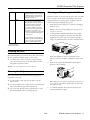
3. If you need to replace the filter, lift the tab and pull it
upward to remove the filter.
Caution: Do not use glass cleaner to clean the lens.
Cleaning the Projector
Before you clean the case, first turn off the projector and
unplug the power cord.
❏ To remove dirt or dust, wipe the case with a soft, dry,
lint-free cloth.
Note: When you get a replacement lamp for your projector, a
new air filter is included. You should replace the filter when
you replace the lamp.
❏ To remove stubborn dirt or stains, moisten a soft cloth with
water and a mild detergent. Then wipe the case.
4. To install the new filter, first insert the tabs, then press
down until it clicks into place.
❏ Do not use wax, alcohol, benzene, paint thinner, or other
chemical detergents. These can damage the case.
2/03
EPSON PowerLite 735c Projector - 11
EPSON PowerLite 735c Projector
7. Grasp the lamp by the top, as shown, and pull it straight
out.
Replacing the Lamp
The projection lamp typically lasts for about 1500 hours of
use. It is time to replace the lamp when:
❏ The projection image gets darker or starts to deteriorate.
❏ The lamp warning light
is red or flashing red.
❏ The message LAMP REPLACE appears on the screen when
the lamp comes on (after about 1400 hours of use). To
maintain projector brightness and image quality, replace
the lamp as soon as possible.
Contact your dealer or call EPSON at (800) 873-7766 in the
United States for a replacement lamp. Request part number
V13H010L18. In Canada, please call (800) 463-7766 to locate
a dealer.
Caution: Don’t touch the glass portion of the new lamp
assembly. Doing so could result in premature lamp failure.
Follow these steps to replace the lamp:
8. Gently insert the new lamp.
1. Turn off the projector, wait for the power light to stop
flashing, then unplug the power cord.
9. Once the lamp is fully inserted, tighten its screws.
10. Replace the lamp cover.
2. Allow the projector to cool down for at least half an hour (if
it has been on).
Note: The projector won’t come on if the lamp cover is loose.
Warning: Let the lamp cool before replacing it. If the lamp
breaks, handle the shards carefully to avoid injury.
ESC/VP21 Commands
3. If your projector is mounted on the ceiling, unmount it.
Item
4. Turn the projector upside-down to access the lamp
compartment.
5. Press the two tabs and remove the lamp cover.
)
6. Use a screwdriver to loosen the two screws holding the
lamp in place. (You can’t remove these screws.)
Power
On/Off
ON
OFF
PWR OFF
Signal
selection
Computer/Component
Video (RGB)
SOURCE 11
Computer/Component
Video (YCbCr)
SOURCE 14
Computer/Component
Video (YPbPr)
SOURCE 15
Video
SOURCE 41
S-Video
SOURCE 42
A/V Mute
On/Off
ON
MUTE ON
OFF
MUTE OFF
A/V Mute
selection
Black
MSEL 00
Blue
MSEL 01
Auto
Keystone
12 - EPSON PowerLite 735c Projector
2/03
Command
PWR ON
User’s Logo
MSEL 02
ON
AUTOKEYSTONE ON
OFF
AUTOKEYSTONE OFF
EPSON PowerLite 735c Projector
Optional Accessories
Related Documentation
Product
Part
number
Replacement lamp and air filter
V13H010L18
Carrying cases:
Samsonite® wheeled soft case
Slimline soft shoulder bag
Notebook/projector soft shoulder bag
ATA wheeled hardshell notebook/projector case
ELPKS24
ELPKS31
ELPKS32
ELPKS42
Distribution amplifier
ELPDA01
Component video cable (VGA to component video)
ELPKC19
S-video cable
ELPSV01
Macintosh adapter set (includes monitor adapter
and desktop adapter)
ELPAP01
Ceiling mount
Suspension adapter
False ceiling plate
ELPMB37
ELPMBAPL
ELPMBFCP
Portable projection screens:
50-inch screen
60-inch pop-up screen
80-inch pop-up screen
ELPSC06
ELPSC07
ELPSC08
High resolution document imager
High resolution document camera
ELPDC02
V12H064020
Kensington® security lock
ELPSL01
CPD-15675
EPSON PowerLite 735c User’s Guide
CPD-15676
EPSON PowerLite 735c Quick Setup
sheet
You can purchase these accessories from your dealer, by calling
EPSON at (800) 873-7766, or by visiting the EPSON Store SM
at www.epsonstore.com (U.S. sales only). In Canada, please
call (800) 463-7766 for dealer referral.
2/03
EPSON PowerLite 735c Projector - 13