1
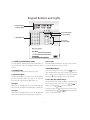
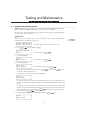
Keypad Buttons and Lights
1. Liquid Crystal
Display (LCD)
3. System Lights
4. Arrow Keys
2. Number Pad
5. Yes, No
& Cancel Keys
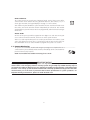
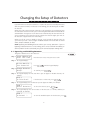
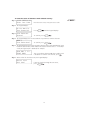
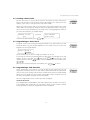
1. Liquid Crystal Display (LCD):
Power Light
The LCD displays prompts and system information on
two 16-character lines. This diagram shows the Start
Screen.
The Power light will always be on, unless the system or
one of the modules has lost AC power.
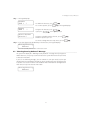
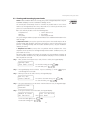
2. Number Pad:
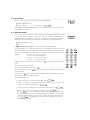
If you are viewing items in a list, use the
keys to
move forward to the next item, or back to the previous
item. If there is more information to view, the keypad
will flash a > in the top right corner of the display.
4. Back/Next Keys:
Use the number pad to enter your access code.
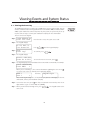
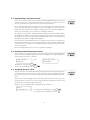
3. System Lights:
The On and Off lights will only be lit as described after
you have entered a valid access code. If no code has
been entered, only the Power light will be on.
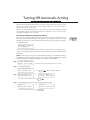
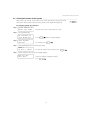
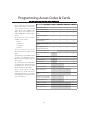
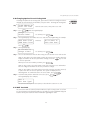
5. Yes, No and Cancel Keys:
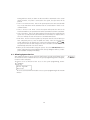
For each feature, the system will display a question (e.g.
Do you want to turn areas on?). Press
to
answer yes and
to answer no.
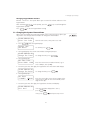
Off Light
When you are turning areas on or off, the Off light will
turn on to tell you that the area displayed is currently off.
If you are unsure, or have lost your place in the system
programming, press
to return to the start
screen ("Enter Your Code").
On Light
When you are turning areas on or off, the On light will
turn on to tell you the area displayed is currently on.
2