1
PowerLite 1825
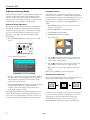
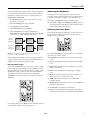
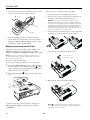
You can manually adjust the shape of the image to compensate
for vertical and horizontal keystone distortion. First make sure
the Keystone setting in the projector’s Settings menu is set to
H-Keystone or V-Keystone:
Adjusting the Brightness
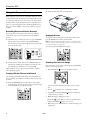
1. Press the Menu button on the remote control (or on the
projector’s control panel).
❏ Change the Brightness setting in the Image menu.
The brightness of an image depends on the source you are
projecting and the amount of light in the room. If the image is
too bright or not bright enough, do one of the following:
❏ Select Low or High for the Brightness Control option in
the Setting menu. Low Brightness mode extends the life of
the lamp and decreases the fan noise.
2. Select the Settings menu and press Enter.
3. Select Keystone and press Enter.
4. Select H/V-Keystone and press Enter.
Selecting the Color Mode
5. Select H-Keystone (for horizontal adjustment) or
V-Keystone (for vertical adjustment) and use the l and r
arrow buttons to adjust the shape of the image.
The Color Mode adjusts the brightness, contrast, and color for
various common viewing environments. Use this setting to
quickly obtain a good picture.
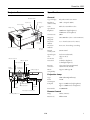
Vertical
keystone
adjustment
Horizontal
keystone
adjustment
Note: The vertical keystone values increase or decrease in .5°
increments; so 30=15°, 60=30°, etc.
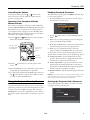
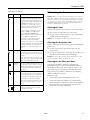
Press the Color Mode button on the remote control, and then
select from one of these options:
If the image becomes smaller, use the zoom ring to enlarge the
image so it fits the screen. If the image contains faint lines or a
gridlike pattern, decrease the sharpness setting.
❏ Presentation: For giving color presentations in a bright
room.
❏ Text: For giving black-and-white presentations in a bright
room.
Resizing Video images
❏ Theatre: For watching movies in a darkened room; gives
images a natural tone.
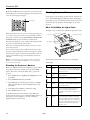
You can use the Resize button on the remote control to adjust
how an image fits into the display area. Press Resize to switch
the aspect ratio between 4:3 and 16:9. This lets you play certain
digital video images or movies recorded on certain DVDs in
16:9 widescreen format. You can also select 16:9 (Up) or
16:9 (Down) to reposition videos to accommodate subtitles or
supertitles.
❏ Photo: For vivid, high-contrast still images in a bright
room.
❏ Sports: For vivid TV images projected in a bright room
(video, S-video, or composite video only).
❏ sRGB: Matches the color palette of standard sRGB
computer displays.
❏ Blackboard: Projects accurate colors on a green chalkboard
(adjusts the white point).
❏ Customized: For manual color adjustment.
❏ Game: Increases brightness when playing video games or
watching TV in a bright room. Emphasizes dark gradations.
For computer images, select Normal to automatically resize the
image and make the best use of the display area.
2/08
7