1
2 band alarm clock radio
28025
OPERATING INSTRUCTIONS
Illustration
14 13
15
16
FM
88
MW
53
100
94
70
12
106
90
120
108
160
MHz
KHz
11
PM
17
Alarm 1
19
Alarm 2
10
18
9
1
8
○
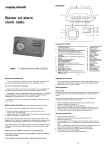
Locations of control
1
2
3
2
DC socket (DC 6V
)
Alarm on/off button
Display/up button (change display,
format time, calendar, city. For fast
forwarding time and date)
4
Battery compartment
5
Timer/down button (For reversing
(located underneath the unit)
time and date)
6
Time/city button (to adjust time,
7
8
FM wire aerial (back of the unit)
Volume control
calendar and city)
3 4 5
9
10
11
12
13
14
○
○
○
7
6
Alarm 2 indicators ( or )
Waveband switch FM/MW
Tuning control
Radio on/off button
Speaker
Snooze/daily weekday button
(temporarily turns off alarm and sets
weekend alarm function)
15 Sleep button (sets sleep, summer time and
alarm mode)
16
17
18
19
2
Dial scale with pointer
PM indicator
Alarm 1 indicators ( or
Battery low indicator
)
Electrical requirements
Check that the voltage on the rating plate of your AC/DC adaptor corresponds
with your house electricity supply which must be A.C. (alternating current).
Power supply
Connecting AC/DC adaptor (supplied).
Plug the mains adaptor into a socket and plug the jack into the side of the unit.
As soon as you connect AC/DC adaptor or batteries the clock will start working at
12:00. You will need to set the correct time.
Installing batteries
1
2
3
(not supplied)
Remove the battery compartment cover (located underneath the unit) by
pushing in the clip and lifting off.
Insert 4 x AA batteries and connect to terminals (Ensure batteries are inserted
correctly).
Replace the battery compartment cover.
Battery low indicator
The unit checks the battery voltage capacity when the AC/DC adapter is not in use.
The low battery icon will appear on the bottom of the LCD display when the unit is
checking for a low battery. This symbol will also appear when a power cut happens.
The AC/DC adaptor, when fitted, overides the batteries.
Note: In order to avoid losing alarm settings, turn off the radio before replacing the
batteries. Replacing the batteries must be within 30 seconds, otherwise the memory
and alarm settings will be erased.
If the unit is not to be used for a prolonged period, remove the batteries to avoid
battery leakage.
In the interests of environmental safety : dispose of batteries safely.
3
Features
•
•
•
•
•
•
•
•
•
•
Your clock radio combines stylish design with advanced technology.
2 inch (50mm) speaker – ensures excellent radio sound quality.
MW/FM radio – lets you wake to music from your favourite station.
World time display – let you see the current time for 24 world cities.
Display shows home time, world times, date and day – to provide you with
accurate, complete information.
Dual alarm – lets you set a separate daily alarm for weekdays and weekends.
Backlight display – lets you see the display in low light situations.
Sleep function– lets you set the radio to play as you fall asleep, then automatically
turns off.
Snooze button – lets you temporarily turn off the alarm for 9 minutes so you can
get an extra few minutes of sleep.
Timer – lets you set a count down timer without the need to change alarm settings.
Controls
YOUR LOCAL TIME ZONE, DATE SETTING AND SETTING THE CLOCK
You must manually set the time, and calendar (date, month and year). Within the
calendar function the first 2 digits are the date, the second 2 digits are the month and
the last 4 digits are the year.
Setting the time
1
2
3
Press the TIME button. The displayed hours and minutes flash while the
seconds continue to count.
Repeatedly press the UP button or the DOWN button to change the time 1
minute at a time. Hold down up or down buttons to change the time in 10 minute
increments. When the minute change increases to 60 minutes, the hour will
increase by one hour automatically. When the clock reaches 12:00 midday, the
‘PM’ indicator will appear on the display.
Press the TIME button to store the time setting and the calendar display will
flash.
4
4
Repeatedly press UP or DOWN to change the date in 1 day increments. Hold the
UP or DOWN buttons to change the date in 10 day increments. The date is in the
format of dd.mm.yyyy. The day of the week is displayed above the calendar. When
the day of the month changes over from the last day of one month to the first day of
a new month the month changes over automatically. When the month changes
from 12 to 01, the year will increase by 1. (When reversing months of the year it
will also decrease automatically when changing from 01 to 12.
5 Press the TIME button to store the calendar setting. Then the currently selected
local time zone city flashes.
6 Press the UP or DOWN button to select a city in your time zone from page 6 of the
instruction booklet.
7 Press the SLEEP button to select summer time
for ON or OFF, if in the
ON position the hour will increase by 1 hour automatically.
8 Press the TIME button to store the local time zone setting then the currently
selected city flashes while the time setting disappears.
9 Press UP button to select a city (time zone) east of your location, or DOWN to
select a city time zone west of your location. (This is to set the other cities as a
preset for ease of viewing).
10 Press the TIME button to store the setting.
11 Press the TIME button again to display the current time.
5
World city name with abbreviation
Abb
LON
MUN
CAI
MOW
DXB
KHI
DAC
BKK
HKG
TYO
SYD
NOU
Time diff
0.00
+1.00
+2.00
+3.00
+4.00
+5.00
+6.00
+7.00
+8.00
+9.00
+10.00
+11.00
City
London
Munich
Cairo
Moscow
Dubai
Karachi
Dhaka
Bangkok
Hong Kong
Tokyo
Sydney
Noumea
Abb
WLG
-11
HNL
ANC
LAX
DEN
CHI
NYC
CCS
RIO
-2H
-1H
+12 +13 +14 +15 +16 +17 +18 +19 +20 +21 +22 +23
-12 -11 -10 -9 -8
Vancouver
-4
-3 -2
+1 +2 +3 +4 +5 +6 +7
-1
London
New York
Madrid
City
Wellington
(GMT –11)
Honolulu
Anchorage
Los Angeles
Denver
Chicago
New York
Caracas
Rio de Janeiro
(GMT –2)
(GMT –1)
+8 +9 +10 +11
-23 -22 -21 -20 -19 -18 -17 -16 -15 -14 -13
Berlin
Chicago
Los Angeles
Hawaii
-7 -6 -5
Time diff
+12.00
-11.00
-10.00
-9.00
-8.00
-7.00
-6.00
-5.00
-4.00
-3.00
-2.00
-1.00
Paris
Rome
Moscow
Beijing
Hong Kong
Tokyo
Mexico
Sydney
Santiago
Buenos Aires
Perth
1 2 3 4 5 6 7 8 9 10 11 12 13 141516 17 18 19 20 21 22 23 24
6
Operation
Using the Radio
1
2
3
Press the radio on/off button.
Slide MW/FM waveband switch to the desired band.
Rotate tuning control to the desired station.
To obtain the maximum reception fully extend the wire FM aerial which is
located at the rear of the unit and alter the direction of the wire for best results.
The aerial for the MW waveband is located inside the unit. To obtain, the
maximum MW reception rotate your clock radio.
4
Rotate volume control to the desired sound level.
Using the alarms
Setting the alarms
You can set two independent alarms to (buzzer or radio) each day of the week Monday
to Sunday or from Monday to Friday.
1 Press the ALARM ON/OFF button, AL1 appears on the display. Press again for
AL2 and press again for current time.
2 Press UP or DOWN button to change the alarm time setting in 1 minute
increments, or hold down UP or DOWN to change the time in 10 minute
increments.
3 Repeatedly press SLEEP button to set alarm mode: radio or
buzzer. If neither
or
appear the alarm mode is OFF. To wake to the alarm sound, set to . To
wake to the radio set to .
4 Press DAILY / WEEKDAY / SNOOZE button to have the alarm work either Monday
through to Sunday (daily) and press again for Monday through Friday (weekday).
Either Su Mo Tu We Th Fr Sa or Mo Tu We Th Fr will appear at the top of the
display to confirm your selection.
5 Repeatedly press ALARM ON/OFF until the normal time display appears or wait
for 15 seconds. The clock stores the setting and resumes normal operation.
7
Using snooze and alarm on/off
To temporarily silence the alarm ( or ), press the SNOOZE button. This silences
the alarm ( or ) for about 9 minutes. You can press the ALARM ON/OFF button to
silence the alarm ( or ) for the day. The alarm will then operate 24 hours later.
To cancel the alarm, press the ALARM on/off button and press SLEEP button until no
alarm symbols appear on the display. Repeat for alarm 2.
Using the timer
1
Press TIMER button and the preset time 0:20 appears. Press UP or DOWN button
to change timer duration. Repeatedly press UP or DOWN to change timer
duration in 1 minute increments hold down UP or DOWN to change timer duration
in 10 minute increments. If you don’t press any button within 2 seconds, the unit
will store the timer setting automatically. To cancel the setting, press the TIMER
button again.
The timer can be set from 1 hr to 59 minutes down to 1 minute.
2
3
4
When the TIMER is set, it will show the running count down time.
To view time, calendar and time zone information whilst in timer mode, repeatedly
press the DISPLAY button to display option for a 15 second period. After this the
display will revert back to the countdown display.
When the time reaches the preset timer time, the buzzer will sound. Press the
TIMER button to turn off the buzzer.
8
Using the sleep function
You can set the radio to play from 1 minute to 1 hr 59 minutes whilst in sleep mode.
You can use this feature to have the radio play as you go to sleep. Follow these steps
to set the sleep function.
1
2
Press SLEEP button, 1:00 appears and the radio turns on. The sleep symbol
appears in the bottom right of the LCD display.
To change the sleep timers duration to less than 1 hour, repeatedly press DOWN
button. To set the sleep timer for up to 1 hour and 59 minutes, repeatedly press
the UP button.
Note: If you do not press UP or DOWN within 2 seconds the sleep timer is set to 1
hour.
If the clock reaches a preset alarm time while the sleep timer is counting down,
the alarm cancels the balance of the sleep timer setting and the alarm will sound.
3
4
Cancel the sleep setting by pressing the SNOOZE button or RADIO on/off button.
Press sleep to display reserved sleep timer and to change the setting.
9
Maintenance
Do not expose your clock radio to extremes of temperature. The product should
be kept in a warm environment free from dust and damp. For external cleaning
use only a soft, clean, damp cloth. Use of detergents may damage the finish.
Technical specification
External power supply
Adaptor
:
:
DC voltage socket
:
6V DC Adaptor (6V
200mA)
Model 35G-6-200
50Hz
Input power 230V
Output 6V DC 200mA
4.5mm diameter
Battery
:
4 x AA (not provided)
Radio
:
:
FM 87.5MHz - 108MHz
MW 525kHz - 1620kHz
Intermediate frequencies
:
FM 10.7 MHz and MW 465 kHz
10
Warning labels
WARNING: To reduce the risk of electric shock, do not expose this
appliance or adaptor to rain or moisture.
ATTENTION: To reduce the risk of electric shock, do not remove the cover.
There are no user serviceable parts inside the unit. Refer any servicing to
qualified personnel.
To prevent fire or shock hazard do not expose this apparatus or adaptor to dripping and splashing.
11
Guarantee
Morphy Richards products are manufactured to internationally accepted quality standards. In addition to your statutory rights, Morphy Richards guarantee your product to be
free from manufacturing and component defects for a period of TWO YEARS from date
of purchase.
If your product proves to be defective within 28 days of purchase, your Morphy Richards
dealer from whom the product was purchased will be pleased to replace it free of charge.
Should your product develop a defect within the guarantee period but after the replacement period, please return the product to the following address, together with the proof
of purchase, brief details of the symptoms and your own name and address.
After Sales Division
Morphy Richards Limited
Talbot Road
Mexborough
South Yorkshire
S64 8AJ
Your post office will provide a certificate of posting. The product will be repaired and
returned to you promptly.
Helpline (8:30-5:00 Mon-Thur/ 8:30-4:00 Fri) UK 0870 060 2614
Republic of Ireland 1800 409119
Replacement parts 0870 167 6645
Morphy Richards Website: www.morphyrichards.co.uk
446/8001/92 Rev 1
Morphy Richards Ltd, Talbot Road, Mexborough, S64 8AJ
Morphy Richards products are intended for household use only.
Morphy Richards has a policy of continuous improvement in product quality and design.
The company, therefore reserves the right to change the specification of its models at any time.