1
LM350 WEU.qxd
12-11-2003
09:02
Pagina 5
The previously selected style settings are also
restored.
Getting to Know Your Labelmaker
The following sections describe each feature
in detail. Become familiar with the location of
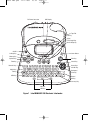
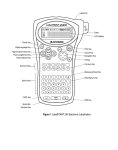
the feature and function keys. See Figure 1 on
page 2.
Upper and Lower Case
The CAPS key toggles capitalization on and off.
When CAPS mode is turned on, the CAPS
indicator is shown on the display and all letters
that you enter will be capitalized. When CAPS
mode is off, all letters entered appear in lower
case.
The Display
The LCD display shows a row of sixteen
characters. However, you can enter up to 99
characters/spaces.
The display is similar to a window that scrolls
across the text. (See Figure 6.) The number of
characters actually displayed can vary due to
proportional spacing.
Shift
The Shift key, when used in combination with
an alphabet key, changes the case of the
selected letter. When used in combination with
number keys or function keys, the Shift key
selects the alternate function shown on the
key. For example, when you press Backspace,
the character to the left of the cursor is
deleted; however, when you press ShiftBackspace together, the entire label text and
formatting is deleted and the display is ready
for you to type a new label.
The quick brown fox jumps over the lazy dog
Figure 6
In addition, feature indicators appear on the
display to let you know when a feature is
selected. See Figure 7.
Font
Style Box/Underline Scrollbar
Backspace
The Backspace key removes the character to
the left of the cursor. Shift-Backspace clears
all the label text and formatting.
Auto Cut
# of Copies
Mixed Formats
Align / Justify
Fixed Length
CAPS Mode
Multiple Lines
Space Bar
The Space bar inserts one blank space in your
text.
Cancel
The Cancel key allows you to exit from a menu
without making a selection or to cancel an action.
Figure 7
Navigation Keys
You can review and edit your label using the
left and right arrow keys. You can navigate
through the menu selections using the up and
down arrow keys. You then press OK to make
your selection.
On/Off
The On/Off button switches the power on and
off. After two minutes of no activity, the power
is switched off automatically.
The last label created is remembered and
displayed when the power is turned back on.
5