1
BTW User’s Guide
1
Introduction
1.1
BLUETOOTH TRAY
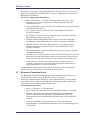
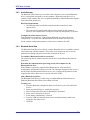
The Bluetooth tray resides in the Windows system tray, which is normally located in the
lower-right corner of the screen. The Bluetooth tray provides fast access to most
Bluetooth operations.
From the Bluetooth tray you can:
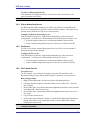
• Access My Bluetooth Places—Double-click the Bluetooth icon, or right-click the
Bluetooth icon and then select Explore My Bluetooth Places.
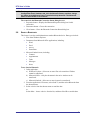
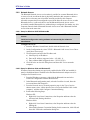
• Access the Bluetooth Setup Wizard—This wizard will help you:
! Configure how this computer accesses a service on another Bluetooth device.
! Locate remote Bluetooth devices.
! Configure the way that this computer provides services to remote Bluetooth
devices.
! Set the name and type of this Bluetooth device, e.g., “John’s PC” and
“Desktop.”
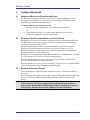
• Access the Bluetooth Configuration Panel—right-click the Bluetooth icon, and
then select Advanced Configuration.
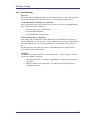
• Access the Quick Connect option—right-click the Bluetooth icon, select Quick
Connect, and then select the type of service to which you wish to connect.
• Start/Stop Bluetooth on this computer.
1.2
ACCESS MY BLUETOOTH PLACES
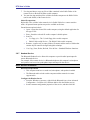
My Bluetooth Places is part of Windows Explorer.
There are multiple ways to access My Bluetooth Places:
• In the Windows system tray.
! Right-click the Bluetooth icon and select Explore My Bluetooth Places.
or
! Double-click the Bluetooth icon.
• On the desktop, double-click the Bluetooth icon.
• Open Windows Explorer and select My Bluetooth Places in the Folders pane or
from the Address shortcut menu.
WIDCOMMinc
1