1
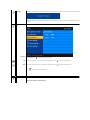
 Sharpness
Pixel Clock
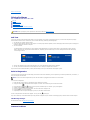
This feature can make the image look sharper or softer. Use
to adjust the sharpness from '0' to '100' .
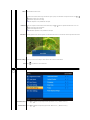
The Phase and Pixel Clock adjustments allow you to adjust your monitor to your preference. These settings are accessed through the main OSD menu
'Image Settings'.
Use the
Phase
or
and
buttons to adjust for best image quality.
If satisfactory results are not obtained using the Phase adjustment, use the Pixel Clock (coarse) adjustment and then use Phase (fine), again. NOTE: Pixel Clock and Phase Adjustments are only available for "VGA" input.
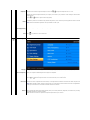
Reset Display Setting
Back
Other Settings
Resets the display settings to the original factory settings.
Push
to go back to or exit the main menu.
Language
Menu Transparency
Menu Timer
Language option to set the OSD display to one of five languages (English, Espanol, Francais, Deutsch, Japanese).
Allows you to adjust the OSD background from opaque to transparent.
OSD Hold Time: Sets the length of time the OSD will remain active after the last time you pushed a button.
Use the
Menu Lock
and
buttons to adjust the slider in 5 second increments, from 5 to 60 seconds.
Controls user access to adjustments. When selected, no user adjustments are allowed. All buttons are locked except the menu button.
NOTE: When the OSD is locked, pushing the menu button for 15 seconds will unlock and allow user access to all applicable settings.
pushing the menu button for 15 seconds will activate the Menu Lock function.
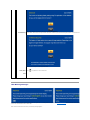
DDC/CI
DDC/CI (Display Data Channel/Command Interface) allows your monitor parameters (brightness, color balance etc) to be adjustable via software on y
can disable this feature by selecting "Disable".
Enable this feature for best user experience and optimum performance of your monitor.