1
CANON INC.
30-2, Shimomaruko 3-chome, Ohta-ku
Tokyo 146-8501, Japan
CANON U.S.A., INC.
Digital Home and Personal Systems Division
2995 Redhill Avenue
Costa Mesa, CA 92626
1-800-OK-CANON
http://www.ccsi.canon.com
CANON CANADA INC.
6390 Dixie Road, Mississauga
Ontario L5T 1P7, Canada
1-800 OK CANON
http://www.canon.ca
CANON LATIN AMERICA, INC.
6505 Blue Lagoon Drive, Suite 325
Miami, Florida 33126, U.S.A.
CANON MEXICANA, S. de R.L. de C.V.
Anillo Periferico Sur No. 4124, Torre Zafiro (II) Colonia
Ex-Rancho de Anzaldo, Piso 5 y 6, Mexico D.F.
Tel. (525) 5490-2000
CANON PANAMA, S.A.
Apartado 7022, Panama 5
Rep. de Panama
Tel. (507) 279-8900
CANON CHILE, S.A.
Ave. Manquehue Norte #1337, Piso 3, Casilla 187-9,
Santiago, Chile
Tel. (562) 366-6600
CANON ARGENTINA, S.A.
Ave. Corrientes 420 (1043)
Buenos Aires, Argentina
Tel. (5411) 432-59800
CANON EUROPA N.V.
P.O. Box 2262 1180 EG Amstelveen,
The Netherlands
CANON (UK) LTD.
Woodhatch, Reigate
Surrey RH2 8BF, United Kingdom
For technical support, please contact Canon Helpdesk.
Helpdesk:
P.O. Box 431, Wallington, Surrey SM6 0XU
TEL: (08705) 143 723
FAX: (08705) 143 340
For sales enquiries: (0121) 666-6262
CANON FRANCE S.A.
17, quai du Président Paul-Doumer
92414 Courbevoie Cedex, France
Tél.01 4199 7777 Fax.01 4199 7951
Hotline: Tél.01 4199 7070
CANON DEUTSCHLAND GmbH
Postfach 528, 47705 Krefeld, Germany
CANON- Hotline-Service
Customer Support: (0 21 51) 349-555
Info-Desk: (0 21 51) 349-566
Mailbox: (0 21 51) 349-577
Telefax: (0 21 51) 349-588
CANON ITALIA S.p.A
Palazzo L, Strada 6,
20089 Milanofiori-Rozzano (MI), Italy
TEL: 02/8248. 1 FAX: 02/8248. 4604
Pronto Canon 02/8249. 2000
http://www.canon.it
CANON BENELUX NEDERLAND N.V.
Neptunusstraat 1, 2132 JA Hoofddorp
The Netherlands
Tel: 023-5 670 123 Fax: 023-5 670 124
Helpdesk: 023-5 681 681
CANON BENELUX BELGIUM N.V./S.A.
Bessenveldstraat 7, 1831 Diegem, Belgium
Tel: 02 7220411 Fax: 02 7213274
Helpdesk: 02 7220404
CANON GmbH
Zetschegasse 11, 1232 Wien, Austria
CANON (SCHWEIZ) A.G.
Industriestrasse 12, CH-8305 Dietlikon
Switzerland
Tel: (01) 835 61 61 Fax: (01) 835 68 60
Hotline: 157 30 20
I-IE-044AA
CANON ESPAÑA S.A.
C/Joaquin Costa No 41, 28002
Madrid, Spain
Help Desk: 906.301255
Tel.: 91-5384500 Fax.: 91-4117780
CANON DANMARK
Vasekær 12, DK-2730 Herlev, Denmark
Hotline: 44 88 26 66
http://www.canon.dk
CANON NORGE AS
Hallagerbakken 110, Boks 33, Holmlia, 1210 Oslo 12,
Norway
Tlf: 2262 9321 FAX. 2262 0615
CANON SVENSKA AB
Gustav III:s Boulevard 26, S-169 88 Solna, Sweden
Tel 08-744 85 00
Fax 08-744 64 65
http://www.canon.se
Canon Color Image Scanner
CanoScan D646U
CANON OY AB
Kornetintie, 3, 00380 Helsinki, Finland
Puhelin: 010 544 20
Helpdesk: 0600-0-22606
(maksu 14,80 mk/min)
Fax: 010 544 4571
Quick Start Guide
CANON SINGAPORE PTE. LTD.
79 Anson Road #09-01/06
Singapore 079906
http://www.canon-asia.com
CANON MARKETING SERVICES PTE. LTD.
No. 1, Jalan Kilang Timor
#09-00 Pacific Tech Centre
Singapore 159303
Tel: 65-7998888, Fax: 65-2736786,
Hotline: 65-3342726
http://www.canon.com.sg
CANON MARKETING (MALAYSIA) SDN. BHD.
Block D, Peremba Square
Saujana Resort, Section U2, 40150 Shah Alam
Selangor Darul Ehsan, Malaysia
Tel: 603-7446000, Fax: 603-7446048,
Helpdesk: 603-7446008/9
Enquiry: print&[email protected]
http://www.canon.com.my
CANON MARKETING (THAILAND) CO. LTD.
179/34-45 Bangkok City Tower, 9th-10th Floor
South Sathorn Road, Thungmahamek,
Sathorn, Bangkok 10120, Thailand
Tel: 662-3449999, Fax: 662-3449968
http://www.canon.co.th
CANON MARKETING (PHILIPPINES) INC.
Marvin Plaza Building, 2153 Don Chino Roces Ave,
Makati City, Metro Manila, Philippines
Tel: 632-8126047, Fax: 632-8120067/8109797
CANON INDIA PVT LTD.
Neela Gagan, Mandi Road,
Mehrauli, New Delhi-110030, India
Tel: 91-11-6806572, Fax: 91-11-6807180
CANON HONGKONG CO., LTD.
9/F, The Hong Kong Club Building
3A Chater Road, Central, Hong Kong
TEL: (852) 2739 0802
FAX: (852) 2739 6428
CANON AUSTRALIA PTY. LTD.
1 Thomas Holt Drive, North Ryde, Sydney N.S.W. 2113,
Australia
Info-Line: (02) 9805 2864
CANON NEW ZEALAND LTD.
Fred Thomas Drive, Takapuna
P.O. Box 33-336, Auckland, New Zealand
Info-Line: 0900-522666
ADOBE SYSTEMS INCORPORATED
http://www.adobe.com
ARCSOFT, INC.
http://www.arcsoft.com
For Windows
SCANSOFT, INC.
http://www.scansoft.com
© CANON INC. 2001
For Macintosh
PRINTED IN CHINA
System Information
This form is used to record the operating environment of the purchased scanner.
If any problems occur with the scanner, you will need this information when you contact our Customer
Support Help Desk. Please make sure to record this and secure it safely.
• When a repair is needed, warranty information is required. Please make sure to record this
information and secure it carefully.
• The replacement parts for this equipment have an expiration date of five years after
production ceases. (Replacement parts refer to any part that is required for the optimal
operation of the equipment.)
Date of Purchase:
Dealer:
Tel:
Dealer Address:
CanoScan D646U
Scanner Model:
Serial Number (displayed on the back of the equipment):
• About the Computer Used
Manufacturer:
Model:
CPU:
Clock Speed:
Memory Capacity (RAM):
MB
Hard Disk Capacity:
MB
OS :
Windows
❏ Me
❏ 98
❏ 2000
Space Available:
Mac OS
❏ 8.6
Monitor Type:
Monitor Size:
Warning
Printer:
Manufacturer:
When you use this product, you should pay attention to the following legal issues:
• Scanning of certain documents, such as bank notes (bank bills), government bonds and public
certificates, may be prohibited by law and may result in criminal and/or civil liability.
• You may be required under law to obtain authorization from a person possessing copyrights or other
legal rights to the item being scanned.
If you are uncertain of the legality of scanning any particular item, you should consult your legal
adviser in advance.
Type of Printer:
Printer Resolution:
Installed Virus Protection Program:
Installed Compression Program:
On-Board Expansion Cards:
Attached Peripherals:
• CanoScan, ScanGear and Canon Plug-in Module are trademarks of Canon Inc.
• Adobe®and Acrobat® are trademarks of Adobe Systems Incorporated.
• Macintosh, Power Macintosh and Mac OS are trademarks of Apple Computer, Inc., registered in the U.S. and other
countries.
• iMac is a trademark of Apple Computer, Inc.
• Microsoft and Windows are registered trademarks of Microsoft Corporation in the U.S. and other countries.
• OmniPage Pro and OmniPage SE are trademarks of ScanSoft, Inc.
• Other names and products not mentioned above may be trademarks or registered trademarks of their respective
companies.
Copyright © 2001 Canon Inc. All rights reserved.
Name of Network Connected:
MHz
MB
❏9
Inches
dpi
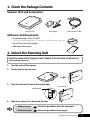
1. Check the Package Contents
Scanner Unit and Accessories
Scanner Unit
AC Adapter
USB Interface Cable
Software and Documents
• CanoScan Setup Utility CD-ROM
Contains software programs, PDF manuals, troubleshooting guide, etc.
• Quick Start Guide (this guide)
• Additional documents
2. Unlock the Scanning Unit
Unlock the scanner before plugging in the AC adapter. If it is left locked, a malfunction or
other problem may occur.
1.
Peel the seals off the scanner.
2.
Gently turn the scanner over.
3.
Push the lock switch toward the unlock mark.
Lock Switch
Unlock Mark
4.
Return the scanner to a horizontal position.
• Windows users
follow the procedures from the next page.
• Macintosh users
follow the procedures from page 8.
D646U Quick Start Guide
1
Using the Windows Platform
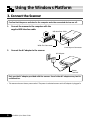
3. Connect the Scanner
Confirm that the power switches for the computer and other connected devices are off.
1.
Connect the scanner to the computer with the
supplied USB interface cable.
USB Interface Cable
Wide Flat Connector
Small Square Connector
2.
Connect the AC adapter to the scanner.
AC Adapter
Power
Terminal
Only use the AC adapter provided with the scanner. Use of other AC adapters may lead to
a malfunction.
• The scanner does not have a power switch. The power is activated as soon as the AC adapter is plugged in.
2
D646U Quick Start Guide
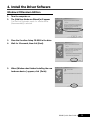
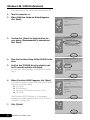
4. Install the Driver Software
Windows Millennium Edition
1.
Turn the computer on.
2.
The [Add New Hardware Wizard] will appear.
Confirm that [Automatic search for a better driver
(Recommended)] is selected.
3.
Place the CanoScan Setup CD-ROM in the drive.
4.
Wait for 10 seconds, then click [Next].
5.
When [Windows has finished installing the new
hardware device.] appears, click [Finish].
D646U Quick Start Guide
3
Windows 98 / 2000 Professional
The screen shots in this section are from Windows 98.
1.
Turn the computer on.
2.
When [Add New Hardware Wizard] appears,
click [Next].
3.
Confirm that [Search for the best driver for
your device. (Recommended)] is selected and
click [Next].
4.
Place the CanoScan Setup Utility CD-ROM in the
drive.
5.
Confirm that [CD-ROM drive] is selected, wait
for 10 seconds, and then click [Next].
If [Driver Not Found] appears, click [Back] and repeat
Step 5.
6.
When [CanoScan D646U] appears, click [Next].
If you are prompted to insert the Windows 98 CD-ROM,
follow the instructions below.
a. Click [OK].
b. Click [Browse].
c. Select the CD-ROM drive and click [OK].
d. Click [OK].
With Windows 2000 Professional, it may appear
message box [Digital Signature Not Found]. Continue
installation clicking [Yes].
7.
4
Click [Finish].
D646U Quick Start Guide
5. Install the Application Software
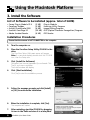
List of Software to be Installed (approx. total of 88MB)
• ScanGear Toolbox
• ArcSoft PhotoStudio 2000
• ScanSoft OmniPage Pro
• Adobe Acrobat Reader
(2 MB)
(30 MB)
(46 MB)
(10 MB)
-Scanning Utility Program
-Image Editing Program
-OCR (Optical Character Recognition) Program
-PDF Reader
Installation Procedures
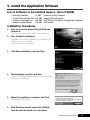
1.
Eject the CanoScan Setup Utility CD-ROM and
re-insert it.
The CanoScan Setup Utility main menu will appear.
2.
Click [Install the Software].
[Software User License Agreement] is confirmed. Click
[Yes] if you have no problem.
The install window will display.
3.
Click [Start Installation], and click [Yes].
4.
The installation procedure will start.
Follow the message prompts and click [Yes] or [Next] to
continue the installation.
5.
When the installation is complete, click [Yes].
The computer will restart.
6.
After Windows restarts, remove the CD-ROM
from the drive and store it in a safe place.
D646U Quick Start Guide
5
6. Try Scanning
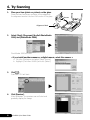
1.
Place your item (photo or picture) on the glass.
Place the item face down and align its top edge with
the alignment mark at the front left corner of the glass.
Bottom
Top
Alignment Mark
2.
Select [Start], [Programs], [ArcSoft PhotoStudio
2000] and [PhotoStudio 2000].
PhotoStudio 2000 will start.
< If you install another scanner or a digital camera, select this scanner. >
a. Click the [File] menu and select [Select Source].
b. Highlight [CanoScan D646U] and click [Select].
3.
Click
.
ScanGear CS-U will start.
4.
Click [Preview].
After calibration, the preview scan will start and
gradually display the image.
6
D646U Quick Start Guide
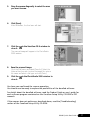
5.
Drag the mouse diagonally to select the area
you want to scan.
6.
Click [Scan].
After calibration, the final scan will start.
7.
Click the
in the ScanGear CS-U window to
close it.
The scanned image will appear in the PhotoStudio
2000 window.
8.
Save the scanned image.
Click the [File] menu and select [Save As]. Select the
folder where you wish to store the image file, enter a
file name and select a file type, and click [Save].
9.
Click the
close it.
in the PhotoStudio 2000 window to
You have now confirmed the scanner operation.
You should now be ready to explore the possibilities of the bundled software.
For details about the bundled software, read the Product Guide or user’s guide for
each software program contained on the CanoScan Setup Utility CD-ROM as PDF
manuals.
If the scanner does not perform as described above, read the [Troubleshooting]
section of the CanoScan Setup Utility CD-ROM.
D646U Quick Start Guide
7
Using the Macintosh Platform
3. Install the Software
List of Software to be Installed (approx. total of 54MB)
• Canon Plug-in Module CS-U
• CanoScan Toolbox
• ArcSoft PhotoStudio 2000
• ScanSoft OmniPage SE
• Adobe Acrobat Reader
(5 MB)
(5 MB)
(6 MB)
(30 MB)
(8 MB)
-Plug-in Module
-Scanning Utility Program
-Image Editing Program
-OCR (Optical Character Recognition) Program
-PDF Reader
Installation Procedures
Ensure that the scanner is NOT CONNECTED to the computer.
1.
Turn the computer on.
2.
Place the CanoScan Setup Utility CD-ROM in the
drive.
The CanoScan Setup Utility main menu will appear.
Note: If no window displays, double-click the CD-ROM
icon, then the Setup icon.
3.
Click [Install the Software].
[Software User License Agreement] is confirmed. Click
[Yes] if you have no problem.
The install window will display.
4.
Click [Start Installation].
Click [Yes] to start the installation process.
5.
Follow the message prompts and click [Install]
or [OK] to continue the installation.
6.
When the installation is complete, click [Yes].
The computer will restart.
7.
After restarting, eject the CD-ROM by dragging
its icon to the Trash and store it in a safe place.
8
D646U Quick Start Guide
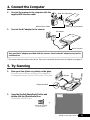
4. Connect the Computer
1.
Connect the scanner to the computer with the
supplied USB interface cable.
Wide Flat Connector
USB Interface Cable
2.
Small Square Connector
Connect the AC adapter to the scanner.
AC Adapter
Power Terminal
Only use the AC adapter provided with the scanner. Use of other AC adapters may lead to
a malfunction.
• The scanner does not have a power switch. The power is activated as soon as the AC adapter is plugged in.
5. Try Scanning
1.
Place your item (photo or picture) on the glass.
Place the item face down and align its top edge with
the alignment mark at the front left corner of the glass.
Bottom
Top
Alignment Mark
2.
Open the [ArcSoft PhotoStudio] folder and
double-click the [PhotoStudio] icon.
PhotoStudio 2000 will start.
D646U Quick Start Guide
9
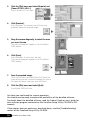
3.
Click the [File] menu and select [Acquire] and
[Canon PI CS-U 4.0.0...].
Plug-in Module CS-U wil start.
4.
Click [Preview].
After calibration, the preview scan will start and
gradually display the scanned image.
5.
Drag the mouse diagonally to select the area
you want to scan.
The scanned image will appear in the PhotoStudio
2000 window.
6.
Click [Scan].
After calibration, the final scan will start.
The scanned image will appear in the PhotoStudio
2000 window.
7.
Save the scanned image.
Click the [File] menu and select [Save As]. Select the
folder where you wish to store the image file, enter a
file name and select a file type, and click [Save].
8.
Click the [File] menu and select [Quit].
PhotoStudio 2000 will close.
You have now confirmed the scanner operation.
You should now be ready to explore the possibilities of the bundled software.
For details about the bundled software, read the Product Guide or user’s guide for
each software program contained on the CanoScan Setup Utility CD-ROM as PDF
manuals.
If the scanner does not perform as described above, read the [Troubleshooting]
section of the CanoScan Setup Utility CD-ROM.
10
D646U Quick Start Guide
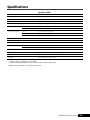
Specifications
CanoScan D646U
Scanner Type
Flatbed
Scanning Element
3 line color CCD
Light Source
Cold cathode fluorescent lamp
Optical Resolution
600 x 1200 dpi
Selectable Resolution
25 - 9600 dpi (ScanGear CS-U, Canon Plug-in Module CS-U)
Scanning Bit Depth Color
14 bit input / 8 bit output for each color (RGB)
Scanning Speed*1
Grayscale
14 bit input / 8 bit output
Color
17.1 msec/line (600 dpi)
Grayscale
11.8 msec/line (600 dpi)
B&W
11.8 msec/line (600 dpi)
Preview Speed
15 sec (approx.)
Interface
USB 1.1
Maximum Media Size
A4/ Letter, 216 x 297 mm (8.5 x 11.7 in.)
Operating Range
Temperature
10º to 35º C (50º to 95º F)
Humidity
10% to 90% RH (without condensation formation)
Power Requirements
AC Adapter (100 / 120 / 230 /240 V)*2
Power Consumption
In operation 14 watts maximum, stand-by:4 watts
Maximum Exterior Dimensions
258 x 431 x 61 mm (10.1 x 17.0 x 2.4 in.)
Weight
Approximately 2 kg (4.4 lbs.)
*1 Transfer time to computer is not included.
*2 Type of AC adapter depends on the area where the scanner is purchased.
• Specifications are subject to change without notice.
D646U Quick Start Guide
11
12
D646U Quick Start Guide