1
Back to Contents Page
Using CDs, DVDs, and Other Multimedia
Dell™ XPS™ M1710 Owner's Manual
Playing CDs or DVDs
Adjusting the Volume
Adjusting the Picture
Copying CDs and DVDs
Using Dell Media Experience and Dell MediaDirect™ Connecting Your Computer to a TV or Audio Device
Playing CDs or DVDs
NOTICE: Do not press down on the CD or DVD tray when you open or close it. Keep the tray closed when you are not using the drive.
NOTICE: Do not move the computer when you are playing CDs or DVDs.
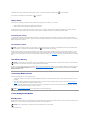
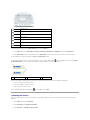
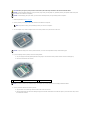
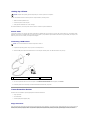
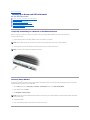
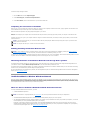
1.
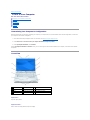
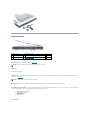
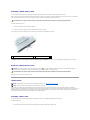
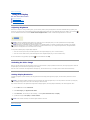
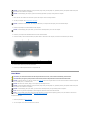
Press the eject button on the front of the drive.
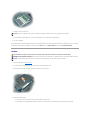
2.
Pull out the tray.
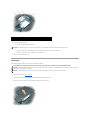
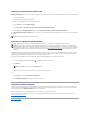
3.
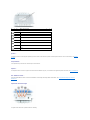
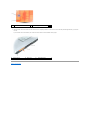
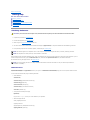
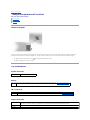
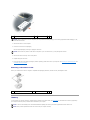
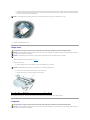
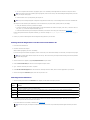
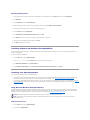
1
CD/DVD tray
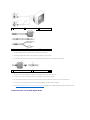
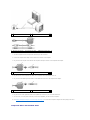
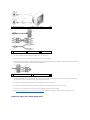
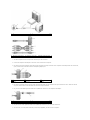
Place the disc, label side up, in the center of the tray and snap the disc onto the spindle.
NOTE: If you use a CD/DVD drive that shipped with another computer, you need to install the drivers and software necessary to play CDs or DVDs or
write data. For more information, see the Drivers and Utilities CD (the Drivers and Utilities CD is optional and may not be available for your computer or
in certain countries).
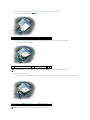
4.
Push the tray back into the drive.
To format CDs for storing data, to create music CDs, or to copy CDs, see the CD software that came with your computer.
NOTE: Ensure that you follow all copyright laws when you create CDs.
Adjusting the Volume
NOTE: When the speakers are muted, you do not hear the CD or DVD playing.
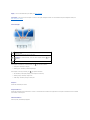
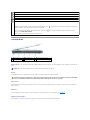
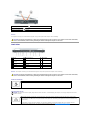
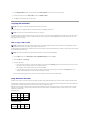
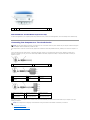
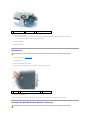
To adjust the speaker volume when playing a CD or DVD, use the media control buttons on the front of the computer.