1
Linking a Simulation Model to a Schematic Component
Adding the Link
Whether you have created a new schematic component, or are using an existing one, it is now time to create a link to the
simulation model file. The first step in this process is to add a simulation model link to the component, carried out in the
Schematic Library Editor in one of the following ways:
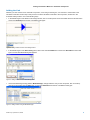
•
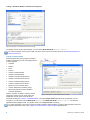
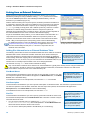
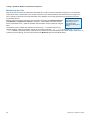
In the Models region of the Editor's main design window, click on the drop-down arrow associated with the lower-left button
and choose Simulation from the list of available model types.
Figure 2. Adding models from the main editing window.
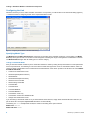
•
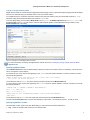
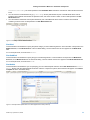
In the Models region of the SCH Library panel, click on the associated Add button and choose Simulation as the model
type in the Add New Model dialog that appears.
Figure 3. Adding models from the SCH Library panel.
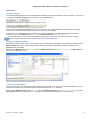
•
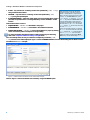
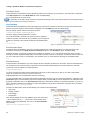
Use the Model Manager dialog (Tools » Model Manager). Simply select the entry for the component, click on the dropdown arrow associated with the Add button, and choose Simulation from the list of available model types.
Figure 4. Adding models using the Model Manager.
AP0142 (v1.1) March 19, 2008
3