1
5
Workstation Configuration
5 Workstation Configuration
In the following chapter we would like to explain how to easily configure Windows and Linux PCs for the use of SuSE Linux Connectivity Servers.
Before going through all the steps of a workstation configuration for SuSE Linux
Connectivity Servers data server and Internet functions, please make sure that
every PC has a network card on and is connected to the server with the right
cable.
There is nothing more frustrating than spending hours searching for the causes
of error in applications, just to eventually realize that the network cable was not
properly connected . . .
Tip
Many network cards are equipped with an LED, which signals that the card
is properly connected.
5.1
5.1.1
Access to the File Server
Windows 95/98/ME
Configuration of the Network Card
The first step is complete. The card and cable are connected properly. Now, we
just need to make sure that the card is recognized to by the system. If your PC
was previously integrated in a network, you can, of course, skip this part and
move on to the next step.
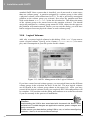
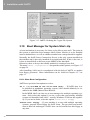
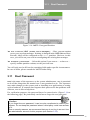
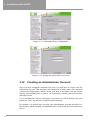
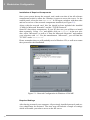
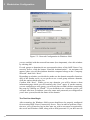
Select ‘Settings’ → ‘Control Panel’ in the start menu then click on ‘System’ and select the tab-sheet ‘Device Manager’ to get an overview of all hardware devices available on your PC.
The item “Network Cards” should now appear in the list, which should indicate
the card mounted on your computer, along with its manufacturer and model.
Please be aware that items like the “DialUp-Adapter” or “IrDA Infrared Port” in
lap-tops have nothing to do with the network card.
In the unexpected event that no such item is listed, you will have to configure the
network card first. You will find the necessary information in your network card
documentation.
Now close the window “System Properties” by clicking ‘OK’.
69