1
CollabCAD Getting Started Manual V1.0
October 2011
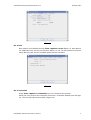
file System to the CMS Repository. In this mode, the user cannot save a part to the Local
File System.
NOTE:
Once the CMS server is connected from CollabCAD, the connection persists for the whole
session. If the user wants to checking a part to the repository, only the filename needs to
be provided. Similarly for checking out a part from the repository. The default path will be
taken to be that given at the time of making the connection. This can be edited.
7. Description of Terminologies Used
CollabCAD uses a 3D Geometry Kernel. That is, the point is a 3D point and so are all the
other entities like Lines, arcs etc. Therefore the basic Modeling Philosophy followed in
CollabCAD is 3D unlike in other Solutions where the start is 2D and then it gets into 3D
Mode.
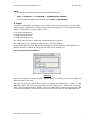
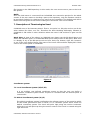
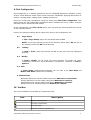
Work View: In view of the above, in CollabCAD one always see the 3D Work Space and
starts with 3D Work Space. In CollabCAD Work Space always refers to 3D space. Work view
is a display of any of the 3D spaces such as front, back, top, bottom, right, left, isometric
or any of the user defined views. The name of the work view would be displayed in black
color in the control panel of CollabCAD.
Figure: 6
Coordinate system:
7.1 Local Coordinate System (XT,YT,ZT)
It is an auxiliary user defined coordinate system so that the user can define a
Cartesian coordinate system whose XY plane is coincident with the desired plane of
construction.
7.2 Global Coordinate System (X,Y,Z)
The global coordinate system is defined as the reference space of the model to which
all the model geometrical data is stored. It is a Cartesian system which forms the
default coordinate system. The X-axis will point right along the section horizontal,
while the Y-axis will point up along the section vertical. The Z-axis is created using the
right hand rule.
CollabCAD, National Informatics Centre
8