1
list of available data will NOT be automatically displayed in the symbol list, as this can represent many
thousand symbols. NOTE: At this time, Tick Data only has U.S.-listed Options data, and all U.S.
exchanges are contained in the OPRA Options Exchange.
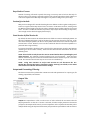
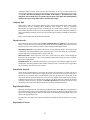
Adding Symbols to a Job
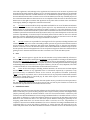
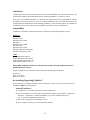
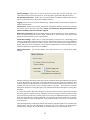
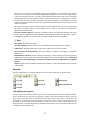
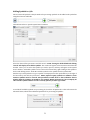
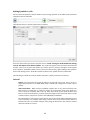
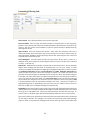
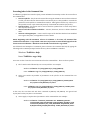
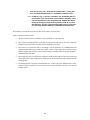
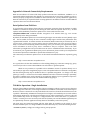
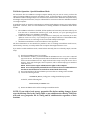
The user must add symbols to the Job window for processing. Symbols can be added to the symbol list
using these buttons and fields:
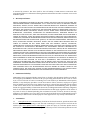
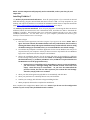
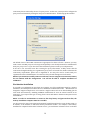
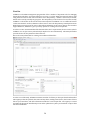
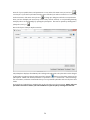
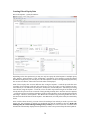
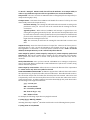
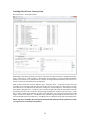
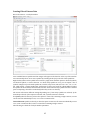
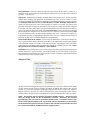
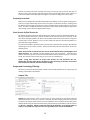
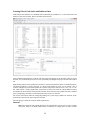
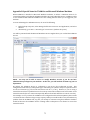
Click the binoculars to open the Symbol Search window:
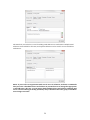
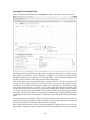
Select the desired filter parameters and click Search. NOTE: leaving the fields blank and clicking
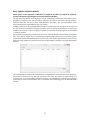
‘Search’ will display all available symbols. The results will appear in the Instrument Search Results
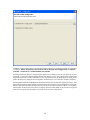
window. There you can select the symbols you wish to process, and they will appear in the Symbol
Search window. Individual symbols can be removed if not desired by right-clicking on the symbol in
the list and clicking remove. Click OK to add the symbols to the symbol list in the Job window.
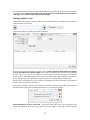
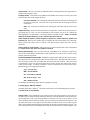
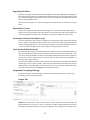
Another way to add symbols is to type a symbol or Company ID into the quick add box (to the right of
the binoculars) and click the plus button.
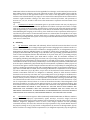
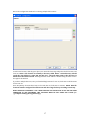
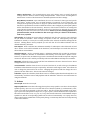
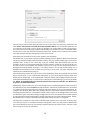
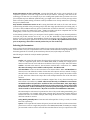
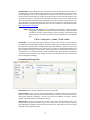
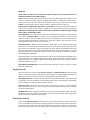
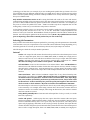
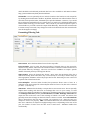
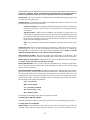
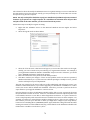
To include all available symbols in a processing job, check the All Symbols box. This will activate the
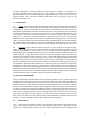
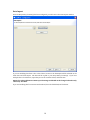
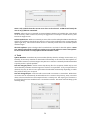
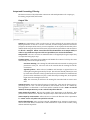
Advanced button, which offers additional parameters for processing all symbols:
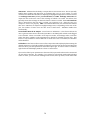
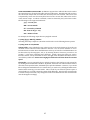
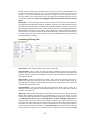
Name Instruments As They Traded On: Leaving this blank will use the current symbols for all
companies regardless of the date range selected in the Job window. Selecting a date will use the
55