1
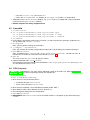
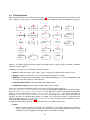
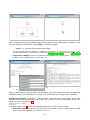
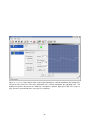
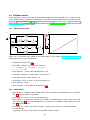
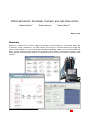
Figure 3: Preliminary RTAI-Lib block diagram with real-time sinewave generator and xrtailab scope blocks.
Align blocks. Scicos does not currently feature a block placement grid so blocks are not perfectly aligned
to make a nice diagram. Two methods can help block alignment:
• Use Scicos’s Align function: menu Edit → Align. Click on the Sine block’s data output port (the black
triangle to the right of the block) and then on the Scope’s data input port. One of the blocks will then
be shifted so that both blocks’ ports are aligned. A faster way to align blocks using keyboard shortcuts
is to place the mouse over a block’s port (input or output), then use keyboard shortcut “a”, then click
on the port of the block to be aligned.
• Adjust mouse acceleration so that motion increments are more discretized: type xset m 4 1 in a
terminal/shell window. The drawback is that your mouse might move too fast for comfort.
Link blocks. Menu Edit → Link. Click on Sine’s output port. Click on Scope’s input port. A link is drawn
from Sine to Scope. Click on the clock’s event output port (the red triangle below the clock). Then draw an
S-shaped link to the Sine block by clicking below the clock’s port, once more above the Sine’s event port,
and finally directly onto the Sine’s event port. A red link is drawn from the clock to the Sine. Draw another
event link by clicking onto the red line, then click above the Scope, and click again onto the Scope’s event
port.
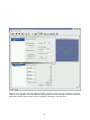
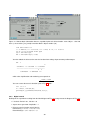
Set block parameters. Click on the clock. You may adjust period and initialization times (values are in
seconds). Click on Sine, adjust parameters accordingly, then click on OK. You may also edit the Scope’s
name and notice that it may actually have more than one data input. In any case, it is necessary that Scicos
evaluate all blocks. This is done when you click on a block, adjust its parameters, and then click on OK. A
general way to have all blocks evaluated is to select menu Simulate → Eval. You must do this Eval operation
every time you add a block to a diagram and omit inspecting its internal parameters.
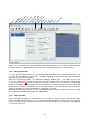
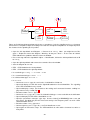
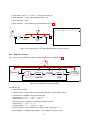
Create super block. Menu Diagram → Region to Super Block. You must draw an elastic frame around the
Sine and Scope blocks, excluding the Clock (figure 4, left). First click above-left of the Sine block, then click
again below-right of the Scope block. The region then becomes a Super Block (Fig. 4, right).
3.4.2
Compile
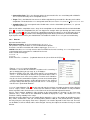
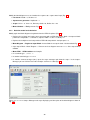
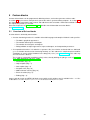
Set target. You may optionally click on menu RTAI → Set Target and then middle-click on the Super Block
to compile. A dialog box opens where you may modify:
• Target. This is the Makefile’s basename. See description below.
• Ode function. This is one of the ordinary differential equation functions available in Scicoslab. The
default is ode4. Possible values are:
– ode1. Uses Euler’s method (RK1)
– ode2. Uses Heun’s method (RK2), also known as the Improved Euler method.
17