1
Getting Started with Ableton Live Lite 8
4 - Record a MIDI Track in Live
4 - Record a MIDI Track in Live
Proteus VX is a multi-timbral instrument with the ability to play 16 different
sounds at once. Let’s get ready to make a multitrack MIDI recording.
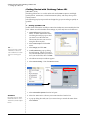
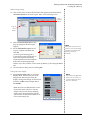
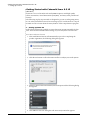
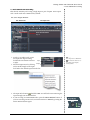
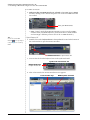
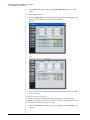
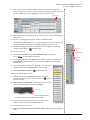
1. Click the Track View Selector at the bottom of the window or simply doubleclick on the clip to show the Proteus VX Device. (Shift+Tab toggles the view.)
Track View Selector
The Proteus VX Device appears as shown below.
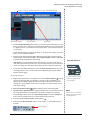
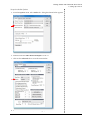
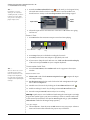
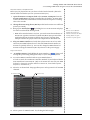
2. Click on the Tool icon
to bring up the Proteus VX editor.
16 Channel View
Select Presets
3. Click the 1-16 tab to view the preset selections 16 MIDI channels. When
multitrack recording it’s often easier to give each track its own MIDI channel
and preset.
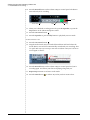
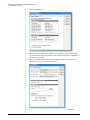
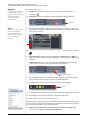
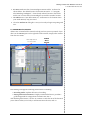
4. Click the little triangle to the right of the preset selection field for Channel 1.
Click Here
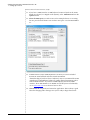
The preset selection dialog box appears.
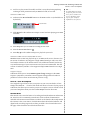
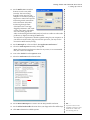
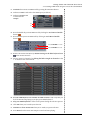
5. Hit the Spacebar to start Live, then browse though the presets. Click OK
when you find one you want to use for recording.
6. Close the Proteus VX editor by clicking the close box.
Tutorials
33