
1
74
Formatting a Label
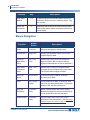
Line and Rectangle Objects
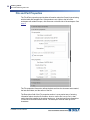
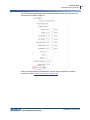
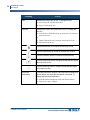
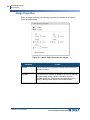
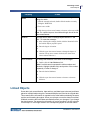
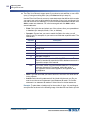
Property
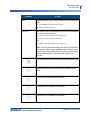
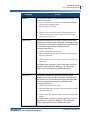
Start Point Y
To Use
Indicates the distance the top edge of a vertical line is from
the top of the label. Increasing the size of Start Point Y is the
same as dragging the top handle of the line downward,
thereby shortening the vertical line.
To change Start Point Y:
1. Double-click the Start Point Y field.
2. Enter the distance the top of the line should be from the top of
the label.
or
3. Click the up or down arrow buttons to increase or decrease the
distance.
The distance you are able to move the top edge of the line
depends on the length of the label part. The incremental
distance will vary between the different label parts.
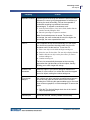
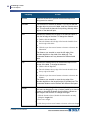
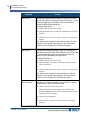
End Point Y
Indicates the distance the bottom edge of a vertical line is
from the bottom of the label. Decreasing the size of End Point
Y is the same as dragging the bottom handle of the line
upward, thereby shortening the vertical line.
To change End Point Y:
1. Double-click the End Point Y field.
2. Enter the distance the bottom of the line should be from the
bottom of the label.
or
3. Click the up or down arrow buttons to increase or decrease the
distance.
The distance you are able to move the bottom of the line
depends on the length of the label part. The incremental
distance will vary between the different label parts.
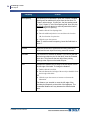
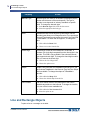
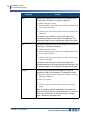
Line Thickness
Indicates the weight (thickness) of the line itself. To enter a
measurement in the Line Thickness field:
1. Double-click the Line Thickness field.
Note: Line thickness is expressed in whole numbers and
decimals. Highlight (double-click) each portion of the number
separately in order to change.
2. Enter the desired thickness.
or
3. Click the up or down arrow buttons to increase or decrease
thickness.
LabelMark 6.0 User’s Manual















![LM 4.0_QuickStart_EURO [7] Languages.fm](http://vs1.manualzilla.com/store/data/006170771_1-f471c6a60f770fa9f17213cbf88d66dd-150x150.png)