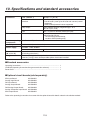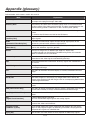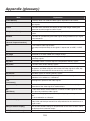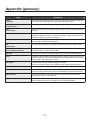
1
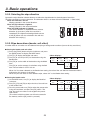
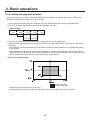
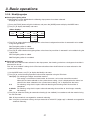
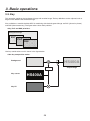
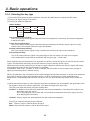
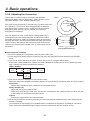
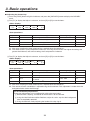
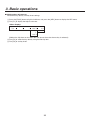
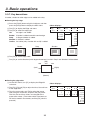
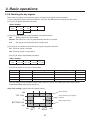
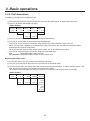
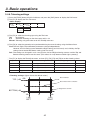
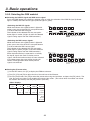
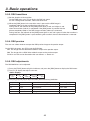
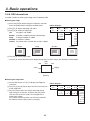
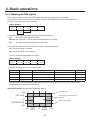
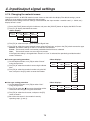
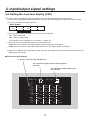
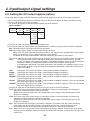
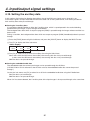
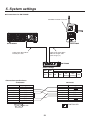
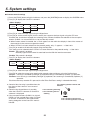
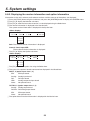
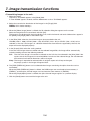
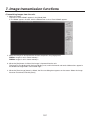
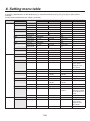
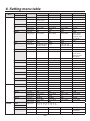
3. Basic operations 3-4-5. PinP decorations A border or soft effect can be added to PinP. 1Press the [FUNC] button to light its indicator, and press the [PinP] button to display the PinP menu. 2Turn [F1] to display the Border sub menu. <Menu display> Border 2/6 Border Width Soft Mode Off 5.0 0.0 Fix On 0.1 ~ 100.0 0.0 ~ 100.0 Var 3Turn [F2] to set ON (or OFF) for the border using the Border item. 4Turn [F3] to set the width of the border using the Width item. 5Turn [F4] to set the amount of soft effect using the Soft item. The soft effect is OFF if 0 is set. When “On” has been selected as the Border item setting, the ratio of the soft effect to the border width is indicated as the amount of soft effect. When only the soft effect is to be added to PinP, select “Off” as the Border item setting. 6Turn [F5] to set the change in the border width using the Mode Item. Fix:The border width is kept constant. Var (Variable):The border width changes to suit the PinP size. Setting the border color 1On the KEY menu, turn [F1] to display the BodrCol sub menu. 2Turn [F2] ,[F3] and [F4] to adjust the Hue, Sat and Lum of the border color. 3To call a preset color, turn [F5] to select the preset color using the Load item, and press the [F5] switch. The Hue, Sat and Lum values are changed to the preset color values. (The values which have been set will not be stored in the memory until the [F5] switch is pressed.) <Menu display> BodrCol Hue Sat Lum Load↓ 3/6 0.0 0.0 100.0 White 0.0 ~ 359.9 0.0 ~ 100.0 0.0 ~ 108.0 Yellow Cyan Green Magenta Red Blue Black 41