1
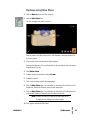
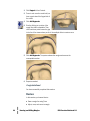
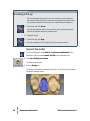
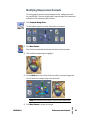
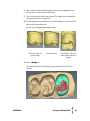
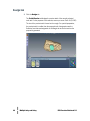
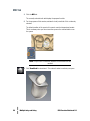
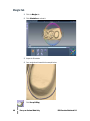
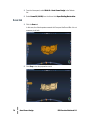
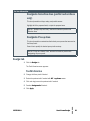
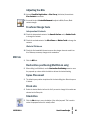
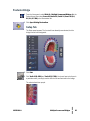
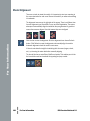
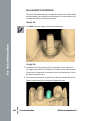
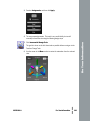
Move
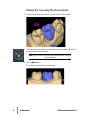
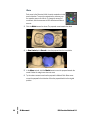
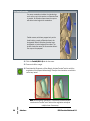
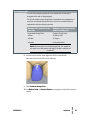
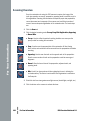
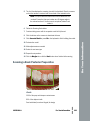
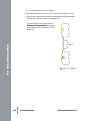
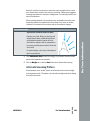
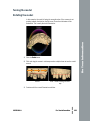
Each arrow in the Move tool shifts the entire restoration in that
arrow’s direction. To move the restoration the other way, use
the opposite arrow or click Undo. To change the amount of
movement, click the arrow next to 100 and select a different
amount.
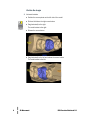
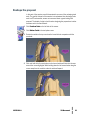
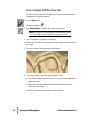
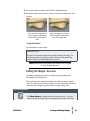
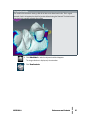
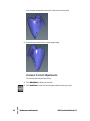
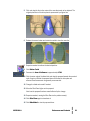
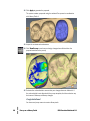
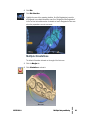
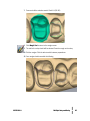
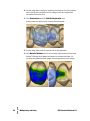
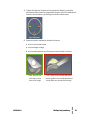
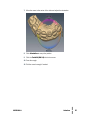
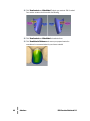
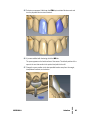
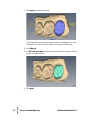
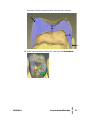
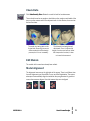
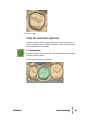
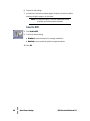
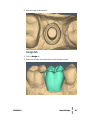
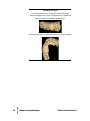
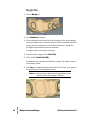
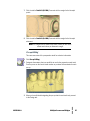
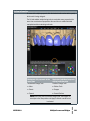
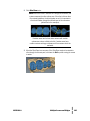
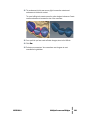
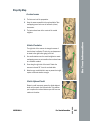
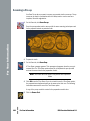
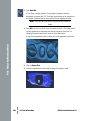
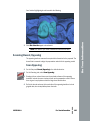
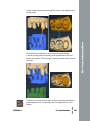
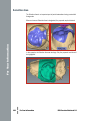
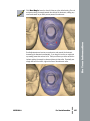
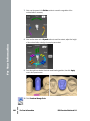
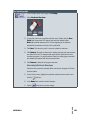
3 Click the Distal arrow a few times. The proposal moves towards the distal.
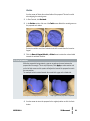
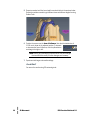
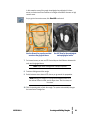
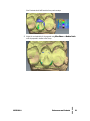
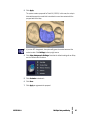
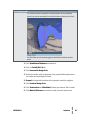
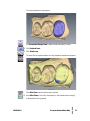
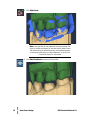
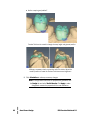
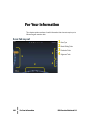
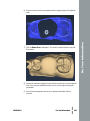
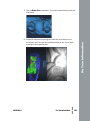
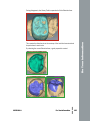
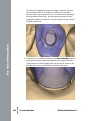
4 In View Controls, click Buccal to view the proposal from the buccal side.
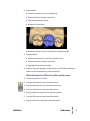
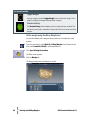
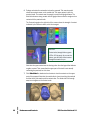
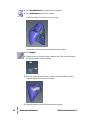
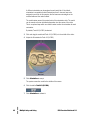
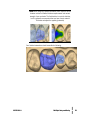
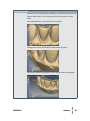
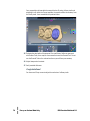
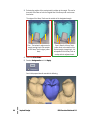
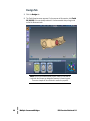
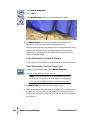
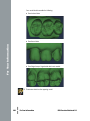
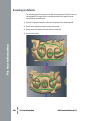
5 In the Move controls, click the Mesial arrow to move the proposal towards the
mesial. Notice the margin area does not move.
10
●●●●●●
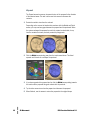
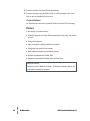
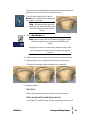
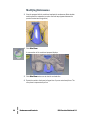
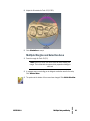
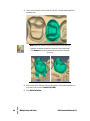
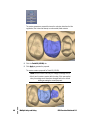
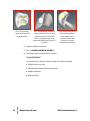
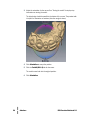
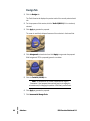
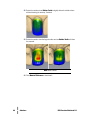
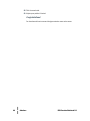
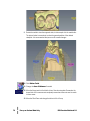
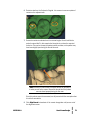
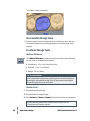
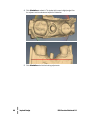
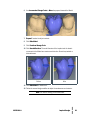
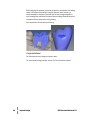
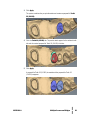
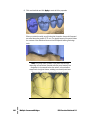
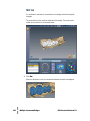
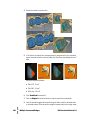
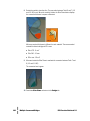
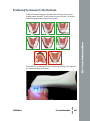
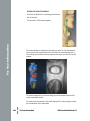
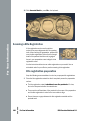
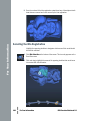
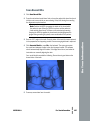
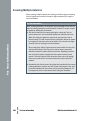
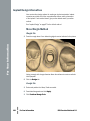
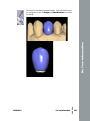
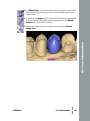
6 Try the various arrows to see how the proposal is affected. Each Move arrow
moves the proposal in that direction. Move the proposal back into the original
position.
3D Movement
E4D Exercise Workbook 5.0