1
Analysing your first run:
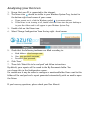
1. Ensure that your PC is connected to the internet.
2. The Driver icon AccuCall
should be visible in your Windows System Tray, located in
the bottom right-hand corner of your screen.
azure pcr
real-time results
a. If you cannot see it, click the Windows symbol to see more options.
b. If the Driver is not running at all, double click the Driver icon on your desktop or
in your Start Menu and it will appear in your Windows System Tray.
3. Double click on the Driver icon.
4. Select ‘Change Configuration’ from the top right –hand corner
5. Check that the following textboxes are filled according to:
a. Node Address: cloud.azurepcr.com
b. User: your personal username
c. Password: your password
6. Click ‘Save.’
7. Then click ‘Select file to be analysed’ and follow instructions.
By default, your reports will be saved to the My Documents folder. You
can change this in the Configuration screen.
For routine use it may be easier to configure a monitored folder. Runs saved to this
folder will be analysed and a report generated automatically with no need to open
the Driver.
If you have any questions, please check your User Manual.