1
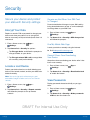
Linking to Social Media
Accounts
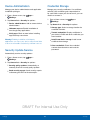
To add a gift card to your account, do this:
1. In NOOK Settings, tap Manage credit cards,
gift cards & shop controls.
You can link your NOOK to your Facebook and
Twitter accounts.
2. Tap Manage gift card.
3. Tap Add Gift Card.
1. In NOOK Settings, tap Link to
social networking.
4. Enter the Card or Certificate Number and
the PIN.
5. Tap Submit.
2. Tap the Link Your Account button for the
network to which you want to link.
To redeem an access code for NOOK content, do
this:
3. Enter your login credentials for your account on
that network.
1. In NOOK Settings, tap Manage credit cards,
gift cards & shop controls.
Configuring Adobe DRM
Settings
2. Tap Redeem code. Your NOOK opens a Web
browser displaying a field for entering the access
code.
DRM stands for Digital Rights Management, a
system for managing publication and distribution
rights for digital content. To gain authorized access
to content protected with Adobe DRM on your
NOOK, you need to obtain a free Adobe ID from
Adobe and to enter that ID on your NOOK.
3. Enter the 13-digit access code and tap
Add Now.
To clear the NOOK Search history of recent
searches, do this:
Once you have your Adobe ID, do this:
1. In NOOK Settings, tap Manage credit cards,
gift cards & shop controls.
1. Open NOOK Settings, and tap Books.
2. Tap Clear recent shop searches. A dialog box
opens, asking you to confirm your choice.
2. Tap Adobe DRM Settings.
3. Tap OK.
3. Tap Add Adobe ID. A dialog box opens.
To clear your browsing history from the NOOK
Shop, do this:
4. Enter email address and password for your
Adobe ID.
5. Tap OK.
1. In NOOK Settings, tap Manage credit cards,
gift cards & shop controls.
2. Tap Clear browsing history. A dialog box opens,
asking you to confirm your choice.
3. Tap OK.
DRAFT For Internal Use Only
NOOK
40
NOOK Settings