1
80
Chapter 3. Connecting
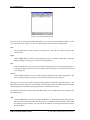
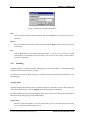
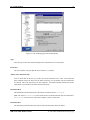
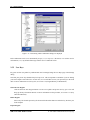
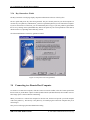
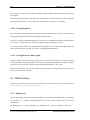
Your home directory should contain a subdirectory named .ssh2. If you do not see the .ssh2 directory,
check that you have the Show Hidden Files option selected from the View menu.
Enter the .ssh2 directory and copy the key file there from the clipboard (press Control+V on the keyboard
or click the right mouse button and select Paste from the shortcut menu).
3.5.2 Manually Editing the Authorization File
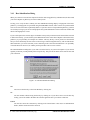
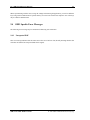
After you have uploaded your public key to the remote host computer, connect to the host using the SSH
Secure Shell client’s terminal window. Your home directory should contain a .ssh2 subdirectory (note that
the first character of the folder name is a full stop).
First make sure that your current directory is your home directory. Type the following command after the
remote host computer command prompt and press the Enter key:
cd
Then enter the .ssh2 subdirectory by issuing the following command after the command prompt:
cd .ssh2
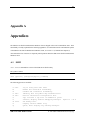
The .ssh2 directory should contain a text file called authorization. You have to edit that file and add
your public key file name on a separate line in that file. If the authorization file does not yet exist, you
will create it now.
Start your favorite text editor by typing authorization as a parameter after the name of the text editor.
For example, if your favorite text editor is Pico, type the following after the remote host computer’s command
prompt:
pico authorization
When in the text editor, add a new line containing the word key, a space and the public key file name. For
example, if the public key file name is public key.pub, add the following line to the authorization
file:
key public_key.pub
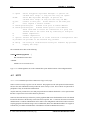
Now save the authorization file and exit the text editor. When you login the next time, public-key
authentication should be working. If it is not, check that you have typed the public key file name correctly
in the authorization file, and that the correct public key file is located in the .ssh2 directory on the
remote host computer.
c 2001 SSH Communications Security Oyj
SSH Secure Shell Windows Client