1
94
Chapter 5. File Transfer
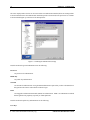
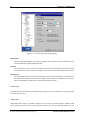
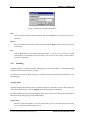
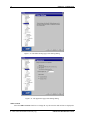
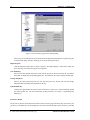
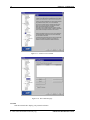
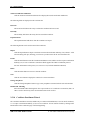
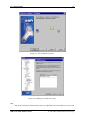
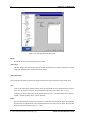
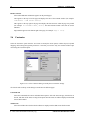
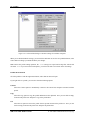
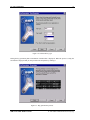
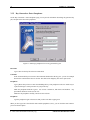
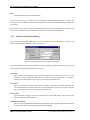
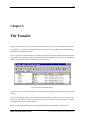
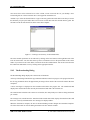
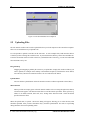
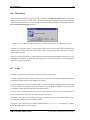
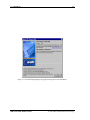
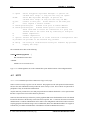
Figure 5.4: The download has been completed.
5.9 Uploading Files
The File Transfer window can be used to upload files from your local computer to the remote host computer.
There are several different ways to upload a file.
It is also possible to upload several files at the same time. To select multiple files, hold down the Shift or
Control keys when selecting files with the mouse. If you hold down the Shift key, all the files and folders between the first and last selection will be selected. If you hold down the Control key, you can select individual
files and folders one by one.
Drag and drop
Dragging and dropping is probably the easiest way to upload files. Simply click on the local file(s) you
want to upload (for example on the desktop or the Windows Explorer), hold down the mouse button,
move the file(s) into the File Transfer window’s file view and release the button.
Upload button
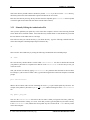
You can click the Upload button on the File Transfer window’s toolbar to upload the selected file(s).
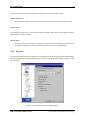
Shortcut menu
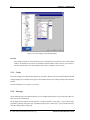
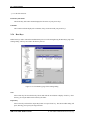
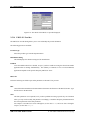
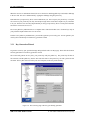
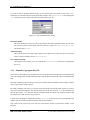
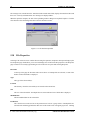
When you click on an empty space in the File Transfer window’s file view using the right mouse button,
a shortcut menu appears. The shortcut menu allows several file transfer operations: Paste, Upload, Up,
Home, Go To Folder, Refresh, Select All, View, Arrange Icons and New Folder. Select the desired
operation from the menu.
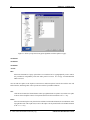
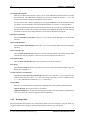
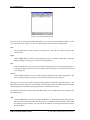
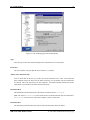
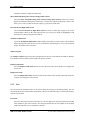
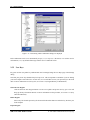
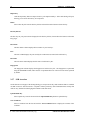
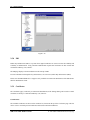
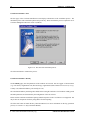
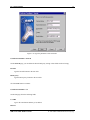
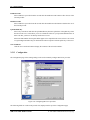
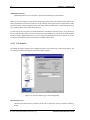
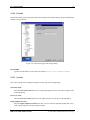
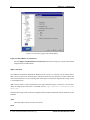
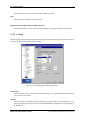
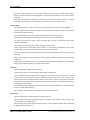
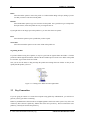
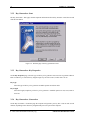
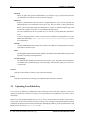
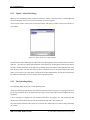
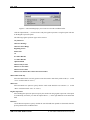
When the upload starts, a Upload - Select Files dialog will appear, allowing you to select the file(s) that
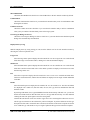
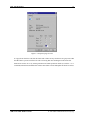
should be uploaded. After you have selected the file(s), click the Upload button. You will see a Uploading
dialog that shows the current uploading status.
c 2001 SSH Communications Security Oyj
SSH Secure Shell Windows Client