1
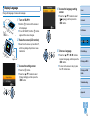
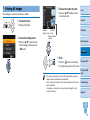
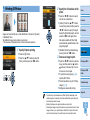
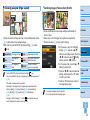
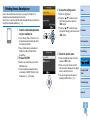
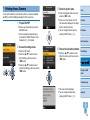
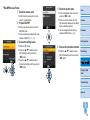
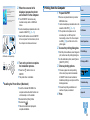
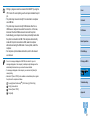
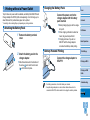
5 Choose the connection method.
zz
Press the <u><d> buttons to select
[Direct Connection], and then press the
<o> button.
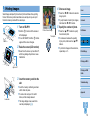
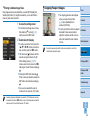
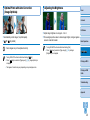
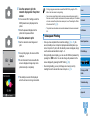
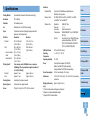
7 Use your smartphone to print.
Cover
zz
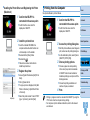
Start Canon Easy-PhotoPrint,
choose images, and print.
Contents
zz
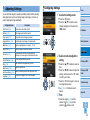
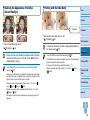
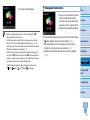
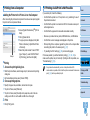
Once printing begins, the screen at left is
displayed.
zz
Do not disconnect the devices or close
the application while this screen is
displayed. Images may not be printed
correctly or completely.
zz
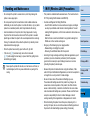
The screen at left is displayed.
zz
You can change the password by
zz
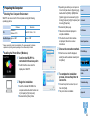
The standby screen at left is displayed
when printing is finished.
Part Names
Basic Operations
Print Settings
pressing the EDIT button (= 45).
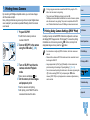
Printing via Wi-Fi
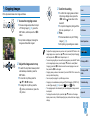
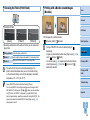
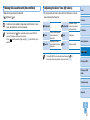
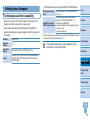
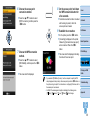
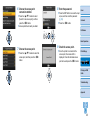
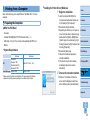
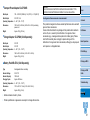
6 Use your smartphone to join the
network displayed on the printer
screen.
zz
In the smartphone’s Wi-Fi settings, select
the SSID (network name) displayed on
the printer.
zz
Enter the password displayed on the
printer into the password field.
• Printing in progress cannot be canceled from SELPHY by using the <v>
button. Use the smartphone to stop printing.
• You can also connect the printer to a smartphone via an existing access point.
In this case, connect the printer and smartphone to the same access point. For
details on how to connect the printer to an access point, see “Connecting the
Printer to the Access Point” (= 37).
• The printer does not enable communication between the devices connected
to it.
Printing via USB
Cable
Troubleshooting
Appendix
32