1
USING SYSML PLUGIN
Generic Procedures
To create a report using a SysML report template
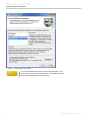
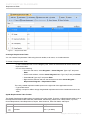
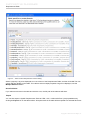
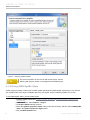
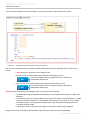
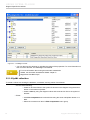
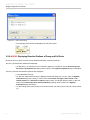
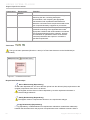
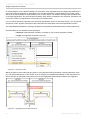
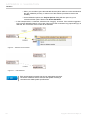
1. Select a report template and click Next in the Report Wizard dialog. The Select Report Data
pane will open. You can then select a predefined report data for the selected template (default =
Built-in).
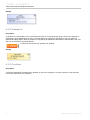
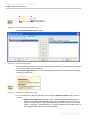
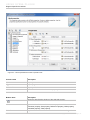
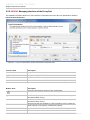
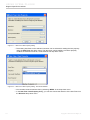
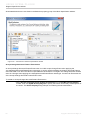
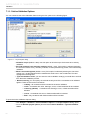
2. You can modify the introductory information of a report, i.e. Variables (formerly called “User
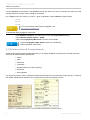
Defined Fields”), by clicking the Variable button on the Select Report Data pane. The Variables
dialog will then display. You can then add/modify the variable of the report to be generated, such
as author, company name, company address, report purpose, report scope, etc. This information
will appear in the report generated.
3. Click OK to return to the Select Report Data pane. In the Select Report Data pane, click Next.
The Select Element Scope pane will then display.
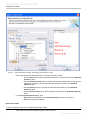
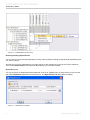
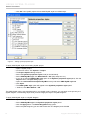
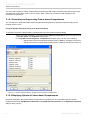
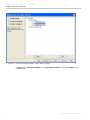
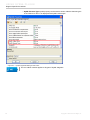
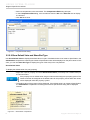
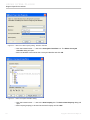
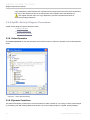
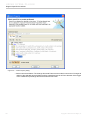
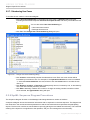
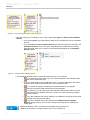
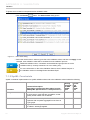
4. In the Select Element Scope pane:
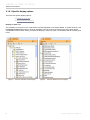
• Use the Add button to add an element selected in the element tree to the Selected
objects pane.
• Use the Add All button to add all elements directly owned by the element selected in
the element tree to the Selected objects pane.
• Use the Add Recursively button in to add all elements listed under the element
selected in the element tree to the Selected objects pane.
• Use the Remove button in to remove the selected element from the Selected objects
pane.
• Use the Remove All button in to remove all selected elements from the Selected
objects pane.
5. After the scope of the report is defined, click Next to proceed to the Output Options pane.
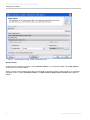
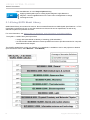
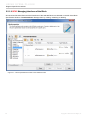
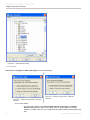
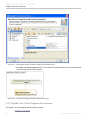
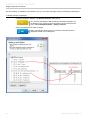
6. Specify the report file name, report file format, and image file format. It is recommended to use
RTF as the report file format.
7. Click Generate to create the report. Your report will be generated and automatically open in the
default document editor.
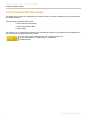
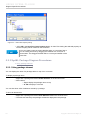
For more information about working with the Report Wizard, see the MagicDraw
ReportWizard UserGuide.pdf
5.1.8 Context-Specific Value Compartments
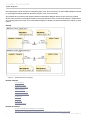
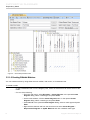
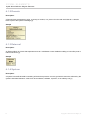
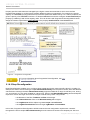
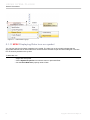
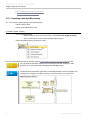
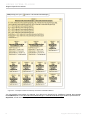
Context-Specific Value Compartments allows for
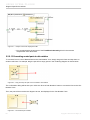
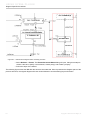
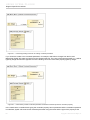
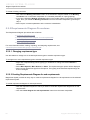
• creating different configurations for the same structure and display them directly in IBD diagram(s)
• having different values for the same part in different contexts
• assigning a different initial value to an inherited property
5.1.8.1 Progressive Reconfiguration
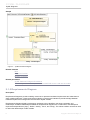
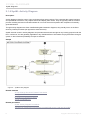
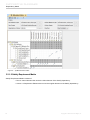
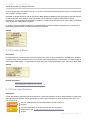
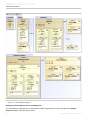
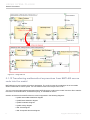
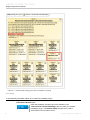
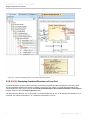
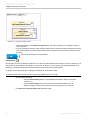
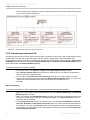
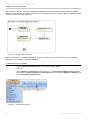
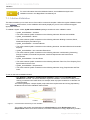
Progressive Reconfiguration enables SysML to handle a wide range of systems engineering configuration tasks.
Progressive Reconfiguration continuously applies the following values:
• Static class-level default values.
• Inherited Property-specific initial values.
• Redefined Property-specific initial values.
• Property-specific initial values.
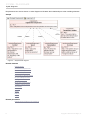
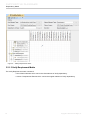
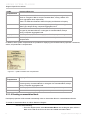
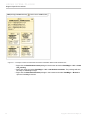
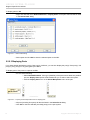
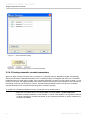
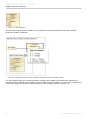
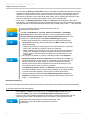
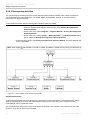
Property-specific initial values are specific to the usage of a Block as a Part Property in a higher context (i.e.
another structured block or “assembly”). If there are many Part Properties of the same type, these Part Properties
may have different property-specific default values and will then be initialized differently.
60
Copyright © 2009-2015 No Magic, Inc.