1
Data Bits
Stop bits
8
1
b.
Click on the
Set Flow Control Parameters button and ensure the following
settings:
Hardware Flow Control RTS/CTS
Software Flow Control
Receive Flow Control
Blank
Transmit Flow Control Blank
c.
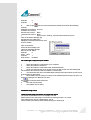
Click on Start - Settings - Control Panel and select System
Click on the Device Manager tag
Expand the Ports (COM & LPT)
Highlight to Communications Port used
by your modem
Click on Properties
Select the Port Settings Tab
Check the following settings:
Bits per second 38400
Data bits
8
Parity None
Stop bits
1
Flow Control
Hardware
You cannot get a reply from your modem.
1.
Check the modem is connected to your computer.
2.
Check the modem is turned on
3.
Check the modem is connected to the TELECOM network
4.
At the very bottom left corner of the screen you will see the Com port being used.
This should be the same port that the modem is connected to.
5.
You should see both the CTS and DSR lights showing red at the bottom of the screen.
If these lights are green then:
a.
The software may be trying to connect to the modem with the wrong com port. You
should try setting it to a different com port.
See
b.
c.
Set communication Parameters
The cable may be faulty
The modem may be faulty
Installation using TCP/IP
I want to install using TCP/IP but I do not get the option.
The version of AIR Connect you are running is too old.
Double-click on your airline logo. You need to be running version 1.27 or later
Your software may not be configured for TCP/IP
Check Company permissions after double-clicking your airline logo
Airconnect is a division of BSPConnect 7th Floor, West Plaza Building,
1 Albert Street P.O.Box 106111 Auckland 1 New Zealand
i i
i i
i