1
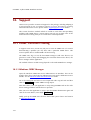
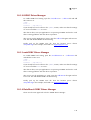
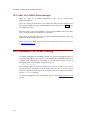
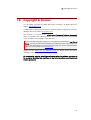
2. Installation
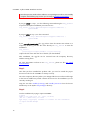
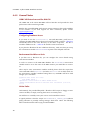
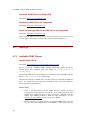
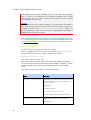
Note:
Depending on your Python installation, you may need admin privileges on
Windows XP, Vista and 7 to successfully complete the installation.
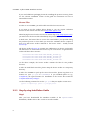
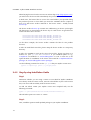
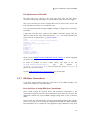
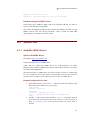
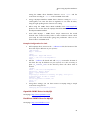
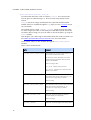
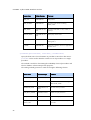
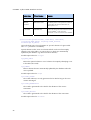
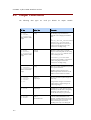
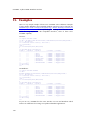
Step 2
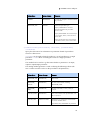
The installer will then ask you to accept the license, choose the Python version
and then to start the install process.
If the listbox showing the installed Python versions is empty, it is likely that you
have chosen the wrong Windows installer for your Python version. Please go back
to the eGenix.com web-site and download the correct version for the installed
Python version.
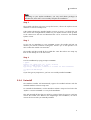
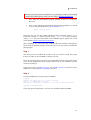
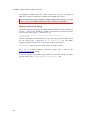
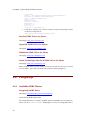
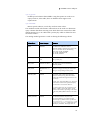
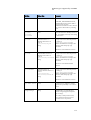
Step 3
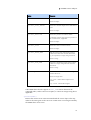
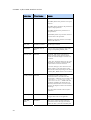
In case you are upgrading to a new mxODBC version, the installer will ask you
whether you want to overwrite existing files. Answer "yes" to this question. It is
safe to allow the installer overwrite files.
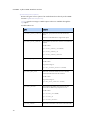
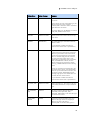
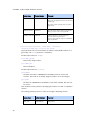
The installer will then install all the needed files. Note that it does not setup any
links on the desktop or in the start menu.
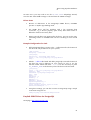
Step 4
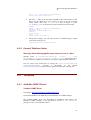
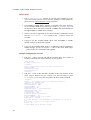
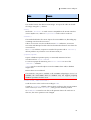
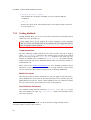
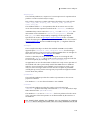
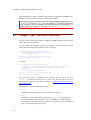
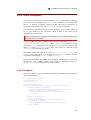
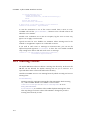
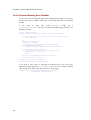
Test the installation by trying to import mxODBC:
$ python
Python 2.6.4 (r264:75706, Jan 4 2010, 20:40:33)
[GCC 4.2.1 (SUSE Linux)] on linux2
Type "help", "copyright", "credits" or "license" for more information.
>>> import mx.ODBC.Manager
>>>
If you don't get any ImportError, you have successfully installed mxODBC.
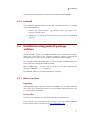
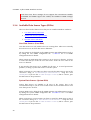
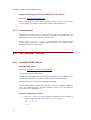
2.2.4 Uninstall
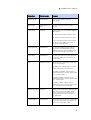
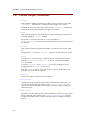
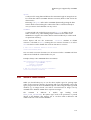
The Windows installer will automatically register the installed software with the
standard Windows software setup tool.
To uninstall the distribution, run the Windows Software Setup tool and select the
"Python x.x eGenix mxODBC x.x" entry for deinstallation.
This will uninstall all files that can safely be removed from the system. It will not
remove files which were added to the subpackages after installation, nor will it
remove the license files you manually installed.
9