1
Web Page Tutorials
2.
3.
4.
5.
6.
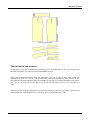
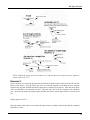
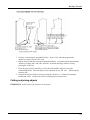
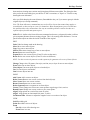
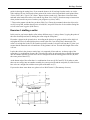
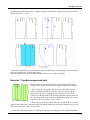
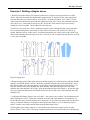
Select center front piece, M1
Accept the selection, M2
Type from keyboard 0,0 <Enter> as the base point of the copy
Type from keyboard -30,0 <Enter> as the destination point of the copy
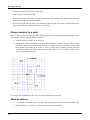
Zoom the drawing so that you can see the whole picture by pressing the <End> key on the
keyboard.
Rotating objects and points
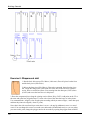
Rotating objects is done with the command Edit/ Rotate and rotating points with the command Point/
Rotate vertex. After choosing the command, select the object(s) or point(s) which you want to rotate,
M1. Accept the selection with M2. Then give the point about which the rotation is to be done (the
center point of the rotation), M1.
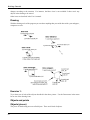
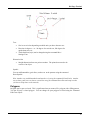
The amount of rotation can be given in three different ways :
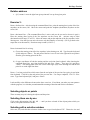
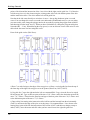
1. Select two points on the screen with M1 (base point and destination point), and the rotation
amount is the distance between these two points
2. Select one point on the screen with M1 (base point) with M1 and type the rotation distance from
the keyboard. The program calculates how many degrees of rotation will move the point this
distance. If you want to rotate clockwise, give a negative (-) distance and if you want the rotation
to be counterclockwise, give a positive (+) distance.
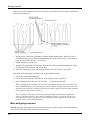
3. Type the rotation angle, in degrees, from keyboard. If you want to rotate clockwise, give a
negative (-) angle and if you want the rotation to be counterclockwise, give a positive (+) angle.
If you type 180 as the rotation angle, the object is rotated upside down. If you type 90, the object is
rotated 90° counterclockwise. If you type –90, the object is rotated 90° clockwise.
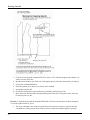
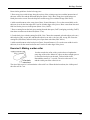
Exercise 10: Practice these three ways of rotating an object.
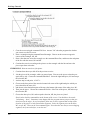
1. Clear the window with the command File/ New.
2. Draw a line: Choose the command Draw/ Line, then select the end points of the line in the
drawing area, M1 and M1.
3. Choose the command Edit/ Rotate.
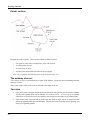
4. Rotate the line by selecting the center point, base point and destination point of the rotation with
mouse (use snap to end point <Ctrl F3> to be exact)
5. Select the line, M1, and accept the selection, M2.
6. Choose one end of the line as the center point of the rotation, M1.
7. Choose the other end of the line as the base point of the rotation, M1.
8. Move the mouse and choose the destination of the rotation, M1.
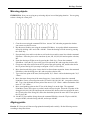
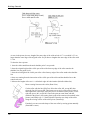
Rotate the line, selecting the center point and the base point of the rotation with the mouse and typing
the distance from the keyboard
1. Select the line, M1, accept the selection, M2.
2. Choose one end of the line as the center point of the rotation (use Snap to End Point <Ctrl F3> to
be exact), M1.
3. Choose the other end of the line as the base point of the rotation, M1.
4. Type from keyboard 5 <Enter> (rotating distance is then 5 cm).
98