1
Web Page Tutorials
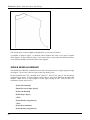
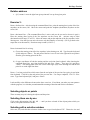
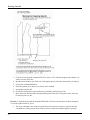
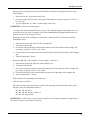
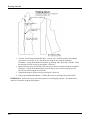
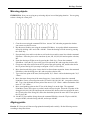
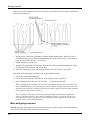
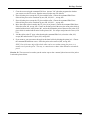
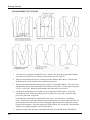
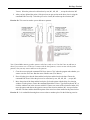
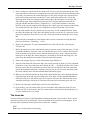
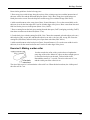
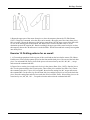
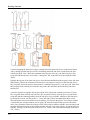
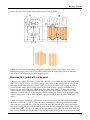
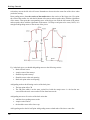
1. Select the corner point with M1, (it turns red)
2. And accept the selection with M2.
3. Give the base point of the move near the selected point, M1, and move the mouse. Notice how the
point is moved when you move the mouse.
4. When you want to make the move, click with M1 at the end point of the move. We shall practice the
move command more systematically later in this tutorial.
Giving a location for a point
When an object or point is moved or copied, the program asks for the base point and the destination point
of this action. These can be specified in two ways:
•
either by clicking with M1 on the screen or
•
typing the X and Y coordinates of the point from keyboard. Separate X and Y values with a
comma (,). Start by typing the horizontal value (= X-value) of the point, then type a comma and
then type the vertical value of the point (=Y-value). If the X-value is negative it means to the left
of the origin and if it is positive it means to the right. If the Y-value is negative it means down
and if it is positive it means up.
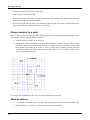
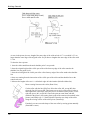
You can give the coordinates in four ways, of which we will discuss two here
Absolute address:
90
•
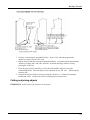
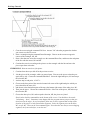
e.g. coordinate 1,2 means 1 cm to the right from the origin (0,0) and 2 cm to up from origin (0,0)
•
and coordinate –1,-2 means 1 cm to the left from origin and 2 cm down