1
How to Operate SanityCheck
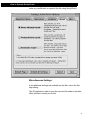
Edit settings for this structure...
This allows you to edit the settings file that is for this specific structure file. Since SanityCheck keeps a settings file per structure, this
option allows you to edit the settings in that file.
However, as soon as you start using a common settings file for the
current structure, this option becomes grayed out, and the “Stop
using common settings” option becomes active.
Stop using common settings.
This allows you to stop using a common settings for the current
structure. This option is only active when you are using a common
settings file for the current structure.
When active, this menu item will change it’s label to: “Stop using
‘Loose’ for this structure file.” where ‘Loose’ is the name of the
common settings file in use by the current structure file.
Organize common settings.
This option allows you to copy, rename, delete and otherwise
organize your common settings.
This option will open the common settings directory in the Finder /
Explorer, and using this you can modify the settings files as you
desire. SanityCheck automatically recognizes you have modified the
directory and rebuilds the menu for you.
Edit ‘<settings>’.
If you have a common settings file, then they will be listed with an
“Edit” prefix, which allows you to edit the contents of the settings file.
Use ‘<settings>’ for this structure.
If you have a common settings file, then this is how to specify to use
that common settings for the current structure file. When you select
this, it becomes the checked item, and the name <settings> will
appear in the “Stop using ‘<settings>’ for this file” menu item.
Recently Used Structures
SanityCheck automatically keeps track of the last 5 structure files
that have been opened with SanityCheck. This list is available under
the “File” menu. SanityCheck always sorts this list, keeping the most
recently used structure at the top of the list.
26