1
Comparison Functionality
Comparison Functionality
What does SanityCheck compare?
SanityCheck compares all Layouts, Layout Procedures, Scripts and
Procedures. No comparison is done on other areas, such as the
data dictionary, menus, balloon help, etc. Future releases of SanityCheck may implement comparison of these objects as well.
Do not assume that two structure files are equal if SanityCheck
doesn’t find a difference. Since SanityCheck doesn’t compare all
objects, there may be differences between the structures files, even
if SanityCheck doesn’t note them.
Comparison Caveats:
1 Note that the comparison is binary in nature. This means that
even reading in an object, making no changes but forcing 4D to
save the object may lead to a binary difference between the original object and the newly “changed” object. This is due to extra
space that is saved with the object. This extra space is random in
nature.
2 Due to Item 1 above, any object moved by Insider will show up
as changed.
3 Layout procedures/scripts are only scanned if its parent layout
passes comparison. Therefore, if a layout is different, assume
the layout procedure and scripts may be different as well.
4 Sometimes changing a script will force a change in the parent
layout. Be aware that when a layout is tagged as “changed” it
may only be a script that has been modified, which has caused
the layout to be re-written.
To Compare Two Structure Files
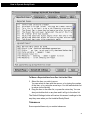
1 Open two structure files within SanityCheck.
2 Choose the Compare Structure Files command in the Special
menu.
If you do not have exactly two structure files open, the Compare
Structure Files option is still present, but directs you to open
exactly two structure files open.
How does SanityCheck perform comparison?
SanityCheck does a binary comparison between objects. Each byte
of one object must equal the same byte in the compared object.
Note that two objects that are functionally equivalent may not be
50