1
Programming Digital Dimmers
MEMORACK & EURORACK 60 DIMSWITCH
View DMX ?
Troubleshooting Tools
View DMX
This function is included in Menu 2. The DMX LED indicator will inform you of the presence of a
signal on the DMX512 input.
If a dimmer channel does not appear to give the output level you expect, then you should first
verify which control level is actually received by the dimmer.
If these levels are not what you expect, then you should check the control desk: master fader,
top limit, dimmer law in the desk,…; and check the address of each dimmer channel (INFO key). Note that dimmers set to DMX address 0 will never respond to DMX.
If the DMX level is correct, but the dimmer output level is not, then you should also check the
dimmer law set in the dimmer unit, and the Mult. Factors set in the dimmer unit.
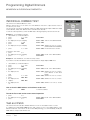
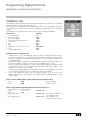
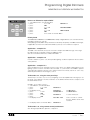
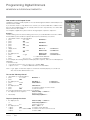
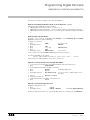
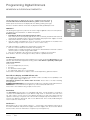
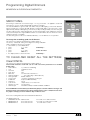
To display the DMX levels, select Menu 2
• press
+ or - until
View DMX ?
• press
YES
• if the display shows for example
DMX in 1 : 69 %
then dimmer No. 1 receives
a level of 69% from the
DMX512 control desk.
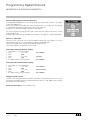
• press
+ or - to review the levels for each dimmer
• press
INFO
to view the DMX address of the dimmer
• press
<---
to return to the main Menu.
Note : In the absence of a signal on the DMX line, View DMX ? will display DMX ABSENT! (also shown by he DMX LED).
DMX error messages
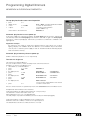
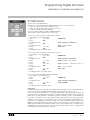
The following error messages inform you of problems with the DMX signal:
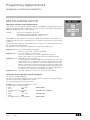
• DMX Err: Frm
frame error, very often due to a DMX cable problem • DMX Err: Strt
the start code is not zero (proprietary messages)
• DMX Err: Ovfl
overflow, more than 512 level bytes (doesn't meet DMX standard)
View Analogue (EURORACK 60 DIMSWITCH only)
This function is included in Menu 2. If your dimmer unit is fitted with the Analogue Input (and the
Analogue Input is not set to Muted), then you can display the analogue control levels.
If these analogue levels are not what you expect, then you should first check the control desk:
master fader, top limit, dimmer law in the desk,…
If the analogue control level is correct, but the dimmer output level is not, then you should also
check the dimmer law set in the dimmer unit, and the Mult. Factors set in the dimmer unit..
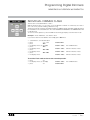
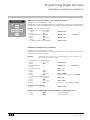
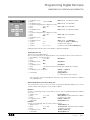
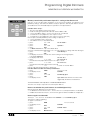
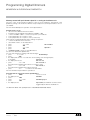
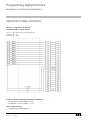
To display the Analogue levels, select Menu 2
•
•
•
•
•
•
press
+ or - until
View Analog ?
press
YES
the display will show for 2 seconds the current setting of the analogue inputs
if the display shows for example
An. in 1 : 56 %
then dimmer No. 1 receives a level of 56% from the analogue control desk.
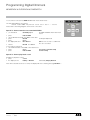
press
+ or - to review the levels for the dimmers
press
<---
to return to the main Menu.
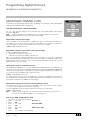
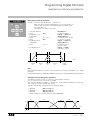
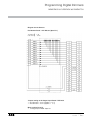
To verify the current setting of Analogue Input Mode
View Analogue includes a temporary message showing the type of operation set for the analogue
inputs: Muted / Absent indicates that the analogue inputs option has not been installed or has
been disabled; Special... indicates that the analogue inputs have been set for control by pushbuttons. See Maintenance Functions - Analogue Input Mode.
Warning : "ClearCONFIG disables the analogue inputs, i.e. sets them to Muted/Absent.
Lighting Technologies
Manual - page 33
Issue : 005