1
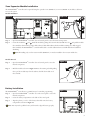
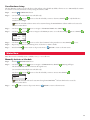
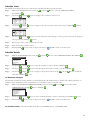
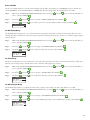
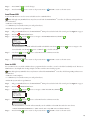
Manually Activate a Specific Zone(s)
Step 1
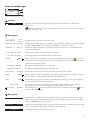
– Press the
Step 2
– Use the Up
WATER NOW button.
or Down
arrows to navigate to ZONES. Press SELECT
.
Note: The Zone name can be customized using the EVOLUTION Software which can be accessed at
TM
www.toro.com/evolution.
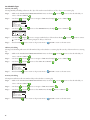
Step 3
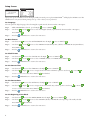
– Use the Up
or Down
arrows to select the specific zone to activate. Press the Right
arrow or SELECT
.
WATER NOW
ZONE 1
ZONE 2
ZONE 3
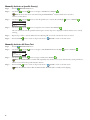
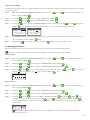
Step 4
OFF
-–:10
OFF
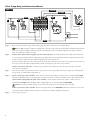
– Use the Up
or Down
arrows to assign the zone a runtime. Press SELECT
.
The zone will activate until the specified runtime expires. A water drop icon is displayed to indicate that the zone is actively
watering.
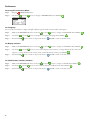
Step 5
– Repeat Steps 3 and 4 to activate additional zones. Watering will occur in the order that the zones are entered.
Step 6
– Press the BACK
arrow to return to the previous menu or
HOME to return to the main screen.
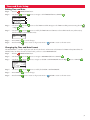
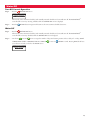
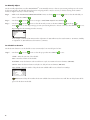
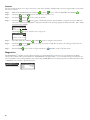
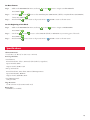
Manually Activate All Zone Test
Step 1
– Press the
Step 2
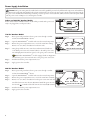
– Use the Up
WATER NOW button.
or Down
arrows to navigate to ALL ZONE TEST. Press the Right
arrow or SELECT
.
WATER NOW
SCHEDULE
ZONES
ALL ZONE TEST
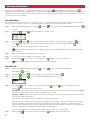
Step 3
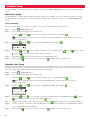
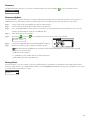
– Use the Up
02:00
or Down
arrows to assign a runtime. Press SELECT
.
Note: The EVOLUTION controller will sequentially water all active zones (zones with runtimes) starting with Zone 1.
All active zones will run the specified runtime duration.
TM
Step 4
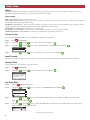
– Press the BACK
arrow to return to the previous menu or
HOME to return to the main screen.
Note: All Zone Test will not affect the AUX schedule. AUX Schedule is normally used for lighting.
12