1
Note: This feature may not be supported by your SIM card. If so,
contact your wireless provider for more information.
1
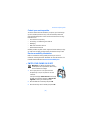
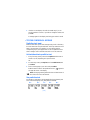
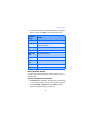
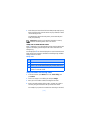
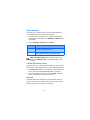
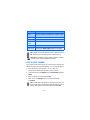
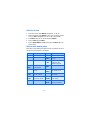
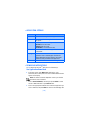
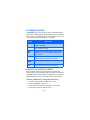
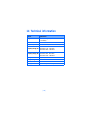
Press Names at the Start screen, scroll to one of the number types in
the following table, and press Select.
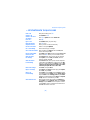
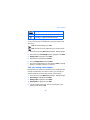
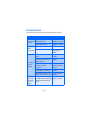
Number type
Used this number to...
Info numbers
Contact your wireless provider to obtain information
Service numbers Contact your wireless provider to obtain service
Own numbers
2
Display the operating number, or numbers which have
been assigned to your phone by your wireless provider
To view details of any of the number types in the previous table, press
Details when the number type appears in the display.
Caller groups
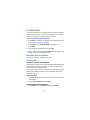
You can add Phone book entries to any of 5 caller groups, and then assign
a unique ringing tone or graphic to that group. This enables you to
identify callers from the group by their unique ringing tone or graphic. A
caller group can be as small as one person or as large as your entire Phone
book. Caller groups can be renamed to suit your preference.
CALLER GROUP OPTIONS
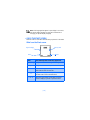
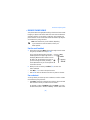
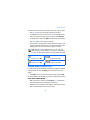
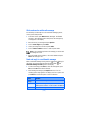
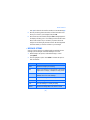
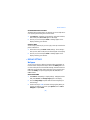
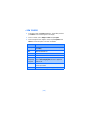
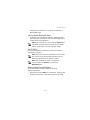
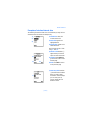
1 At the Start screen, press Names, scroll to Caller groups, and press
Select. The following Caller groups are available.
Family
2
VIP
Friends
ud
Business
Other
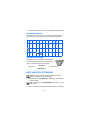
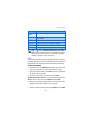
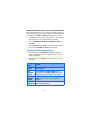
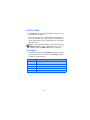
) to highlight a group. Press Select to
Use the scroll keys (
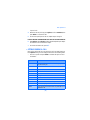
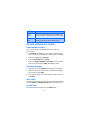
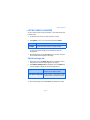
display the following caller group options:
Rename group
Rename the group to your preference
Group ringing tone Set the ringing tone for the group
Group logo
Turn the graphic for the caller group on or off
Group members
Add or remove members from the caller group
[ 52 ]