1
Routing MIDI to a Device
There are several ways to send MIDI from an external MIDI controller to a Reason device, as described in the electronic documentation. However, in this book
we stick to the most common method: to route MIDI via the sequencer.
With this method, incoming MIDI (e.g. from your MIDI keyboard) is sent to one of
the tracks in Reason’s sequencer. The sequencer will then pass it on to a device
in the rack (the device to which the track is routed). This way, you can select different devices for MIDI playback by directing the incoming MIDI to different
tracks in the sequencer.
Proceed as follows:
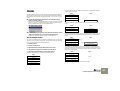
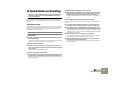
1. Make sure your MIDI controller is connected to the correct MIDI input on your computer, and sends on the correct MIDI channel.
This should be the MIDI port and channel you specified for the sequencer in
the Preferences-MIDI dialog, as described on page 17.
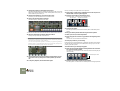
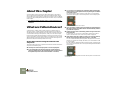
✪ On the panel of some instrument devices you will find a Note On indicator. This blinks to indicate incoming MIDI notes.
Naming Devices
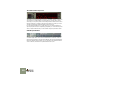
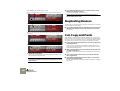
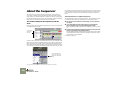
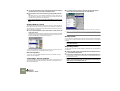
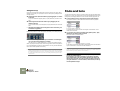
Each device has a “tape strip” showing the name of the device. When you create a new device it is automatically named according to the device type, with an
index number (so that the first Subtractor synthesizer you create is called “Synth
1”, the next “Synth 2” and so on). If you like, you can rename a device by clicking
on its tape strip and typing a new name (up to 16 characters).
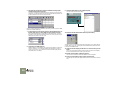
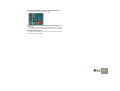
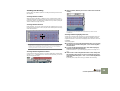
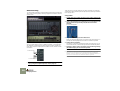
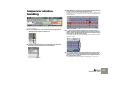
2. In the sequencer, locate the track that is connected to the device
you want to play.
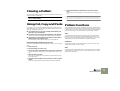
If you are uncertain, you can pull down the Out pop-up menu for each track
and check to which device they are routed.
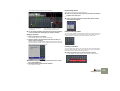
For devices connected to a mixer, the device names are automatically reflected
on the vertical tape strips for the corresponding mixer channels (next to the mixer
channel faders). Similarly, tape strips below the Return knobs show the names
of the effect devices connected to the corresponding Return inputs.
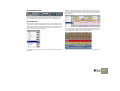
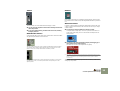
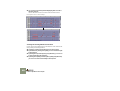
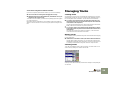
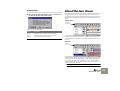
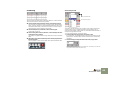
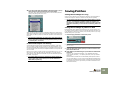
3. Click in the In column for the track.
A MIDI symbol is displayed, to indicate that this track will transfer incoming
MIDI to its device.
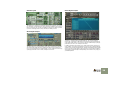
4. Play the MIDI controller.
You should now hear the sound of the device.
52
Managing the Rack