1
Editing a photo in SnapWorks
1. Tap the Gallery icon
in the upper left-hand corner of the screen to open the
directory where your photos are stored.
You’ll see the most recent photos you have taken.
2. Double-tap the photo you want to edit.
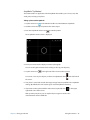
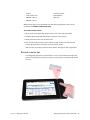
The photo opens and you’ll see two icons at the bottom left-hand corner of the screen
that you can tap to open the SnapWorks photo editing tools.
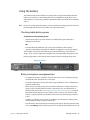
3. Tap the Adjust Image icon
to access editing tools to rotate, crop, or create a mirror
image of your photo.
You can also make contrast and brightness adjustments to your photo in this screen.
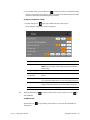
4. Tap the Annotate Image icon
to access editing tools for adding text, handwriting,
brush strokes, or highlighting part of your photo.
This screen also includes tools for drawing squares, circles, or arrows on your photo as
well as a color palette that enables you to change the color of your annotations.
5. When you’re finished editing your photo, tap the Camera icon
in the upper left-
hand corner of the screen to return to the camera screen.
Chapter 2 Using your CL920
Using the cameras 35