1
Directly Connecting
Projector to Computer using
WLAN (WiFi Streaming)
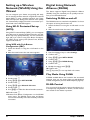
With the software PicoPixWlink you can connect the
projector to a computer or a laptop over your wireless
network. For this purpose, both devices must be connected to the same wireless network.
1 Install the PicoPixWlink software (allready pre
installed on the projector) on your computer (see
also Connect to a Computer (USB), page 19).
2 Connect the device with the wireless network (see
also Wireless Network (WLAN), page 20).
3 Start PicoPixWlink (PicoPix Viewer) on your computer.
4 Click the PicoPixWlink icon in the notification area
and start the manager window.
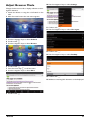
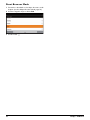
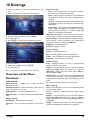
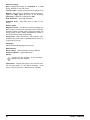
You are now able to search for projectors in the network (Search WIFI projector) and start the projection
(Start projection).
17
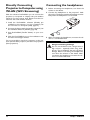
Connecting the headphones
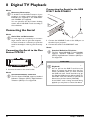
1 Before connecting the headphones, turn down the
volume on the device.
2 Connect the headphones to the projector's headphone slot. The device speakers deactivate automatically when the headphones are connected.
VG
Y-P A
HDb-P
MI r
3 After connecting the headphones, increase the volume to a comfortable level.
DANGER!
Danger of Hearing Damage
Do not use the device over a longer time at
high volume – especially when using headphones. This could lead to the risks of hearing
damage. Before connecting the headphones,
turn down the volume on the device. After
connecting the headphones, increase the volume to a comfortable level.
Philips · PPX3614