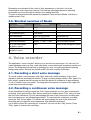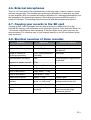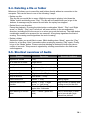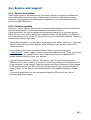
1
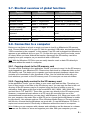
Navigation option
Description
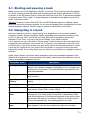
Pages jump
Jump to the next or previous page by pressing the arrow buttons.
To enter a desired page directly push and hold “Selector” and then
enter the page number using the “Left arrow”, “Play” and “Right
arrow” buttons. With each push on “Left arrow” you select between
the three-digit figures: 100, 200, 300 et cetera., with “Play” you
select the two-digit figures 10 to 90 and with “Right arrow” you
select between the single-digit figures from 1 to 9.
If you wanted to go to page 223 for instance, press the “Selector”
button and hold it down, press “Left arrow” twice, press “Play”
twice and press “Right arrow” 3 times (223).
Release “Selector” button to start reading the desired page.
First level
(Chapter)
Jump to the next or previous main chapter by pressing the arrow
buttons. For example from chapter 1 to chapter 2.
Second level
Jump to the next or previous sub-chapter by pressing the arrow
buttons. For example from chapter 1.2 to chapter 1.3.
Third level
Jump to the next or previous third level sub-chapter with the arrow
buttons. For example from chapter 1.2.1 to chapter 1.2.2.
Fourth level
Jump to the next or previous fourth level sub-chapter by pressing
the arrow buttons. For example from chapter 1.2.1.1 to chapter
1.2.1.2.
Footnotes
Jump to the next or previous footnote with the arrow buttons.
Marginalia
Jump to the next or previous marginal note by using the arrow
buttons. Marginalia are text parts in frames or separate columns.
Producer notes
Jump to next or previous producer note by using the arrow
buttons.
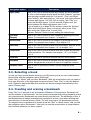
3.3. Selecting a book
In case you have several books saved on your SD memory card you can rotate between
these books with the navigation option “Bookshelf”.
Press “Rec” or “Mode” until you hear “Bookshelf”. With the arrow buttons you can select a
book now. All books of the supported formats are listed. Press “Play” to start the desired
book. Please be aware that after this selection the device changes automatically to the
option “Phrase jump”.
3.4. Creating and erasing a bookmark
Press “Rec” for 2 seconds to set a bookmark. Milestone 212 announces “Bookmark set”
and the number of the bookmark. You can create a bookmark both during playback as well
as in paused mode. Bookmarks are saved directly into the book. The advantage of this, is
that bookmarks are always unambiguously assigned to a book, even when working with
several books on several memory cards. You may insert up to 120 bookmarks per book.
To navigate from one bookmark to another press the “Rec” or “Mode” button until you find
the navigation option “Bookmarks”. Now you can use the arrow buttons to jump between
the bookmark numbers you have created.
8/16