1
05.11.2007 A31008-M1916-C401-1-7643
__make_poster.fm Seite 2 Montag, 5. November 2007 10:53 10
Saving VoIP access data
Saving VoIP access data
9
Before you can use the Internet (VoIP) to phone any other subscribers on the Internet, the
fixed line network or the mobile phone network, you need a VoIP account.
> Set up a VoIP account with a VoIP provider.
7
Saving VoIP access data
10
9
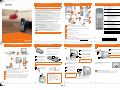
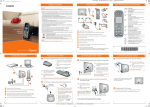
Starting the configuration process
When your handset is sufficiently charged (approx. 20 minutes after you have placed it in the
charging cradle), the message key f on the handset flashes.
Select Country
save this data in your base station.
> Press the message key on the handset.
You will need:
> Your authentication name, your password*
Provider 1
England
Provider 2
France
Provider 3
Netherlands, the
> For some VoIP providers, your user name
Ý
Ý
Connection Assist.
Connection Assist.
Authent. Password:
Authent. Name:
Provider 4
OK
12
10 Entering VoIP account data
Select Provider
Germany
Saving VoIP access data
11
Selecting a provider and loading provider data to the
base station
> Have the VoIP account data you received from your VoIP provider to hand. You must now
Gigaset C470IP_AUS
Ý
OK
OK
Ý
OK
Please note:
> The procedure below requires that dynamic assignment of IP addresses, i.e. the DHCP
server, is activated on your router.
If the router's DHCP server is not activated or if the base station needs to be assigned a
fixed IP address for LAN access for another reason, you must now save this IP address in
the base station:
v ¢ Settings ¢ Base ¢ Local Network
You will find more detailed information about this in the user guide on the enclosed CD.
8
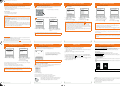
> Select your country with the control
Starting the connection assistant, entering the PIN
key p (press down).
> Press the display key below §OK§.
> Press the display key below §OK§.
Please enter
for entry of VoIP
System PIN:
If your provider does not appear in the list, you have the following options:
connection data?
[- - - -]
> Press the display key ” twice and proceed as described under 10 . You will only be able
No
Ý
Yes
> Using the number keys, enter the
authentication name (user identification) that you received from your VoIP
provider. This entry is case-sensitive.
> Press the display key below §OK§.
Start assistant
to use the VoIP connection once you have added the provider-specific data to the access
data using the Web configurator. Your VoIP provider will supply you with this data.
> VoIP should be set as the standard connection for your phone (default setting). If the connection to your provider's VoIP server cannot be established due to incorrect/incomplete
data, you will immediately receive messages to that effect.
key p (press down).
System PIN
Connection Assist.
> Select your provider with the control
OK
> Exit the connection assistant by pressing and holding the end call key a and use the
Web configurator to enter your provider data and VoIP account data. You can then create
your Gigaset.net entry directly in the Gigaset.net directory.
> Using the number keys, enter the
authentication password that you
received from your provider. This entry
is case-sensitive.
> Press the display key below §OK§.
> To switch between upper and lower case and digits, press the # key (several times
if necessary).
> Characters entered incorrectly can be deleted using the left display key below Ý.
The character to the left of the cursor will be deleted.
> You can navigate within the input field using the control key p (press right/left).
> Using the number keys, enter the base
> Press the display key below §Yes§.
station's system PIN. By default, the PIN
is "0000".
You will find more information on the Web configurator and the Gigaset.net phonebook in
the user guide on the enclosed CD.
> Depending on your provider, you may now be prompted to enter a user name. Enter it as
described above.
If you have made all the required entries, the message "Connection data complete" will appear
briefly on the display.
If the connection assistant does not start properly, you can start it via the menu:
v ¢ Settings ¢ Telephony ¢ Connection Assist.
You can enter five additional VoIP accounts (VoIP phone numbers) via your base station's
Web configurator at a later stage. You will find more information in the user guide on the
enclosed CD.
*.) Automatic configuration:
If your provider supports "automatic configuration", you will receive an "auto configuration code" from
your provider instead of an authentication name and password.
VoIP configuration with an auto configuration code is described in the user guide on the accompanying
CD.
After configuration, please proceed as described in section 12 .
Saving VoIP access data
11 Entering your name in the Gigaset.net directory
Connection Assist.
Start assistant
for Gigaset.net?
Saving VoIP access data
13
Connection Assist.
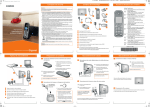
Making calls
If all the settings are correct and if the phone can establish a connection to the VoIP server,
then the internal name of the handset will be displayed (example):
Precondition: You have not changed your phone's default settings.
Yes
Ð
Ý
Please note that you must always dial the area code for calls via VoIP, even with local calls
(depends on provider).
V
You can now use your phone to make calls via the
fixed line network and the Internet. Callers can contact
you on your fixed line network number, your
Gigaset.net number or your VoIP number.
OK
INT
> Press the display key below §Yes§.
> Enter a phone number using your handset's number keys.
Your Gigaset.net
Nickname:
Time
If an entry in the Gigaset.net directory is successful, the message
"Your user name is successfully added to Gigaset.net!" will be shown.
If the attempt to create the entry fails (e.g. because the phone is not connected to the Internet), a message to this effect is displayed briefly.
You can then create the entry later via the Gigaset.net directory.
Or
> Press and hold the talk key c if you want to make a call via the fixed line network.
5 L Ê ÊThe answer machine is activated if
The answer machine is deactivated if
is displayed.
and press the display key below §OK§.
that you would like to be listed under in
the Gigaset.net directory.
If an entry already exists with this name, the message "Nickname already exists! " will appear.
You will be prompted to enter a name again.
> Briefly press the talk key c if you want to make a call via VoIP.
‰
is displayed after Ans Machine.
> Press the message key f. Select the Ans M.: list using the control key p (press down)
> Using the number keys, enter the name
> Press the display key below §OK§.
15
12 Completing the VoIP settings
INT 1
No
Making calls
14
Message playback is started.
To ensure that you can always be reached via the Internet, the router must be permanently
connected to the Internet.
Service (Customer Care)
16
We offer you support that is fast and tailored to your specific needs!
Our Online Support on the Internet can be reached any time from anywhere.
http://www.siemens.com/gigasetcustomercare
It provides you with 24/7 support for all our products. It also provides a list of FAQs and answers plus user
guides and current software updates (if available for the product) for you to download.
You will also find frequently asked questions and answers in the appendix of this user guide.
Service Centre
To purchase accessories for your Gigaset, contact our Service Centre at
http://gigaset.com.au/accessories
For fast and dependable assistance with any warranty claims, contact our Service Centre at
http://gigaset.com.au/warranty or complete the enclosed warranty card and return faulty goods to:
Menlo Worldwide Australia
Discovery Cove Industrial Estate
Unit 18 / 1801 Botany Road
Banksmeadow NSW 2019
Replacement or repair services are not offered in countries where our product is not sold by authorised
dealers.
Please have your proof of purchase ready when calling.
Replacement or repair services are not offered in countries where our product is not sold by authorised
dealers.
13 Testing your VoIP connection
If, instead of the internal number, a message is displayed, you can test the base station's connection to the Internet, e.g. by calling the Gigaset.net echo service:
> Enter one of the following phone numbers:
12341#9 (English)
12342#9 (Dutch)
12343#9 (Italian)
12344#9 (French)
12345#9 (German)
12346#9 (Spanish)
Please address any questions about DSL access and VoIP access to the respective service provider.
> Press the talk key c.
> When prompted, speak into the microphone on the handset.
If you hear your own voice, your base station is connected to the Internet.
If you do not hear your voice, check your phone and router settings.
In the user guide on the enclosed CD, you will find detailed information
about setting up and operating your phone, as well as possible solutions to frequently asked questions and common problems.
Issued by
Siemens Home and Office Communucation Devices GmbH & Co. KG, Schlavenhorst 66, D-46395 Bocholt
© Siemens Home and Office Communucation Devices GmbH & Co. KG 2007
All rights reserved. Subject to availability. Right of modification reserved.
www.siemens.com/gigaset