1
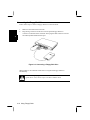
Move Your Fingertip
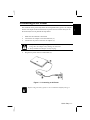
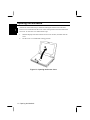
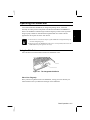
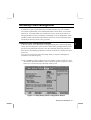
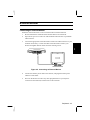
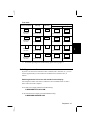
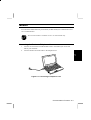
The rectangular pad of the GlidePoint acts like a miniature duplicate of your display.
As you slide your fingertip across the pad, the pointer on the screen, moves in the
same direction across the screen as your fingertip moves across the pad. The
GlidePoint is very sensitive and you don’t need to exert much pressure on the pad at
all. You’ll get the best results by sliding your fingertip over the pad very lightly.
2
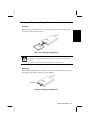
Point and Click
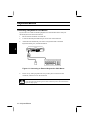
When you have placed the pointer over the icon, menu item or command that you
wish to execute, you can press the left button once or twice to execute the command.
This procedure is called “point and click” or “point and double-click”. On the
GlidePoint, you can execute point and clicking even more rapidly. Instead of clicking
by pressing the left button, you can just tap gently anywhere on the rectangular pad
of the GlidePoint. Tap twice rapidly to execute a double-click. Unlike a traditional
pointing device, the whole pad acts as if it were a left button and each tap on the pad
is equivalent to pressing the left button.
If you swap the left and right buttons, “tapping” on the GlidePoint as an
alternative method of pressing the left button will no longer function.
Drag and Drop
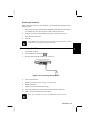
You can execute commands or move files by using “drag and drop”. In drag and
drop, you activate a file by pointing to it and clicking. However, when you click the
button, you do not release the button but instead hold it down. You can then drag
the active file around the screen by moving your finger around the pad. When you
have placed the file where you want it, for example in a new directory, release the left
button. The file will drop into the new location. You can also do drag and drop
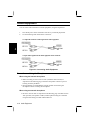
operations using the GlidePoint as a large left button. Position the pointer over the
item that you want to drag. Gently tap twice on the pad. On the second tap, keep
your finger in contact with the pad. You can then drag the selected object around the
screen by moving your fingertip across the pad. When you lift your fingertip from
the pad, the selected object will drop into place.
2-6 Operating the GlidePoint