1
CHAPTER 3
Creating Embedded EAServer Installations
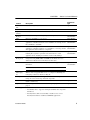
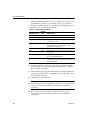
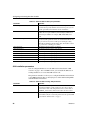
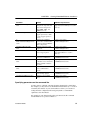
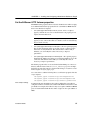
Parameter
Specifies
-W SilentEASJDK14installed.value
Whether to use an existing JDK 1.4 installation to run servers with.
To use an existing installation, set this parameter to Yes and specify
the location as the value of the next parameter. Also, set the value of
EASJDK14_server.active to False in the feature selection section.
If you are using an existing JDK 1.4 installation, the location where
it is installed. Verify the version and patch level of the specified JDK
as described in “JDK versions” on page 3.
-W SilentEASJDK14Location.value
-W SilentEASJDK15installed.value
-W SilentEASJDK15Location.value
Whether to use an existing JDK 1.5 installation to run servers with.
To use an existing installation, set this parameter to Yes and specify
the location as the value of the next parameter. Also, set the value of
EASJDK15_server.active to False in the feature selection section.
If you are using an existing JDK 1.5 installation, the location where
it is installed. Verify the version and patch level of the specified JDK
as described in “JDK versions” on page 3.
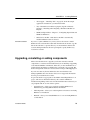
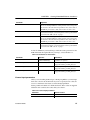
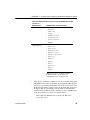
To install a JDK from your install image, enable the feature parameter for that
JDK and include the required files in your image, as listed in Table 3-5.
Table 3-5: Parameters to install JDKs
Parameter
Specifies
Comments
-P EASJDK.active
Whether to install any JDKs
from the install image
Must be set to True or the next three
parameters are ignored.
-P EASJDK13_server.active
Whether to install JDK 1.3
To install, your image must have the file
SupportLinux/EAS_jars/EAS_jdk13.jar.
-P EASJDK14_server.active
Whether to install JDK 1.4
-P EASJDK15_server.active
Whether to install JDK 1.5
To install, your image must have the file
SupportLinux/EAS_jars/EAS_jdk14.jar.
To install, your image must have the file
SupportLinux/EAS_jars/EAS_jdk15.jar.
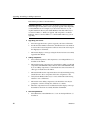
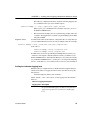
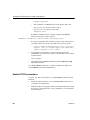
License input parameters
Unless you are installing the Developer or Workgroup Edition, you must input
the license codes for the silent install. If you do not specify license codes, the
server is constrained to the feature set of the Workgroup Edition.
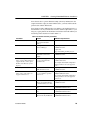
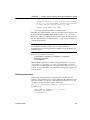
Set the parameters in Table 3-6 to define the license. These values are supplied
with the license certificate that comes with your software.
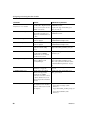
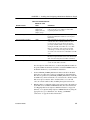
Table 3-6: License input parameters
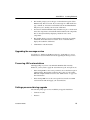
Parameter
Installation Guide
-W LicenseOrderNumber.value
Set the value to
License order number
-W LicenseFeatureName.value
License feature name
27