1
Upgrading
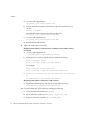
c.
Generate protection key.
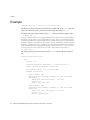
To do this, execute the following command:
<62_server_root>/bin/cert/tools/PasswordCache <password> -d
<alias directory> -P <prefix> -c <file> rekey
For example:
<62_server_root>/bin/cert/tools/PasswordCache <password> -d
<62_server_root>/alias -P cert-<instance>-<hostname>- -c
pwcache.db rekey
The following will be output to the screen when the command is run:
cert/key prefix = cert-<instance>-<hostname>cert/key db path = <62_server_root>/alias
password cache file = pwcache.db
token name = internal
generating new key...
PWsdrCache: mToken = internal
PWsdrCache: SDR key generated
key generated successfully with key id =
OPHHNSQTY0RUGFJbcaco1g==
Save the VALUE portion of this key id in a local file,
and under variable "pwcKeyid" in CMS.cfg!!
If you have not already done so,
remove the old pwcache.db and use this local file to add
passwords.
d.
Save the value portion of the key id into a local file such as key.txt
e.
Save the value portion of the key id into the CMS.cfg file under the variable
"pwcKeyid"
Execute the following command:
touch pwcache.db
(This will recreate an empty file)
24
Netscape Certificate Management System Command-Line Tools Guide • June 2003