1
Signing Backup Data Using cmsutil
Once you have a successful zip archive, you should secure it. The output directory
is probably accessible to any user on the system, and it may be on the same
physical disk as the server instance itself. You want to make sure the archive is not
accessible to unauthorized users and that you can use the archive if there is a
system hardware failure. Remember, the archive contains a database of private
keys. Although it is not easy to extract a key from the database without the correct
passwords, you do not want anyone to have the opportunity to try.
Move the zip archive to another machine or removable medium. If possible,
encrypt the archive (do not use the private keys stored in your CMS server’s
database, since they may not be available when you need to restore the data). If you
copy the archive to removable media such as tape or CD, make sure the copy is
kept in a limited-access, locked area.
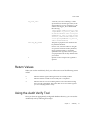
CMS backup data files can be optionally signed (and verified) from the
command-line utilizing a separate tool called
<server_root>/bin/cert/tools/cmsutil. For an example of signing backup
data utilizing this tool, see “Signing Backup Data Using cmsutil,” on page 67. For
an example of verifying signed backup data utilizing this tool, see “Verifying
Signed Backup Data using cmsutil,” on page 69.
Optionally, CMS backup data files can be manually encrypted using some
operating system specific utility; encrypted files must be manually decrypted using
the same operating system specific utility prior to attempting data recovery
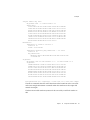
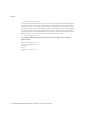
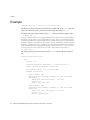
Signing Backup Data Using cmsutil
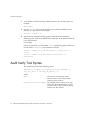
The following provides an example of using the tool called
<server_root>/bin/cert/tools/cmsutil to sign backup data for a specific CMS
subsystem instance on a UNIX system:
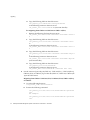
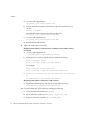
1.
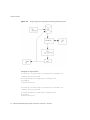
Generating an EMAIL Signing User Certificate:
❍
Using the browser, issue a request for a user certificate.
❍
Using the browser, approve the request for this user certificate.
❍
Import this user certificate into the browser.
❍
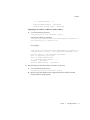
❍
2.
Export this user certificate out of the browser into a Public Key
Cryptography Standard (PKCS) #12 file.
Move this file to the <server_root>/alias directory.
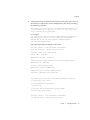
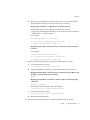
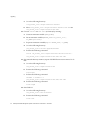
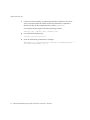
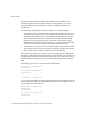
Sign the Backup Data
Chapter 7
Backing Up and Restoring Data
67