1
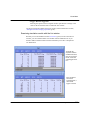
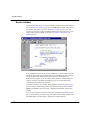
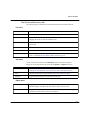
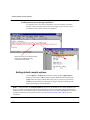
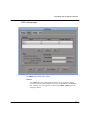
List window
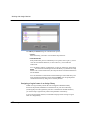
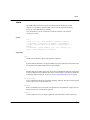
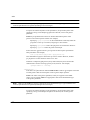
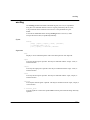
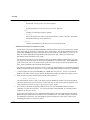
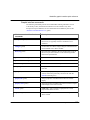
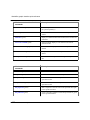
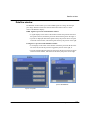
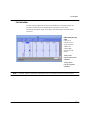
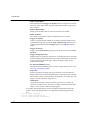
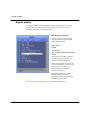
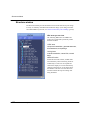
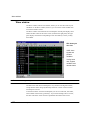
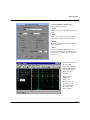
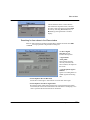
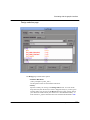
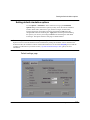
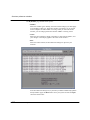
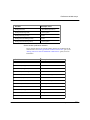
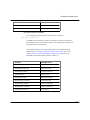
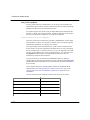
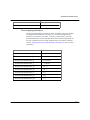
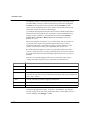
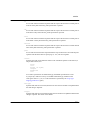
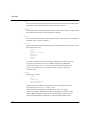
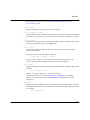
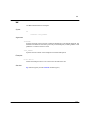
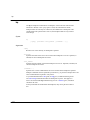
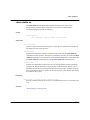
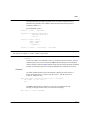
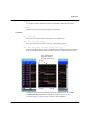
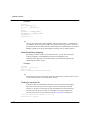
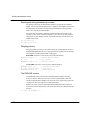
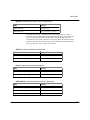
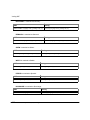
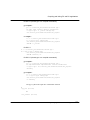
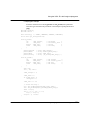
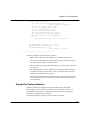
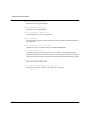
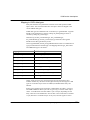
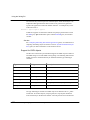
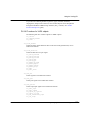
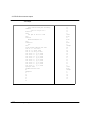
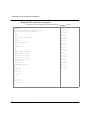
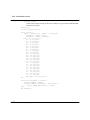
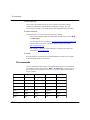
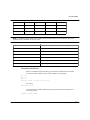
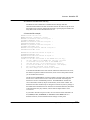
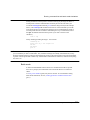
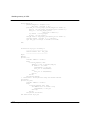
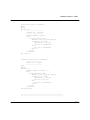
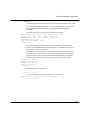
In the first List window, the HDL items are formatted as symbolic and use an item
change to trigger a line; the field width was changed to accommodate the default
label width. The window divider maintains the time and delta in the left pane;
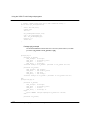
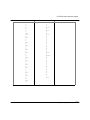
signals in the right pane may be viewed by scrolling. For the second listing, the
specification for triggering was changed to a 100-ns strobe, and the item radix for
a, b, cin, and sum is now decimal.
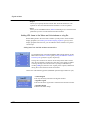
Finding items by name in the List window
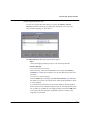
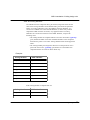
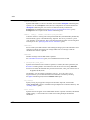
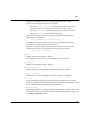
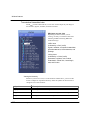
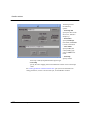
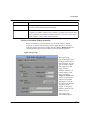
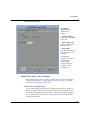
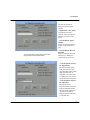
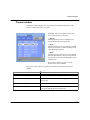
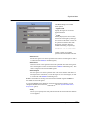
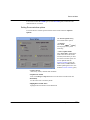
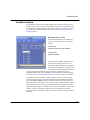
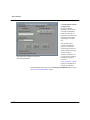
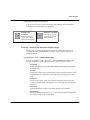
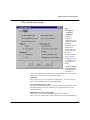
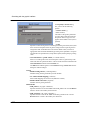
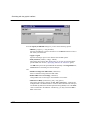
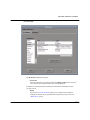
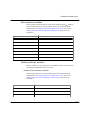
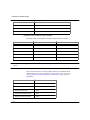
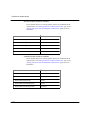
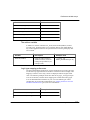
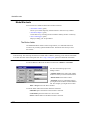
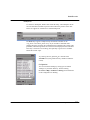
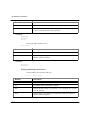
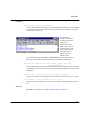
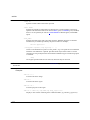
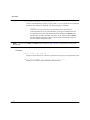
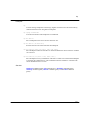
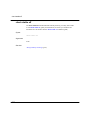
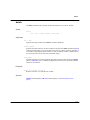
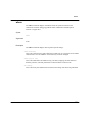
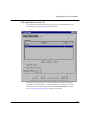
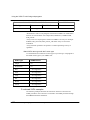
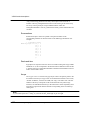
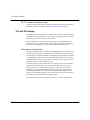
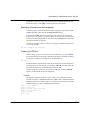
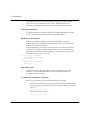
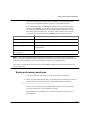
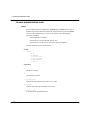
The Find dialog box allows you to search for text strings in the List window. From
the List window select Edit > Find to bring up the Find dialog box.
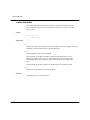
Enter an item label and Find it by searching
Forward (right) or Reverse (left) through the
List window display. The column number of
the item found displays at the bottom of the
dialog box. Note that you can change an item’s
label, see "Setting List window display
properties" (p135).
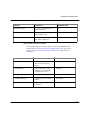
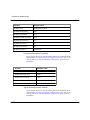
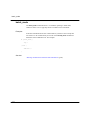
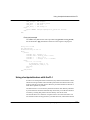
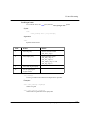
Searching for item values in the List window
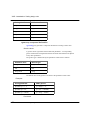
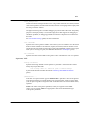
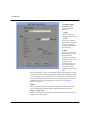
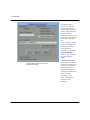
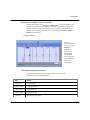
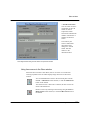
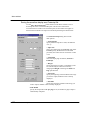
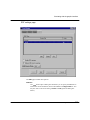
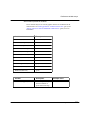
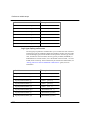
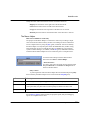
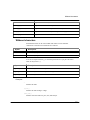
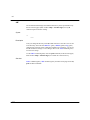
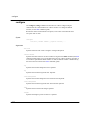
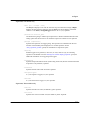
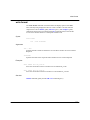
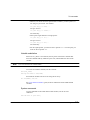
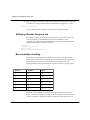
Select an item in the List window. From the List window menu bar select Edit >
Search to bring up the List Signal Search dialog box.
142
- ModelSim EE Graphic Interface
ModelSim EE/PLUS Reference Manual