1
TP-Link TL-WR702N - Configurations for QRS PNOmation II
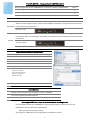
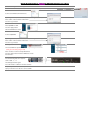
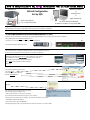
How to configure the TP-Link TL-WR702N from “Stand Alone” Mode to “Network Mode”
Page 2
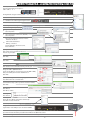
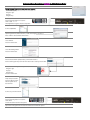
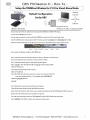
How to Configure the TP-Link TL-WR702N from Network to “Stand Alone” Mode
Page 3
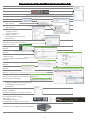
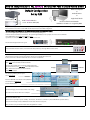
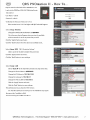
How to Configure the TP-Link TL-WR702N to Stand Alone Mode after a TP-Link Reset
Page 4
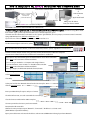
The TP-Link AND the PM II unit must be programmed to switch modes.
There is no connec on to the Internet. The user wirelessly connects to the TP‐Link (SSID = QRSPNO) and PM II delivers control on Google Chrome, or Safari, at the IP Address of 192.168.1.1. PM II and the users Wi‐Fi device Stand Alone communicate only with each other. #3 Light = Green
The TP‐Link is programmed to connect to the users home network. PM II is programmed to get an IP Address from the local router. The advantage is that the Wi‐Fi control device can be connected to the Internet and s ll control PM II. Network
#3 Light = Yellow
The TP‐Link will NOT connect to a 5GHz home router. Apple Products: iPad; iPhone and iTouch
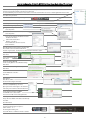
If you’re using an Apple device, use these steps in place of those on the following pages.
Set a Static IP on your device
A
Go to Settings then Wi-Fi
B
Connect to the “QRSPNO”
C
Touch the blue circle to the right of “QRSPNO”.
D
Select “Static”
E-G
H
Enter the following:
IP address: 192.168.0.5
Subnet mask: 255.255.255.0
Router: 192.168.0.254
DNS: 192.168.0.254
Repeat above and at “E” select “DHCP”.
Android Device
Se ngs / Wireless Networks / Wi‐Fi Se ngs / Connect to “QRSPNO” Press the more bu on and select Advanced. Select “Use Sta c IP” and enter the same numbers as for Apple products above. Please update PMII to the latest Driver version before switching modes.
Connect to PMII and click on the QRSPWR icon at upper right of display to see the current version..
Download the current Driver from the QRS website.
http://qrsmusic.com/support_pmii.asp
Copy update to a USB memory drive and plug drive into USB port on piano.
1