1
Using Your Tablet PC
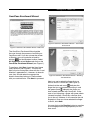
OmniPass Enrollment Wizard
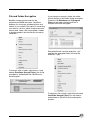
Figure 2: OmniPass Enrollment Wizard – User Name
& Password
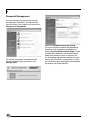
Figure 1: OmniPass Enrollment Wizard - Welcome
The OmniPass Enrollment Wizard guides
the user through the process of enrolling an
OmniPass user. If you do not see the screen
at Startup, you can invoke the wizard by
on the Windows taskbar; select
clicking
All Programs; select Softex and click on the
OmniPass Enrollment Wizard (see Figure 1).
To continue, click Start. Input the User Name
and Password (see Figure 2). The Domain
field is the local computer name with the “Local
Machine” appended to it. However, for domain
user, they should select the appropriate
domain name they belong to. Please check
with your administrator. Click Next to proceed.
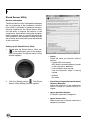
Figure 3: OmniPass Enrollment Wizard – Enrolling
with OmniPass
Next, you are to select the finger that you
wish to enroll in OmniPass (see Figure 3).
Notice that the red arrow
indicates the
finger that you are currently enrolling in and
the green check indicates the finger you
have already enrolled with OmniPass. In the
case of you choosing a finger with green check
(already enrolled), OmniPass software allow
you to en-roll. However, it will overwrite the old
fingerprint. Once you have selected the finger
to enroll, click Next.
You can click on the Practice button to practice
on the fingerprint enrolling especially for first
time users.
41