1
Create text for your name
You will add your name to the rounded rectangle. Later, you will change the name's font style
and size.
1.
In the toolbox, click the Text tool
.
2.
Click anywhere on the drawing page, and type your name.
3.
Click the Pick tool, and drag the text to the center of the rectangle. Later, you will
center the text in the rectangle more precisely.
Next, you will change the outline width of the rectangle by using another CorelDRAW 10 tool:
the property bar.
Use the property bar to edit the rectangle
The property bar lets you make changes to a drawing quickly. Because property bars are
context-sensitive, their contents change depending on the tool you select to perform a task. For
example, when you click the Rectangle tool, the property bar displays boxes and buttons that
let you change the size of rectangles.
The property bar lets you set the properties of the selected object with precision. For example,
you can set the amount of roundness of a rectangle's corners.
In the procedure below, you will change the outline width of the rectangle by using the
Rectangle's property bar.
Change the outline w idth
1.
In the toolbox, click the Pick tool.
2.
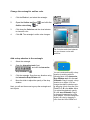
Click the rectangle. Unless you move it, the property bar is located at the top of your
screen, just below the Standard toolbar.
3.
On the property bar, choose 8 pt size from the Outline width list box
The outline width changes.
.
3