1
User Manual
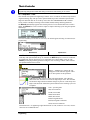
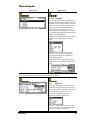
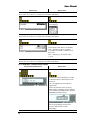
Task Tab Screens
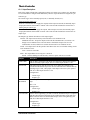
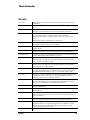
Options Screens
or
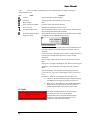
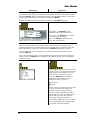
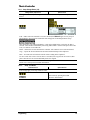
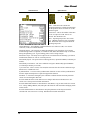
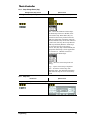
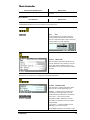
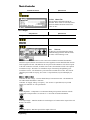
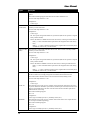
Name – Name the Task to define the
operation performed (15 character maximum).
Use the up/down arrows for letters or use the
numeric keypad.
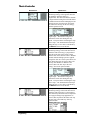
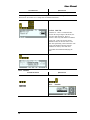
Batch Count – This is the number of fasteners
the Job is required to count. Zero is not
allowed. The maximum is 99.
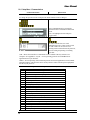
Units – Operating torque units. See section
2.8.1.1 Wizard Screens for a list of available
units. Each Task can be assigned a different
operating torque unit.
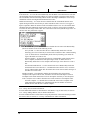
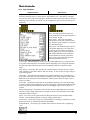
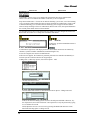
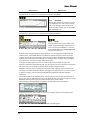
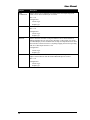
Thread Direction – For tightening a right hand fastener use clockwise (CW). Use counterclockwise (CCW) for left hand fasteners.
Threshold Torque – The torque level during the tightening cycle when the In Cycle Output
transitions high. Data is not printed, or available to eTB, unless Threshold Torque is exceeded
during the tightening cycle. A good starting point is 20% of Target Torque.
Statistical Torque – The torque level required to be exceeded before the fastening cycle data is
included into Statistics or sent via a network protocol.
Disassembly Speed – The speed of the tool during (Reverse) operation in RPM (revolutions per
minute).
Disassembly Acceleration – The rate at which the tool gets to Disassembly Speed in RPM/s
(revolutions per minute per second).
Cycle Lock-Out – This is a timer, in seconds, that activates after the tool has reached its target.
While active, it disables the tool.
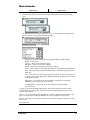
Synchronization – Yes turns on the synchronization function. No turns off the synchronization
function. Inputs and Outputs are required to support this function.
Modified – A value that is changed by the controller to indicate the date and time parameter
values were last changed in this Task.
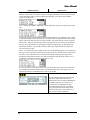
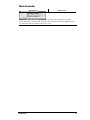
Press the EXIT interactive menu button to save changes and return to the Run screen. See
section 2.8.1.7 Setup: Exit for further information.
Press the MANAGE interactive menu button to Add, Delete, Copy or Paste Tasks. See section
2.8.1.3 Setup: Manage Button (Job) and replace the word Job with Task when managing Tasks
in this section.
Press the STEP interactive menu button to setup the parameters of the Step(s) inside the
selected Task. See section 2.8.1.4 Setup: Task Button for further information.
20