1
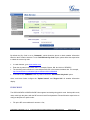
make direct IP calls using only the last few digits (last octet) of the target phone's IP address. This is possible only if both phones are under the same LAN/VPN. This simulates a PBX function using the CSMA/CD without a SIP server. Controlled static IP usage is recommended. To enable Quick IP Call Mode, go to phone's Web GUI->Settings->Call Features, set "Use Quick IP Call Mode" to "Yes". Click on "Save and Apply" on the bottom of Web GUI page to take the change. To make Quick IP Call, take the phone off hook first. Then dial #xxx where x is 0-9 and xxx<255. Press # or SEND and a direct IP call to aaa.bbb.ccc.XXX will be completed. "aaa.bbb.ccc" is from the local IP address regardless of subnet mask. The number #xx or #x are also valid. The leading 0 is not required (but it's OK). For example: 192.168.0.2 calling 192.168.0.3 -- dial #3 followed by # or "SEND"; 192.168.0.2 calling 192.168.0.23 -- dial #23 followed by # "SEND"; 192.168.0.2 calling 192.168.0.123 -- dial #123 followed by # "SEND"; 192.168.0.2: dial #3 and #03 and #003 results in the same call -- call 192.168.0.3. Note: The # will represent colon ":" in direct IP call rather than SEND key as in normal phone call; If you have a SIP server configured, direct IP call still works. If you are using STUN, direct IP call will also use STUN; Configure the "User Random Port" to "No" when completing direct IP calls. ANSWERING PHONE CALLS RECEIVING CALLS Single incoming call. Phone rings with selected ring tone. The corresponding LINE key will flash in red. Answer call by taking handset off hook, or using Speaker/Headset, or pressing the flashing LINE key; Multiple incoming calls. When another call comes in while having an active call, the phone will produce a Call Waiting tone (stutter tone). The other LINE key will flash in red. Answer the incoming call by pressing the flashing LINE key. The current active call will be put on hold automatically. DO NOT DISTURB Do Not Disturb can be enabled/disabled from phone's LCD. For GXP2120/GXP2110, press the DND button on the phone when the phone is in idle. For GXP14xx, press the MUTE button for DND function FIRMWARE VERSION 1.0.6.11 GXP2120/GXP2110/GXP2100/GXP14xx USER MANUAL Page 31 of 81